In This Article
- Overview
- Collect a deposit on a quote
- Collect a payment on an invoice
- How to view and email the receipt in the Jobber app
- What do payments collected in the app look like on Jobber.com?
Overview
Get paid up to 4x faster when you offer your clients an online payment option, and securely save cards on file for future payments with Jobber Payments. Learn more.
If you are at your client’s property and they are ready to pay their quote deposit or invoice; you can charge their card right in the field through Jobber Payments. To process their payment, you can:
- Collect payment by entering the card details manually
- Use the Jobber card reader to tap, swipe, or insert their card
- Record an offline method of payment like cash or check
Jobber Payments can process all major debit and credit cards.That means as long as the card has a Visa, Mastercard, Amex, or Discover logo on it you can accept the card. When paying through client hub, clients can also choose to pay with Apple Pay or Google Pay. With Jobber Payments the minimum payment is $0.50.
Jobber Payments is available in the UK, US, and Canada.
Steps to collect a deposit on a quote
Steps to collect a payment on an invoice
Collect a deposit on a quote
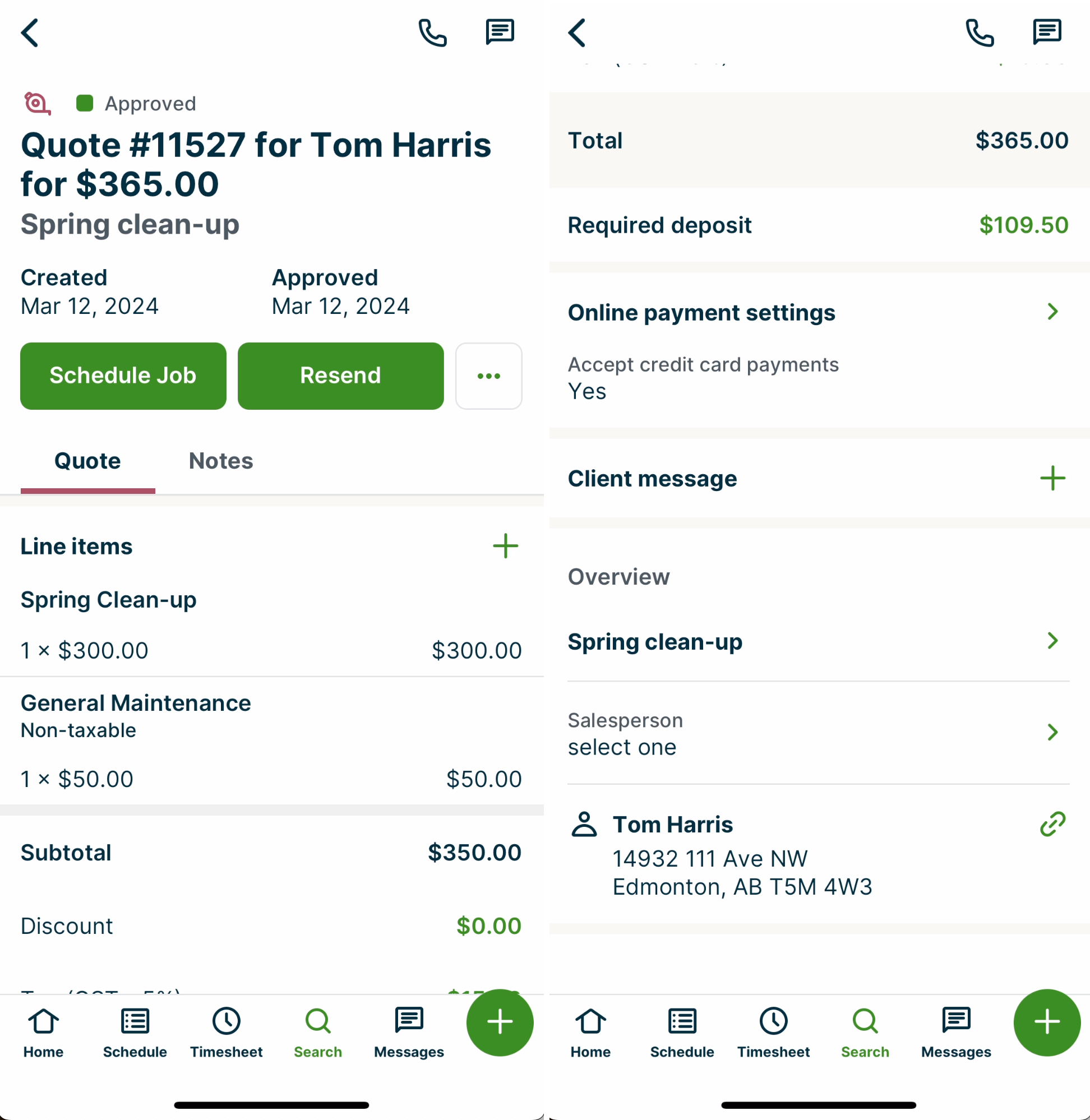
To collect a deposit on a quote using the Jobber app, navigate to the quote the deposit will be for, then tap Approve.
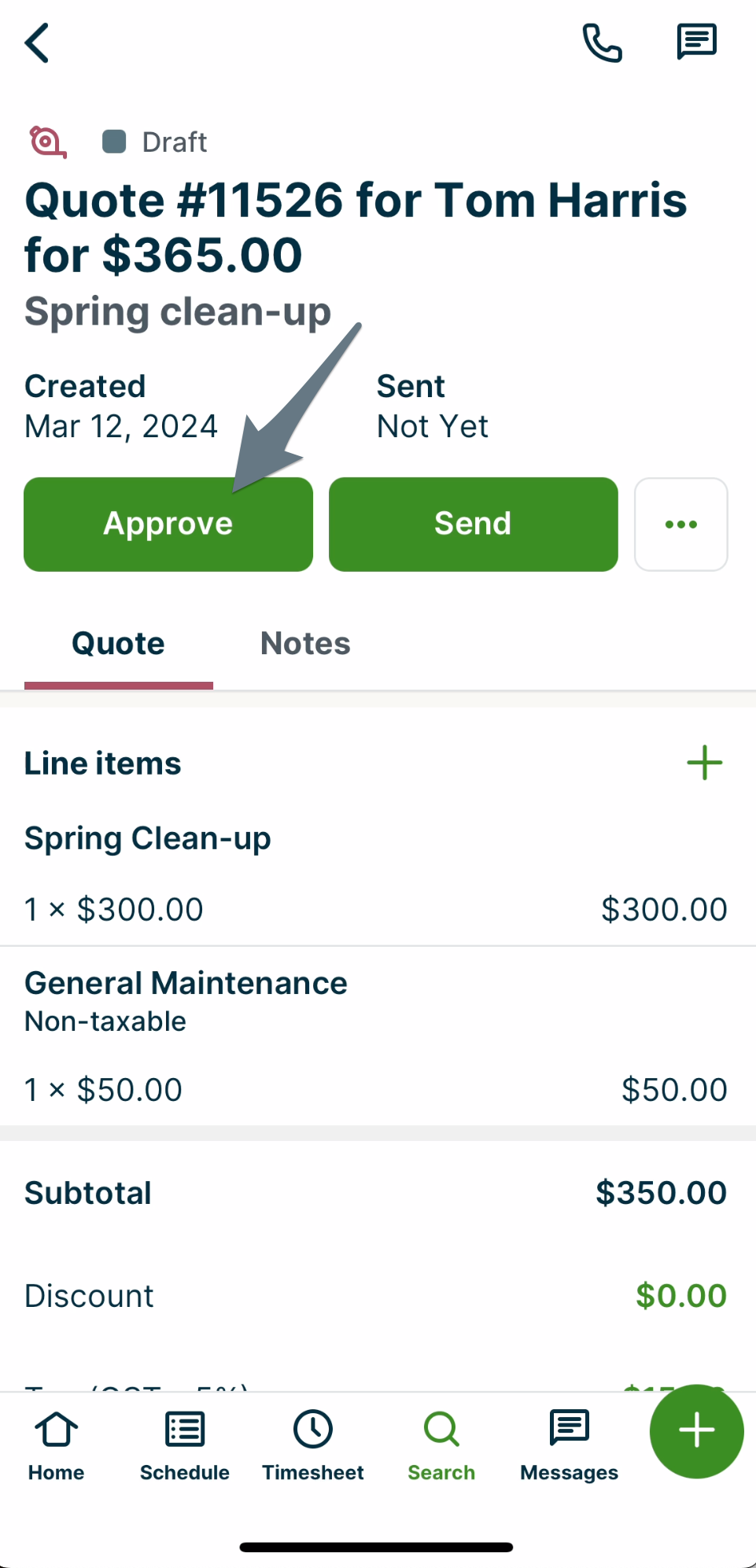
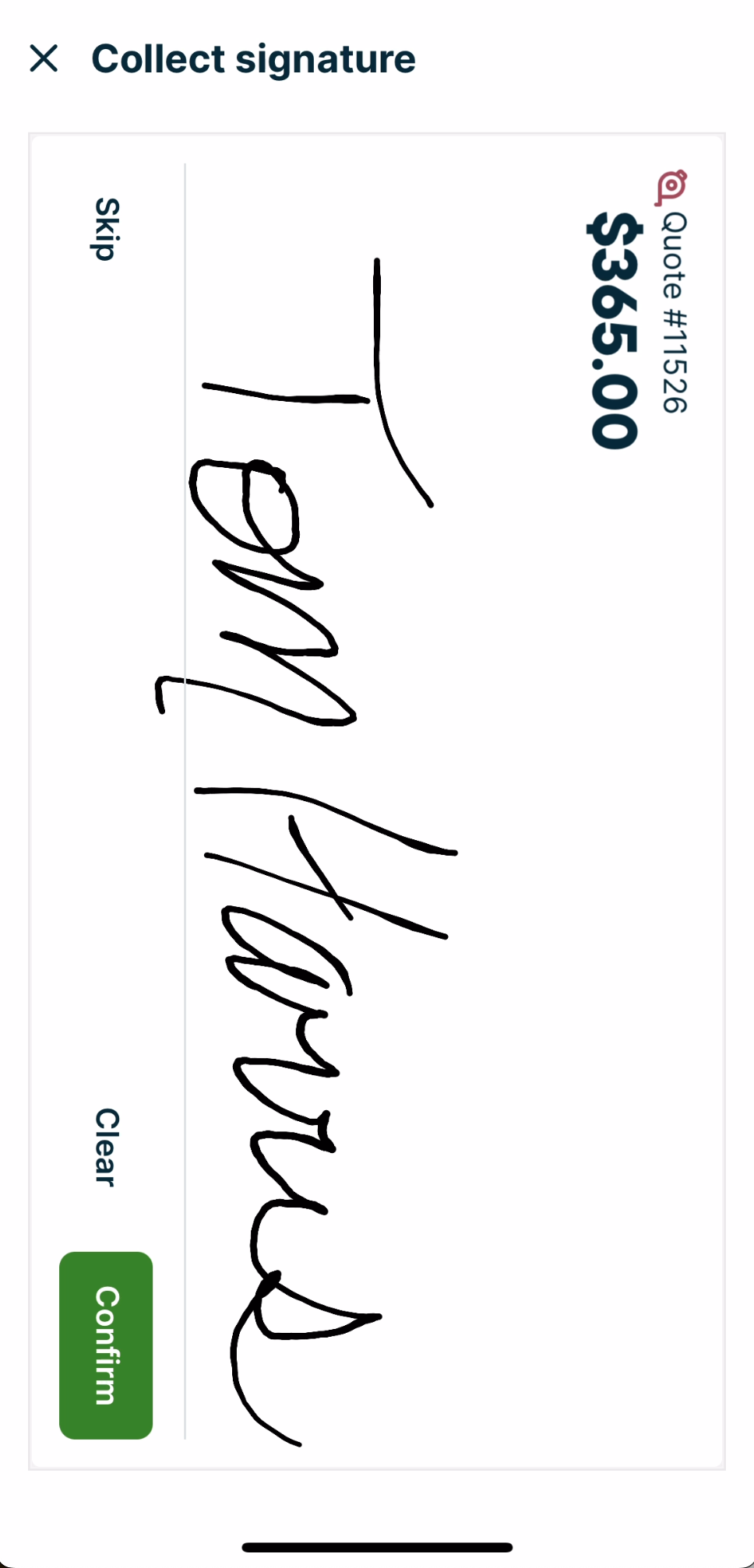
On quotes, there is the step of approving the quote before the payment is made. After tapping Approve, you’ll be prompted to collect a signature first as part of the quote approval process. This will bring up a signature screen where the client can draw to sign to approve the quote. Then tap Confirm. The collected signature will appear on the quote PDF and be saved as a note.
If you don’t require a signature, tap Skip at the bottom of the screen.
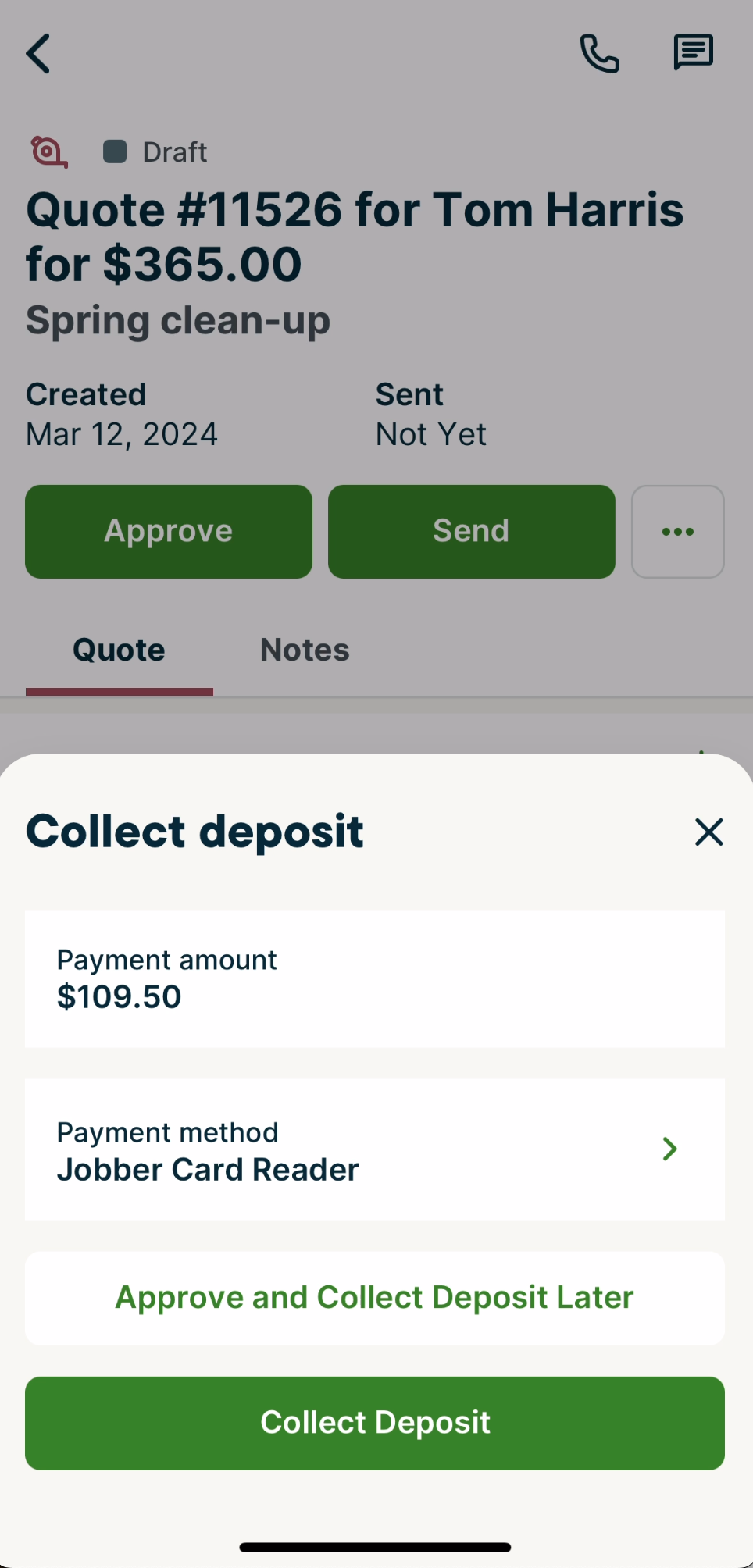
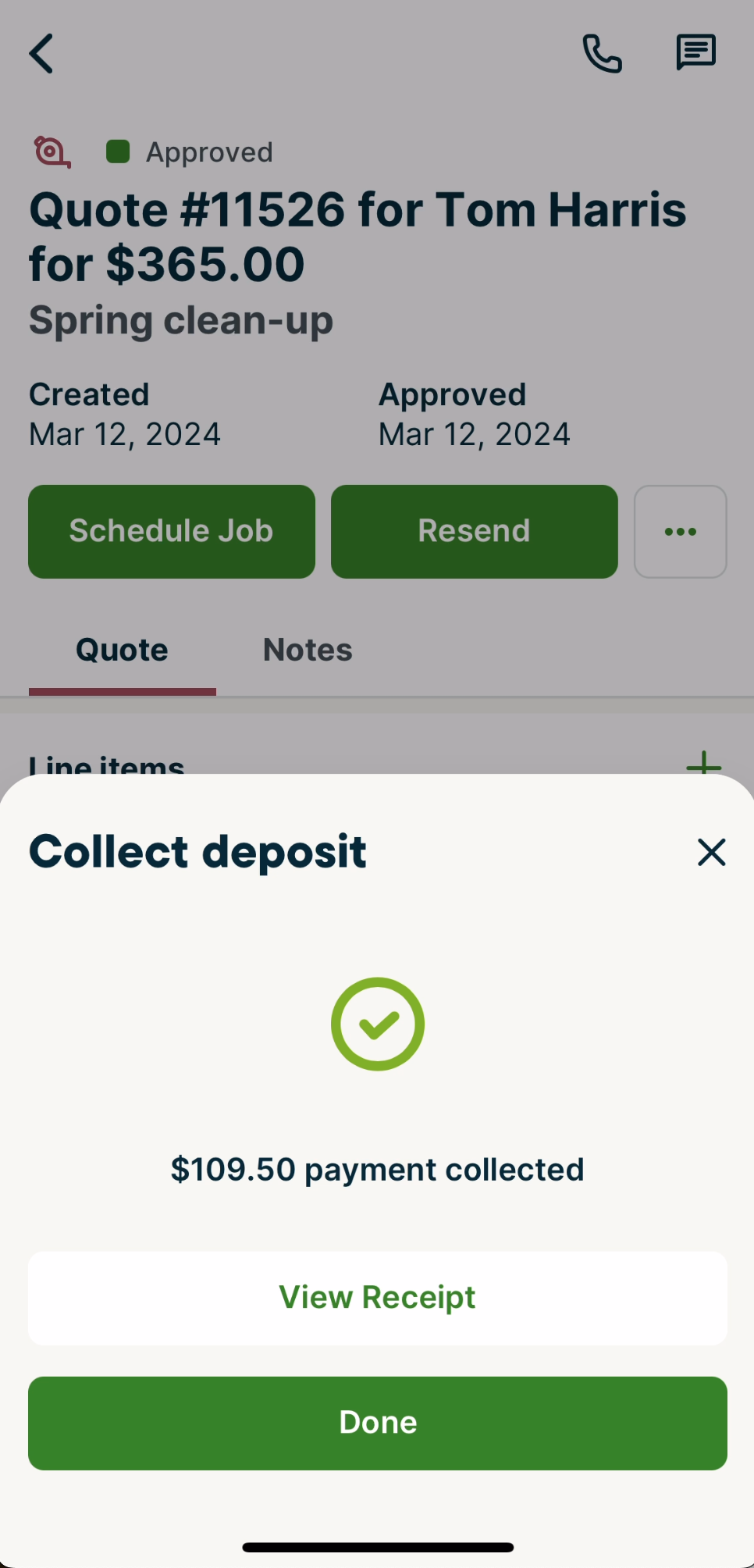
Next, for quotes you’ll see the Collect deposit screen. The deposit amount will already be entered with the amount of the required deposit. Select the client’s payment method by tapping Select from the payment method field.
There are several payment method in the Jobber app for deposits on quotes:
- Credit card or bank account (through Jobber Payments)
- If the client has any saved cards on file, select from those cards rather than entering the card details manually.
- To charge a new card, select Add new card to enter card details and charge the client’s card through Jobber Payments. To save the card for future use, enable the toggle for Keep this card on file.
- Jobber card reader
- We also offer a Card Reader which allows your clients to pay via Apple or Google Pay as well as by credit card. With the card reader we are also able to offer at 0.2% discount on your credit card fees for transactions processed through the card reader.
- Offline payment methods – These are payments that you’ve collected outside of Jobber. You are not charging the client through Jobber with these payment methods, instead this is a record that you’ve collected these funds. After entering your offline payment method, to add any other information (such as the date, check number, etc) tap the Details field.
- Cash
- Check
- Bank transfer
- Credit card (processed outside of Jobber, such as with a point of sale machine)
- Cash App
- PayPal
- Venmo
- Zelle
- E-Transfer (this option is available in Canada)
- Other
To charge the client’s card, tap Collect Deposit.
How to approve a quote without paying a deposit
To skip collecting a deposit in the Jobber app, tap Approve and collect deposit later. This will put the quote into “Approved” status, however the deposit won’t be paid.
Collect a payment on an invoice
To collect a payment on an invoice with the Jobber app, navigate to the invoice the payment will be for, then select Collect Payment.
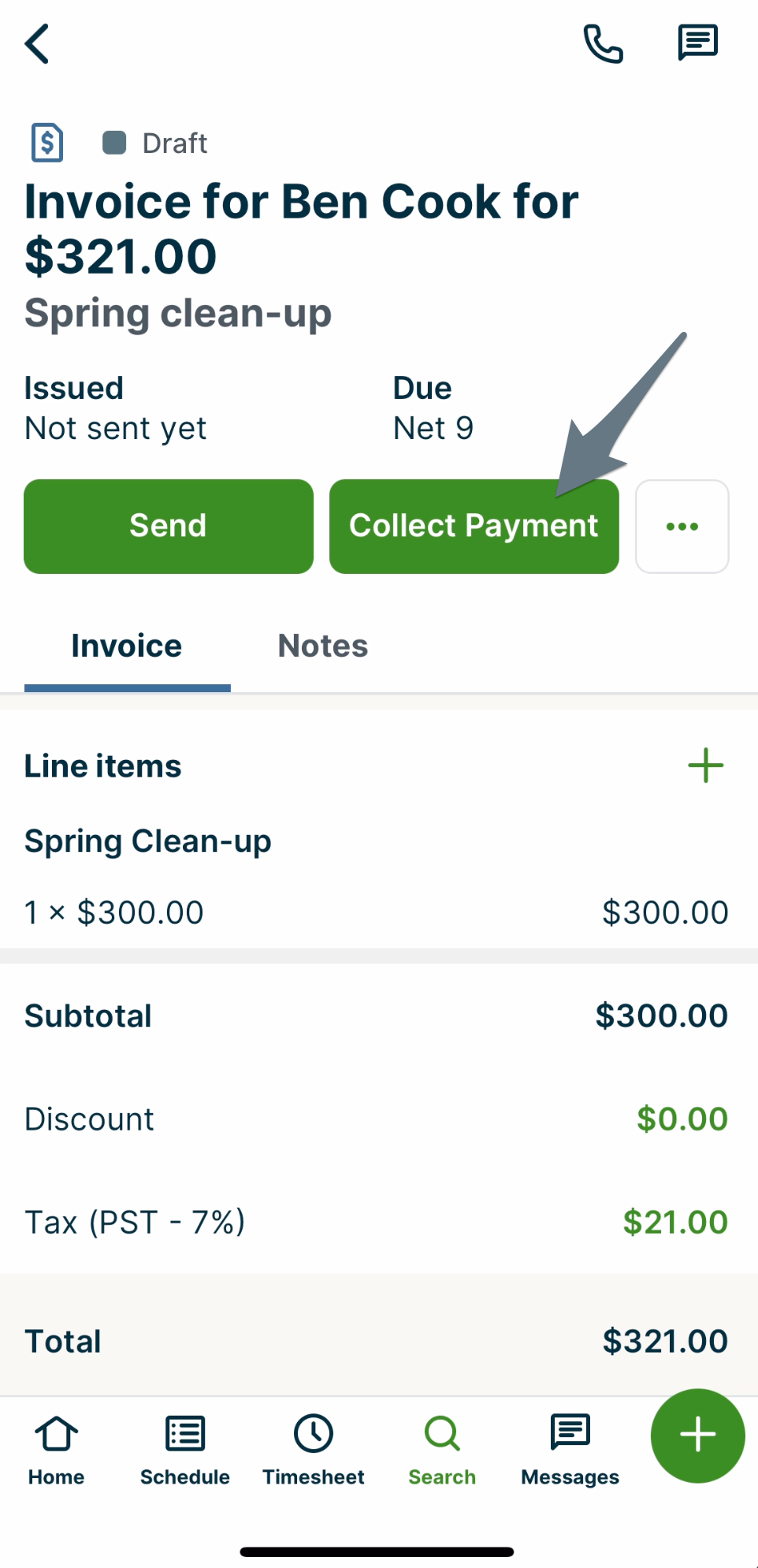
After selecting the Collect Payment button on an invoice, you will be prompted to enter the payment details, including the:
- Payment amount - this will be the full invoice balance by default, but if you’d like to collect a partial payment, it can be edited so that you are only charging the client the partial amount.
- Payment method
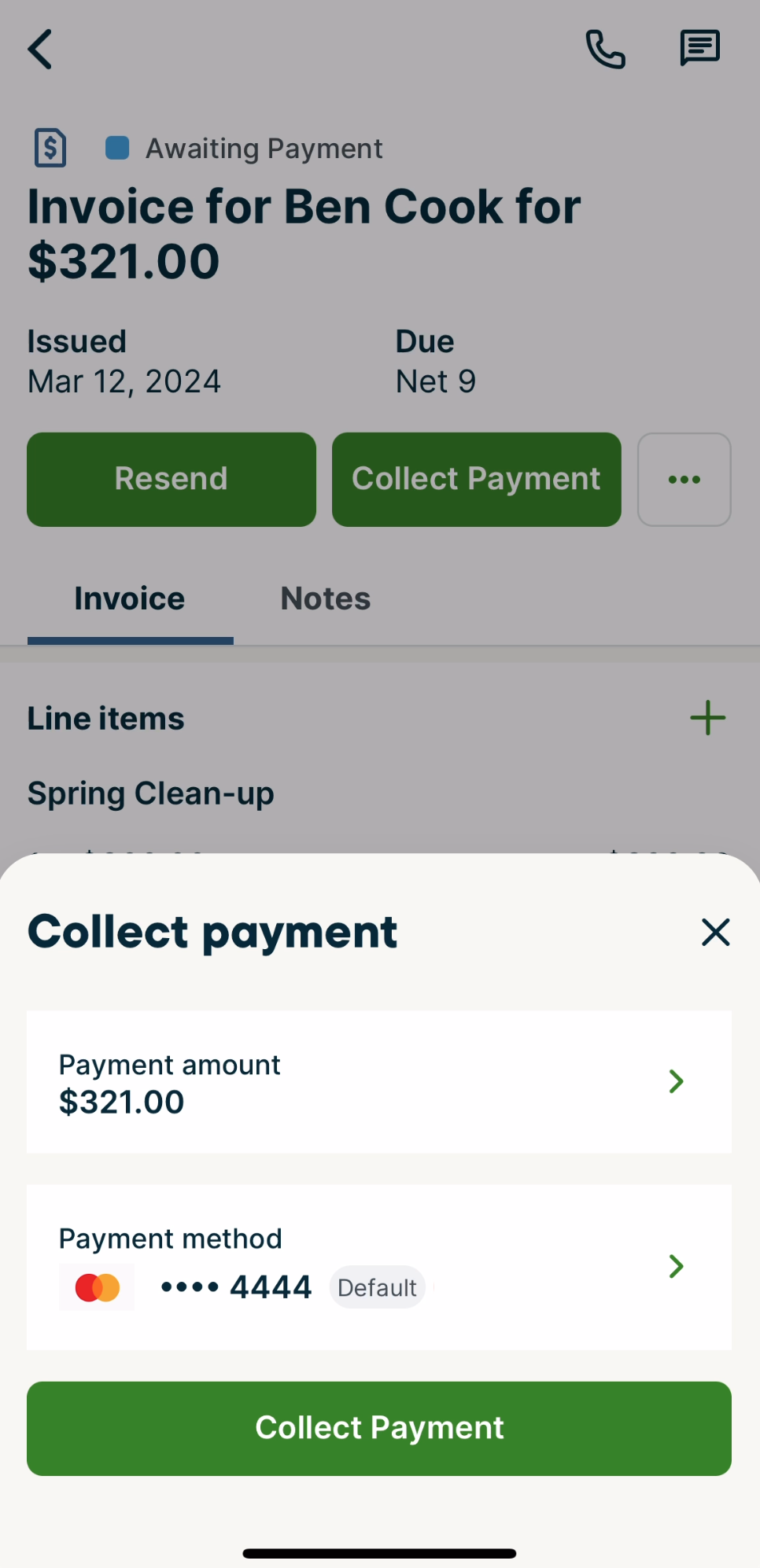
There are several payment methods in the Jobber app for invoices:
- Credit card or bank account(through Jobber Payments)
- If the client has any saved cards on file, select from those cards rather than entering the card details manually.
- To charge a new card, select Add new card to enter card details and charge the client’s card through Jobber Payments. To save the card for future use, enable the toggle for Keep this card on file.
- Jobber card reader
- We also offer a Card Reader which allows your clients to pay via Apple or Google Pay as well as by credit card. With the card reader we are also able to offer at 0.2% discount on your credit card fees for transactions processed through the card reader.
- Offline payment methods – These are payments that you’ve collected outside of Jobber. You are not charging the client through Jobber with these payment methods, instead this is a record that you’ve collected these funds. After entering your offline payment method, to add any other information (such as the date, check number, etc) tap the Details field.
- Cash
- Check
- Bank transfer
- Credit card (processed outside of Jobber, such as with a point of sale machine)
- Cash App
- PayPal
- Venmo
- Zelle
- E-Transfer (this option is available in Canada)
- Other
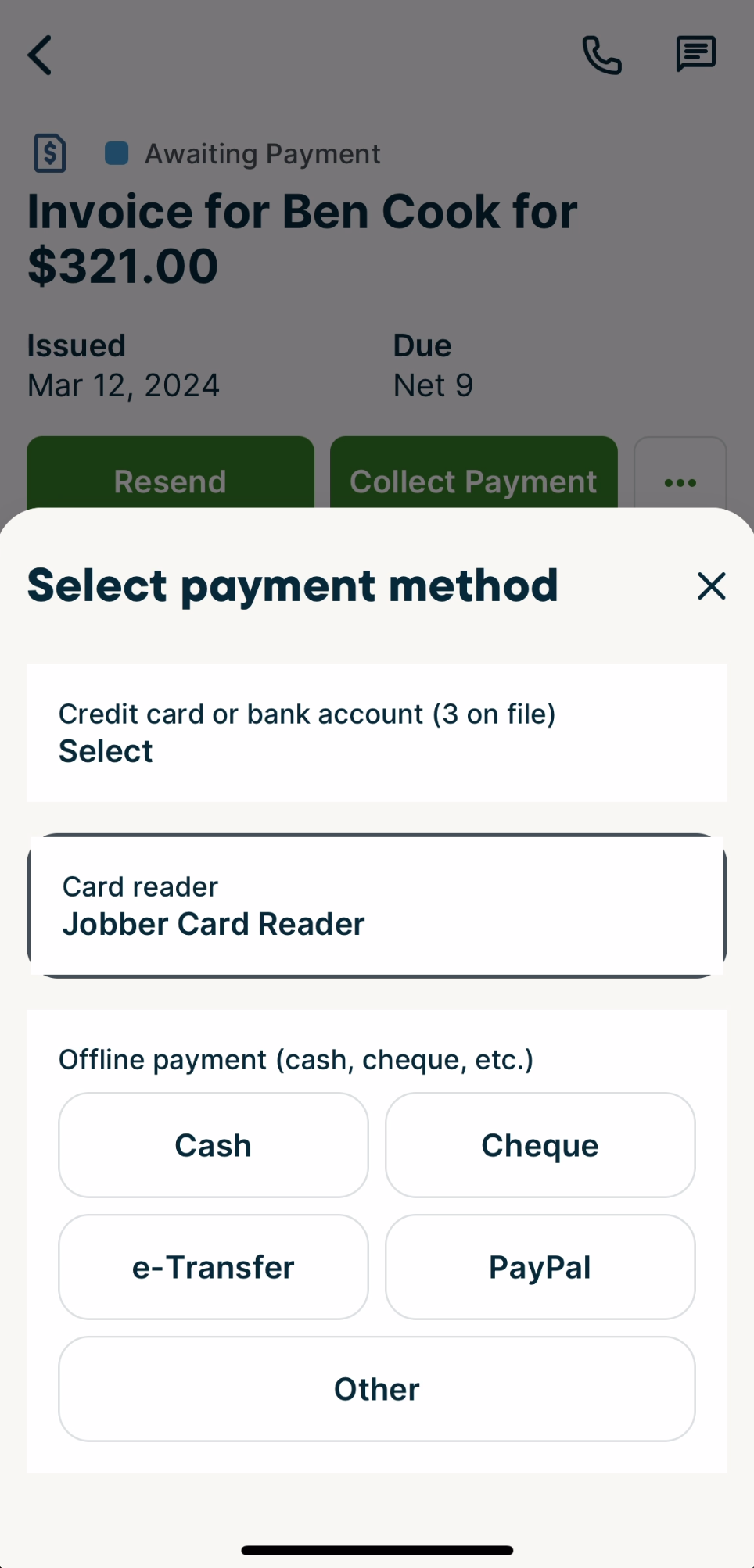
The transaction will be processed and you will be given a confirmation message when the transaction is successful. If there are any errors and the transaction cannot be processed, you will see a message letting you know that it didn’t go through.
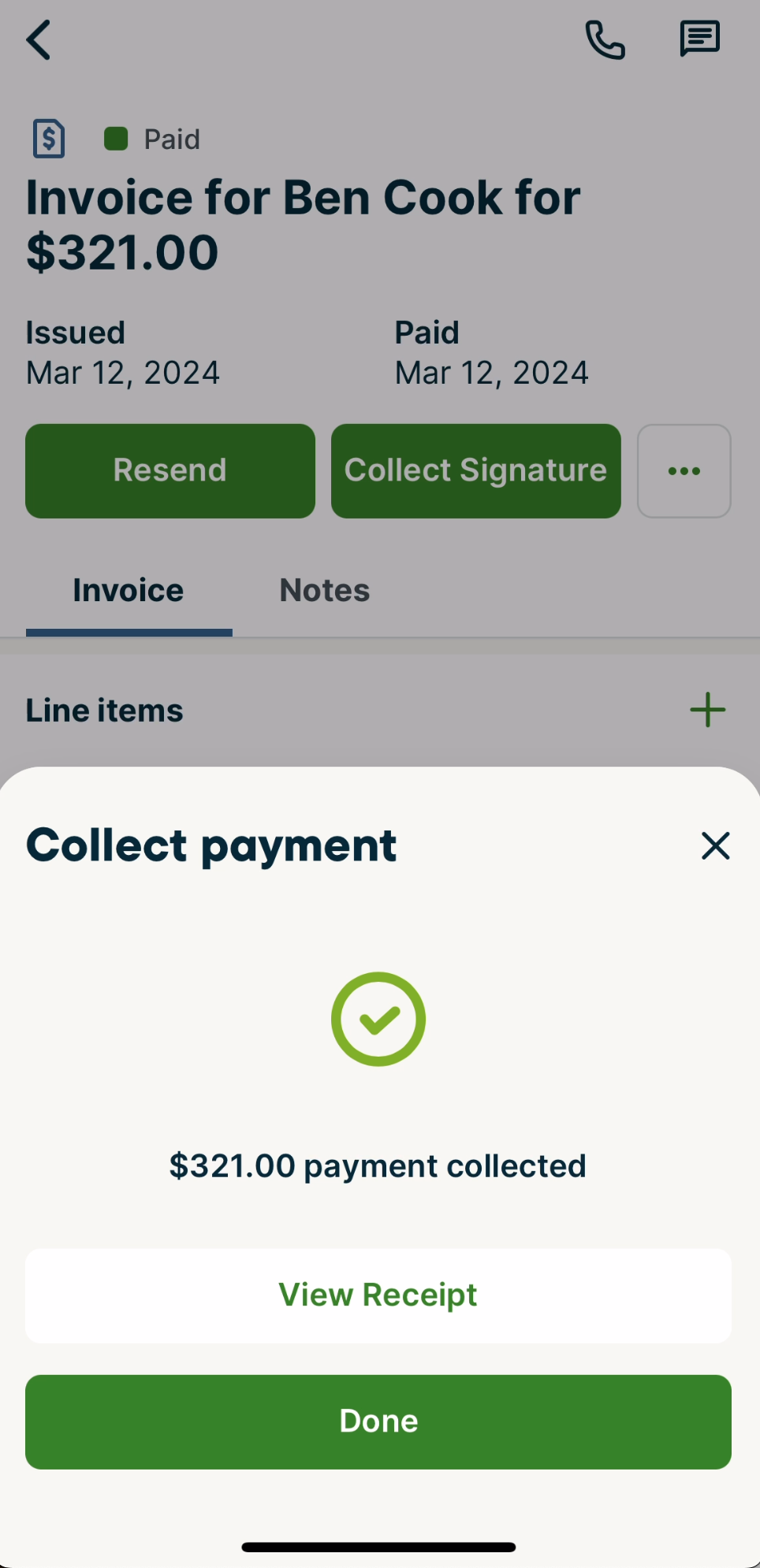
How to view and email the receipt in the Jobber app
For both quote deposits and invoice payments, on the confirmation screen there will be a button to View Receipt.
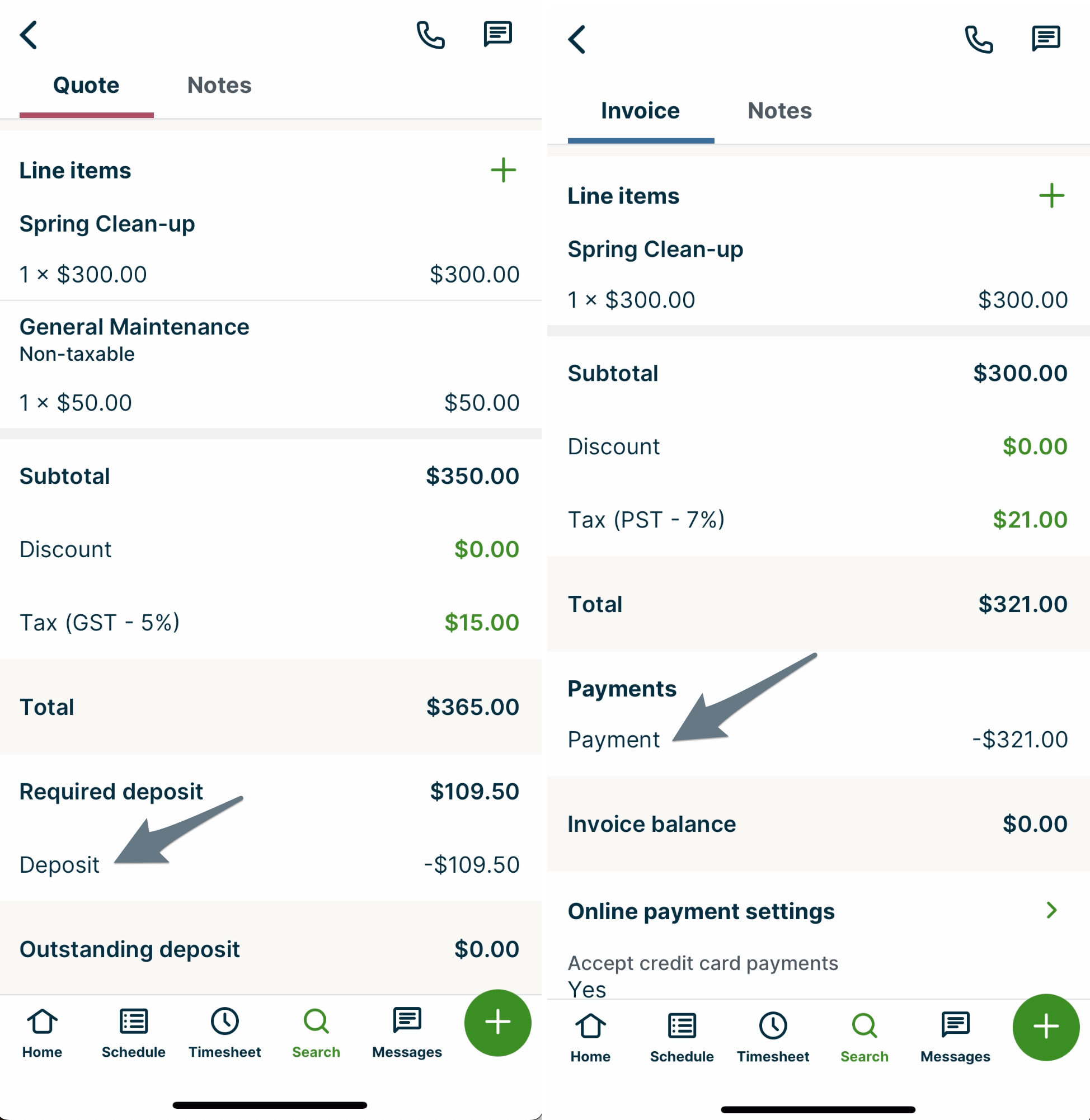
If you navigate away from the confirmation, to view collected payments, scroll down to the Total section of the quote or invoice. When a payment or deposit has been collected, it will be reflected here. Tap the Deposit (on quotes) or Payment (on invoices) to open the receipt.
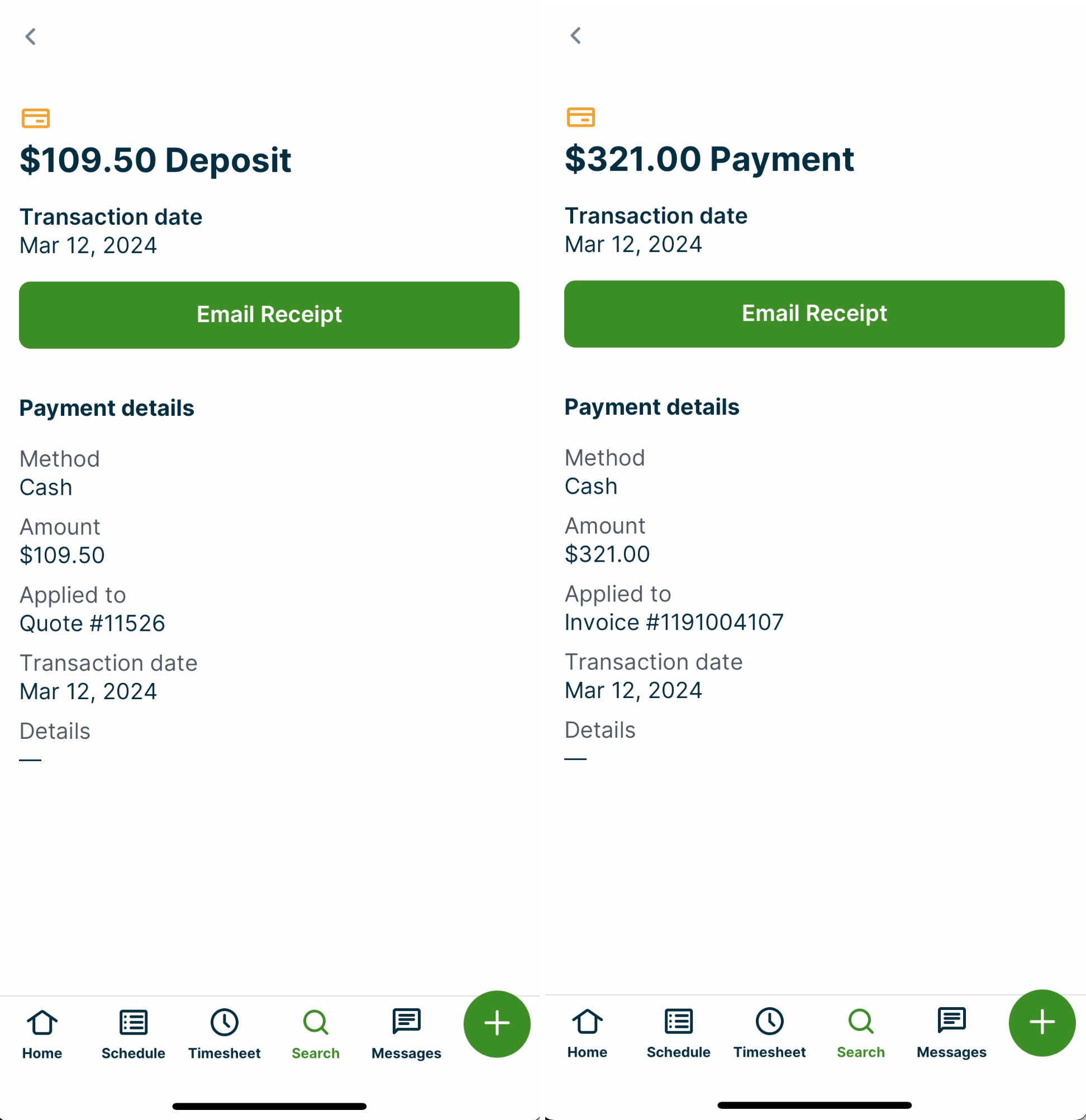
From the receipt, tap Email receipt to send your client a copy of the receipt.
Note: In Jobber.com, from the Gear Icon > Settings > Jobber Payments, there is a setting for Email my client a receipt after every successful payment or refund. When this is turned on, your clients will automatically receive a receipt when paying with Jobber Payments.
Your clients are able to see their payment receipts in client hub, so if they need a record of this receipt in the future, they can download or print it from client hub.
Learn more about What Your Clients See in Client Hub.
What do payments collected in the app look like on Jobber.com?
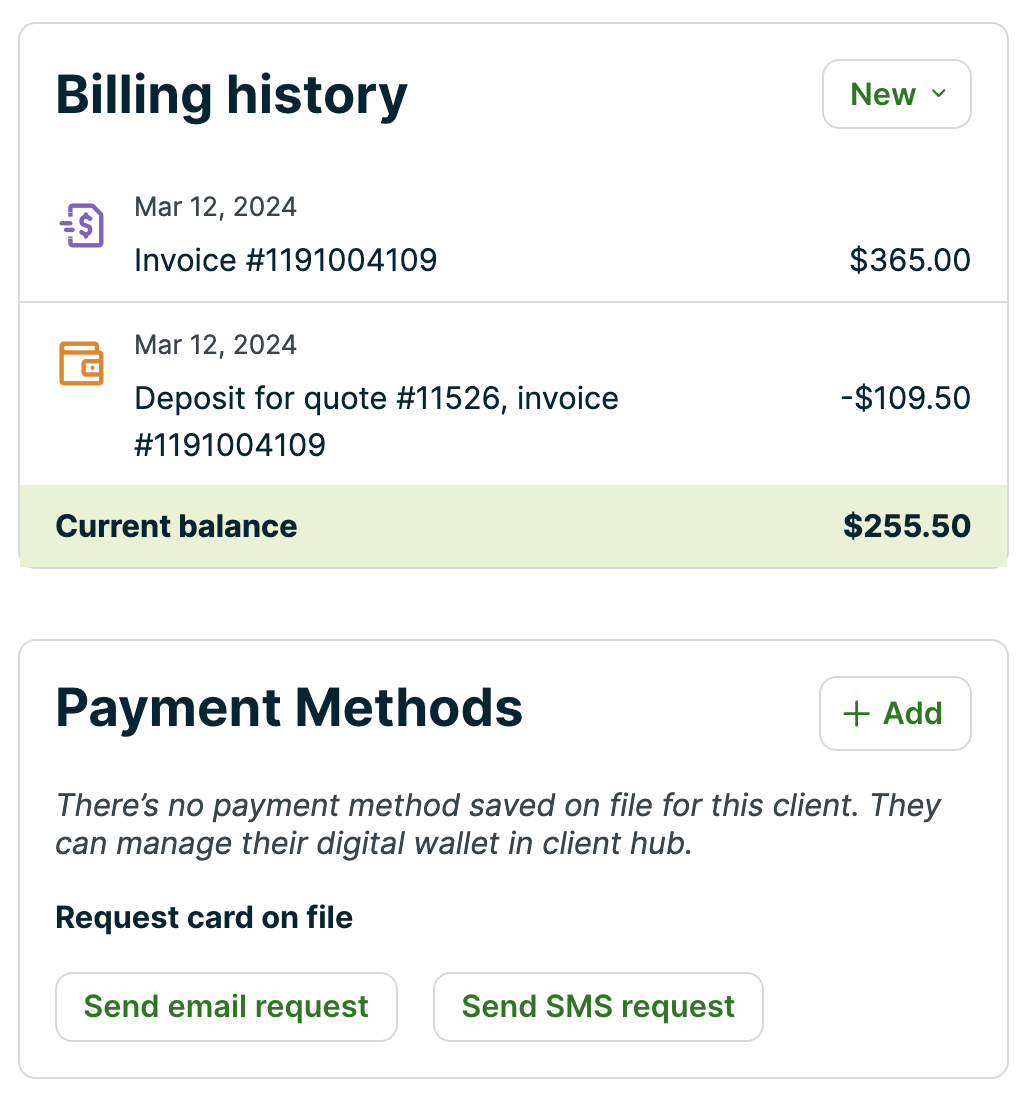
From Jobber.com, anything that changes the client’s account balance is reflected in the Billing History Box on their profile. Reflected here are:
- Quote deposits
- Invoices
- Payments
- Refunds
Once a client fully pays the balance on an invoice, it will be marked as paid. If the client has paid a deposit on a quote, the deposit will appear on their account balance until it is later added to an invoice.
If your client paid through Jobber Payments and you selected the option to Keep this card on file, it will be added to the client’s Payments Methods box, located underneath their billing history. Payments taken via the card reader will not appear as a stored payment method.