
In This Article
- Overview
- Set up your website
- Customize website content
- Publish your website
- Adjust your Google Business Profile settings
Overview
Make it easy for customers to find your business and explore your services with a simple, professional website you can set up in minutes.
Included with your Jobber plan subscription, Jobber can generate a website for your business so that your customers have an always-on way to find and contact your business. This is done directly in Jobber.com so the setup is quick and easy and you don’t need to find a third-party web developer. Your website will be set up for you to accept requests from clients and leads alike.
Website availability
A website is available on select plans. View our current pricing plans.
Note: A website can be generated while in trial, but it cannot be published until you select a plan. Your website will stay online as long as you have an active Jobber subscription.
To check what plan you’re on, navigate to the Gear Icon > Account and Billing. If you have any questions about your plan’s features or pricing, our support team is here to help!
Set up your website
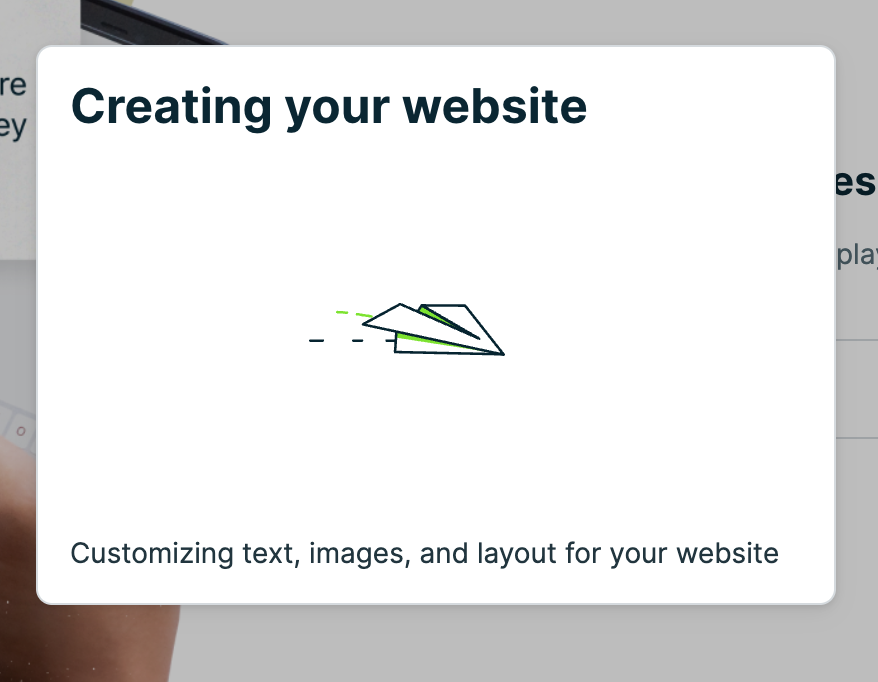
To set up your business’s website, navigate to Marketing > Website from the side navigation. From the landing page, select Create Website.
Note: Only admin users can generate and publish websites.
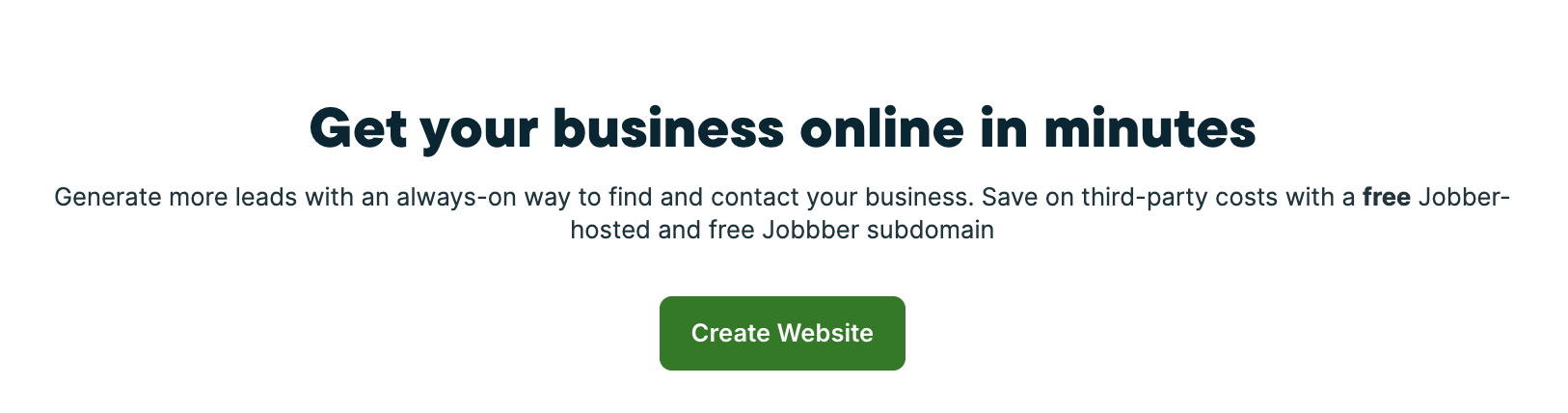
There are two steps in setting up your website. The first step is to enter a description of what sets your business apart from your competitors. This description will be used to create your website, but this exact wording won’t be used. The description you enter here can be changed in the future.
Once you’ve entered your description, select Continue.
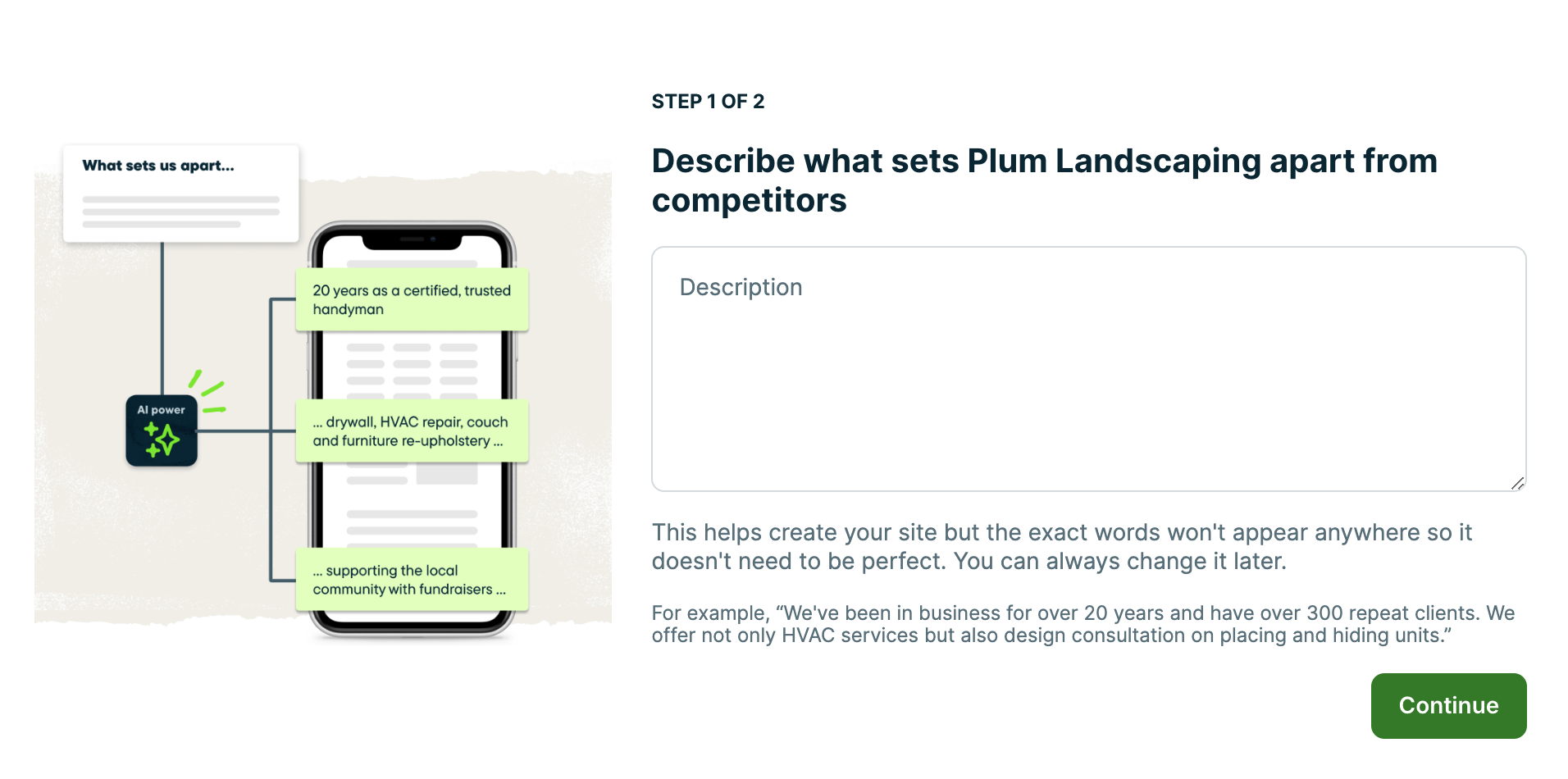
The second step is adding your Google Business Profile so that your website can display your reviews. Type your company name into the search bar and select it from the list. Next, select Create Website.
Note: The reviews portion of your website will only be available if you have a physical address listed in your Google Business Profile. Service areas are not supported. Your Google Business Profile does not need to be verified to link to your website.
If you don’t have a company profile, select “No company profile” from the drop down menu, or select the button to Skip and Create Website.
Now that your business description and Google Business Profile are added, your website will take a moment to generate.
Once ready, you’ll see a preview of your new website based on the information you entered during the set up. This is just a preview, your website will not be online until you publish it. If there is anything you’d like to tweak to better reflect your business, your website can be customized.
To preview how your website looks on different devices, use the toggle at the top of the website page to switch between Mobile and Desktop.
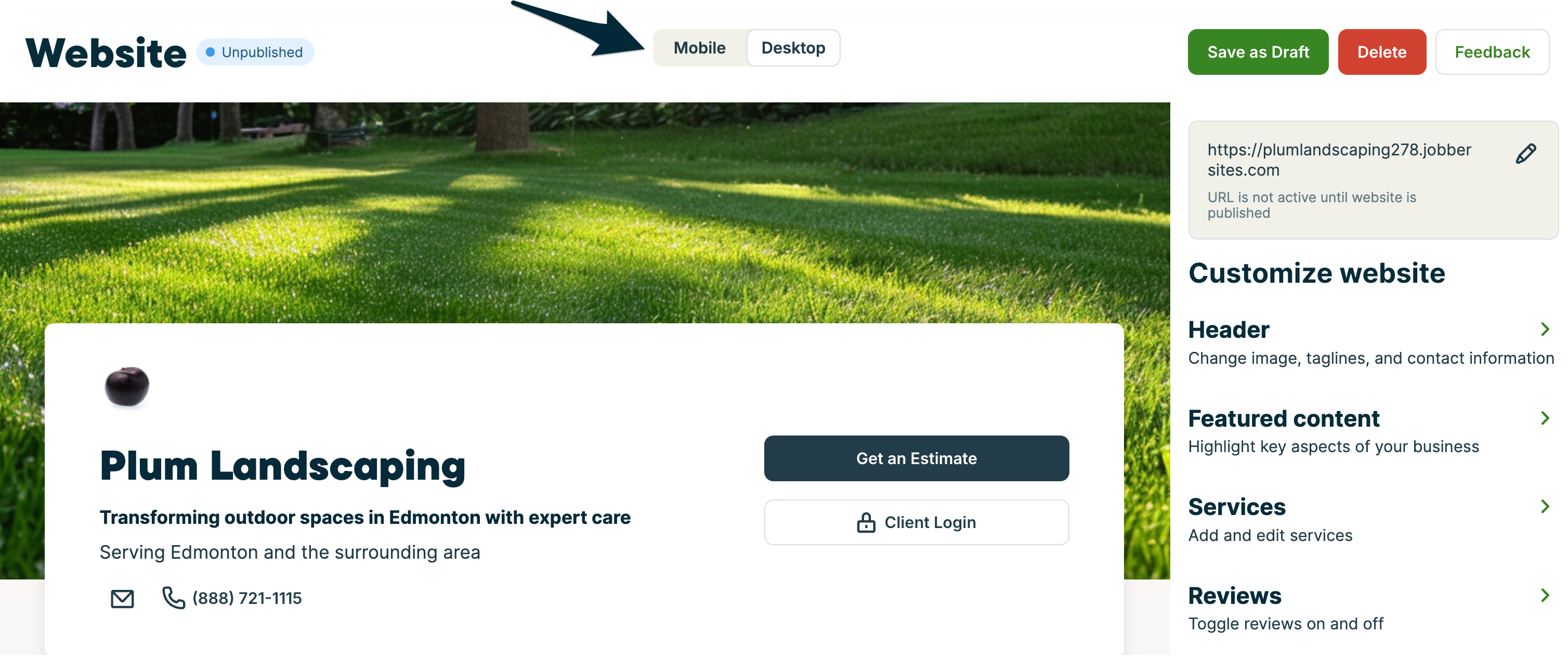
By default, your website will include:
- A header, with:
- Your company’s name and logo
- A button for existing clients to log into client hub
- A header image (in the example below, it’s the lawn image)
- Tagline (in the example below, “transforming outdoor spaces in Edmonton with expert care”)
- Service area
- Contact information - this is populated from your Company Settings, including buttons to:
- Get an estimate (this links to your request form)
- Call
- Featured content - In the website example below, these are the headings for “Design Consultation”, “HVAC Services”, “Lawn Maintenance”, and “Outdoor Design”.
- This section includes an image
- Services
- Reviews (optional)
- About Us, including:
- a description of your company
- an image
- Frequently asked questions (optional)
- Get an estimate - this is a section with an embedded request form
- Footer including your:
- Company name
- Link to your request form
- Phone number
- Email address
- Icons that link to your socials - these are populated from your branding settings
A note about images
Images used on your website must be under 5MB and a .png, .jpg, or .jpeg file type.
There are no specific dimension requirements for your images as they’re all dynamically sized based on the device your website is viewed on.
For the header image, a best practice is having the content you want to highlight at the top of the image so that it’s not covered by the card with your company’s name.
We recommend that your images do not include text, as that can hurt your website’s SEO score due to accessibility concerns.

Customize website content
To customize your website content, navigate to Marketing > Website from the side navigation. On this page, there is a preview of your website with customization options along the right side of the page.
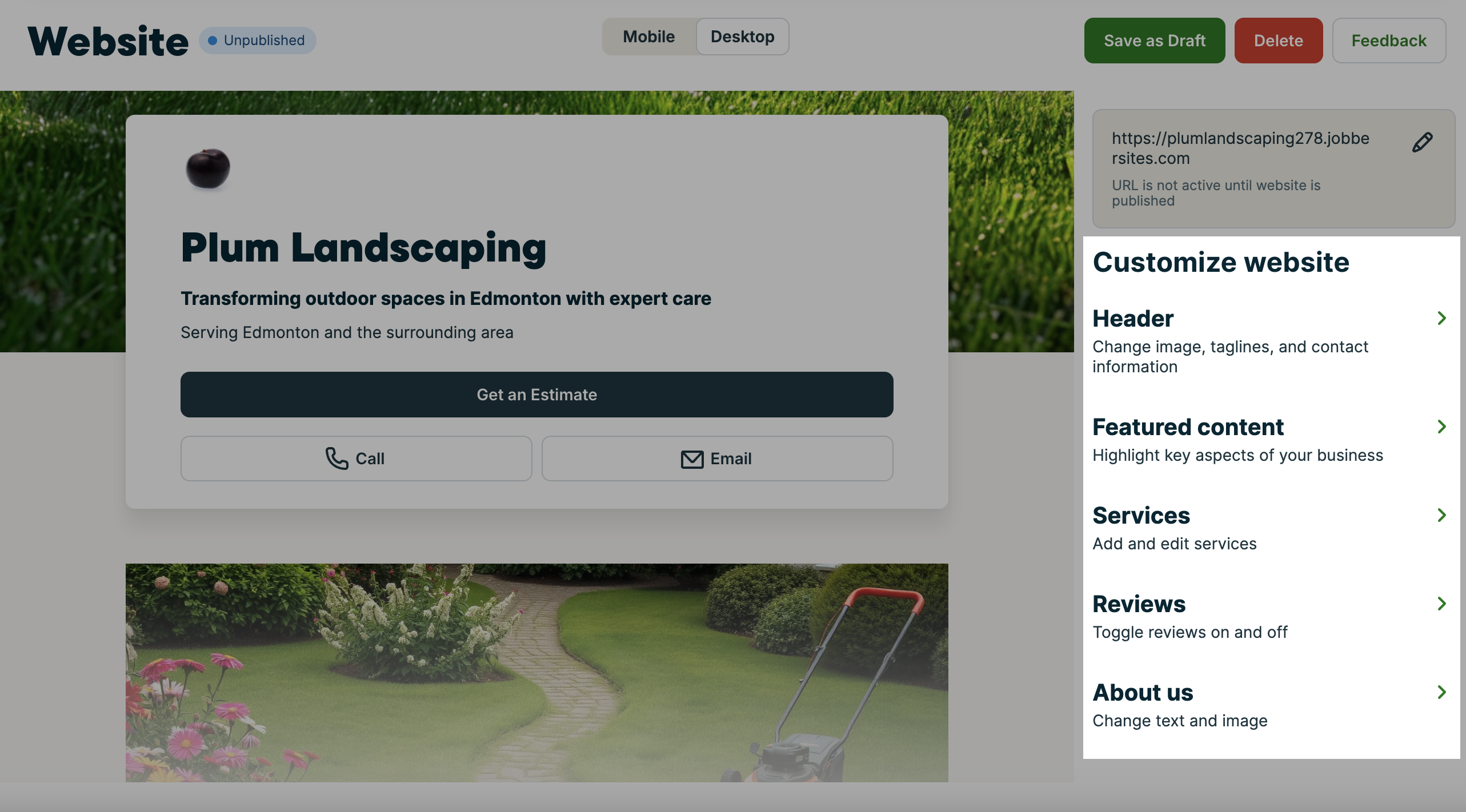
The content on your website that can be customized includes:
- Header, including:
- Header image
Note: Images must be under 5MB and a .png, .jpg, or .jpeg file type - Tagline
- Service area
- Contact information
Note: This is customized by updating your contact details in Settings > Company Settings.
- Header image
- Featured content, including:
- If this section shows on your website
- Titles and descriptions for up to 4 headings. Rows with empty title fields will not be displayed
- An image
Note: Images must be under 5MB and a .png, .jpg, or .jpeg file type
- Services, including
- Up to 12 service titles. Empty rows won’t be shown
- Reviews
- To show reviews on your website, from the reviews section under Customize Website, set the toggle to ON.
- About us, including:
- About content (max 600 characters).
- An image
Note: Images must be under 5MB and a .png, .jpg, or .jpeg file type
- Frequently asked questions
- Add up to six questions to appear on your website
- To show frequently asked questions on your website, from the FAQs section under Customize Website, add at least one question and answer, then set the Show section toggle to ON.
Change your website’s URL
The URL for your website is displayed above “Customize website”. Once published, this will be your website’s address.
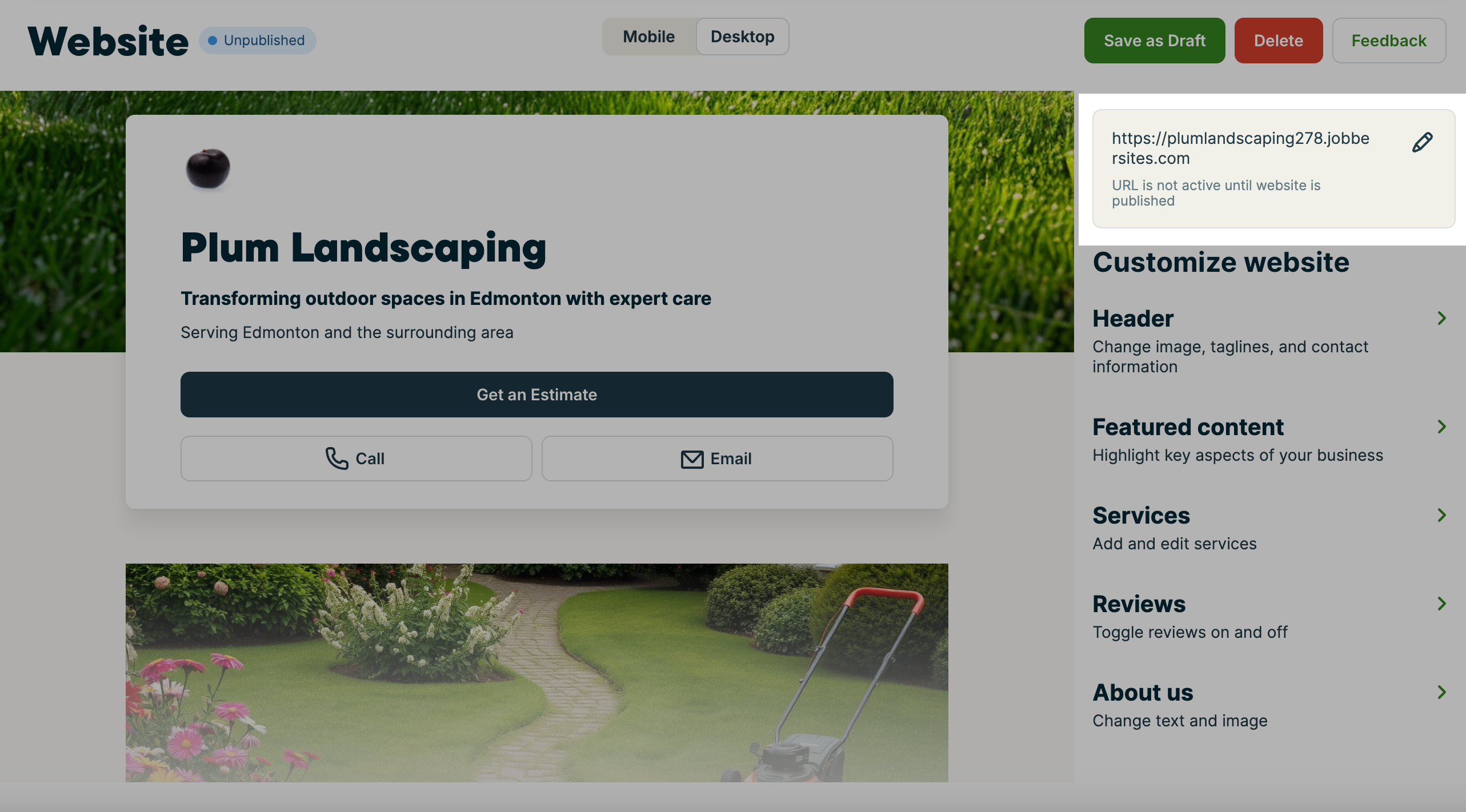
To change your article URL, select the pencil icon. From the pop-up enter the URL that you would prefer.
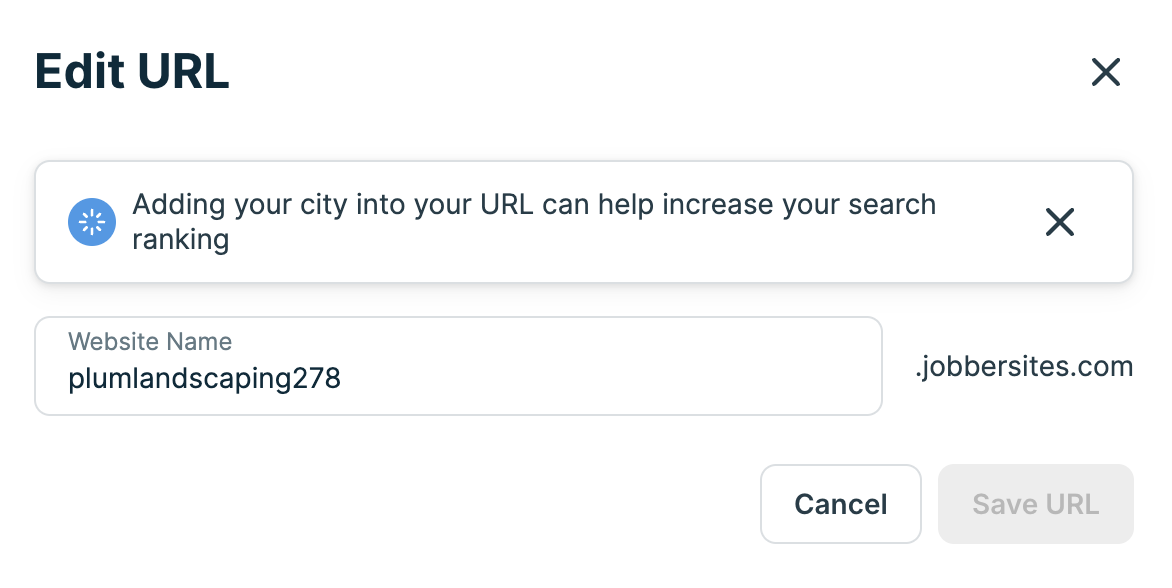
Note: All websites generated through Jobber will have “.jobbersite.com” as part of the domain.
Publish your website
Once your website has been customized to your liking, it’s ready to go live. Select the Publish button and your website will enter into a review period to make sure the content does not violate Jobber’s terms of service. The review period typically takes up to three business days.
Note: Websites are available when subscribed to Jobber on select plans. If you are still in trial, you will need to subscribe to Jobber on a supported plan to publish your website.
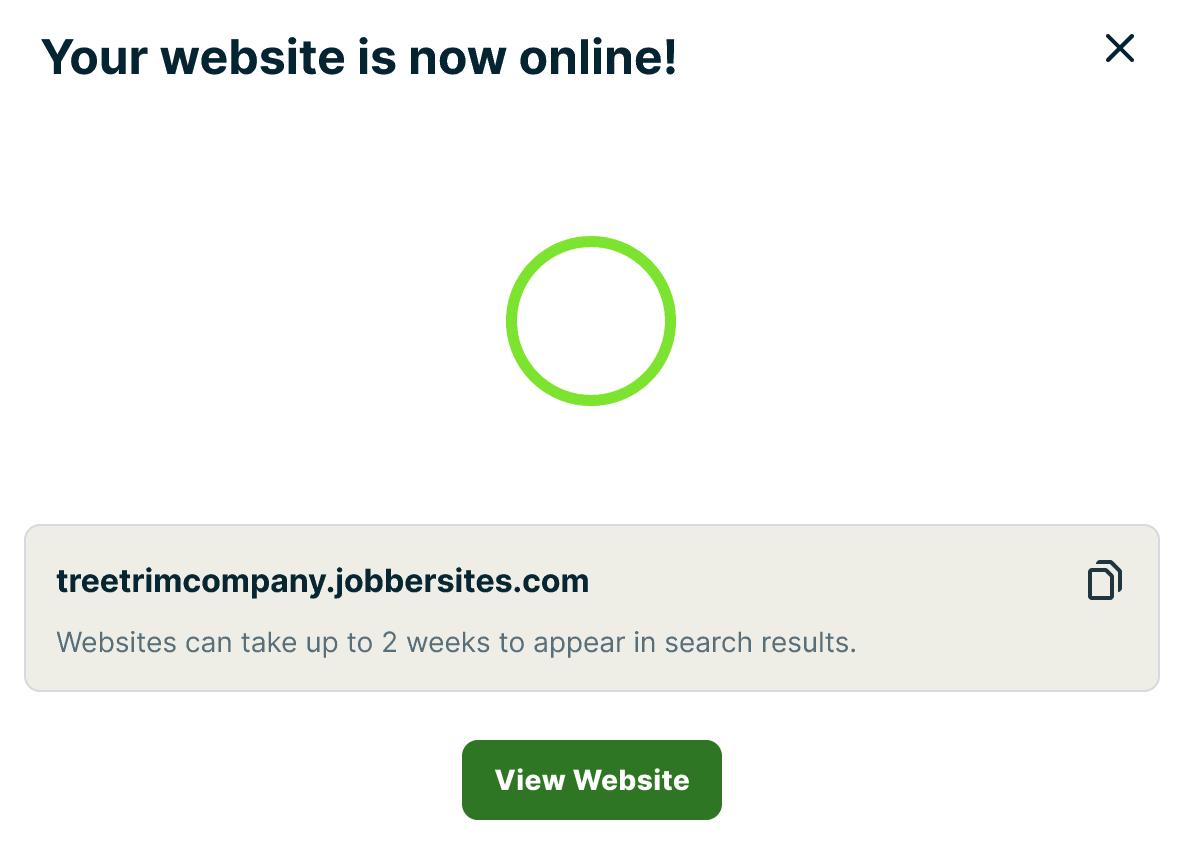
If publishing your website is successful, you will see a pop-up letting you know. This pop-up will also have a link to your new website! Select the clipboard icon to copy your new website’s URL. You will also receive an email letting you know your website has been published.
Note: While your website is now online, websites may take up to 2 weeks to appear in search results. Your website will be created with meta tags and descriptions to boost your website’s SEO.
Your website may be flagged by review if the content does not pass moderation. If this is the case, your website will be automatically published when the review is complete, typically within 48 hours. You will receive an email letting you know once your website has been published.
In the meantime, you’ll see the status of your website as “under review” from Marketing > Website.

If you need to delete your website, reach out to Jobber’s product support team for assistance.
Adjust your Google Business Profile settings
After you have set up your website, you can adjust how your Google Business Profile reviews appear on your website.
To add your Google Business Profile to your website after it has been published:
1. Navigate to Reviews under the Customize Website sidebar.
2. Select Add Google Business Profile.
3. Type your company name into the search bar.
4. Select your company name from the list.
5. Select Save.
To hide the Reviews section on your website:
1. Navigate to Reviews in the Customize Website sidebar.
2. Toggle the Show section option to OFF.
3. Select Update website to save your changes.
Note: This removes the Reviews section from your website, but the Google Business Profile star rating will remain in the header.
To remove your Google Business Profile from your website:
1. Navigate to Reviews under the Customize Website sidebar.
2. Select the trash can icon.
3. In the confirmation box, select Remove.
Note: This action removes both the Reviews section and the star rating from the website header.