
In This Article
- What are user permissions?
- Preset permissions levels
- Admin users
- Custom permissions settings
- Common permission settings
What are user permissions?
Control what information your team can access in Jobber, and keep them in the loop with a notification anytime their schedule changes.
Permissions settings limit what users can access in Jobber.
To change a user’s permission settings, go to the Gear Icon > Settings > Manage Team and click on the user’s name. Only admin users can change permission settings.
User permissions are available on select plans. View our current pricing plans.
To check what plan you’re on, navigate to the Gear Icon > Account and Billing. If you have any questions about your plan’s features or pricing, our support team is here to help!
Preset permissions levels
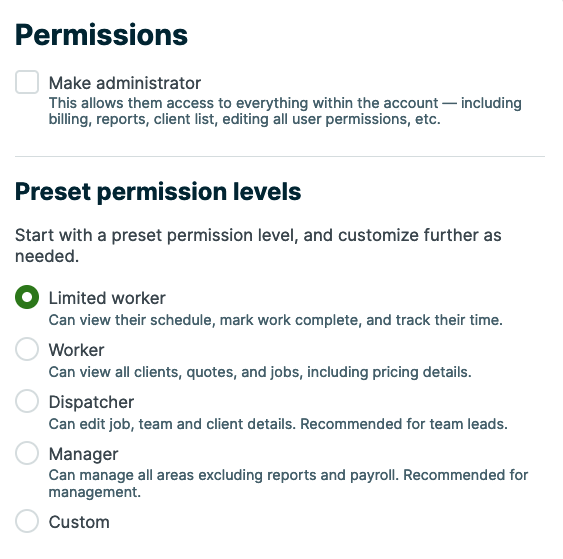
There are four preset permission levels that you can choose from, however beyond these four defaults permissions can be set up as needed from the Custom permissions settings.
- Limited Worker: Can view the schedule, mark work complete, and track their time.
- Worker: Can view all clients, quotes, and jobs, including pricing details
- Dispatcher: Can edit job, team, and client details. This permission level is recommended for team leads since they have the ability to edit some information.
- Manager: Can manage all areas excluding reports and payroll. Recommended for management.
Beyond these four defaults, there are also admin users.
Admin users
Administrators or admin users have similar abilities as the ‘Manager’ as they have full account access, but are also able to edit settings, run syncs with QuickBooks, and receive a handful of communications.
To make a user an admin, check the box for Make Administrator located above the preset permission levels.
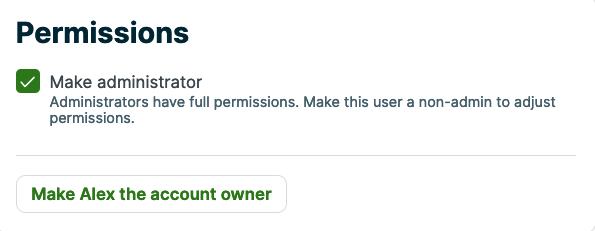
There are a few actions that only admins can perform:
- Access the account & billing page, including updating subscription billing information and accessing previous subscription invoices
- Access the settings menu and edit all settings (this includes manage team, Jobber Payments settings, app marketplace, and edit products & services)
- Send manual appointment reminders
- Export/import client list
- Access Jobber Payment reports
- View Home, Insights, and Activity Feed
- Confirm payroll
- Access Marketing Tools (Campaigns and Reviews)
Email subscriptions
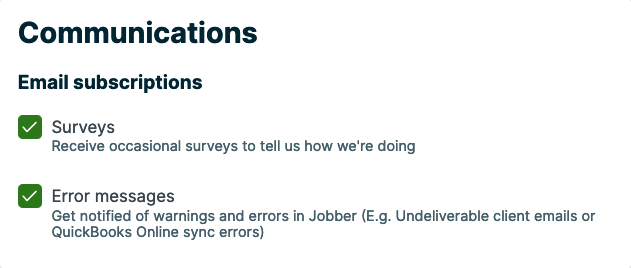
There are a couple of email subscriptions that admin users can opt-out of. These are error notifications (for example if an email couldn’t be delivered) or occasional surveys sent by Jobber. These settings are found on the Edit User page, just below the other permissions settings. To opt-out of these, deselect each message type.
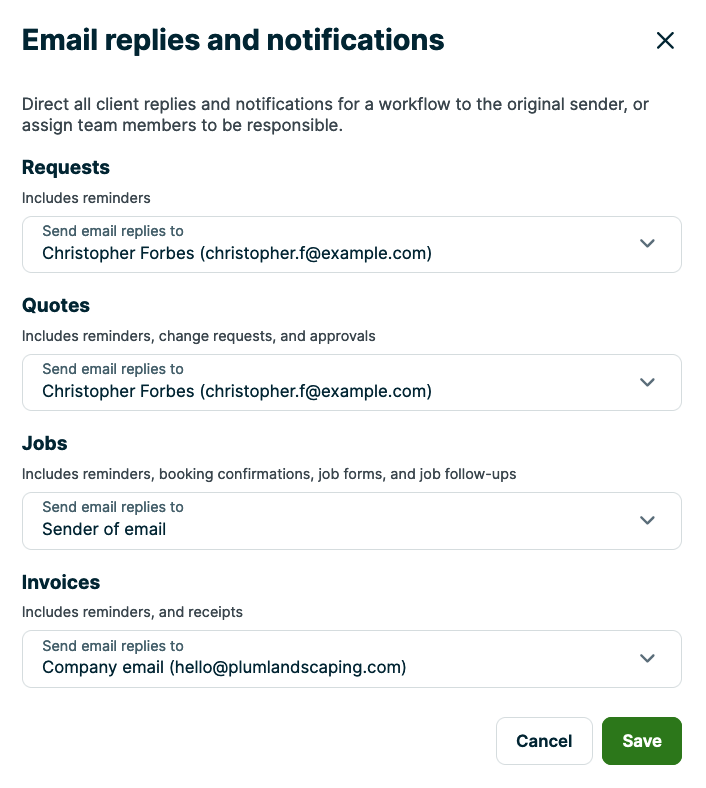
In Settings > Email & Text Messages you can set a team member to be the designated person to receive email replies if a client replies back to a specific email type. This team member will also receive email notifications about that item’s status. For example, if you receive email replies about quotes and a client approves a quote, you would also receive the email from Jobber letting you know a quote has been approved. The team members who appear as options for email replies are the users who have permissions to view, create, and edit that item type. For example, if they have permission to view, create, and edit quotes then they would be eligible to receive replies for clients replying back to emails about quotes (including follow-ups, change requests, and approvals).
The email reply-to settings that can be customized are:
- requests (including assessment reminders)
- quotes (including follow-ups, change requests, and approvals)
- jobs (including visit reminders, booking confirmations, job forms, and job follow-ups)
- invoices (including follow-ups and receipts).
If you are the reply-to recipient, you will receive emails notifications about:
- Requests
- New requests received
- Note: If the reply-to for requests is the sender, all admin users will receive an email about the new request since there was no original sender.
- New requests received
- Quotes
- Quote approvals
- Quote changes requested
- Quote deposit received
- Invoices
- Invoice email opened
- Invoice payment received
When a user who is selected to receive email replies is deactivated or if their permission settings change so that they can no longer view, create, and edit that item type, they will no longer receive email replies and notifications.
Before the change takes effect, you will be warned with a pop-up where you’ll need to confirm that they should be deactivated or downgraded. The contents of the pop-up will vary based on if you are deactivating them or changing their permission settings.
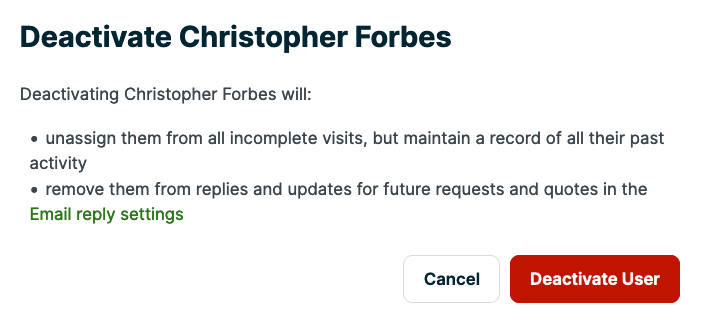
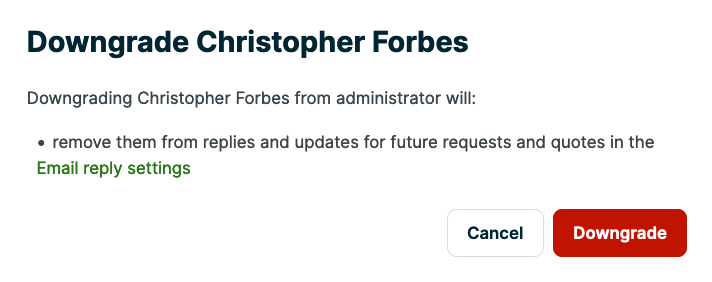
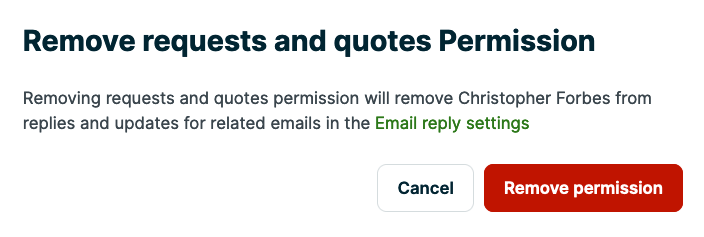
After they have been deactivated or downgraded, the default for their email replies and notifications will be the sender of that email. Learn more about Emails and Text Messages Settings.
Custom permissions settings
To see more permissions settings, click on Custom. This will show all of the permissions sections that you can edit for this user. When you select one of your defaults these fields will already be populated, but you can customize the permissions further for this user.
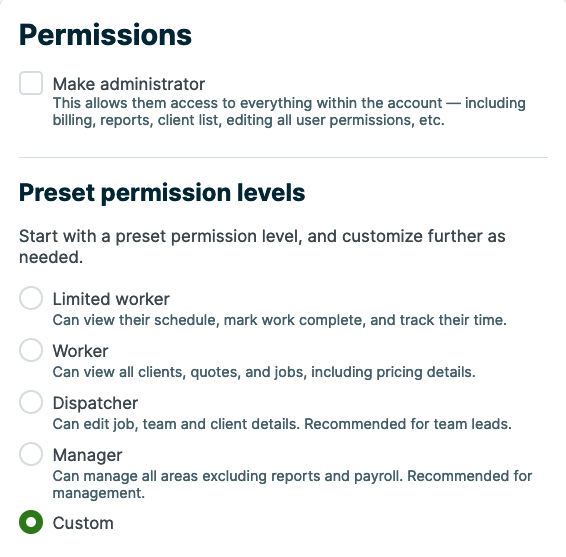
The items that can be customized are:
- Schedule: Includes viewing items on the calendar.
- Time Tracking and Timesheets
- Notes: Includes all notes across Jobber. You can hide notes for a feature by turning off permissions for that particular item.
- Expenses
- Show Pricing: Allows users to see prices on quotes, invoices, and line items on jobs.
- Job costing: Shows job profit by tracking revenue and costs from line items, labor, and expenses.
- Two-way Text Messaging: Allows users to reply to text messages from clients through the message center.
- Clients and Properties: Includes access to all client custom fields.
- Requests
- Quotes
- Jobs
- Chemical Tracking
- Invoices
- Reports
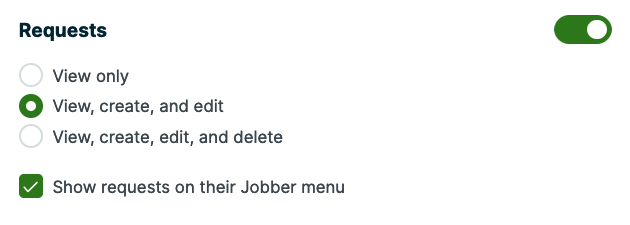
Permissions in each section can be set to the following levels:
- On/off: To allow or restrict access to this information, set the toggle to On or Off.
- Note: When a permission level is toggled Off, it is minimized.
- View only: This allows the user to have a read-only view of information.
- View, create, and edit: This allows the user to see, add, and edit this information.
- View, create, edit, and delete: This allows the user to view, edit, add, and delete information.
- Show on Jobber menu: This allows the user to see the tab for this item in the side navigation as well as this item in the search. In the Jobber App, this permission setting adds a filter option in the search for this item type.
The options look like this:
However, some of the custom permission levels follow a different pattern, depending on the item.
The Notes section allows you the following:
- View job notes: Allows user to only view notes in the areas they have permissions to view
These choices differ for Schedule information, where users can:
- View and complete their schedule: This allows the user to see and complete their own schedule.
- Edit their schedule: This allows the user edit the items they are assigned to, including editing the date and time. This permission gives the user the ability to edit their schedule even when multiple users are assigned to that item.
- Edit everyone’s schedule: This allows the user to view, edit, and add to all schedules on Jobber.
- Edit and delete from everyone’s schedule: This allows the user to edit, add, and delete all schedules on Jobber.
The Clients and Properties section has the following choices:
- View client name and address only: This allows the user to view only the client names and addresses for their assigned jobs
- View full client and property info: This allows the user to view all client information for their assigned jobs
- View and edit full client and property Info: This allows the user to view, add, and edit all client information for their assigned jobs
- View, edit and delete full client and property info: This allows the user to view, edit, and delete all client information for their assigned jobs
- Show clients on their Jobber menu: When selected, this allows the user to see the tab for clients in the side navigation to view the client list. Users with this setting can also use the search to search for clients.
In the Jobber App, users who do not have Show clients on their Jobber menu selected will be able to use the Search tab to search work items (for example, quotes) that they have permission to view. They will only see clients who have that work item. For example, a user who:- has permission to View requests
- has permission to Show requests on their Jobber menu
- does not have permission to Show clients on their Jobber menu
Will be able to search and filter requests from the Search tab in the Jobber App.
For job costing, the option is:
- On or Off: To be able to turn this permissions toggle on for a user they need to also have permissions for:
- Show pricing
- View, record, and edit all timesheets
- View, record, and edit all expenses
- Note: for non-admin users to have this permission setting, expense tracking needs to be enabled first (Settings > Expense Tracking)
- View all jobs
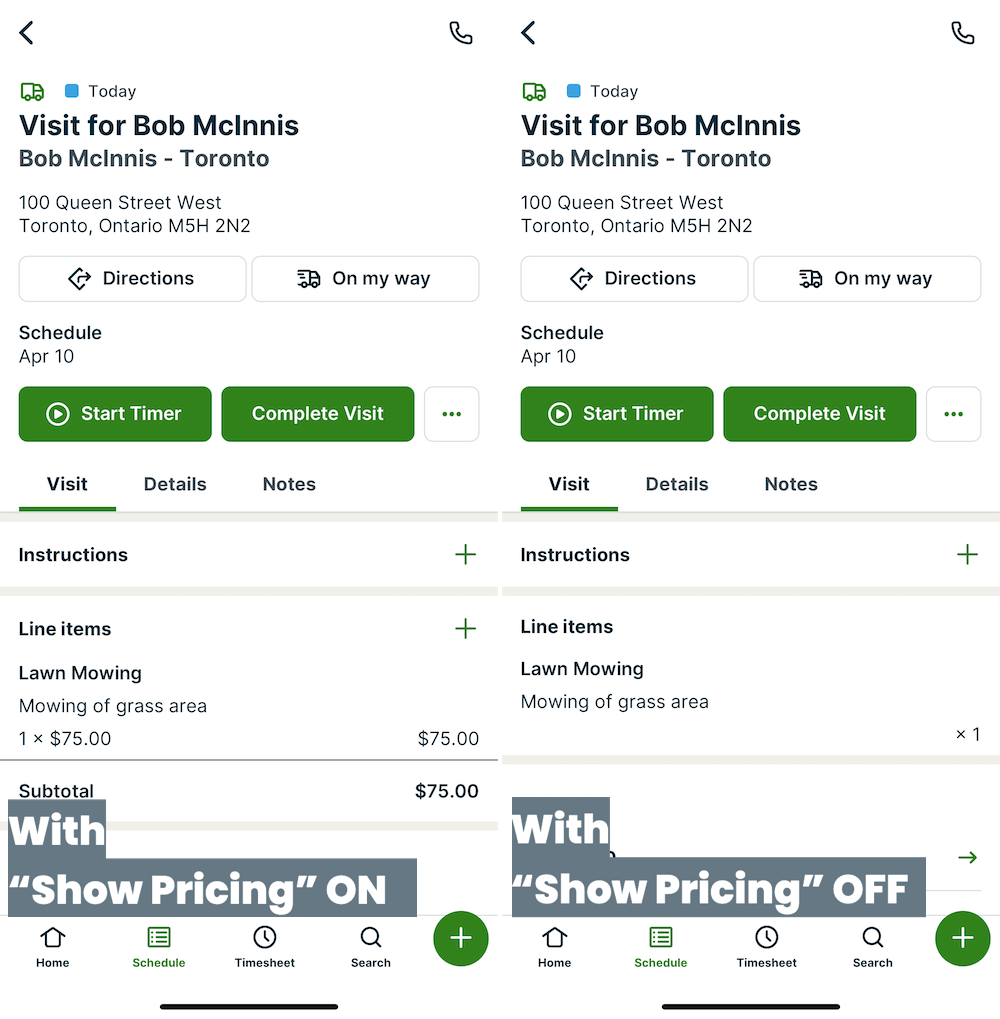
For Show Pricing, the option is:
- On or Off: Turning this toggle on allows users to see pricing on quotes, invoices, and line items on jobs (including visits). Enabling users to see pricing unlocks other permission levels such the ability to edit quotes or invoices. This means that show pricing must be turned on first to give users permission to create and edit items such as quotes, invoices, and line items on jobs (including visits).
For Two-way Text Messaging (available on select plans):
- On or Off: Turning the toggle on enables users to reply to text messages from clients through the message center.
Note: Since these items can all be accessed via the message center, in order to turn this permission on, you must first turn on the permissions for:- Show pricing
- requests
- quotes
- jobs
- invoices
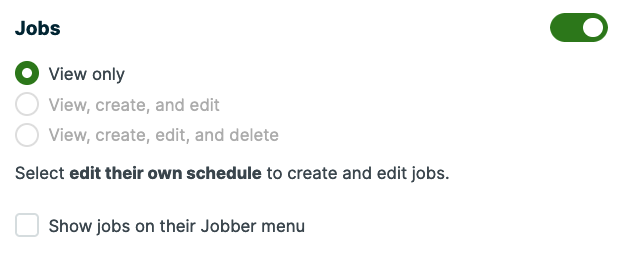
Some permission levels require other permissions first since they interact with each other. In these cases, the permission you need first to enable another is called out. For example, you must be able to edit your own schedule, before you can enable the permission to view, create, and edit jobs.
Common permission settings
Here are the permissions needed to perform some common actions in Jobber.
- Make changes to Jobber Payments settings: This is an admin permission
- See the last client communication section on the client page: View full client and property info (clients and properties permission)
- Send On My Way text messages: View name and address only (clients and properties permission)
- Edit tasks: Edit their schedule (schedule permission)
- Delete scheduled items: Edit and delete from everyone’s schedule (schedule permission)
- Create calendar events: Edit their own schedule (schedule permission)
- Create job: Edit their schedule (schedule permission) + view and edit jobs (job permission)
- Create a job with automatic payments enabled: View and edit full client and property info (client and properties permission) + view and edit (job permission) + view and edit (invoice permission) + show pricing
- Edit line items: This permission varies depending on what you’re editing. You will need view and edit permission for whatever level you’d like to edit. So to edit line items on quotes, you would need view and edit for the quote level + show pricing.
- Closed job in the app shows “requires invoicing”: View and edit (job permission) + view and edit (invoice permission) + show pricing.
- To close a job and have it go into “requires invoicing” but users can’t see pricing or create an invoice: Edit their own schedule (schedule permission) + View, create, and edit (jobs permission).
- Put a job into “action required” status: View and edit (job permission)
- Note: “Action required” status means that a job has no more upcoming visits, but is still open. This status indicates that you should either close the job (because there is nothing upcoming) or schedule more visits in the future. This status is often used as an “on hold” status if you are waiting for parts before scheduling more visits.
- Job timers: View and complete their schedule (schedule permission) + view and record their own (time tracking permission)
- Edit job forms: View and complete their schedule (schedule permission) + view (job permission)
- Email job forms: Edit their schedule (schedule permission) + view and edit (job permission)
- Add expenses to jobs: View and edit (jobs permission) + view and edit (expenses permission)
- Invoice: View and edit (job permission) + view and edit (invoice permission) + show pricing
- Delete invoice reminder: Edit and delete from everyone’s schedule (schedule permission)
- Collect payments: Edit their own schedule (schedule permission) + View and edit full client and property info (client and properties permission) + view and edit (job permission) + view and edit (invoice permission) + show pricing
- Collect signature (quote): View and edit (quote permission) + show pricing
- Collect signature (job): View full client and property info (clients and properties permission) + Edit their own schedule (schedule permission) + View and edit (job permission)
- Collect signature (invoice): View and edit (invoice permission) + show pricing
- Send a job follow-up (automatically): View and edit full client and property info (clients and properties permission) + view, create, and edit (jobs permission) + view, create, and edit (invoices permission) + Reports ON
- Send a job follow-up (manually): View and edit full client and property info (clients and properties permission) + View, create, and edit (jobs permissions) + view, create, and edit (invoices permission)