
Overview
Get recognized for great work with tips in Jobber Payments, no matter where you take payment.
When you use Jobber Payments, you can collect tips regardless of whether the client pays through the client hub or in person through your Jobber app. Learn more about collecting tips with Jobber Payments.
The option to leave a tip is included with Jobber Payments, which is available on all plans in the UK, US, and Canada. Learn how to set up Jobber Payments.
Turn on tipping with Jobber Payments
The option to leave a tip can be turned on or off by admin users in the browser version of Jobber. To do this:
- Click on the Gear icon and select Settings in the dropdown menu.
- Click Jobber Payments in the Settings menu.
- In the Invoices preferences section, find the toggle for Accept tips from clients and switch it to ON.
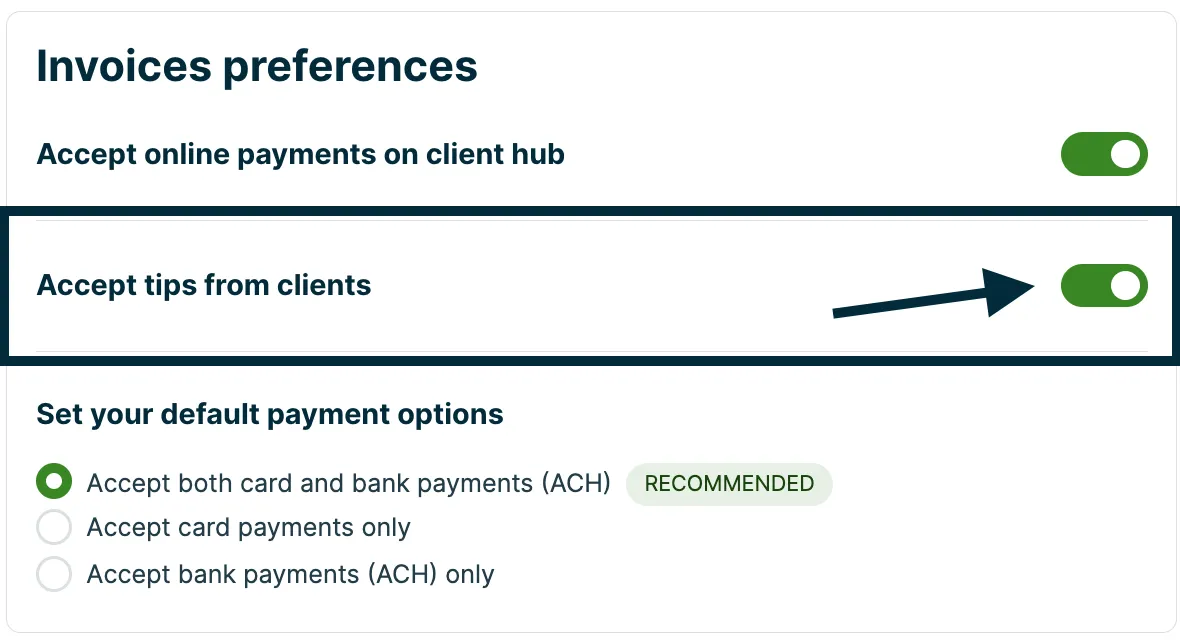
This enables tip collection in both the client hub and the Jobber app.
Collect tips in the Jobber app with Jobber Payments
To collect tips in the Jobber app, you must have Jobber Payments enabled. Tips are not enabled for offline payments, however you can enter in tips as a line item.
The tipping section features preset buttons for 10%, 15%, and 20%, and custom, which allows for a dollar amount to be entered instead.
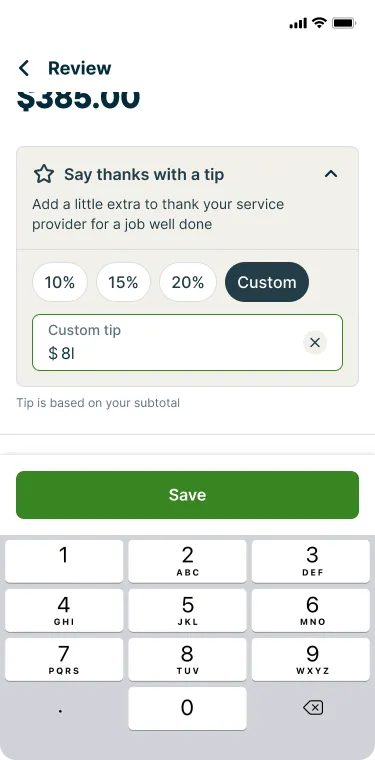
Collect tips in the field with Tap to Pay
To use Tap to Pay, you need to enable location and NFC access on your device. If either of these aren’t enabled, you may see one of these pop ups:
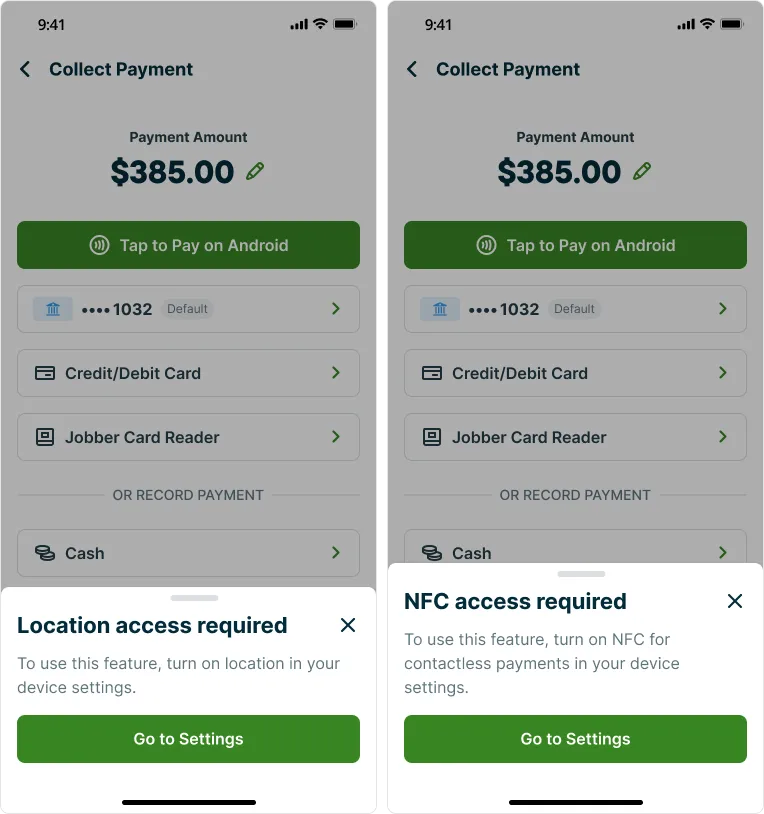
To process a payment using Tap to Pay with tipping enabled, follow these steps:
- Select the Tap to Pay button.
- The invoice details and a tipping section will appear. Hand your device to the client so they can review the details and possibly add a tip of their choice.
- Once they’re done, tap the Continue to pay button.
- The client can tap their card or their mobile device equipped with Apple Pay or Android Pay.
- If successful, the ‘Payment successful’ screen will appear. Tap Done or View Receipt if you would like to view and send the client a copy of the receipt.
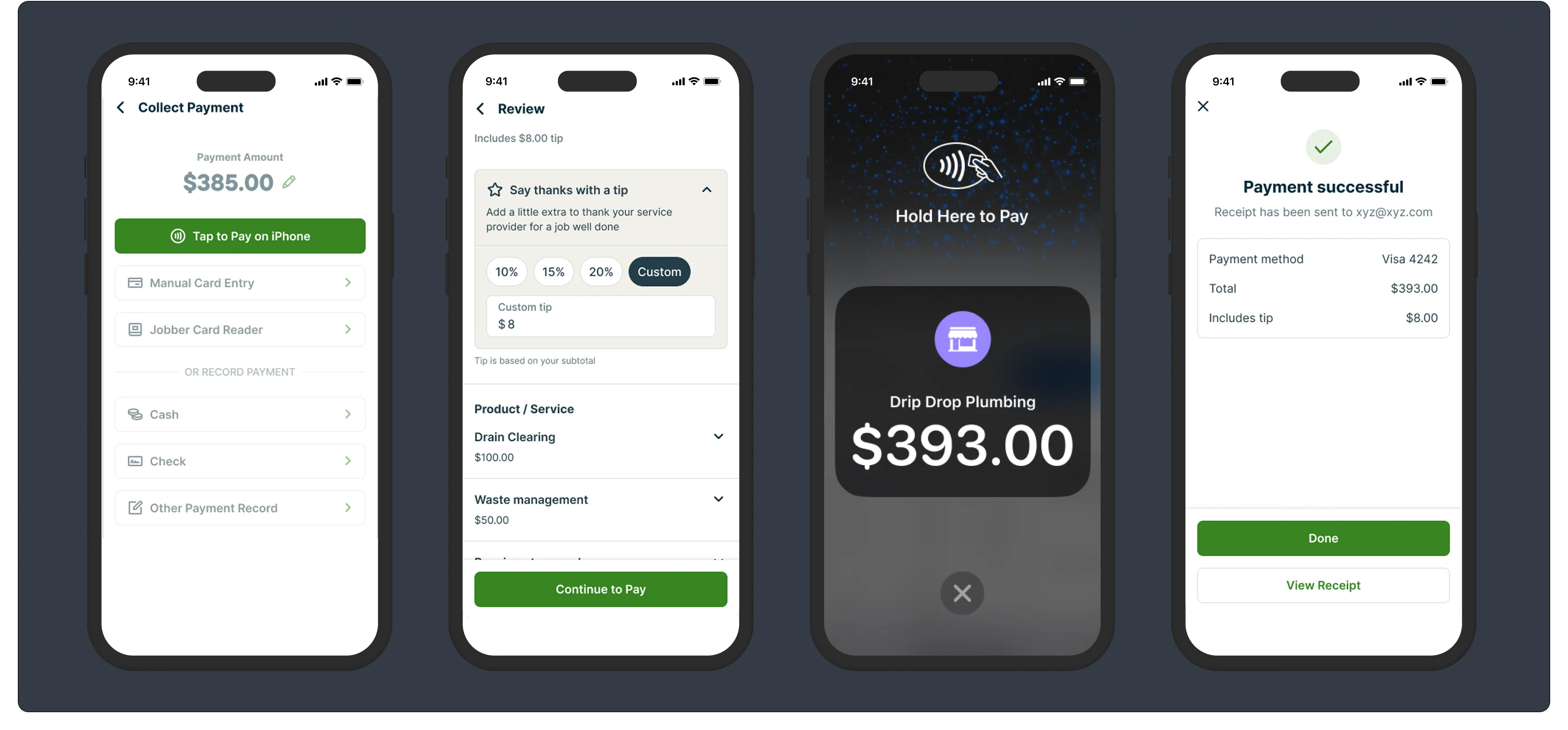
Collect tips in the field with a payment on file
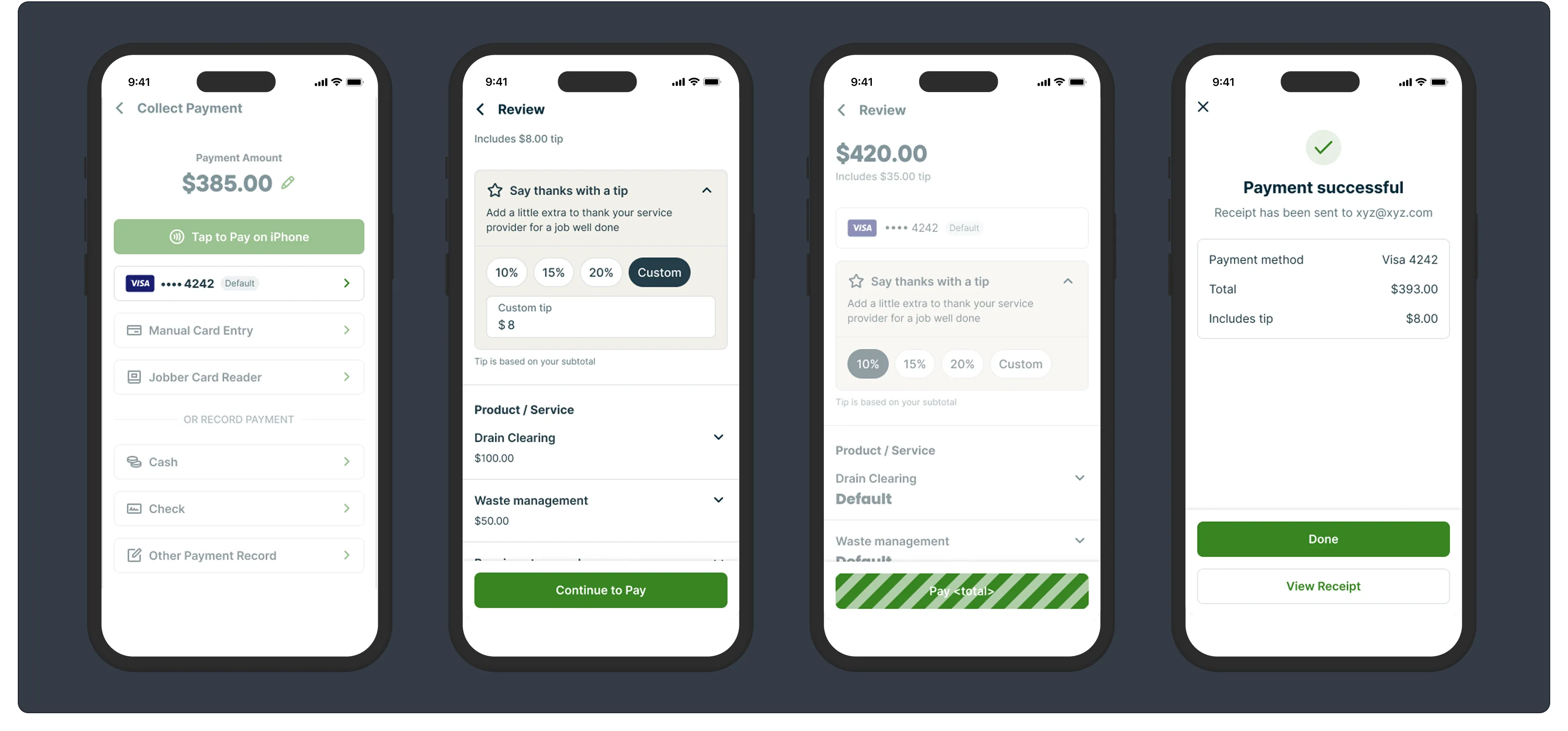
To process a payment using a payment on file with tipping enabled, follow these steps:
- Select the button indicating the card saved on file. It will show the card’s type and the last four digits. You may see any of the following icons:
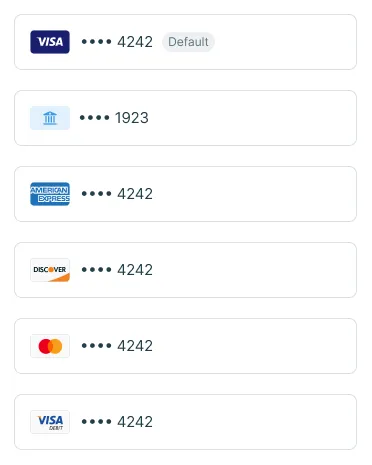
- The invoice details and a tipping section will appear. Hand your device to the client so they can review the details and possibly add a tip of their choice.
- Once they’re done, tap the Pay button.
- If successful, the ‘Payment successful’ screen will appear. Tap Done or View Receipt if you would like to view and send the client a copy of the receipt.
Collect tips in the field with manual card entry
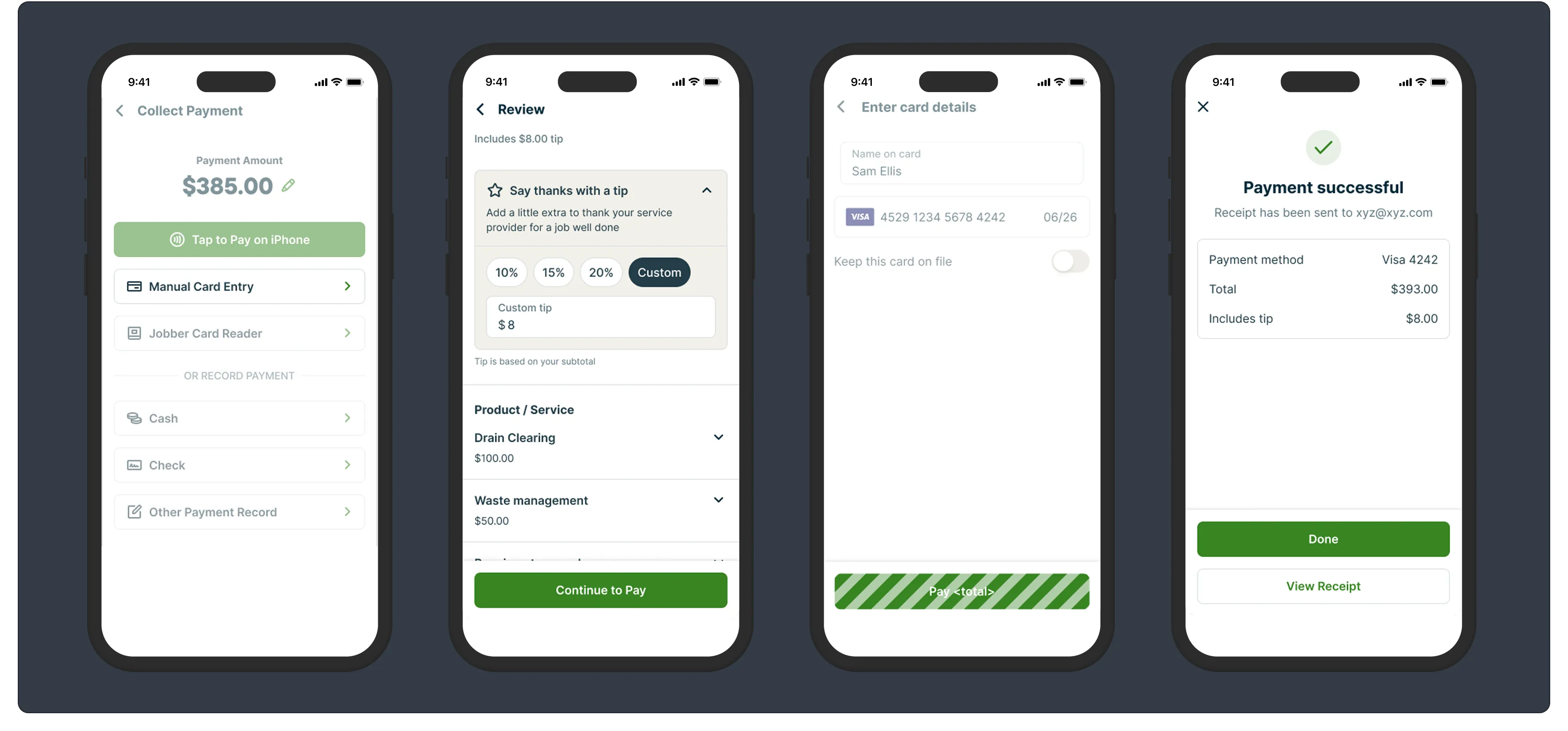
To process a payment using the manual card entry method with tipping enabled, follow these steps:
- Select the Manual Card Entry button.
- The invoice details and a tipping section will appear. Hand your device to the client so they can review the details and possibly add a tip of their choice.
- Once they’re done, tap the Continue to Pay button.
- The ‘Enter card details’ screen will appear. Enter the client’s card details and tap the Pay button.
- If successful, the ‘Payment successful’ screen will appear. Tap Done or View Receipt if you would like to view and send the client a copy of the receipt.
Collect tips in the field with the card reader
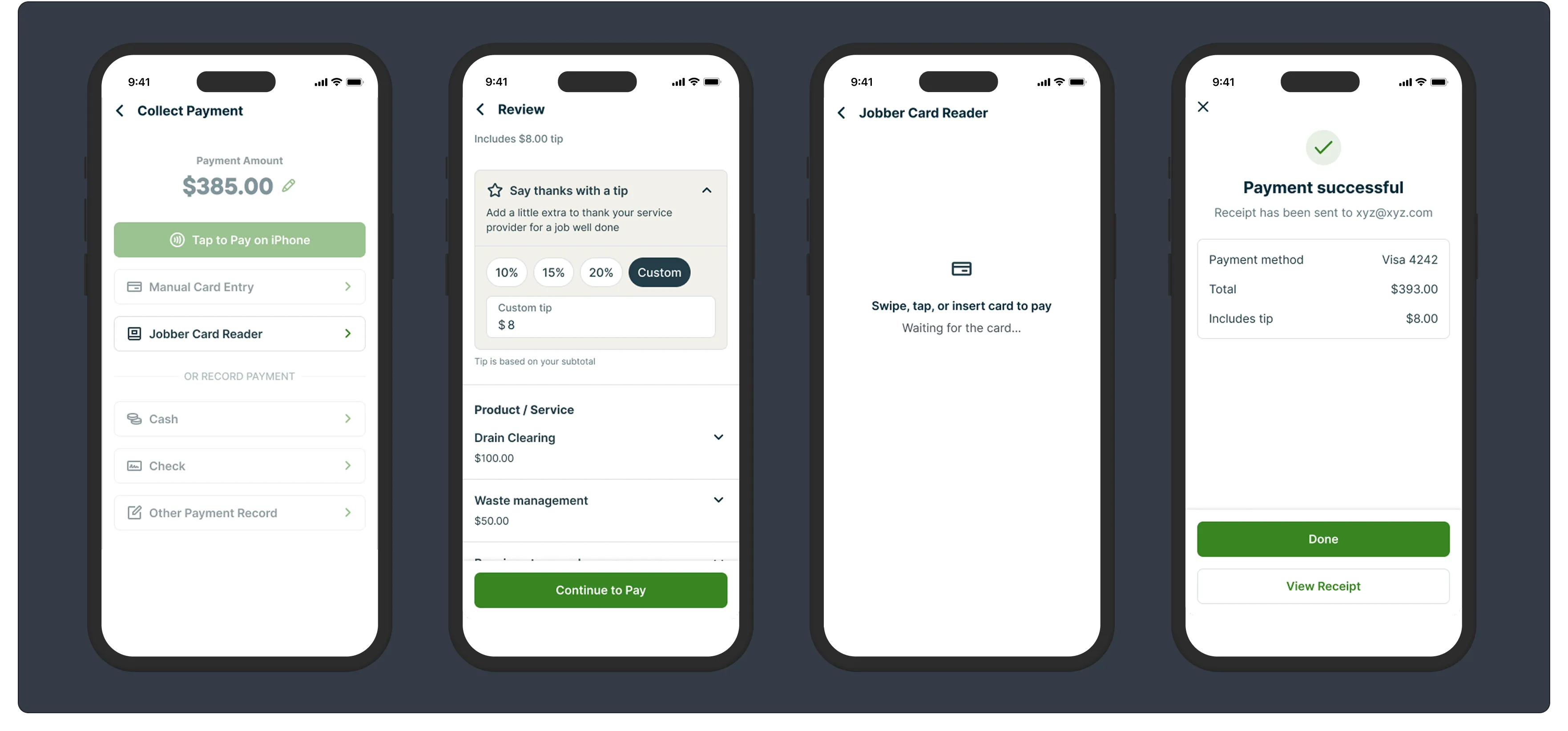
To process a payment using the card reader with tipping enabled, follow these steps:
- Select the Jobber Card Reader button.
- The invoice details and a tipping section will appear. Hand your device to the client so they can review the details and possibly add a tip of their choice.
- Once they’re done, tap the Continue to Pay button.
- The ‘Jobber Card Reader’ screen will appear, prompting payment.
- If successful, the ‘Payment successful’ screen will appear. Tap Done or View Receipt if you would like to view and send the client a copy of the receipt.
FAQ
- Can tips be collected with offline payments?
There is currently no tip field when offline payments are recorded in Jobber. You can use an additional line item to indicate when a tip is included. - Can clients enter a percentage amount in the custom field?
Currently, clients can only enter in a dollar amount in the custom tip field.