
Overview
Jobber is a home services management solution. When you use CallRail’s integration with Jobber, you can see all of your leads in a single dashboard along with the marketing sources that generated those leads, and connect those marketing sources and keywords to actual jobs that drive revenue for your business.
CallRail is available on select plans in USA, Canada, UK, and Australia. Learn more.
To check what plan you’re on, navigate to the Gear Icon > Account and Billing. If you have any questions about your plan’s features or pricing, our support team is here to help!
Integrating with CallRail
CallRail’s integration with Jobber is at the company level in your account. Follow these instructions for each company you’d like to integrate with Jobber.
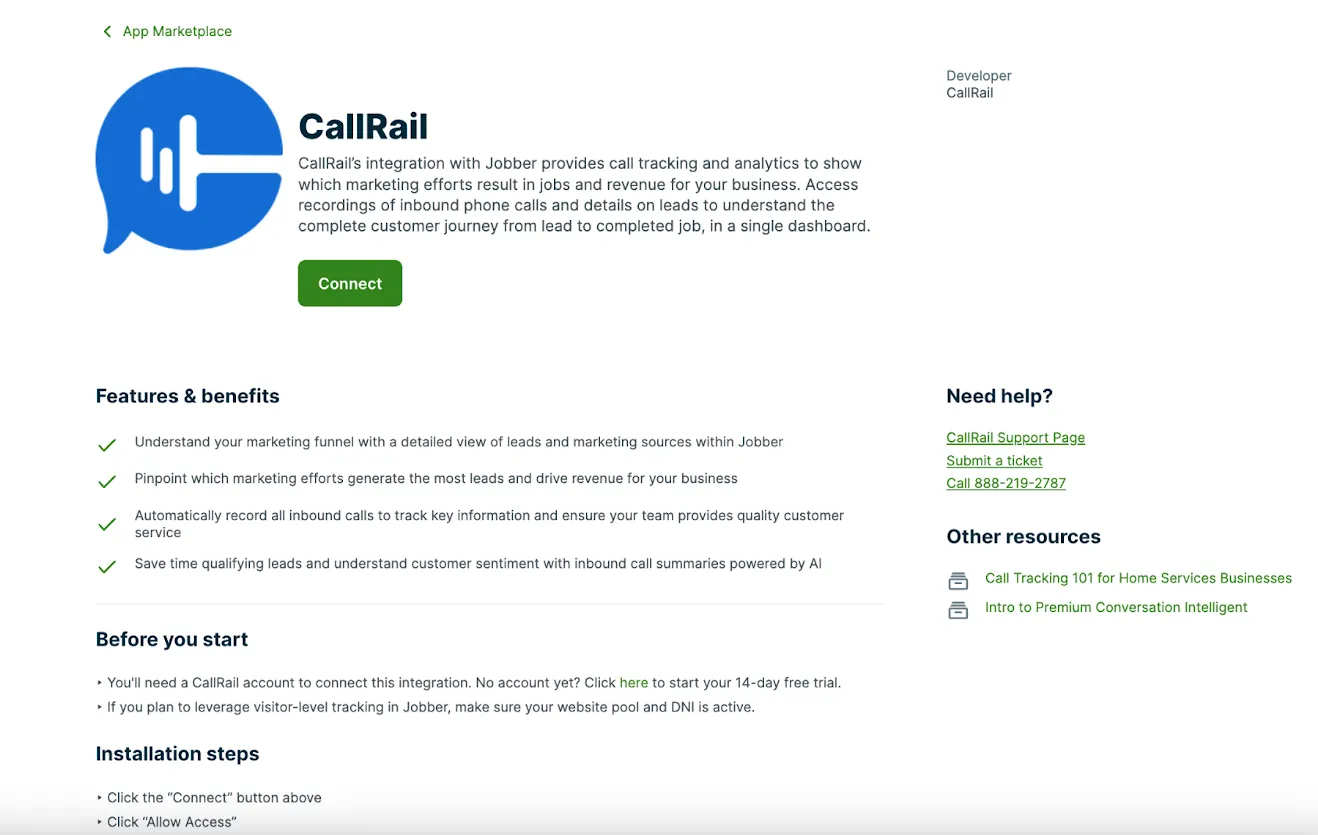
- Click the Apps icon on the left navigation bar of your dashboard at Jobber.com
- From the app marketplace, select CallRail
- From the app description, click Connect
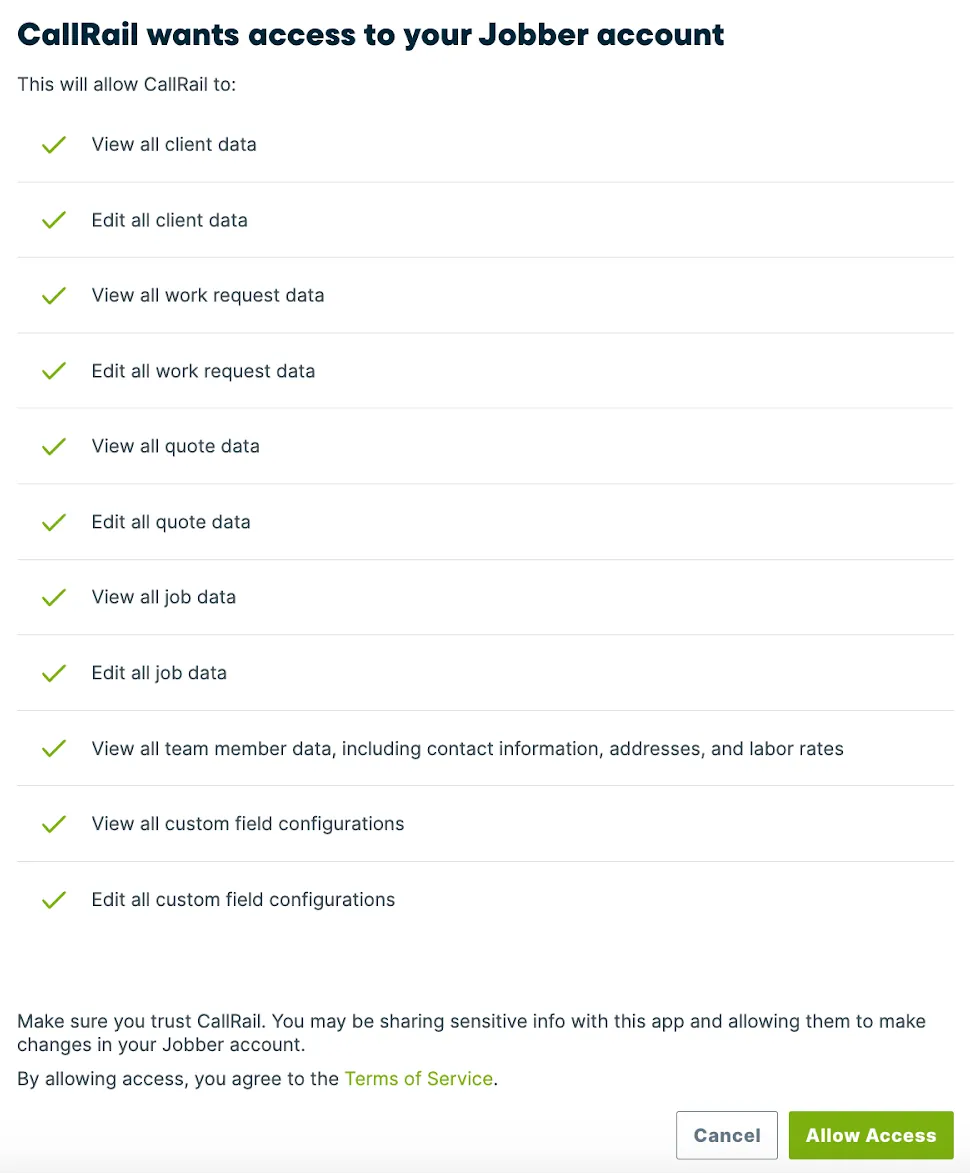
- Click Allow Access. This will redirect you to CallRail’s website where you will be asked to authorize CallRail to send data to your account.
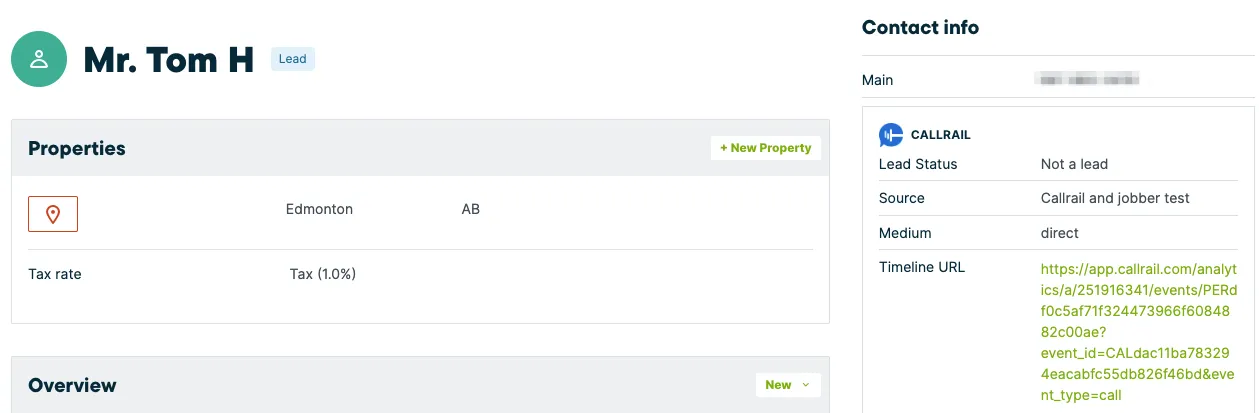
Seeing CallRail data in Jobber
Clients: CallRail attempts to match inbound phone calls with existing clients in your Jobber account by phone number. If CallRail doesn’t find a match, CallRail creates a new client. For each client CallRail adds the marketing source, medium, campaign, and keywords.
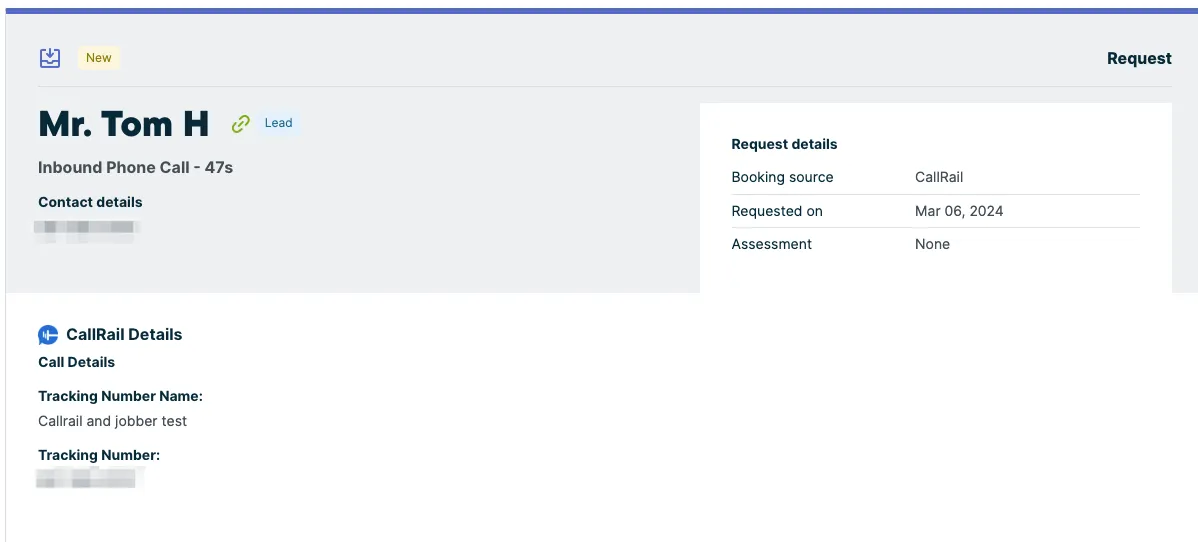
Requests: for each client, CallRail creates a Request with all the information about the client’s interactions with your business. For each additional call from the same client, CallRail updates the same request. Archived or converted calls will not be updated.
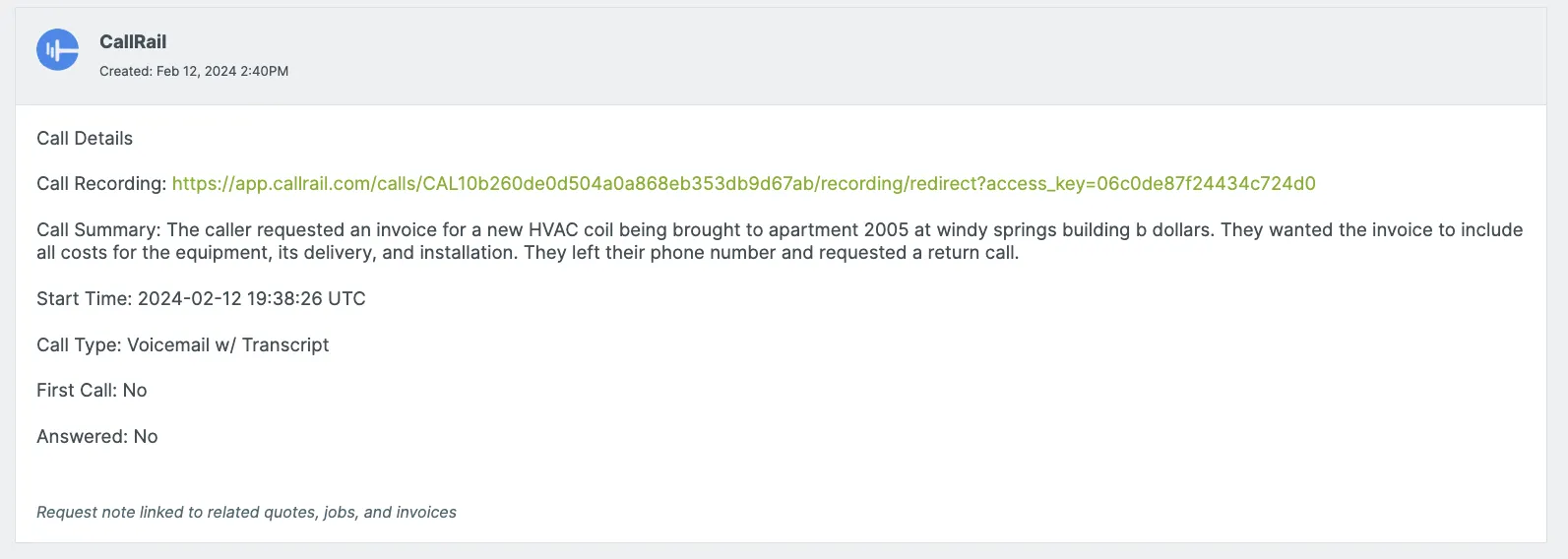
Deactivating the Jobber integration
CallRail keeps your integration credentials saved in case you’d like to reactivate your integration in the future.
- In Jobber, click Apps from the side navigation.
- From the App Marketplace, select CallRail.
- From the CallRail app description, select Disconnect
- You will be asked to confirm the disconnect, select Yes.
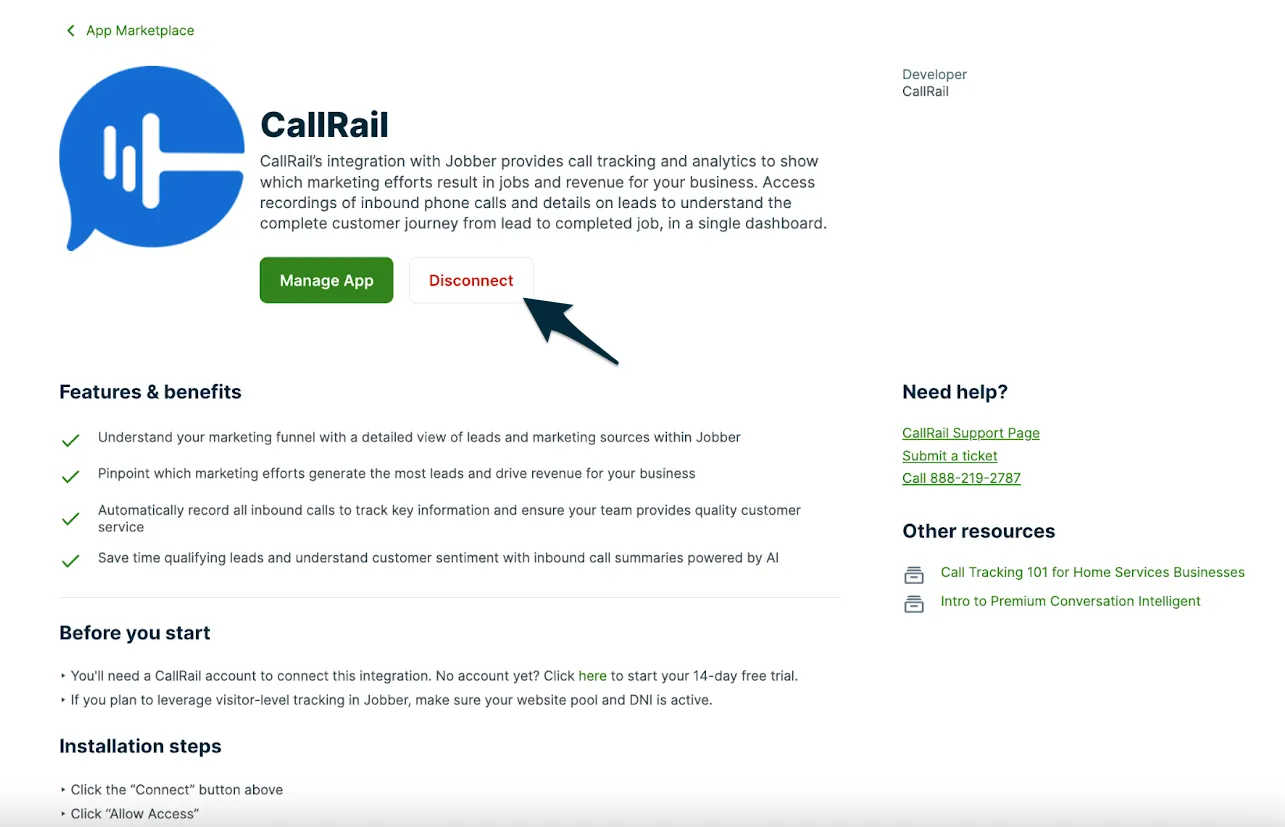
Note: If you are disconnecting Jobber and CallRail, the disconnect must be done from Jobber’s app marketplace.
Frequently Asked Questions
What data does CallRail send to Jobber?
For each call, CallRail will send the following data:
- Client information
- Name
- City
- State
- Country
- Lead status
- Source
- Medium
- Campaign
- Timeline URL
- Request information
- Start time
- Call summary
- Call type
- First call (Y/N)
- Answered (Y/N)
- Tracking number name
- Tracking number
- Call recording link
Can I send my texts or form submissions to Jobber?
CallRail’s integration with Jobber only sends call data. Text messages and form submissions won’t report to Jobber.