
Overview
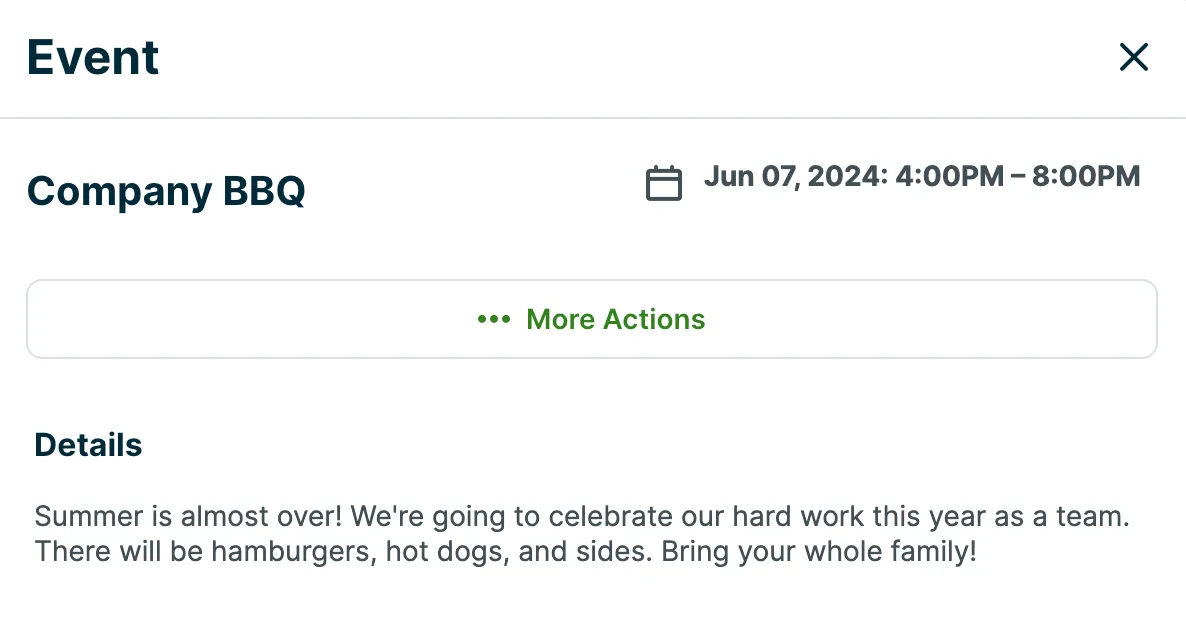
Events are scheduled items that are assigned to your entire team, so everyone can see it on their schedule. Calendar events can be a good fit for events like a team meeting or a company BBQ.
Create a new event
To create a calendar event, users must have permission to “Edit their own schedule” in the scheduling permission level.
To create an event, go to any of the following schedule views:
- Month
- Week
- List
Then click any open spot on the calendar to bring up the calendar event type pop-up:
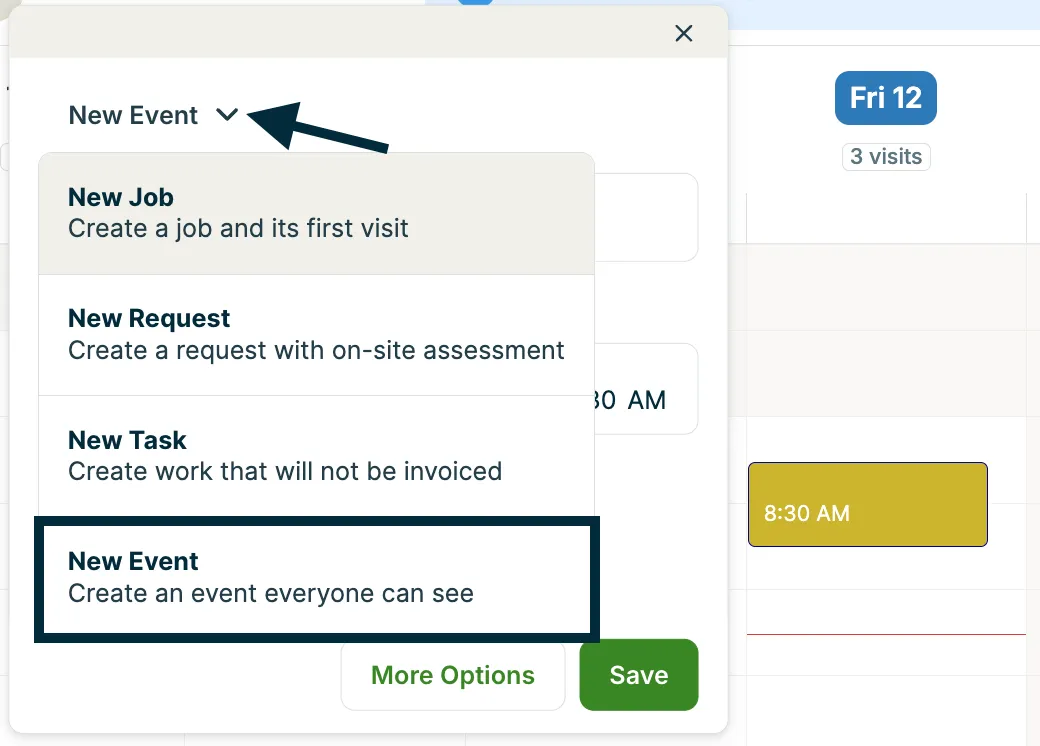
This will bring up a popup where you can enter the name, details, and time. You can also click on More Options for additional settings.
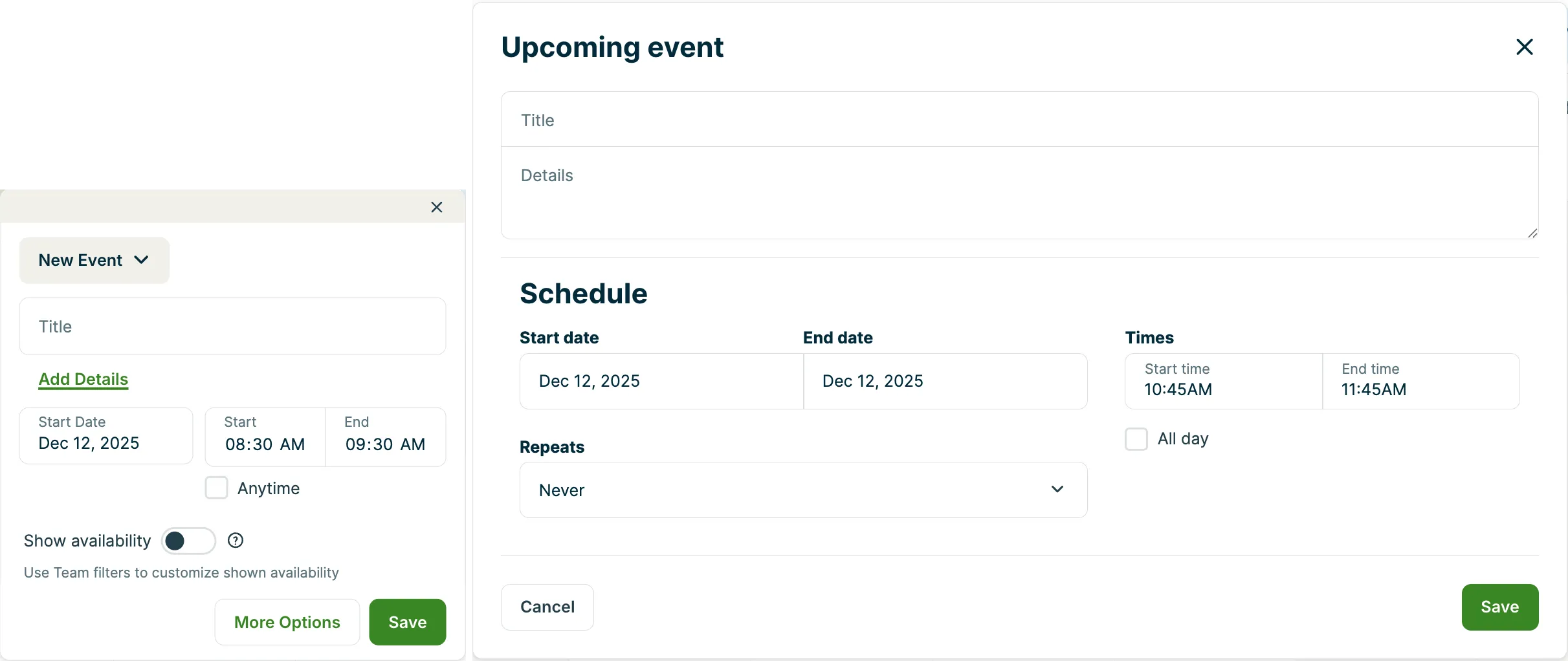
Click Save to create the event. You and your team will now be able to find it in the calendar, and in their schedule on the app.
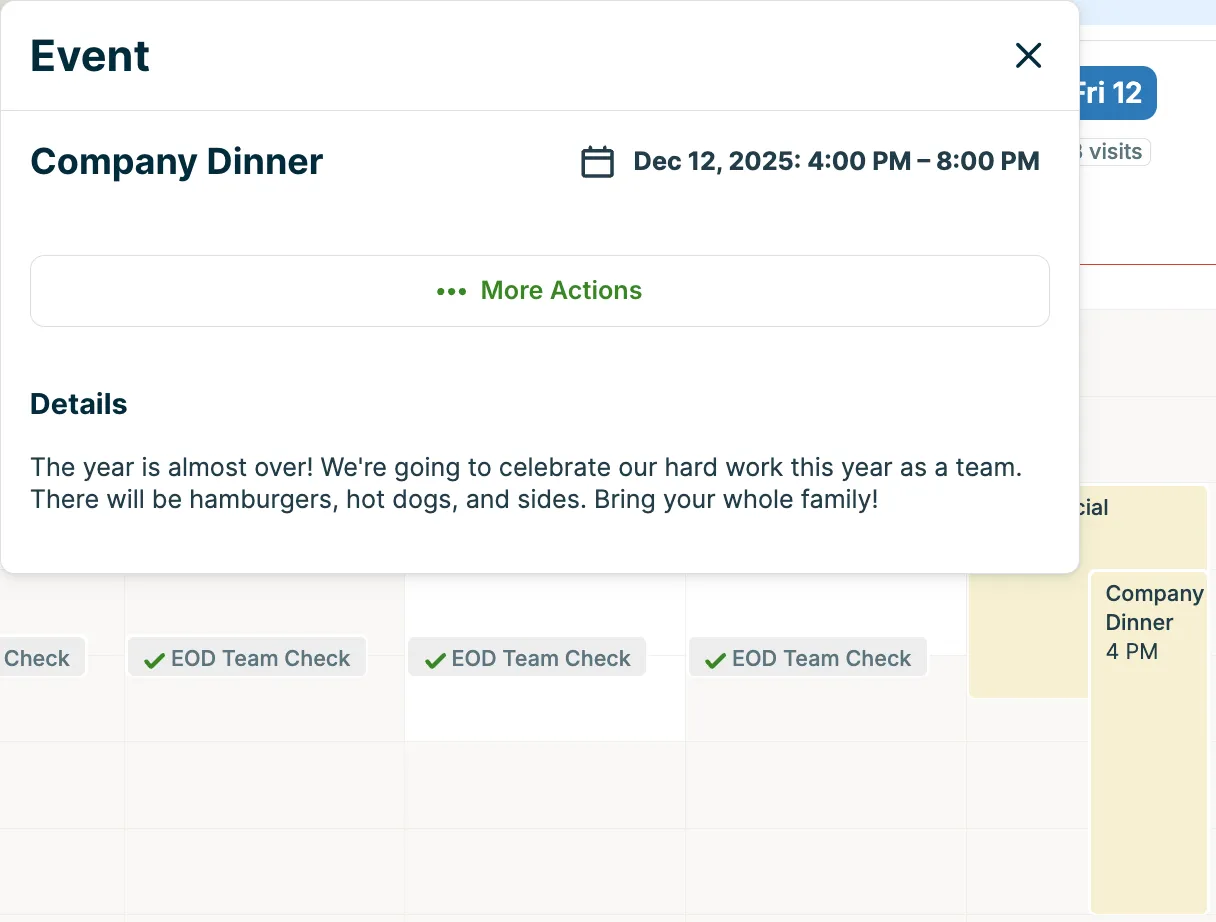
Once the time for an event has passed, it will automatically become greyed out with a green checkmark to indicate it’s done on the schedule.