
Table of Contents
- Overview
- Find your Google Analytics tracking code
- Google Analytics tracking on requests
- Google Analytics tracking on online booking
- Set up cross-domain measurement
- How to measure conversion
Overview
Connect your request form and online booking to Google Analytics 4 to gain insights about your customers, including conversion rate.
Requests and online booking are available on select plans. View our current pricing plans. The set up in Jobber must be done by an admin user.
To check what plan you’re on, navigate to the Gear Icon > Account and Billing. If you have any questions about your plan’s features or pricing, our support team is here to help!
Find your Google Analytics tracking code
When connecting your Jobber request or online booking form to Google Analytics, you will be prompted to add your Google Analytics 4 tracking code, so you will need to have that code handy as part of the set up.
Learn how to find your tracking code
Google Analytics tracking on requests
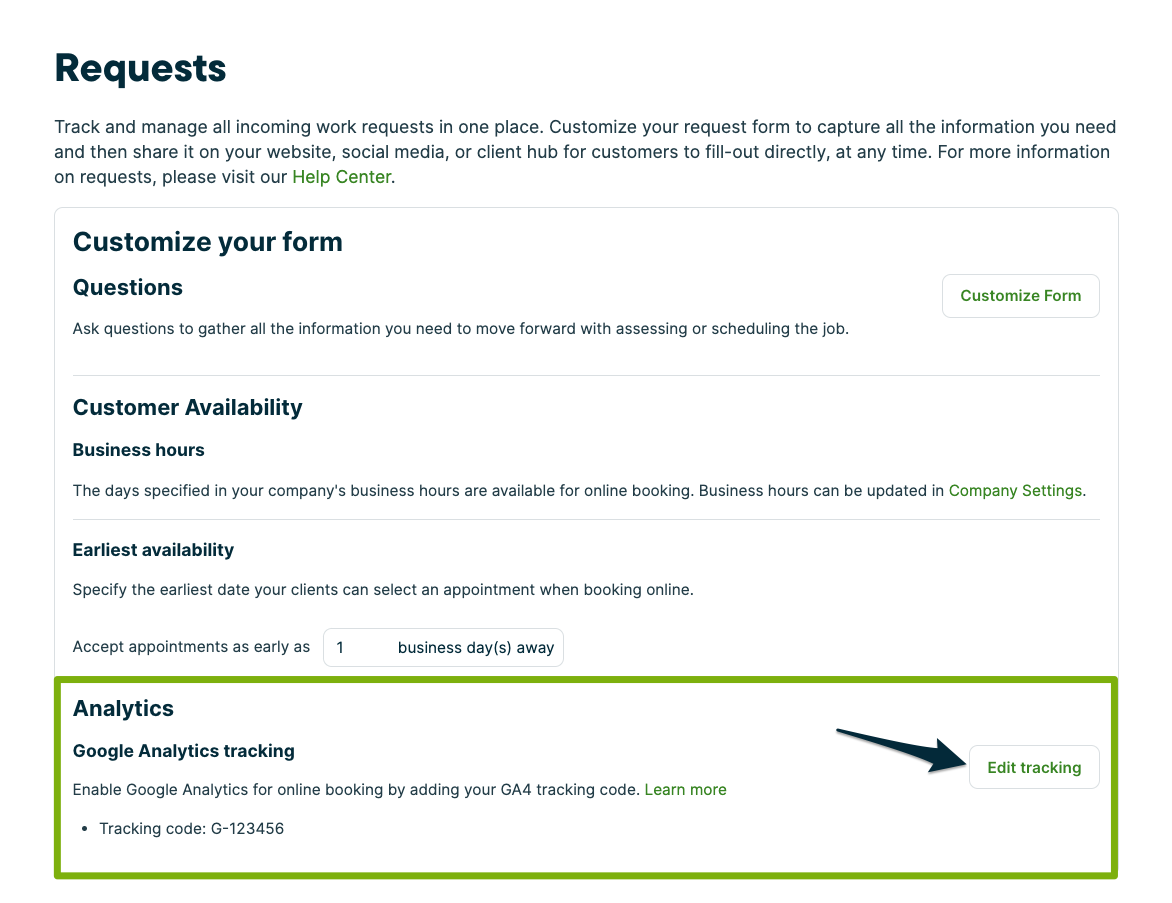
To enable Google Analytics tracking on your request form, navigate to the Gear Icon > Settings > Requests. From the Customize your form section, locate the Analytics heading then select the Add tracking button.
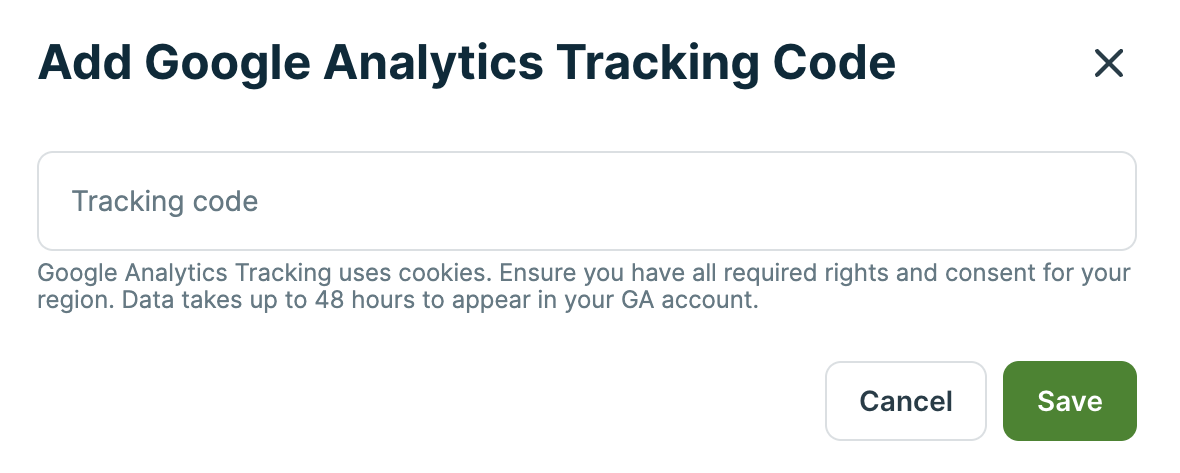
From the pop-up, enter your Google Analytics tracking code, then select Save.
Once added, you will see the tracking code details on the requests settings page under the Google Analytics tracking heading. To edit the tracking code, navigate to the Gear Icon > Settings > Requests and select Edit tracking from the Analytics section.
Google Analytics tracking on online booking
To enable Google Analytics tracking for online booking, navigate to the Gear Icon > Settings > Online Booking. Select the pencil icon to add your Google Analytics tracking code.
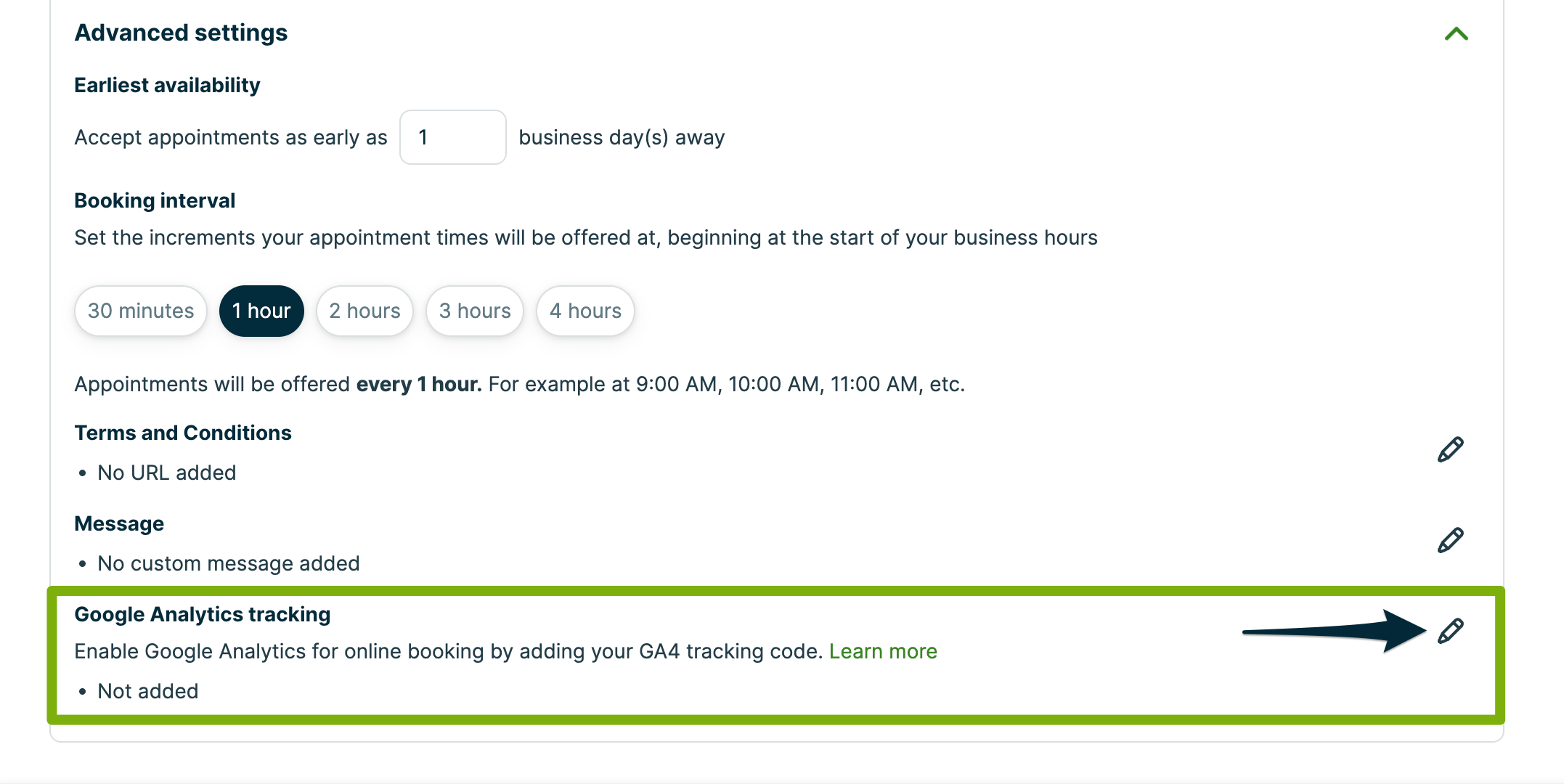
Once added, you will see the tracking code details on the online booking settings page under the Google Analytics tracking heading. To edit the tracking code, select the pencil icon.

Set up cross-domain measurement
Outside of the set up in Jobber, you will need to make sure your Google Analytics are set up for cross-domain measurement in order to track when users navigate between domains through Jobber’s request or online booking forms.
Note: Cross-domain tracking isn’t supported if you’re using an embedded request form.
To set this up, add clienthub.getjobber.com as a domain in your Google Analytics settings. This URL will work for both requests and online booking.
Check out the video and linked article below to learn how to set up cross-domain measurement for Google Analytics.
Learn how to set up
cross-domain measurement
Note: It is your responsibility to ensure that you are in compliance with your region’s cookie regulations.
How to measure conversion
When one of your clients submits a request or online booking form, Jobber sends an event to the connected Google Analytics account.
To measure the conversion rate of your online booking and/or request form, you will need to update the event in Google Analytics so that these events are key events. The event type varies between online booking and requests:
- For tracking online booking conversion, the “purchase” event will need to be marked as a key event in Google Analytics. Note: the “purchase” event is likely already listed as a key event by Google.
- For tracking request conversion, the “generate_lead” event will need to be marked as a key event in Google Analytics.