
In This Article
Overview
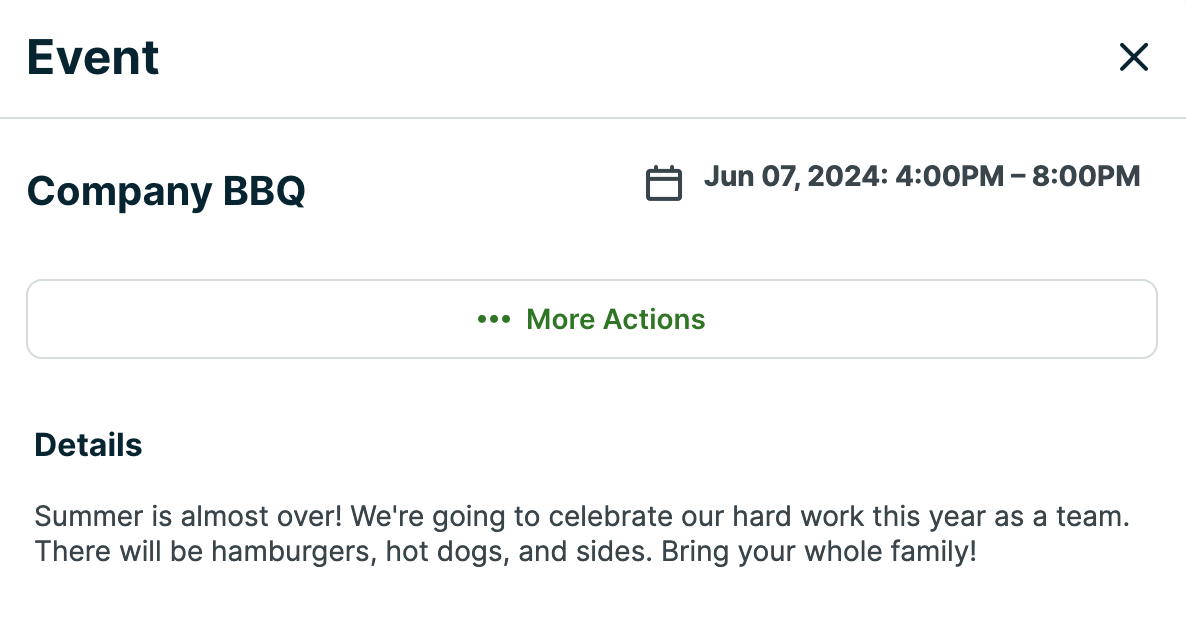
Events are scheduled items that are assigned to your entire team, so everyone can see it on their schedule. Calendar events can be a good fit for events like a team meeting or a company BBQ.
Creating an event
To create a calendar event, users must have permission to “Edit their own schedule” in the scheduling permission level.
To create an event, go to any of the following schedule views:
- Month
- Week
- List
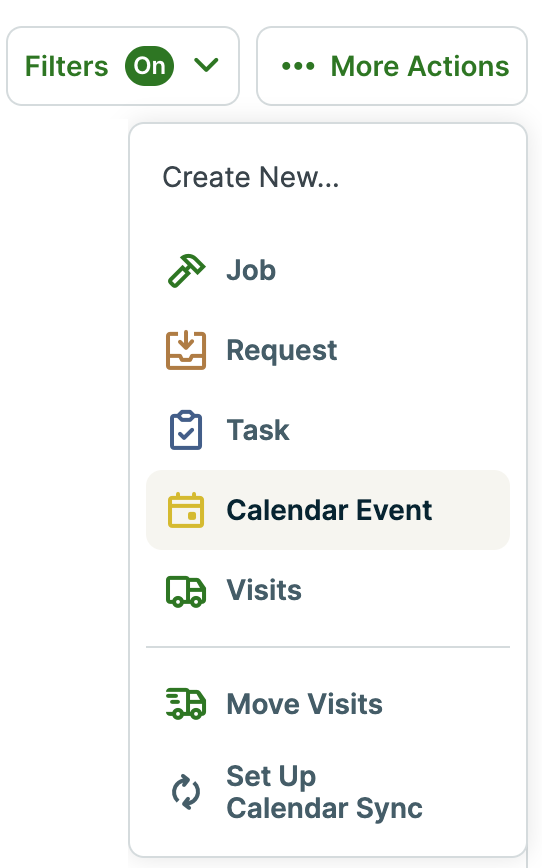
Then click More Actions > Calendar Event:
This will bring up a popup where you can enter the name, details, and time.
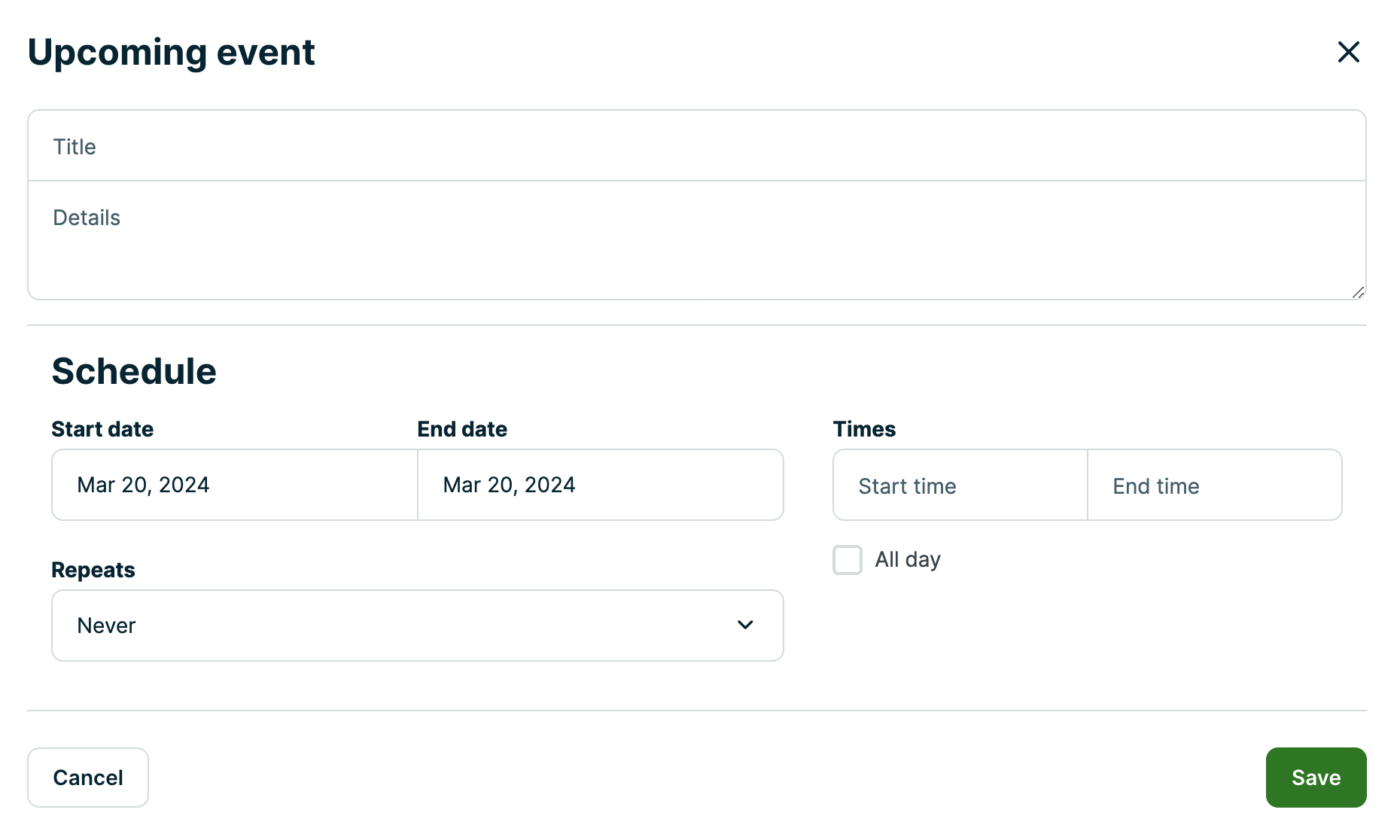
Click Save to create the event. You and your team will now be able to find it in the calendar, and in their schedule on the app.
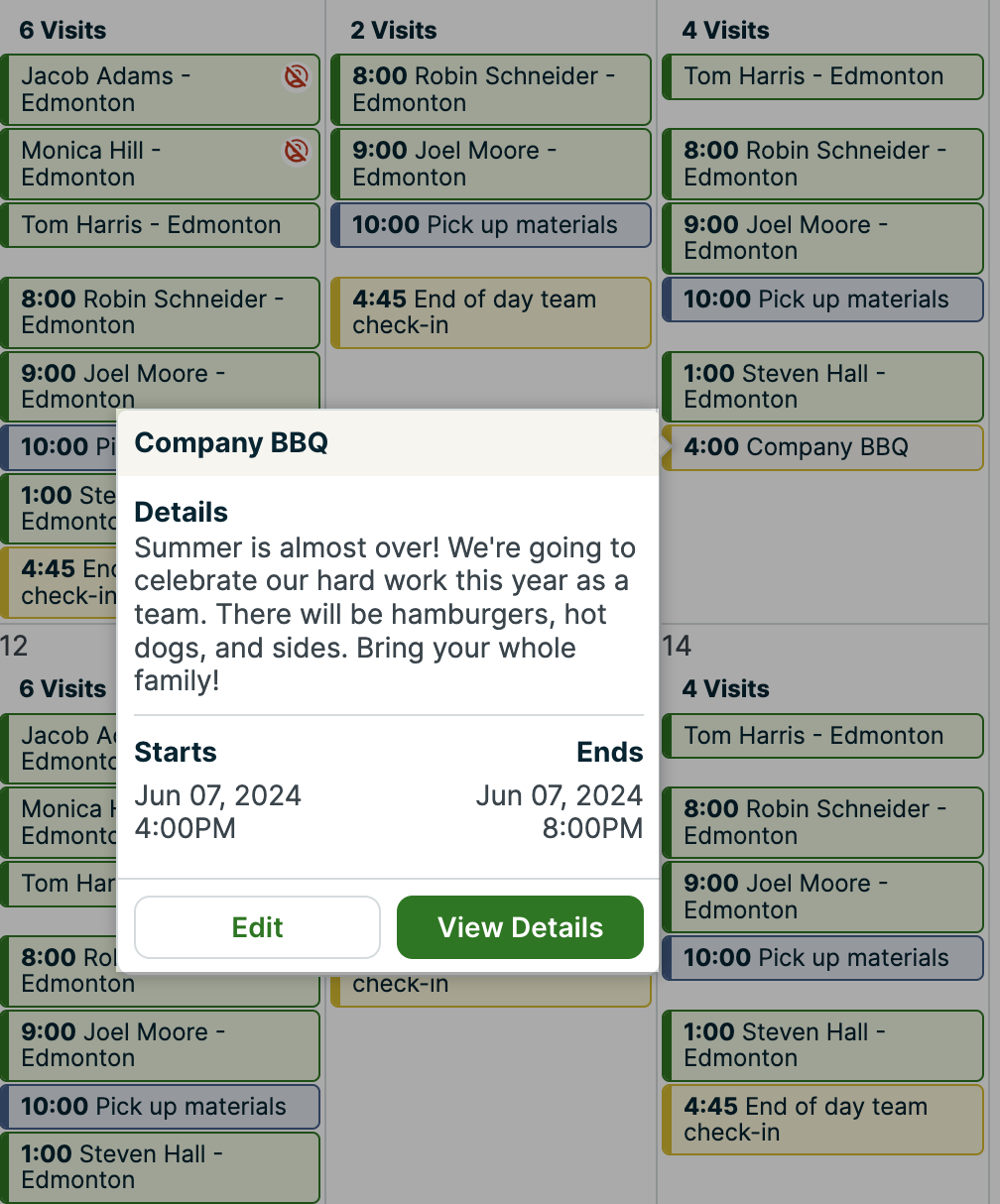
Once the time for an event has passed, it will automatically be crossed out as done on the schedule.