
In This Article
How to get in touch
Our Success Team is here to help! If you need any assistance, please feel free to reach out.
Our operating hours are Monday to Friday from 7am-9:30pm ET.
There are a variety of ways to get in touch with our Success Team:
Via the Help Center
Congrats! You’re already here in our Help Center! This is where you can find articles and videos that cover every feature within Jobber. If you scroll up to the top right of this page there is a search bar that will allow you to look up any features you need more guidance on.
From jobber.com, you can also search the Help Center from the Question Mark Icon in the top right corner of your screen in your top navigation menu. There will be article recommendations based on the page you are looking at in Jobber. If you don’t see what you’re looking for, you can search the Help Center by using the search bar at the top of this drawer.
In the Jobber App, you can access the Help Center from the Gear Icon > Support. This is also where you can find a link to videos from Jobber Help Center on YouTube.
Via live chat
You can start a live chat with our Success Team by logging into Jobber.com then clicking the Question Mark Icon in the top navigation menu.

This will open a drawer with support options. To start a live chat, click the Chat with Us button.
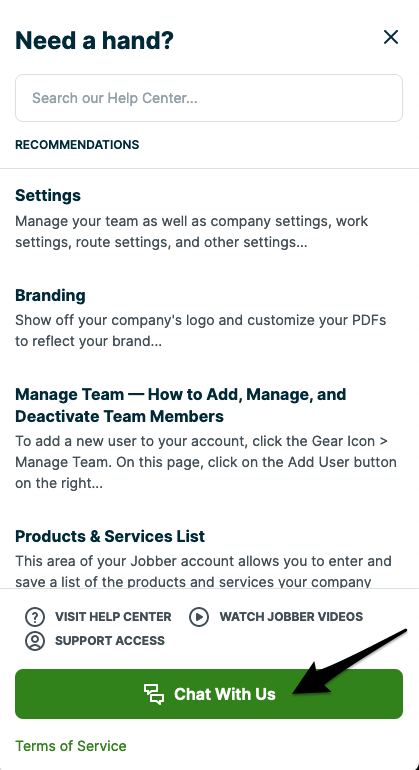
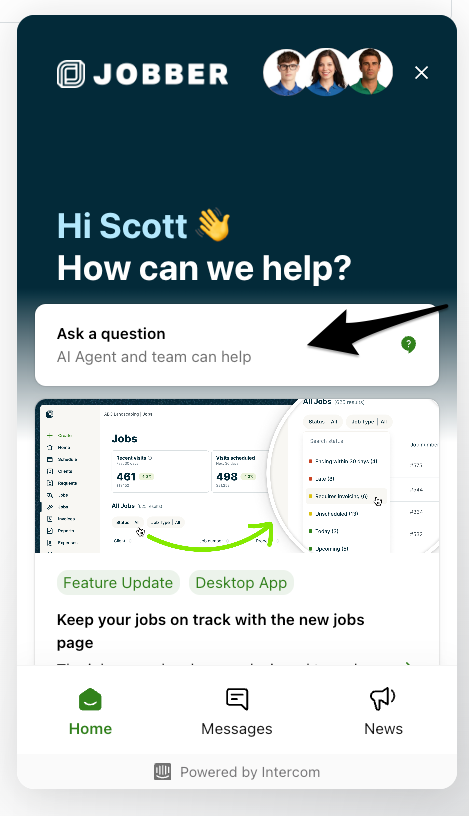
This will open a chat window where you can get support.
If you have a new question for us, go ahead and click Send us a message to start chatting in with our team.
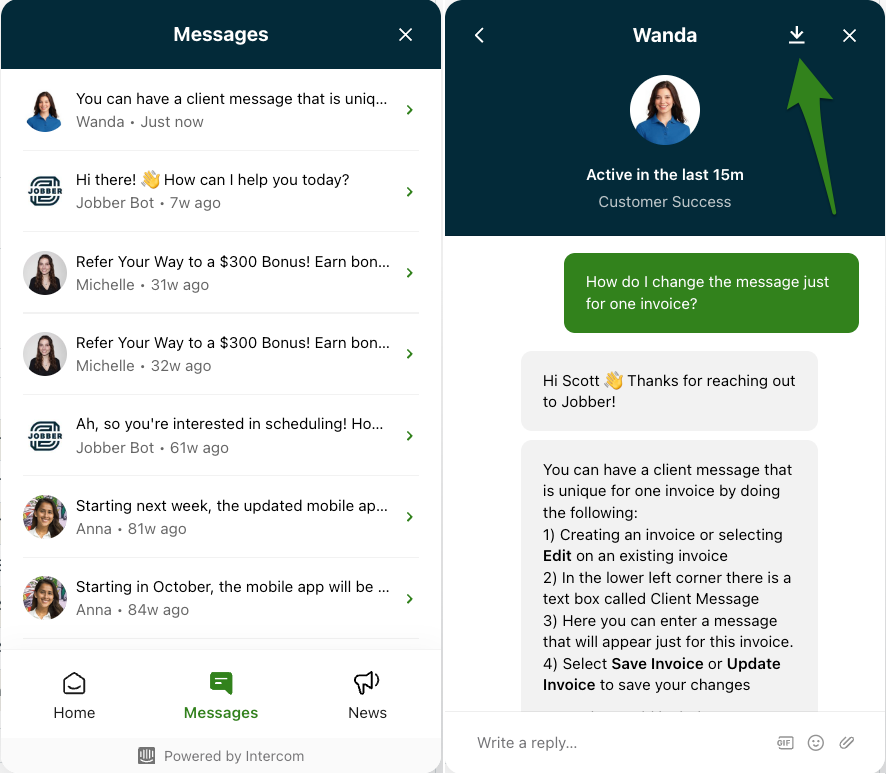
If you’ve chatted with us a few times, you can review your past chat history and download the transcript if you want it for reference. To download the transcript, click on the Success Team member’s name at the top of your screen, this will expand some options for you. Click the down arrow to download the transcript.
Introducing Fin: Jobber’s support chatbot
Your chat will first be answered by Fin, Jobber’s support chatbot. Fin is here to quickly answer your product support questions so you can get back to work right away. When chatting with Fin, please use direct language and speak in full sentences.
Fin is able to take chats outside of our regular support hours.
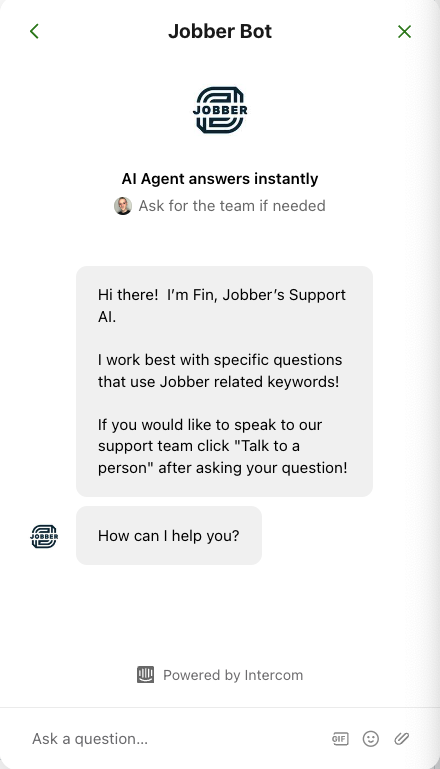
Note: Fin doesn’t support images, gifs, or videos so if you have a file that you’d like to share, select the option to Talk to a Person.
If Fin isn’t providing an answer, or you need a Support Team member to dig into your inquiry, select the option to Talk to a Person and a team member will join the chat.
Chatting with a support team member
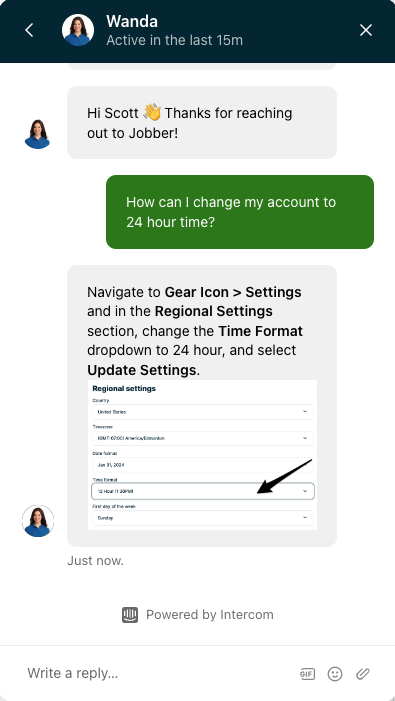
In the chat, you can type messages along with sending GIFs, emojis, and attachments. Sending any of these can help get your point across to the Success Team member. These options are in located in the same bar where you type your reply, depicted by the word GIF (to send a GIF), Smiley Face (to send an emoji), and Paperclip (to upload an attachment).
In this example, the person chatting in has sent a screenshot that they annotated:
How to chat with Jobber support in the Jobber App
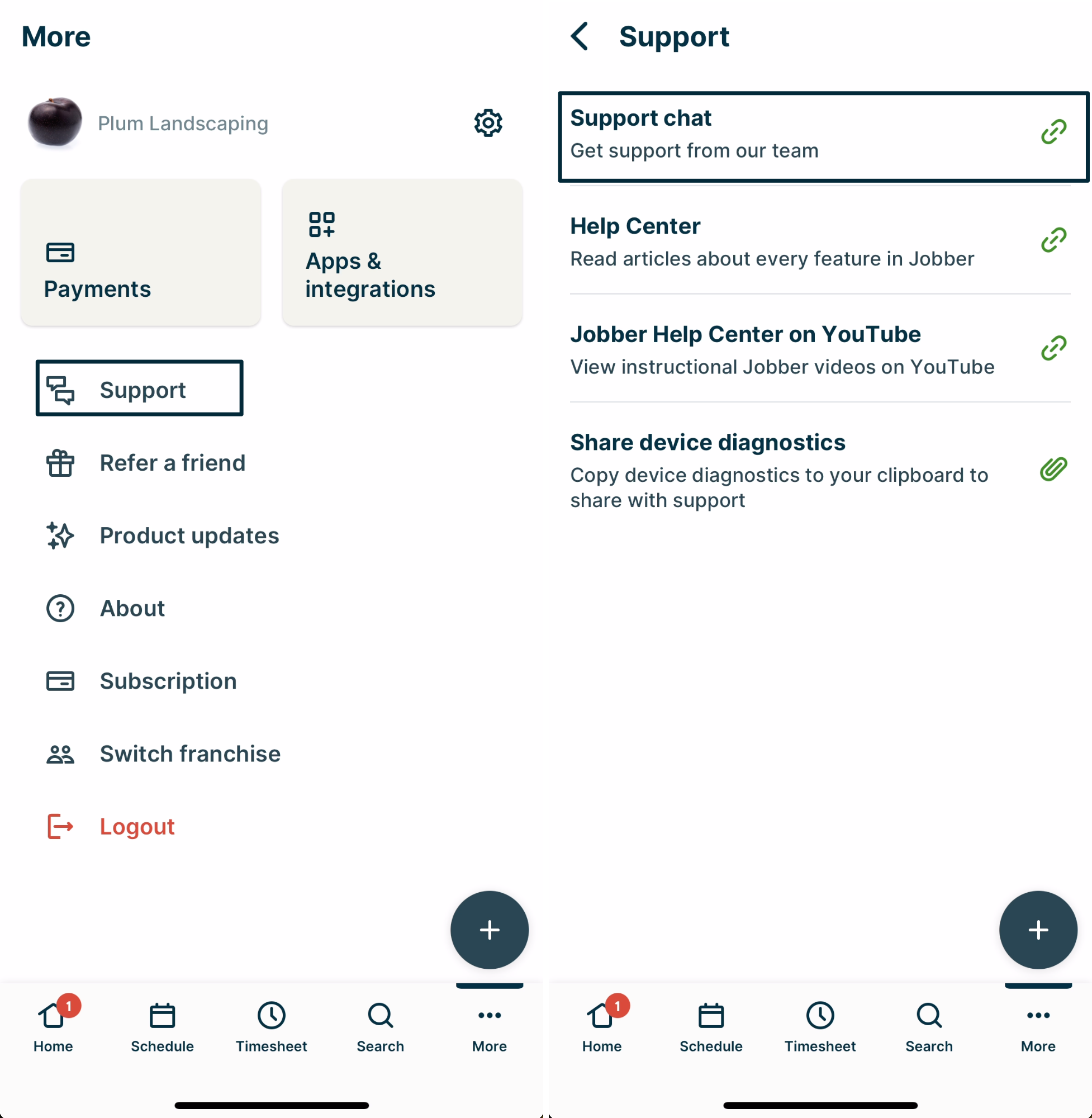
You can also start a chat with us through the app. Tap More button in the bottom menu of the Jobber App. In the Support section, tap Support chat to open a chat with our Support Team.
If you start a chat with us outside of our hours or during a time when our team is in an all hands meeting, don’t panic! We will reply back to you with an email to answer your questions.
How to send your device diagnostics
To troubleshoot issues with the Jobber App, the Support Team might ask for details about your device. The best way to share your device details is to follow these steps:
- Sign into the Jobber App.
- From the bottom menu, select More, then from the More page select Support.
- Select Share device diagnostics to copy your device details to your devices clipboard.
- Paste the device details into a chat or email with the support team. Make sure to include the whole thing from your clipboard.
Your copied device details will look like the example below.
App version: v6.20.0 (2000007054)
Device: Apple iPhone (iOS 18.3.1)
Network: {
“type”: “5g”,
“isConnected”: true,
“details”: {
“ipAddress”: “10.0.0.XXX”,
“subnet”: “255.255.255.0”,
“isConnectionExpensive”: false
},
“isInternetReachable”: true
}
Via email
Jobber support can be contacted at support@getjobber.com.
Via phone
You can give our Success Team a call at 1-888-721-1115. We will be happy to walk you through anything you need over the phone.
Granting Jobber access to your account
Sometimes when you reach out to Jobber’s Success Team we’ll need to look at your account and access your information in order to answer your questions. In order to keep everything secure, we need to have your permission to view your account. We know that you keep sensitive information in your account, so we want to do our part to make sure that info remains secure.
In order to get your permission, we’ll send an email to all the admin users on the account. This email is sent automatically, so we’re not able to change the recipients. The email will prompt you to approve the request for access.
You can also view the request by clicking the Question Mark Icon > Support Access.
Learn more about Granting Jobber Access to Your Account