In This Article
Overview
To edit your personal settings click the Gear Icon > Manage Team to access each individual user page, including your own. If you are a non-admin user, you can access your personal settings from the Gear Icon > Personal Settings.
Edit profile
On your profile, you can make changes to your user photo, name, and contact details. You can also change your current password.
Note: “Full name” and “Email address” are both required fields and cannot be left empty. The email address entered here is what you will use to log into your Jobber account.
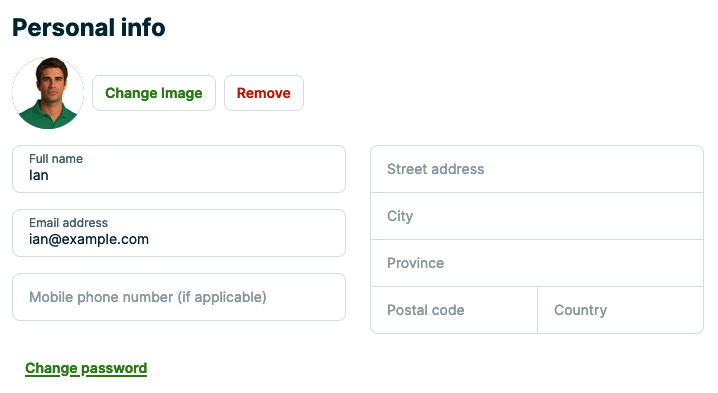
Once a photo has been added and saved to your profile, you will have the option to remove it if needed. Removing the photo will bring back the original icon (shown above) that shows the initials to the name you have provided in the “Full name” field.
Permissions
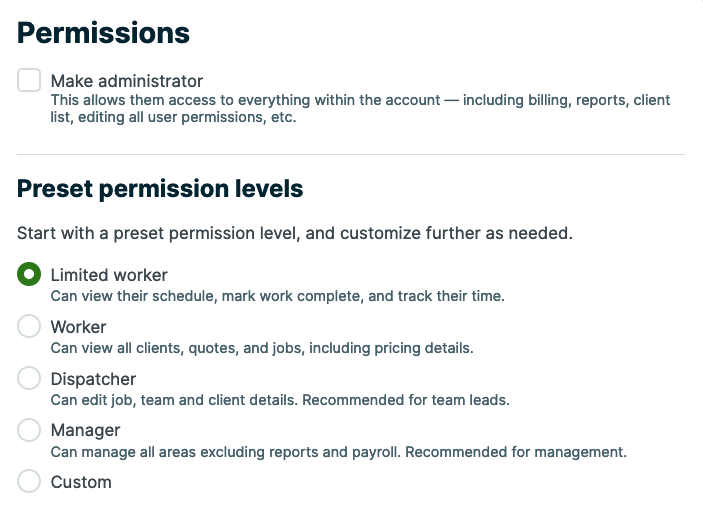
You will only see the permissions box if you are an administrator on the account. If you are a non-admin user, you won’t have the option to edit permissions for you or other users. Learn more about User Permissions.
If you do not wish to be an admin user, uncheck the Make Administrator box. You must have one admin user on your account at all times.
Email subscriptions
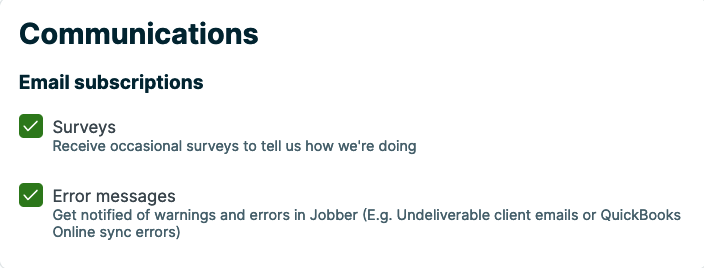
Below the user permissions is a subscriptions section where you can select if you would like to subscribe to emails, including Surveys about Jobber and/or Error Notifications from Jobber.
Error Notification emails are only available to admin users.