In This Article
Overview
Show off your company’s logo and customize your PDFs to reflect your brand. Company branding appears in client hub, email messages, and on all PDFs.
You can find branding settings by going to the Gear Icon > Settings > Branding. This is where you can upload a logo, edit PDF style, and add social links. Your company name and contact information is found in company settings.
Company logo
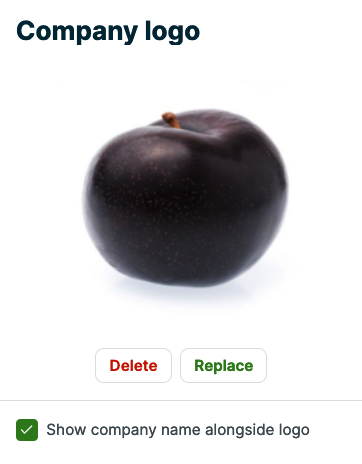
To add a company logo, click Add Logo. Select the image file from your computer, then click Upload File. This logo will show on requests, client hub, email messages, and on all PDFs. The max file size for logos is 5 MB. The supported file types for logos are JPG and PNG.
PDF style
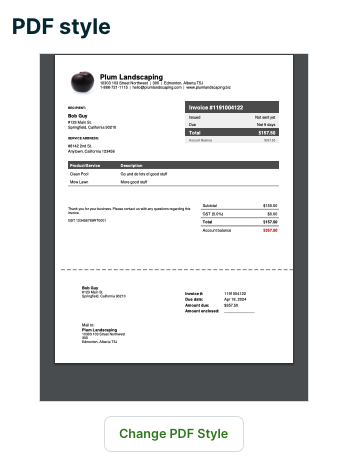
To modify the format of your quote, job, and invoice PDFs, click Change PDF Style.
Learn more about PDF Style.
Social networks
In this section, you can add links to connect Jobber with your company’s social network accounts:
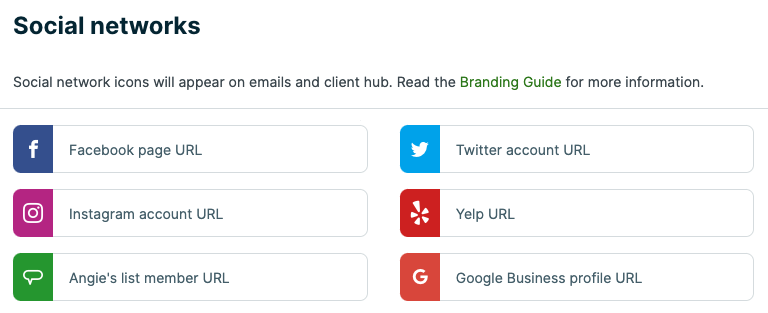
We support the following profiles:
- Google for Business
- Yelp
- Angie’s List
If you don’t have a certain account set up quite yet, you can click on the links below to get started with any of these:
- Facebook for Business
- Twitter Business Pro
- Instagram for Business
- Google for Business
- Yelp for Business Owners
- Angie’s List Business Center
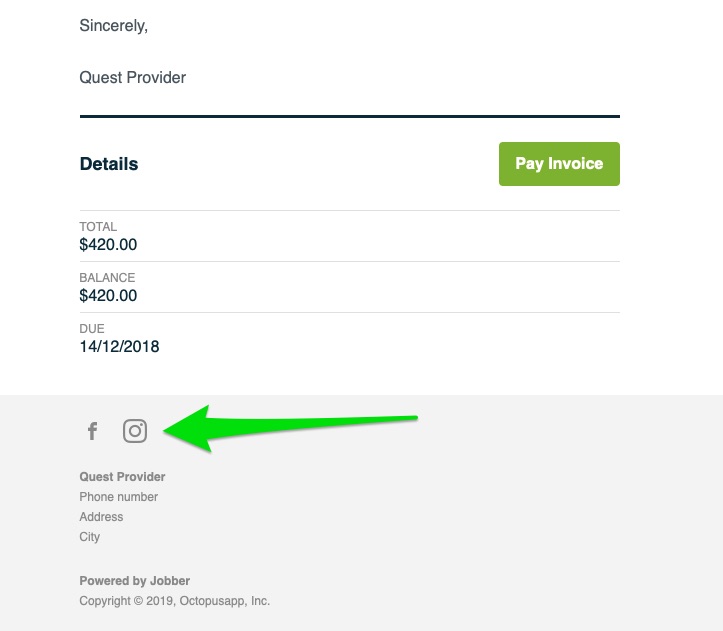
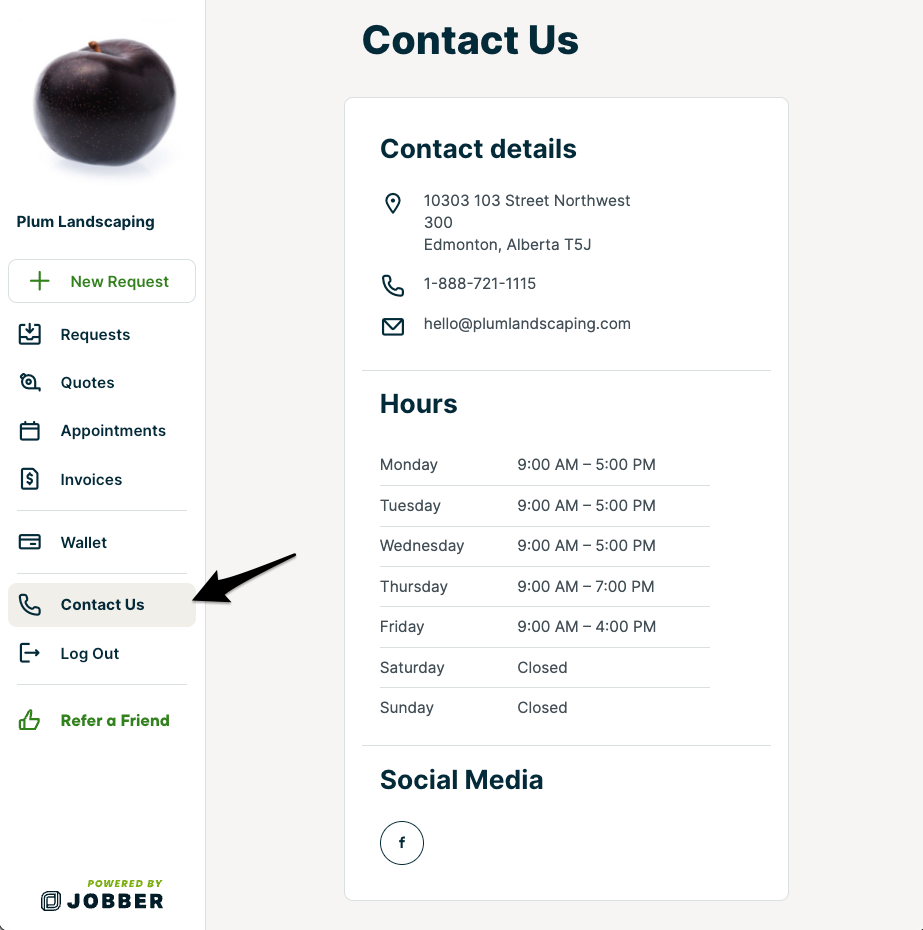
Inputting your accounts in the spaces will allow them to be shown in the following places:
-
Client Hub:
-
On emails being sent from Jobber: