
In This Article
Overview
Tasks are used to schedule time to complete work that will not be invoiced for. This might include errands, picking up supplies, or follow-up appointments.
Create a new task
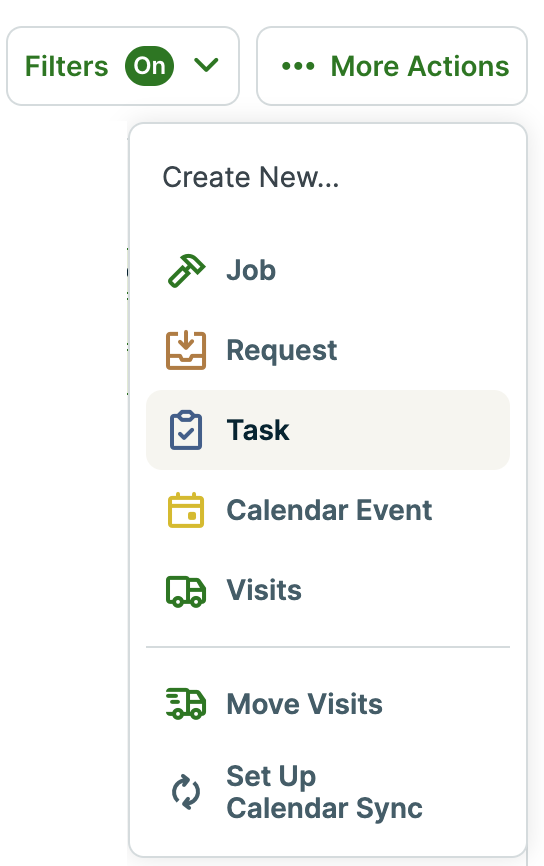
You can create a task from many places in Jobber, including the schedule, from a client’s profile, or from the dashboard. In each area, click the More Actions button in the top right, then click Task.
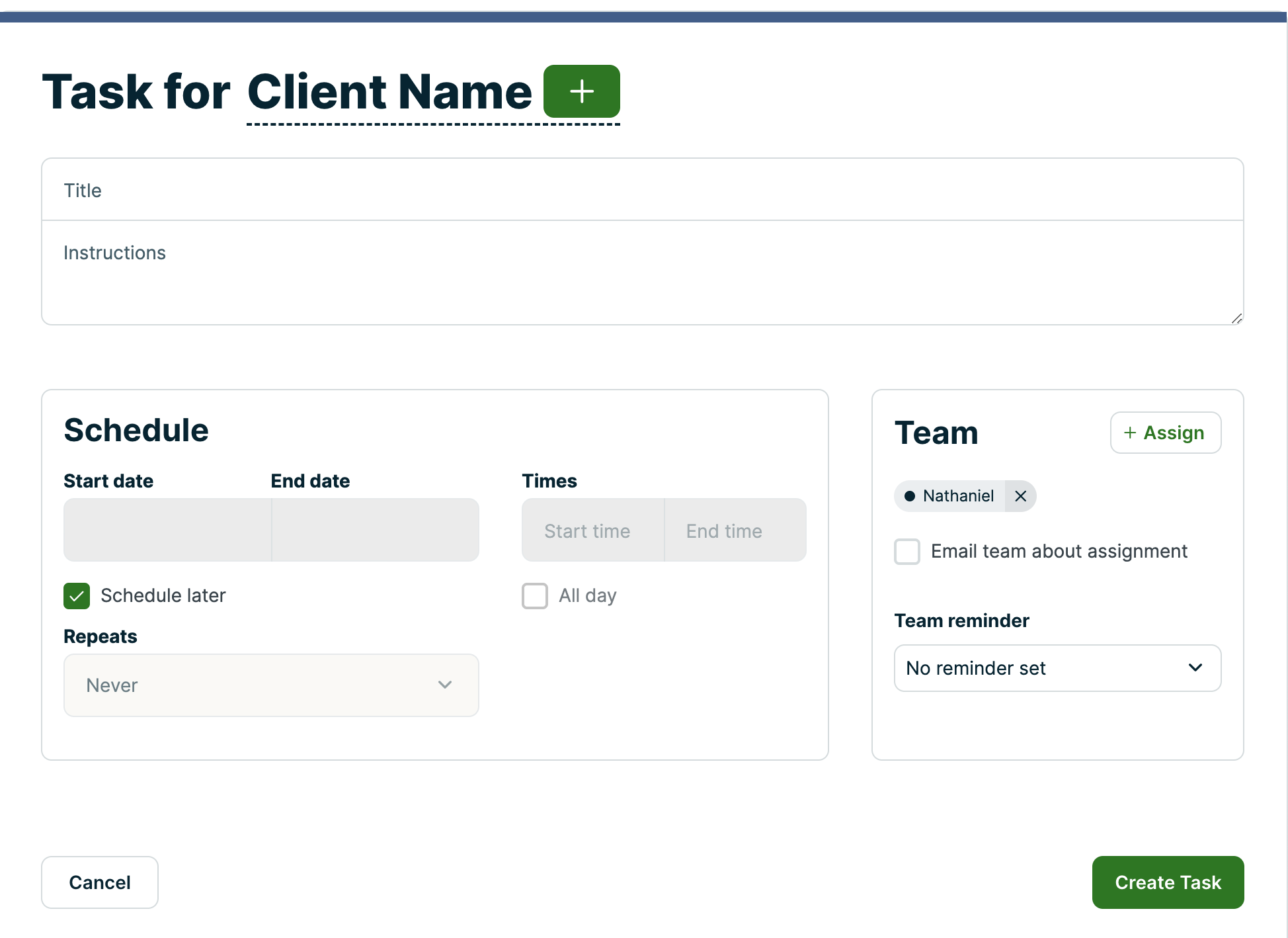
When creating a task, this is the information you’ll be prompted to fill out:
- Client - This is optional. When a client is linked to the task, their contact information will be included.
- Note: There are no client facing notifications associated with tasks, even when a client is assigned. This means that your clients won’t receive a reminder before a scheduled task.
- Title - This will be seen on the schedule, and in the Jobber app.
- Details - These are details or notes about the task
- Scheduling - You can choose the date and time of the task. If you do not want a time, check off ‘All Day’.
- Repeats - If this task is on a repeat schedule you can set this here.
- Assigned To - You can add a user(s) who is assigned this task.
- Team Reminder - You can set a reminder email to be sent to users a certain amount of time before the task starts
- Notify Crew by E-mail? - When the task is saved, the assigned users will receive an email letting them know they have a new task.
Click Save to create the task, after you have entered the information.
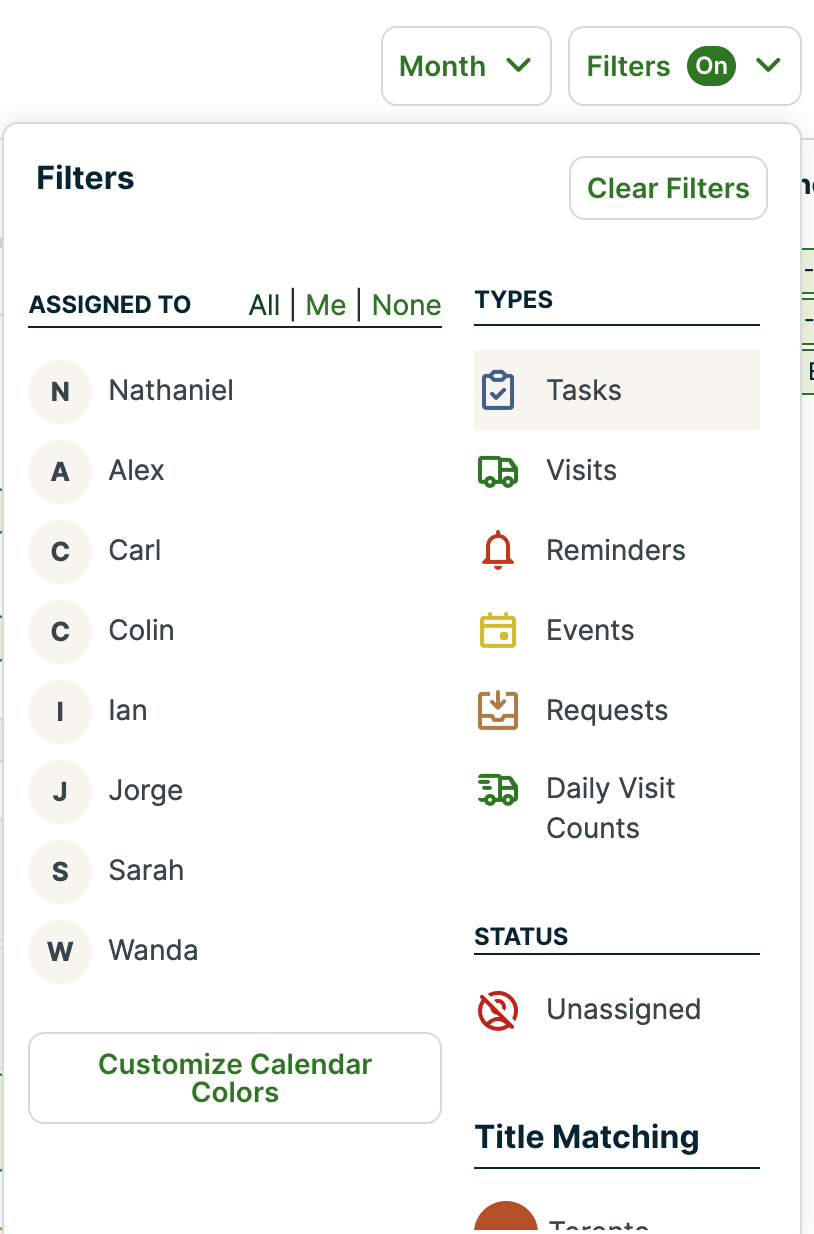
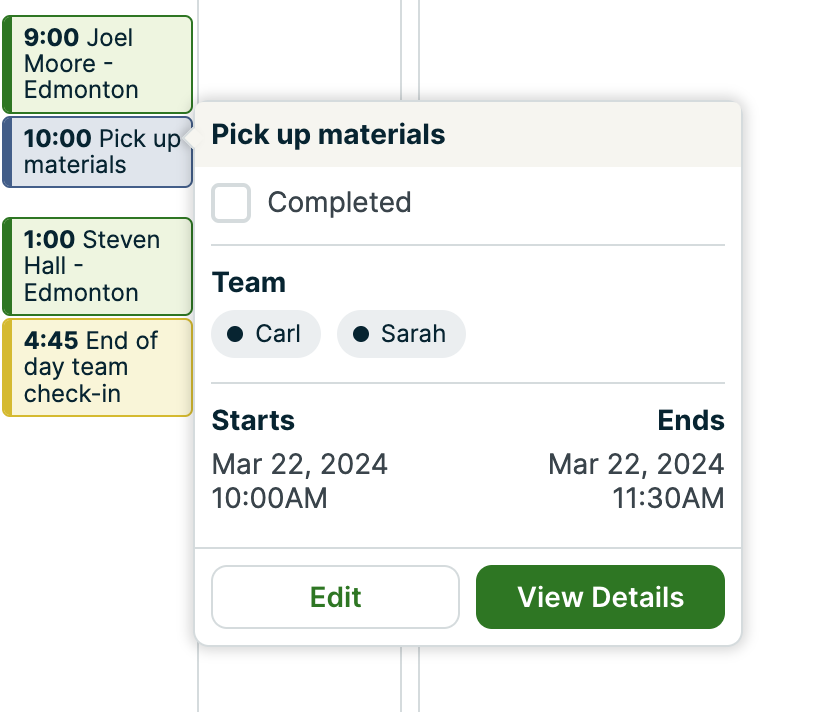
Tasks show on the schedule with a blue stripe on the left of them. You can filter them in or out using filters at the top of the schedule.
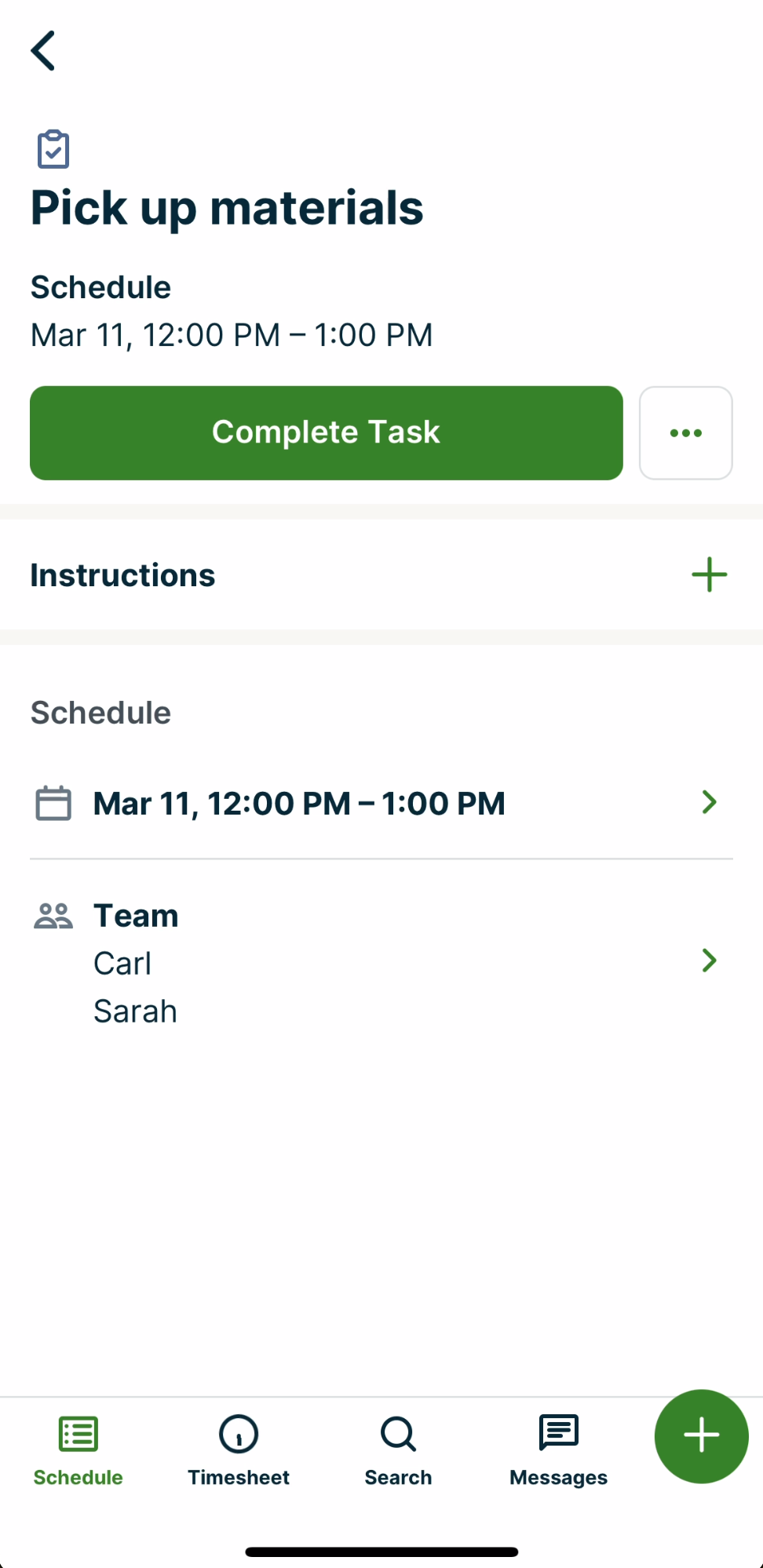
When a user has finished a task, they can mark it complete from either jobber.com, or the Jobber app.
A task from jobber.com
A task from the Jobber app
Push notifications in the app
When you assign a user to a task on the same day the task is occurring, the assigned users will receive a push notification to their device. These notifications will occur when a new user is assigned to a task, when a task scheduled for today is moved, or when the user is unassigned.
If you are the user who is assigning the task, you will not receive a push notification to your device when you assign yourself to the task.
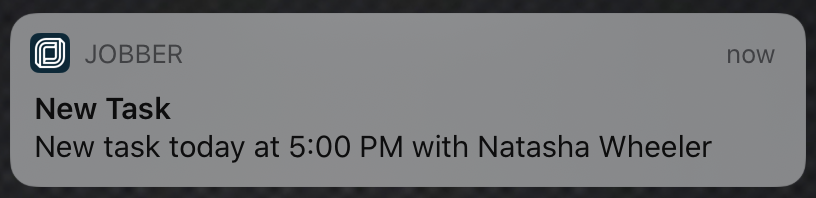
This notification will appear when a user is assigned to a new task. It will indicate that it is today and the time of the task.
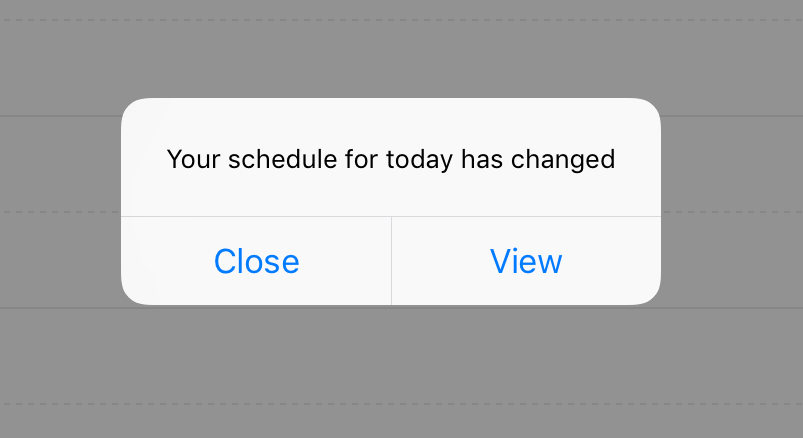
This notification occurs when a task has been removed from your schedule today.
Delete a task
To delete a task from Jobber.com:
- Start by navigating to the task. You can get there from the schedule or if the task is associated with a client, from the client’s profile.
- Click on the task to open the details, then select Edit.
- In the bottom left corner of the task details, select Delete.