
In This Article
Overview
You can customize calendar colors on your schedule in Jobber.com to keep your calendar organized and easy to understand at a glance. Use colors to highlight tasks assigned to specific team members or those containing certain keywords in the title, making it simple to spot important details quickly. Please note that calendar colors are only available on Jobber.com and won’t appear in the Jobber mobile app.
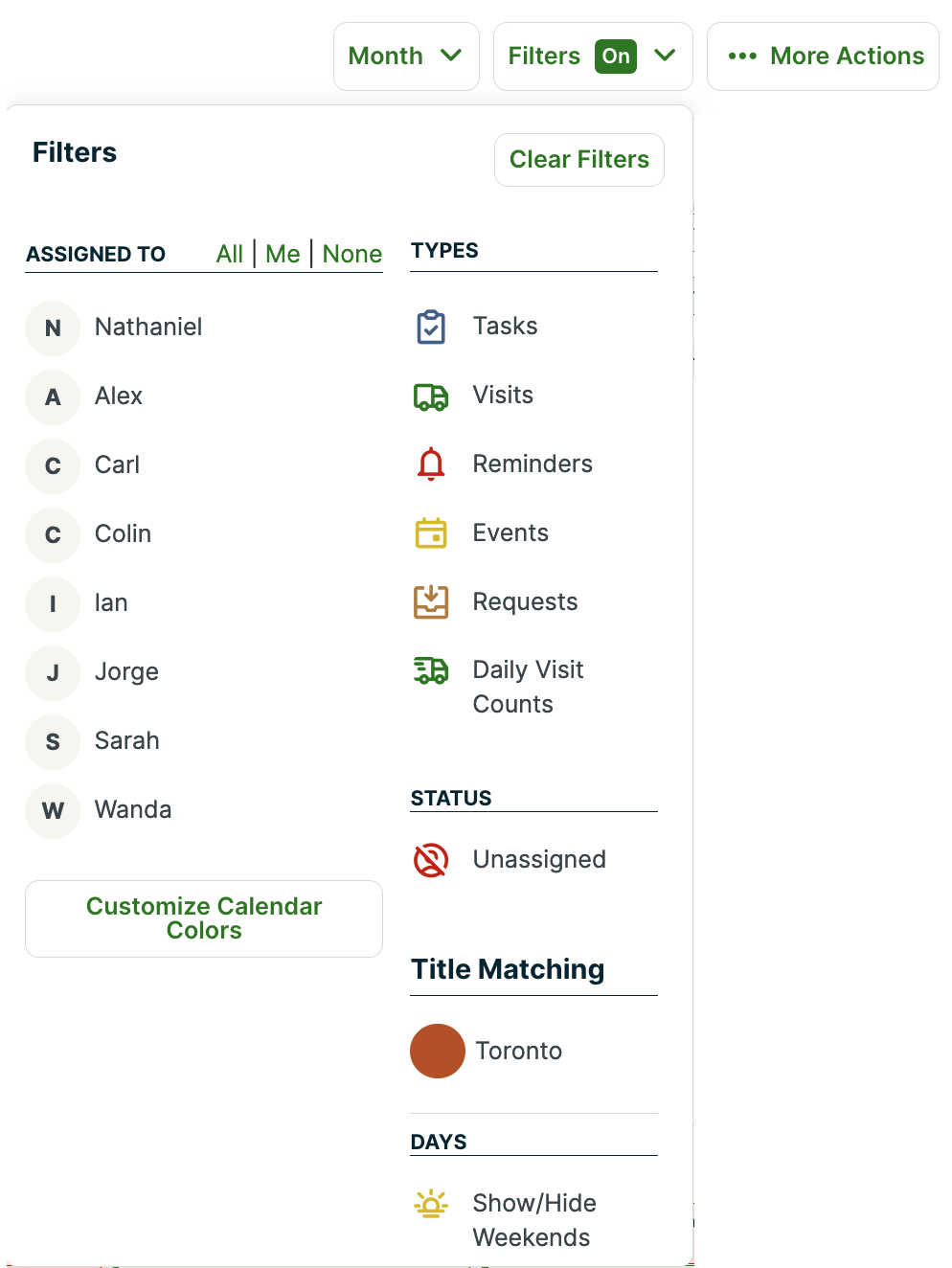
Calendar colors will show in the Month and Week view calendars. You can click Filters in the top right of the calendar to see what the colors correspond with.
Create a calendar color
To make a new calendar color, go to the Month or Week view > Filters > Customize Calendar Colors.
Or go to the Gear icon > Settings > Schedule.
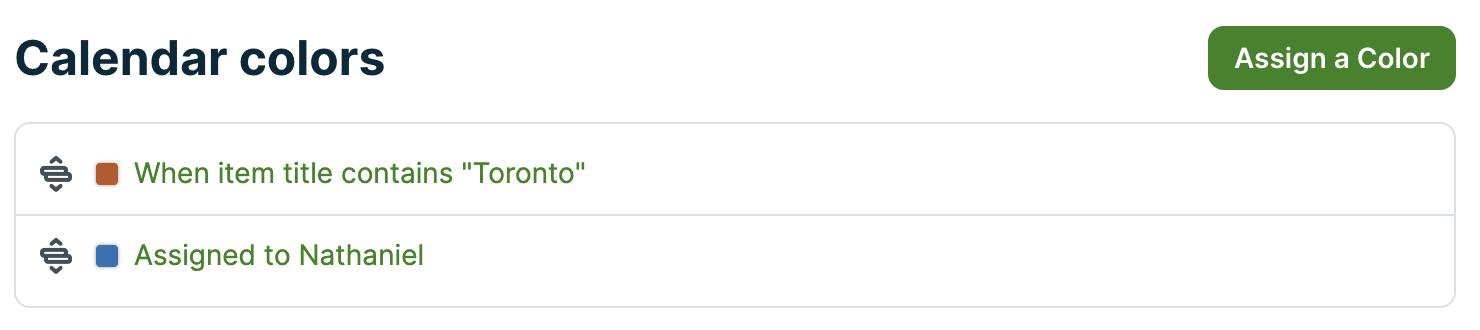
To create a new calendar color click Assign a Color.
You’ll then get a prompt like this:
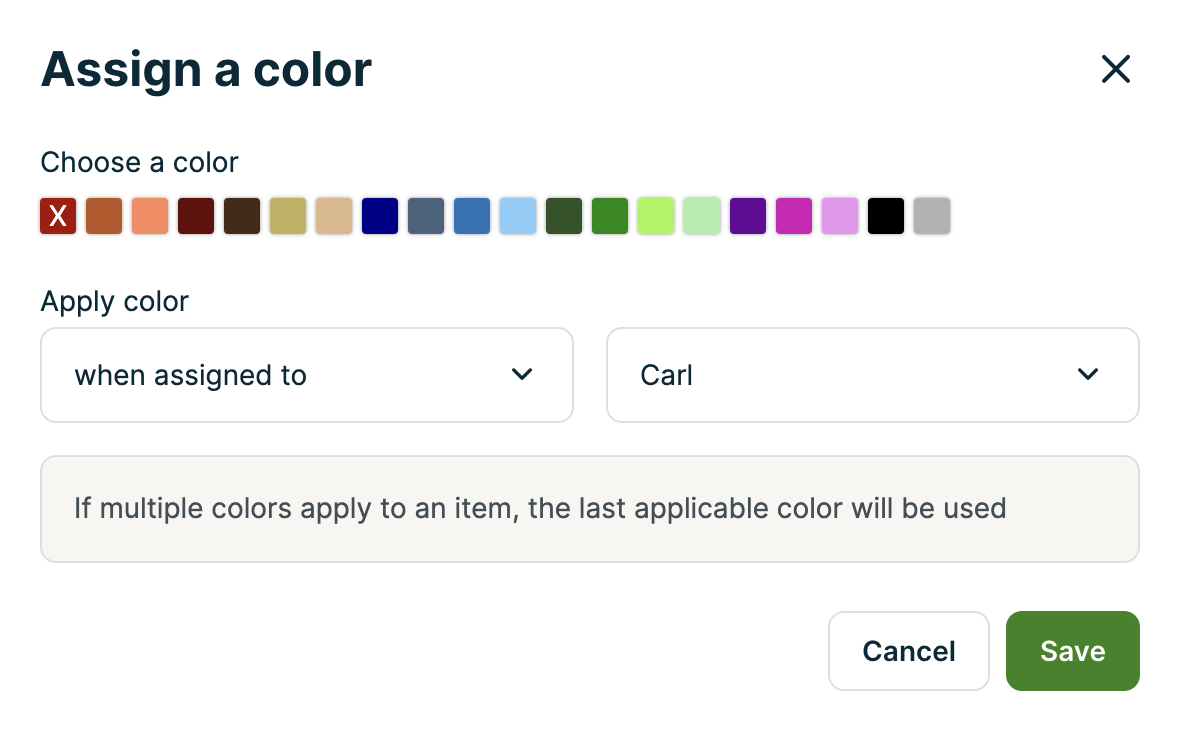
You can apply the color to a certain user, by selecting from the first drop down When Assigned. Then in the second drop-down, you can select the user.
To apply the color to a certain word in the visit title, select When Visit Title from the drop-down menu. In the box below you can enter the word or phrase you’d like the color associated with.
The visit title is the title given to visits on the calendar. You can edit the template for visit titles by going to the Gear Icon > Settings > Work Settings. For example, you can make the client’s city or their postal code show in the template, so it displays in the calendar.
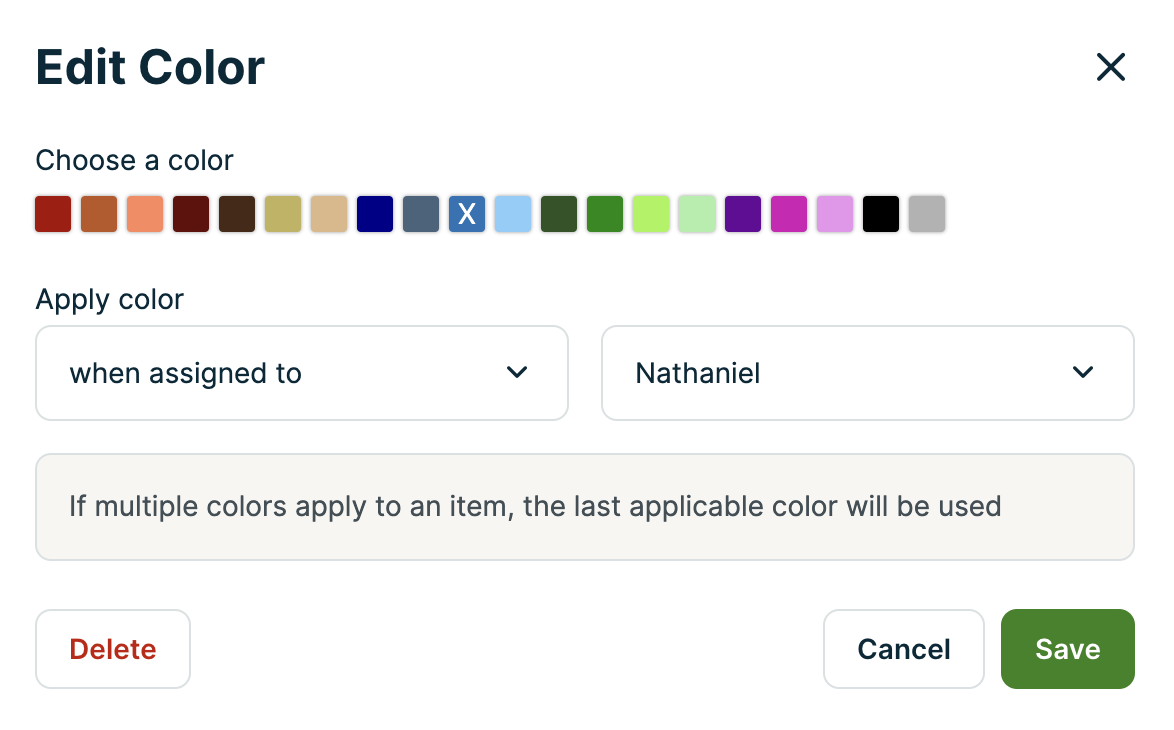
To edit a calendar color after you have set it up, navigate to the Gear Icon > Settings > Schedule. From the list of calendar colors, select the color you wish to change. An edit screen will open where you can change the color as well as the assigned user or keyword.
Color order
The colors are dominant from bottom to top. You can drag colors into the order you want them using the ‘drag’ button beside a color. If a visit was assigned to two users with colors assigned to them, then in the calendar it will appear in the color assigned to the user closest to the bottom of the list.