
In This Article
- Overview
- Uninstall the app
- Confirm you’re connected to the internet
- How to send your device diagnostics
- Take a screen recording
- Jobber’s Support Team has your back
Overview
In order for our Support Team to troubleshoot an issue, there are a few troubleshooting steps that we might ask if you have already tried. These are steps you can do on your own first before reaching out to support. After going through these steps if the issue still persists our support team may make a ticket to escalate the issue further.
Uninstall the app
As a first troubleshooting step, delete the Jobber App and then re-download it from the Apple App Store or Google Play Store. If you are on an older version of the app, this will ensure the newest version is installed when you download it again. Deleting the app also clears the app’s cache which may resolve any performance anomalies.
Learn how to delete an app on an Apple device
Learn how to delete an app on an Android device
Note: If the version of the Jobber App installed on your device is more than 5 months out of date, you will see a prompt in the app to install the latest version of the Jobber App.
Confirm you’re connected to the internet
In order to use both the app and the website, you do need to have an internet connection- whether that’s through wifi or data or a wired connection.
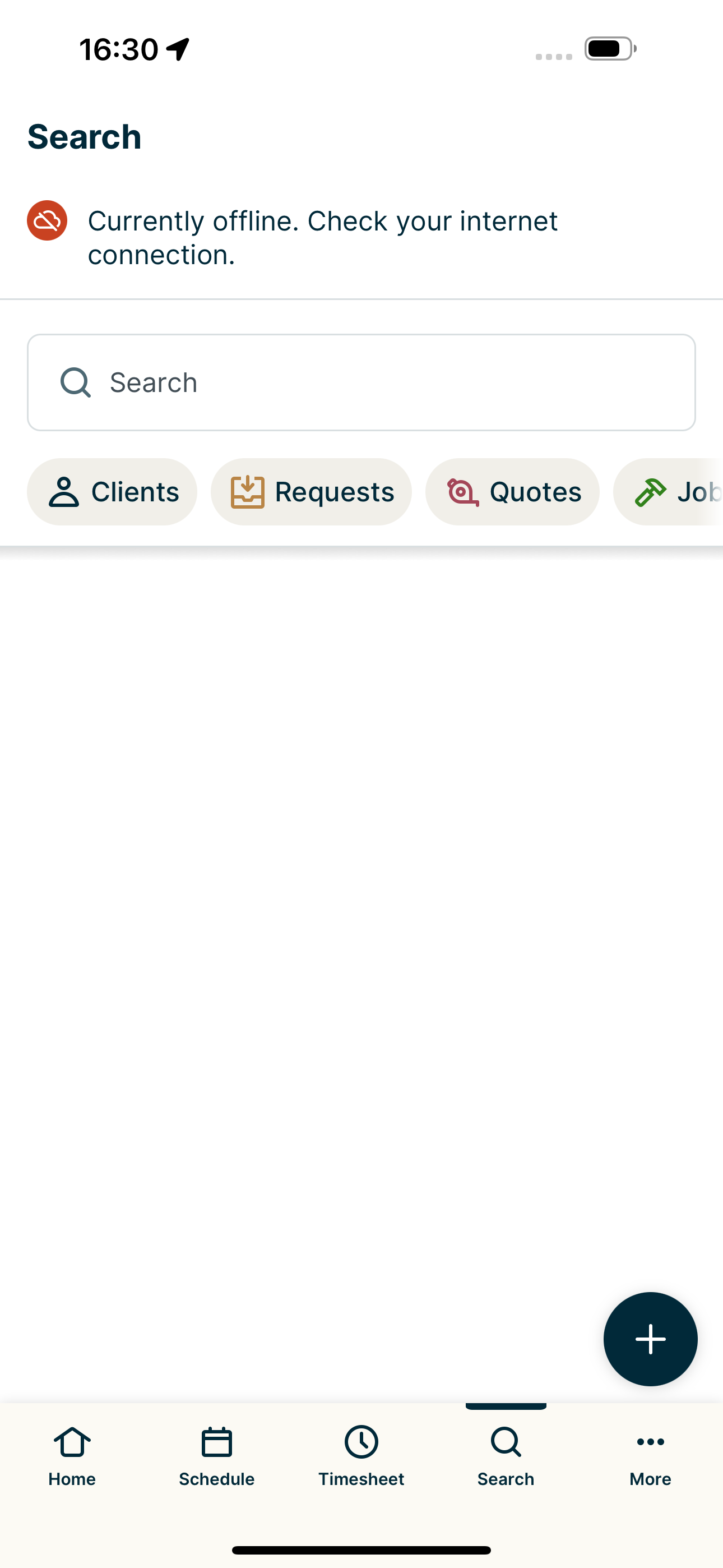
In the app when you are not connected to the internet, you will see a message letting you know that you are offline.
How to send your device diagnostics
To troubleshoot issues with the Jobber App, the Support Team might ask for details about your device. This helps us look into issues that may be happening across specific devices or app version and recognize wider patterns. The best way to share your device details is to follow these steps:
- Sign into the Jobber App.
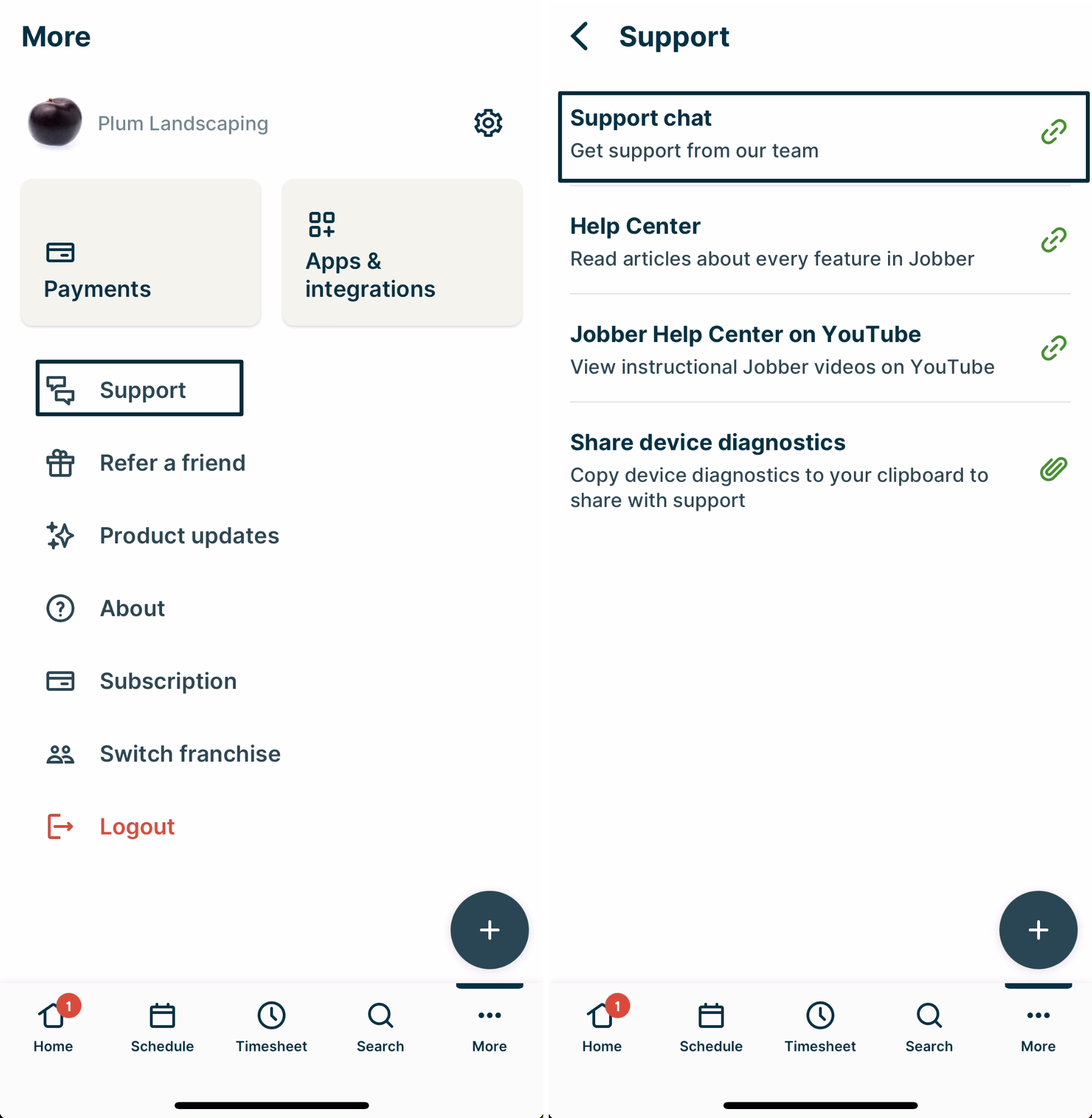
- From the bottom menu, select More, then from the More page select Support.
- Select Share device diagnostics to copy your device details to your devices clipboard.
- Paste the device details into a chat or email with the support team. Make sure to include the whole thing from your clipboard.
Your copied device details will look like the example below.
App version: v6.23.0 (2000007138)
Device: Apple iPhone (iOS 18.4)
Network: {
“type”: “wifi”,
“isConnected”: true,
“details”: {
“ipAddress”: “10.0.0.XXX”,
“subnet”: “255.255.255.0”,
“isConnectionExpensive”: false
},
“isInternetReachable”: true
}
Take a screen recording
If you are reaching out to Jobber’s Support Team, it’s handy to share images and recordings of what you’re seeing in the app to help us dig into the issue. Taking a screen recording is a great way to let us see what you’re seeing and can be shared with us either through chat or email.
Learn how to take a screen recording
on an Apple device
Learn how to take a screen recording
on an Android device
Jobber’s Support Team has your back
Jobber’s award winning Support Team is here to help you out! If you need assistance you can start a live chat with our team where a real person will help you out with any questions. To start a chat from the Jobber App, tap More then from the Support section, tap Support chat.
You can also start a chat from this article from the Speech bubble icon in the bottom left corner.