
Overview
Quote templates make it easy to create professional, consistent quotes tailored to the needs of your business. With this feature, you can set up reusable templates that include pre-filled line items, pricing, and terms, streamlining the quoting process and ensuring accuracy every time. Whether you’re handling a high volume of quotes or looking to maintain consistency across your team, quote templates help you save time while delivering a polished customer experience.
Quote template availability
Quote templates are available on all plans at Jobber.com. View our current pricing plans.
Quote templates can be used in the Jobber app, but must be created from Jobber.com first.
To check what plan you’re on, select the Gear Icon, then choose Account and Billing. If you have any questions about your plan’s features or pricing, our support team is here to help!
Create a quote template
To create a new quote template:
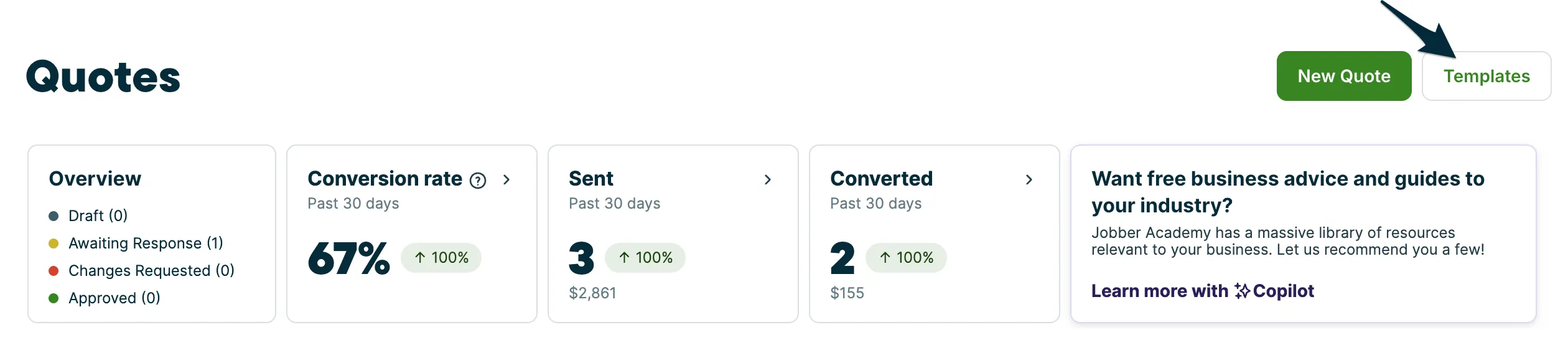
- Select Quotes from the side navigation.
- Click the Templates button.
- Select Create Template to start creating a new quote template.
Only admin users can create and edit quote templates. Team members who have user permissions to create quotes can fill out and preview quote templates. You can create up to 30 quote templates.
Use a quote template
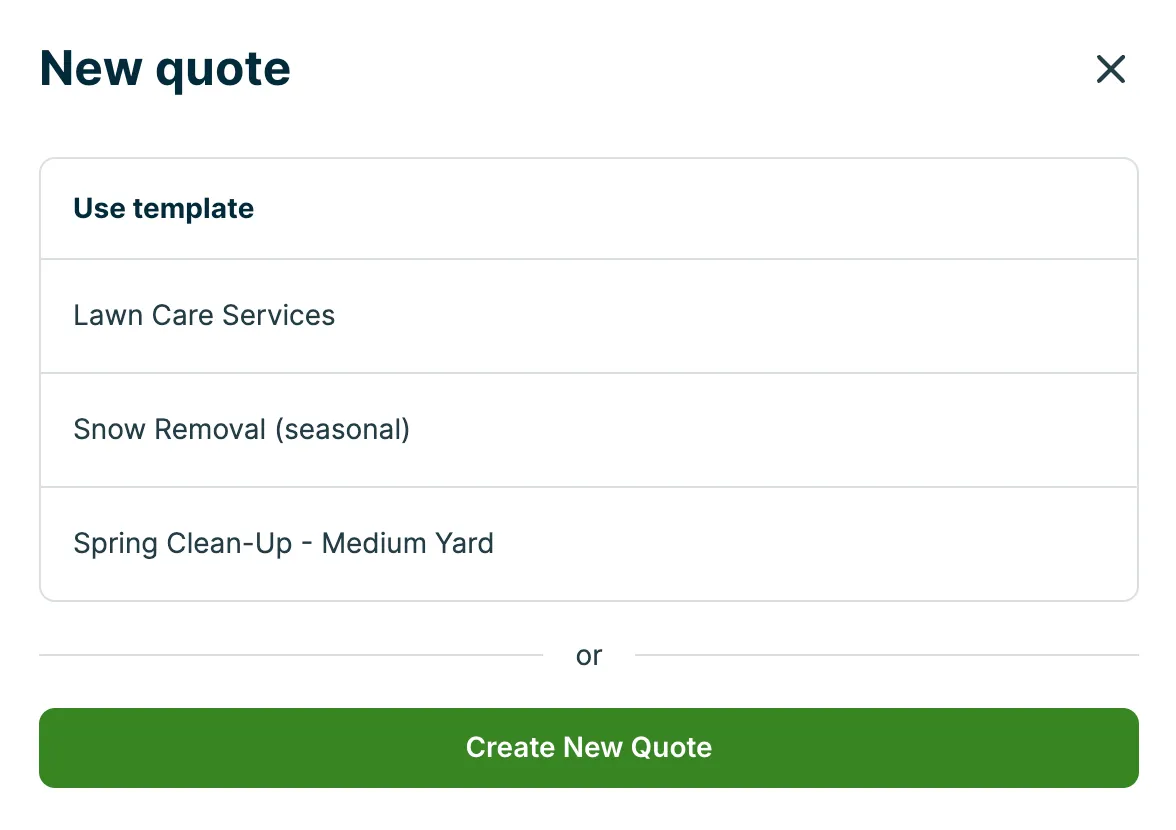
When creating a new quote in Jobber.com, there will be an option to use a quote template for the quote, or to create a new quote from scratch. Select a quote template from the list, or select Create New Quote to get started.
Quotes can be created from the following places in Jobber.com:
- The Create button on the side navigation
- The New quote button on the Quotes list page
- From the More Actions button on client or property pages
- When converting a request to a quote using the More Actions button
Note: Quote templates can be used in the Jobber app, but must be created from Jobber.com first.
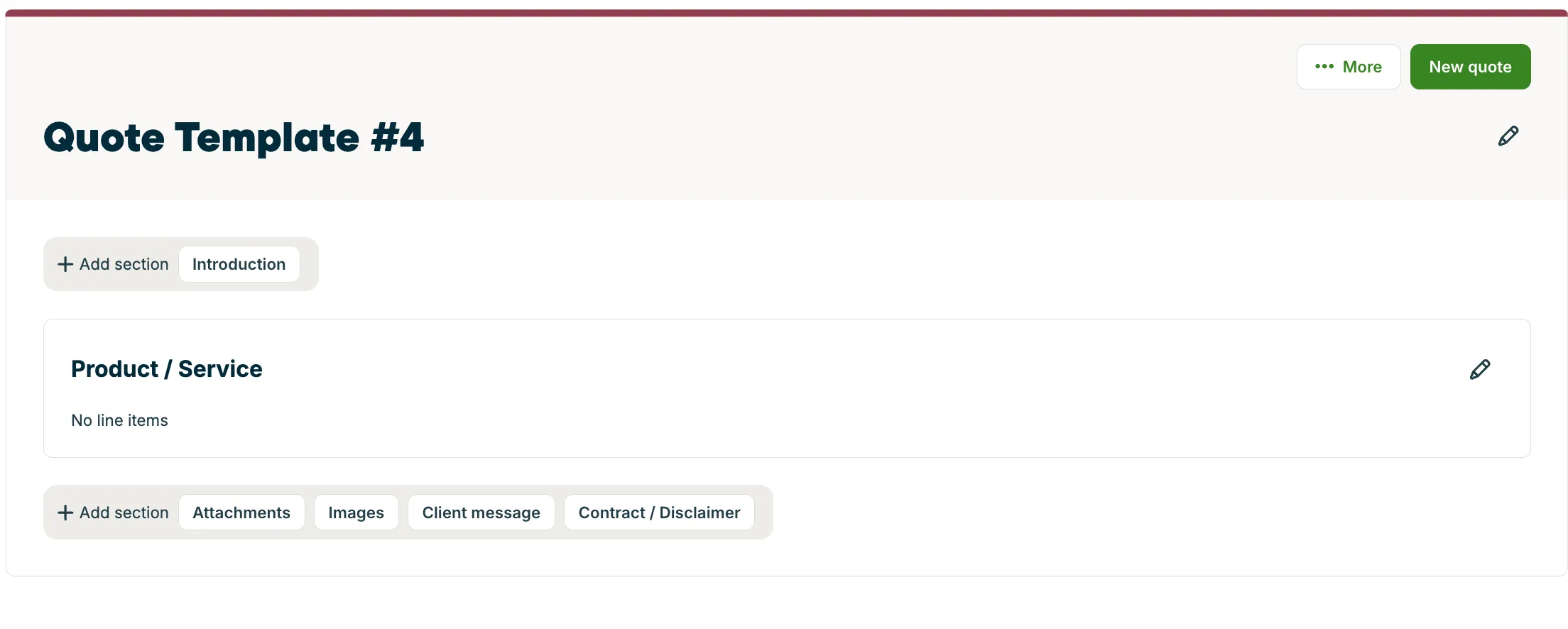
Next fill out the sections of your quote template. The sections that can be templated include:
- Template name
- Job title for the quote
- Line items
- Deposit
- Client message
- Contact/disclaimer
The below image is what a blank quote template looks like:
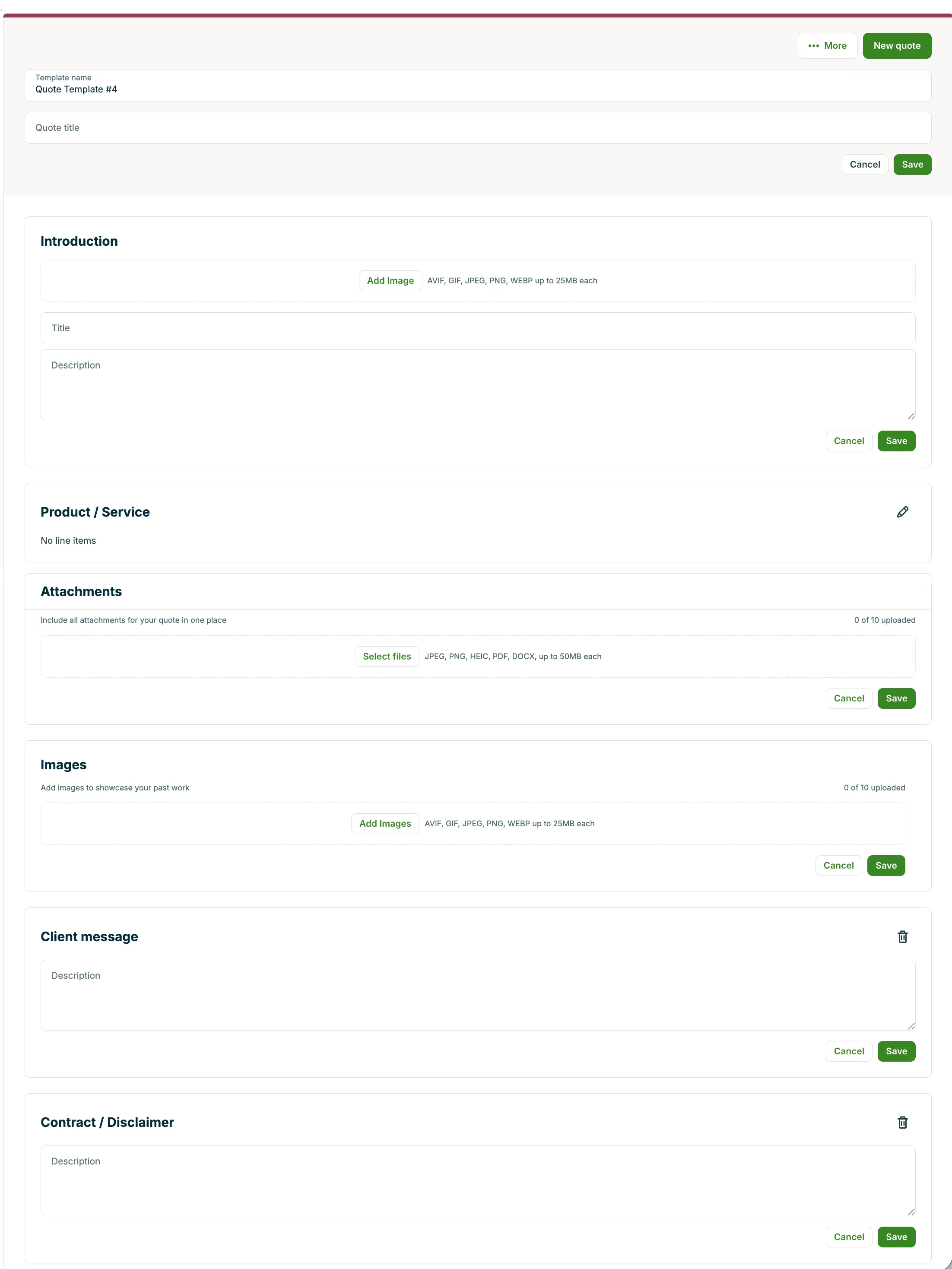
There are additional quote sections that can be added to quote templates fields through Advanced Quote Customization (available on select plans). These fields are:
- Introduction (including a header image)
- Attachments
- Images
- Reviews (Note: the reviews add-on is required to show reviews on your quote)
- Footer text and image
There are some fields that appear on your quote that cannot be templated as they will vary on each of your quotes. These include:
- Discount
- Taxes
- Custom fields
- Internal notes and attachments
Edit quote templates
To make changes to an existing quote template, follow these steps:
- Navigate to the Quotes tab from the side navigation.
- Select the Templates button to open the templates drawer.
- The templates drawer shows your existing quote templates. Select the template you want to edit from the list.
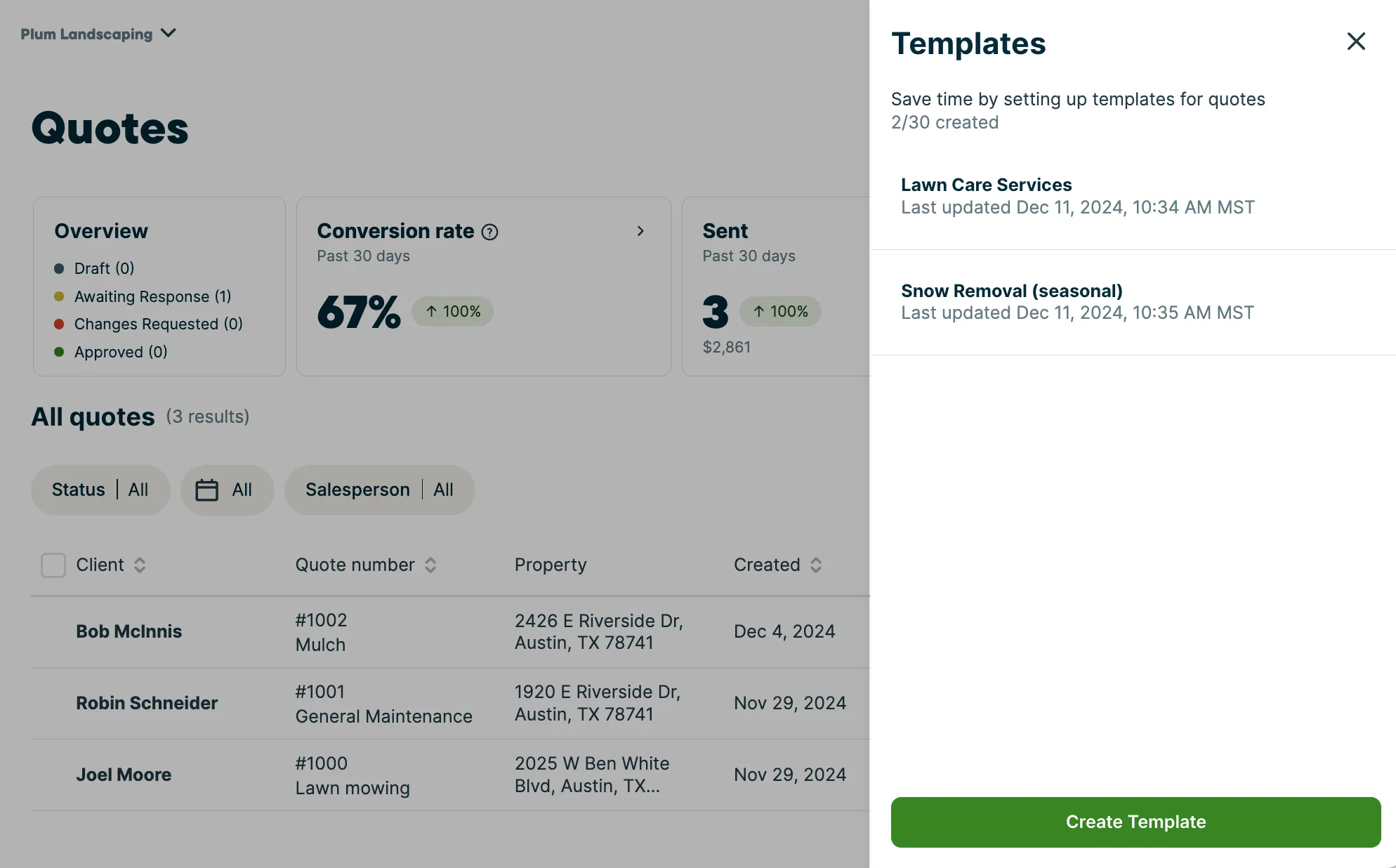
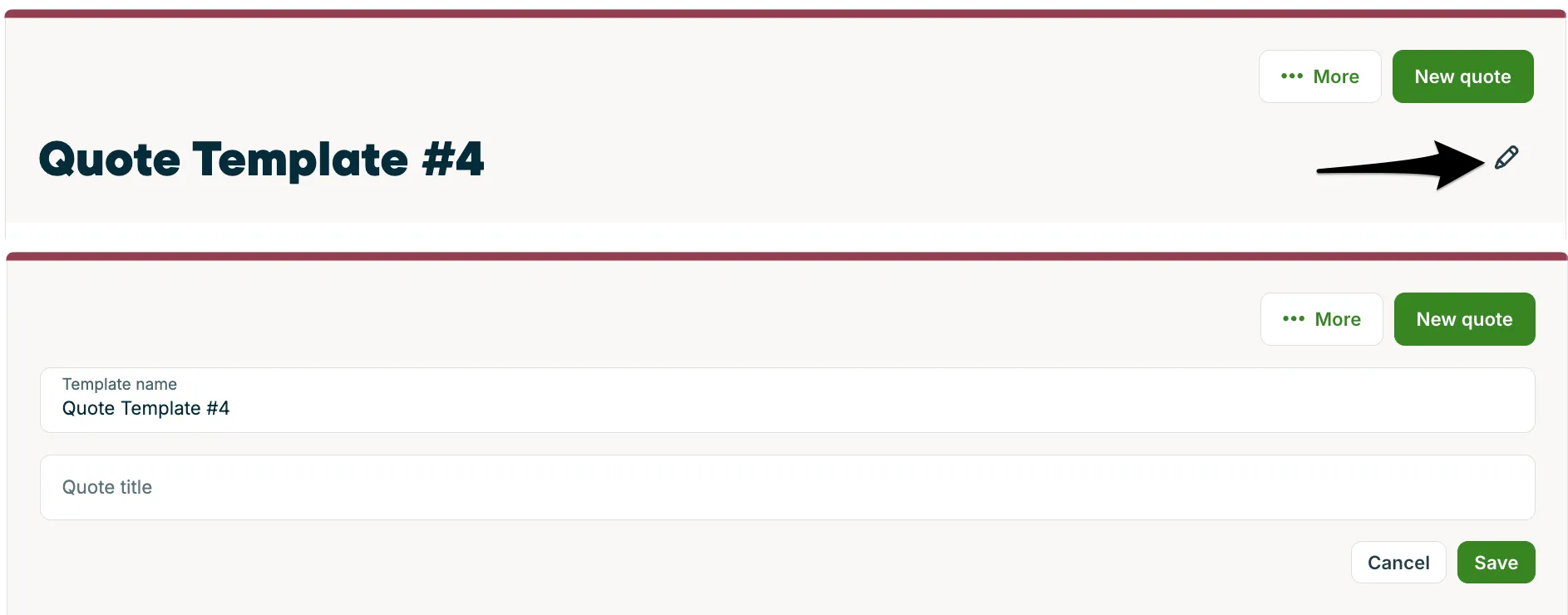
To start filling out the quote template, click the pencil icon to edit that section of the quote template.
Delete a quote template
To delete a quote template, follow these steps:
- Navigate to the Quotes tab from the side navigation.
- From the quotes list page, select the Templates button.
- From the templates drawer, select the template you want to delete.
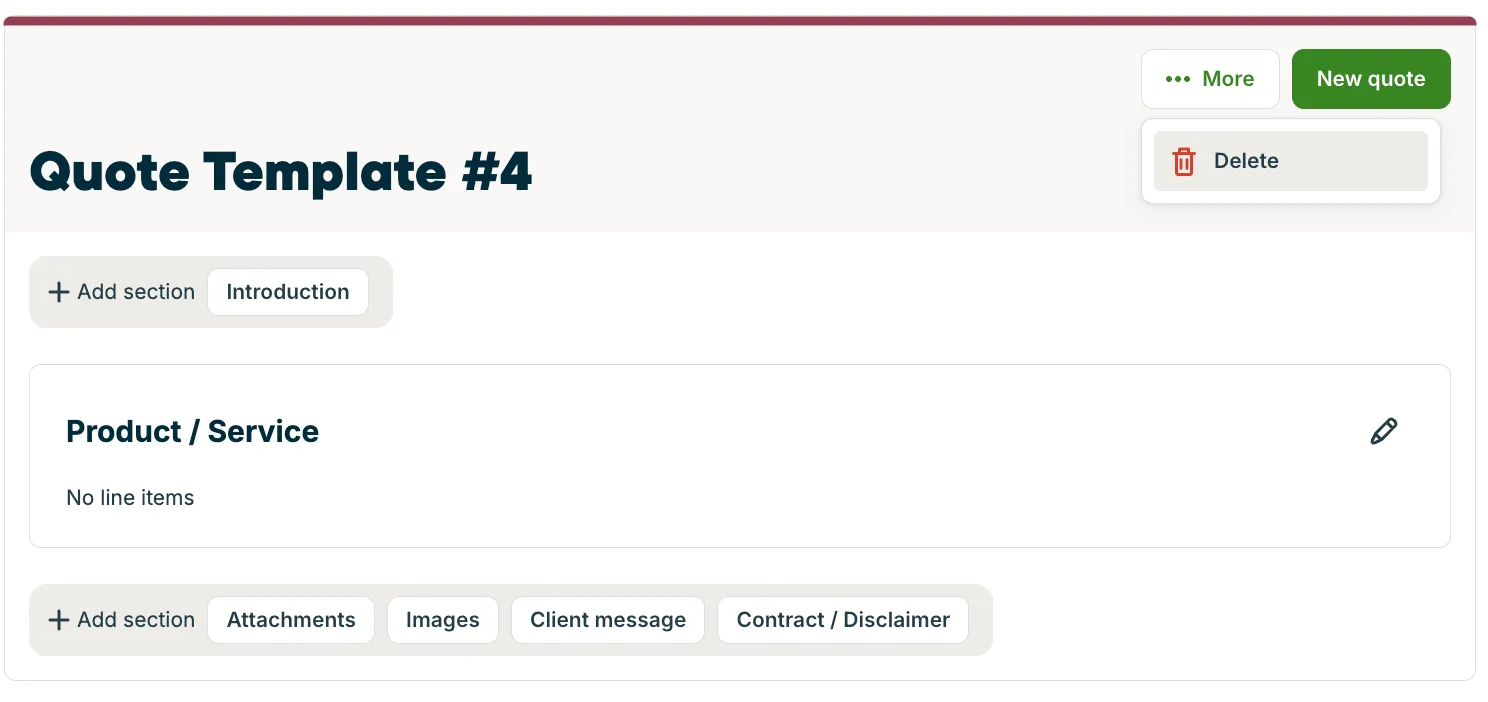
- From the template, click More then select Delete to remove the template.
You’ll be asked to confirm your deletion, select Delete to permanently remove this quote template.
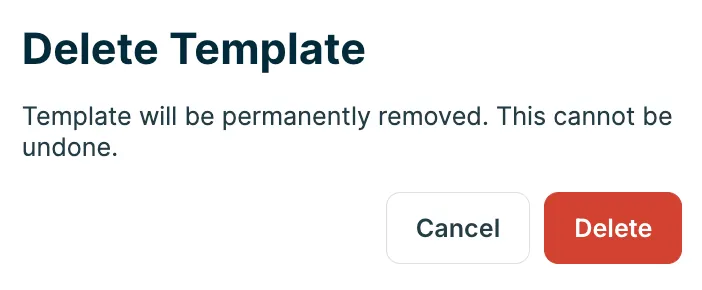
Note: Once deleted, the quote template cannot be recovered.
How quote templates work with your products and services list
Products and services used in quote templates are linked by name. As long as the name of a product or service remains unchanged in a quote template, it stays connected to the corresponding item in your products and services list.
When a line item in a quote template is linked to a product or service, any updates made to that item in your products and services list—including the description, cost, price, image, and taxable status—will automatically apply to all quote templates using that item. However, if the name of the product or service is edited within a quote template, it will no longer be linked and won’t receive future updates.