Overview
You can find the billing information for your Jobber subscription by following these steps:
- Log in to Jobber.com.
- Click the Gear Icon, then select Account and Billing. This will bring you to the page where you can manage your Jobber subscription.
From the Account and Billing page you can:
- Update the card on file for your Jobber subscription
- Change the billing address for your Jobber subscription
- Change your billing cycle from monthly to annual billing
- Change your plan. Learn more about Jobber’s pricing and feature packages
Access to the account and billing page is limited to account owners and admin users.
Update your payment details
In the Billing Details section of the Account and Billing page, click Edit then select Payment Details to add or edit your billing information, including your credit card number and billing address. This is the section you’ll want to update if your card is compromised, if you are issued a new credit card for another reason, or if your billing address changes. The email address you enter here is also where the receipts for your Jobber subscription will be sent.
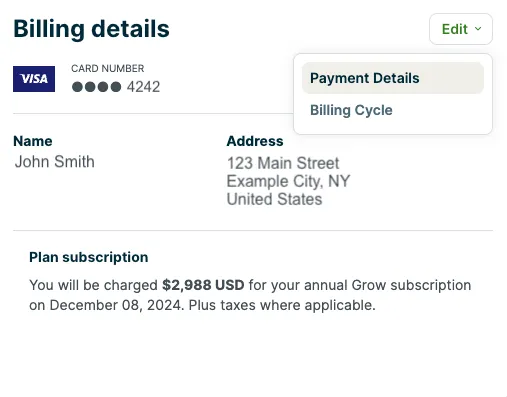
To change your payment information, click Edit.
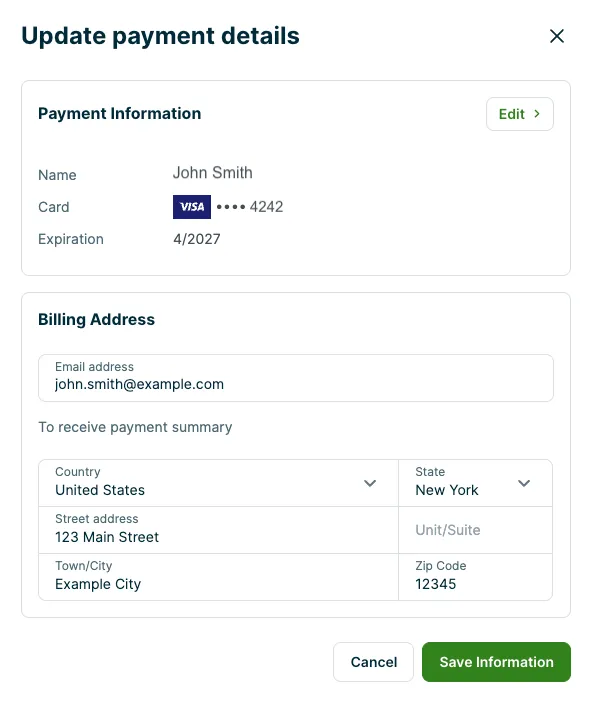
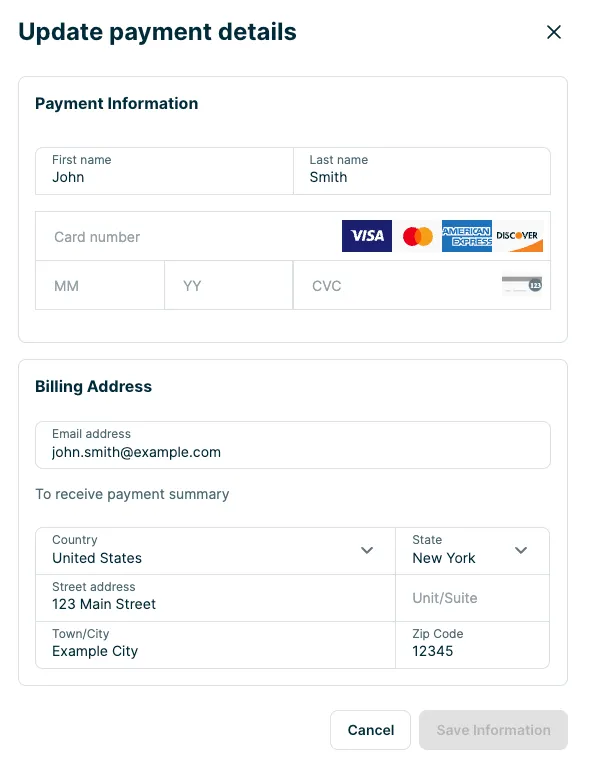
Once you’ve made your changes, click Save Information.
If you have an outstanding payment, as soon as you update your billing information the payment will be run again using the updated billing info.
Note: If you no longer want to be billed for Jobber, you will need to cancel your account.
Update your billing cycle
To change the billing frequency for your Jobber subscription from monthly billing to annual billing:
- Click Settings and select Account and Billing.
- Navigate to the Billing history section, then select Edit, followed by Billing Cycle.
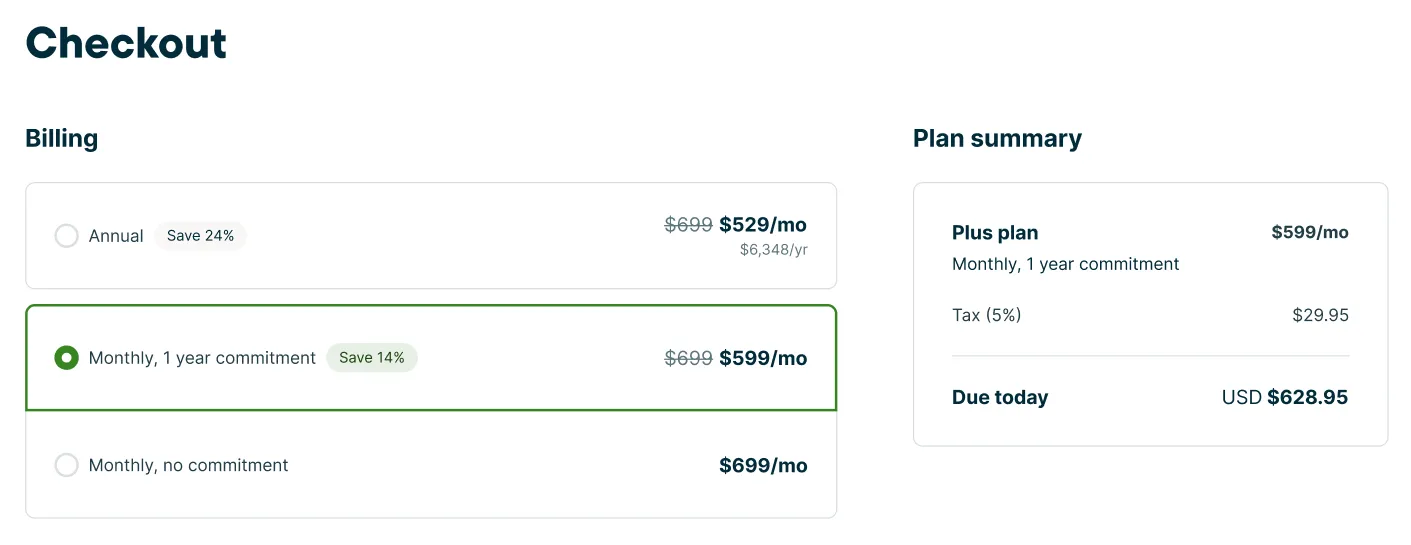
There are three types of billing options:
- Monthly: Flexible as you explore what features best fit your business.
- Annual (payment up front): Provides a discount since you’re paying up front.
- Monthly, 1 year commitment: Gives you the benefit of a discount with your payments spread out over 12 months.
To move your account from monthly billing to annual billing, choose the payment option for one year, then click Update Subscription. When you update, you will receive a credit for the remainder of your monthly billing cycle towards your new annual subscription that starts today.
If you want to change from annual billing to monthly billing, you will need to reach out to our Support Team to make this change. You can start a live chat with the Support Team by clicking the green chat bubble in the bottom right corner of this page.
Change your plan subscription
At the top of the Account and Billing page is your account overview. The overview displays when you first started your Jobber account, your current plan subscription, and your account status.

Downgrade your subscription
To downgrade your plan (ie, move to a lower tier plan subscription), you will need to reach out to our Support Team to make this change in our billing system. You can start a live chat with the Success Team by clicking the green chat bubble in the bottom right corner of this page.
When you downgrade to a lower plan, the change takes effect on your next billing date. You keep full access to your current plan until then.
What you’ll see after requesting a downgrade
Once your downgrade is scheduled, a banner appears at the top of Jobber. Your Account and Billing page also shows:
- Your current plan
- The plan you’re switching to
- The date the change takes effect
Cancel a pending downgrade
You can cancel a scheduled downgrade yourself at any time before your billing date:
- Sign into Jobber.com.
- Click the Gear icon, then select Account and Billing.
- Locate the pending plan change notice.
- Select Cancel pending change.
Your account stays on your current plan and no change is made.
Manage your users before your billing date
If your new plan supports fewer users than you currently have active, your Account and Billing page will show a warning. To stay within your new plan’s user limit, you will need to deactivate extra users before your billing date.
To deactivate a user:
- Log into Jobber.com
- Click the Gear Icon, then select Manage Team.
- Locate the user you wish to deactivate. From their row, click the three dot icon, then select Deactivate.
Upgrade your subscription
To upgrade your plan (ie, move to a higher tier plan subscription), select the Manage Plans button from the account overview section. The next screen will show you an overview of the plans that you can change to. To switch to your desired plan, click the button for Choose Plan under the plan heading.
Once you’ve made your selection, you will see a summary of your selected plan and options for your billing cycle. Select if you’d like to be billed monthly or annually. You will also see how much you will be billed today and in the fine print, the date your subscription renews and the amount.
Select Confirm Subscription to move to the new plan.
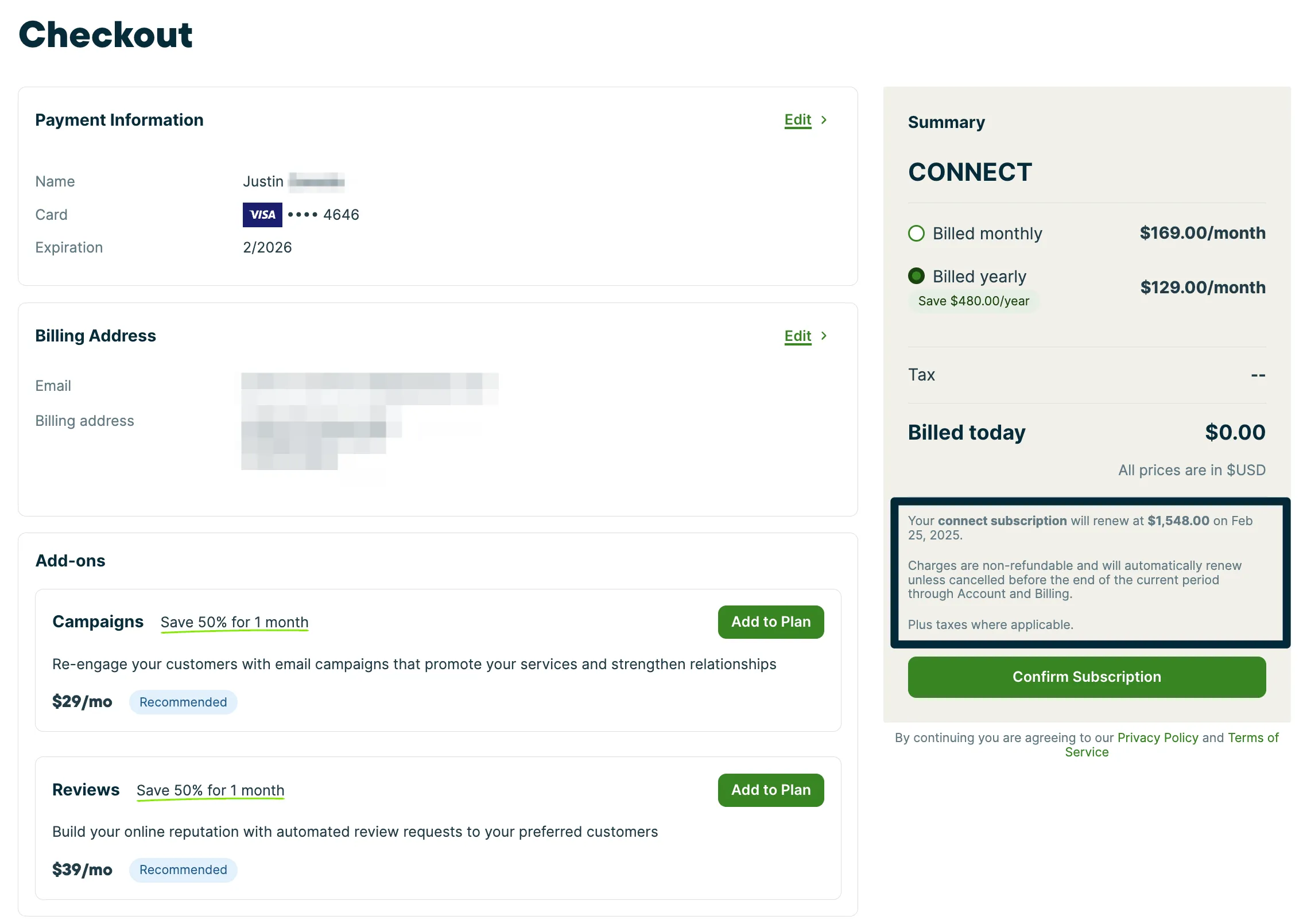
Charges are non-refundable and will automatically renew unless cancelled before the end of the current period.
Manage your subscription in the Jobber app
If you subscribed through the mobile app rather than Jobber.com, your app store manages your subscription and handles billing on your behalf.
To change your plan in the app:
- Tap More.
- Tap Manage Subscription.
- Select your new plan.
Upgrades take effect immediately and Jobber prorates your new plan based on the date it becomes active. Downgrades take effect at the start of your next billing cycle.
Your app store handles any refunds. For questions, contact the app store for your device:
Switch from a mobile subscription to annual billing
To move to annual billing, cancel your current mobile subscription before your next billing date. You keep full access to your account until that date.
Once your mobile subscription is canceled:
- Log in to Jobber.com (not the app).
- Select the Gear icon, then select Account and Billing.
- Select the plan you want.
If you need a hand while upgrading your plan, reach out to our Support Team and they will be able to help upgrade with your plan subscription.
Learn more about
subscriptions in the Jobber app
View your past payments and subscription renewal date
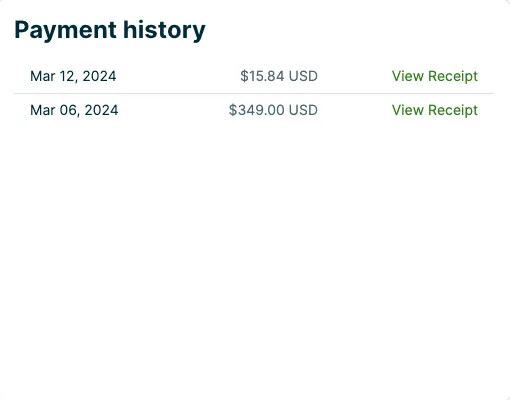
You can also view your past subscription payments, in the Payment History section. Here you will see PDFs of your past invoices from your Jobber subscription. The date of your next payment shows below your credit card details.