
Overview
Batch delivering invoices lets you send multiple invoices to your clients at once, saving time when you’re ready to send out billing. This is the second step in the batch invoicing workflow – the first step is batch creating invoices.
After creating invoices in bulk, you can deliver them all together instead of sending each one individually. This is especially useful when you’re sending invoices at the end of the day, week, or billing cycle.
When delivering invoices in a batch, you can:
- Select which invoices to send based on their status
- Email invoices to clients using their saved contact details
- Generate printable PDFs and mailing labels for invoices sent by standard mail
Batch delivering invoices helps you complete your invoicing workflow efficiently, so you can get invoices into your clients’ hands faster.
Batch delivery from the invoices page
Click Invoices from the side navigation menu and then select More Actions then select Batch Deliver Invoices from the right of this page.
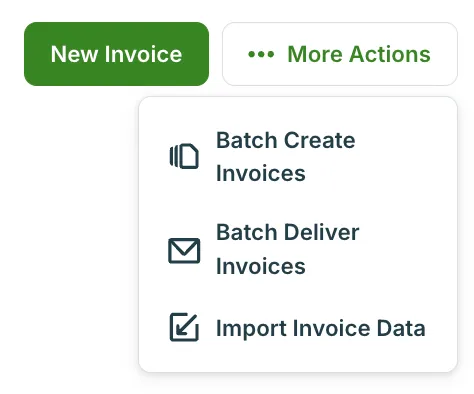
Selecting invoices for delivery
After you select batch deliver Invoices, you will need to choose how you want to deliver them before being able to select what invoices to send. Invoices in draft, past due, or awaiting payment status can be selected for either email delivery or via standard mail.
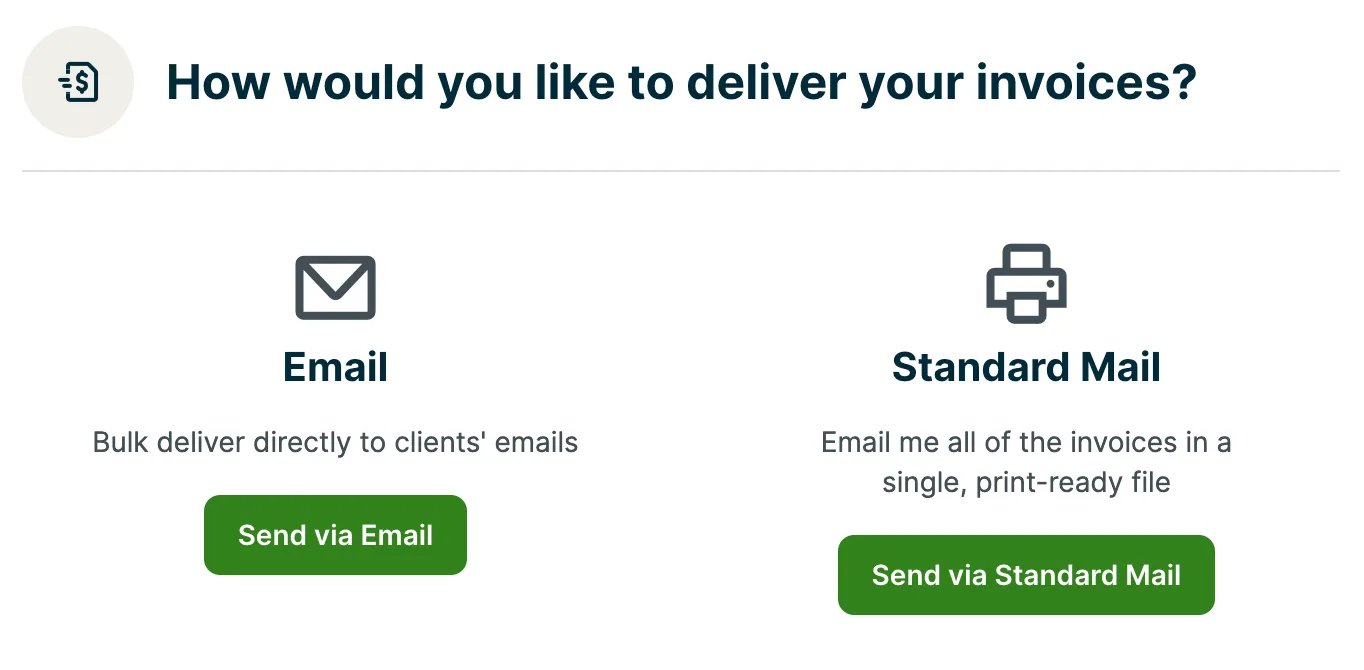
Once you choose either Email or Standard Mail a list of invoices showing as draft, awaiting payment, and past due will appear to be selected. Select the invoices you want to send or resend from this list.
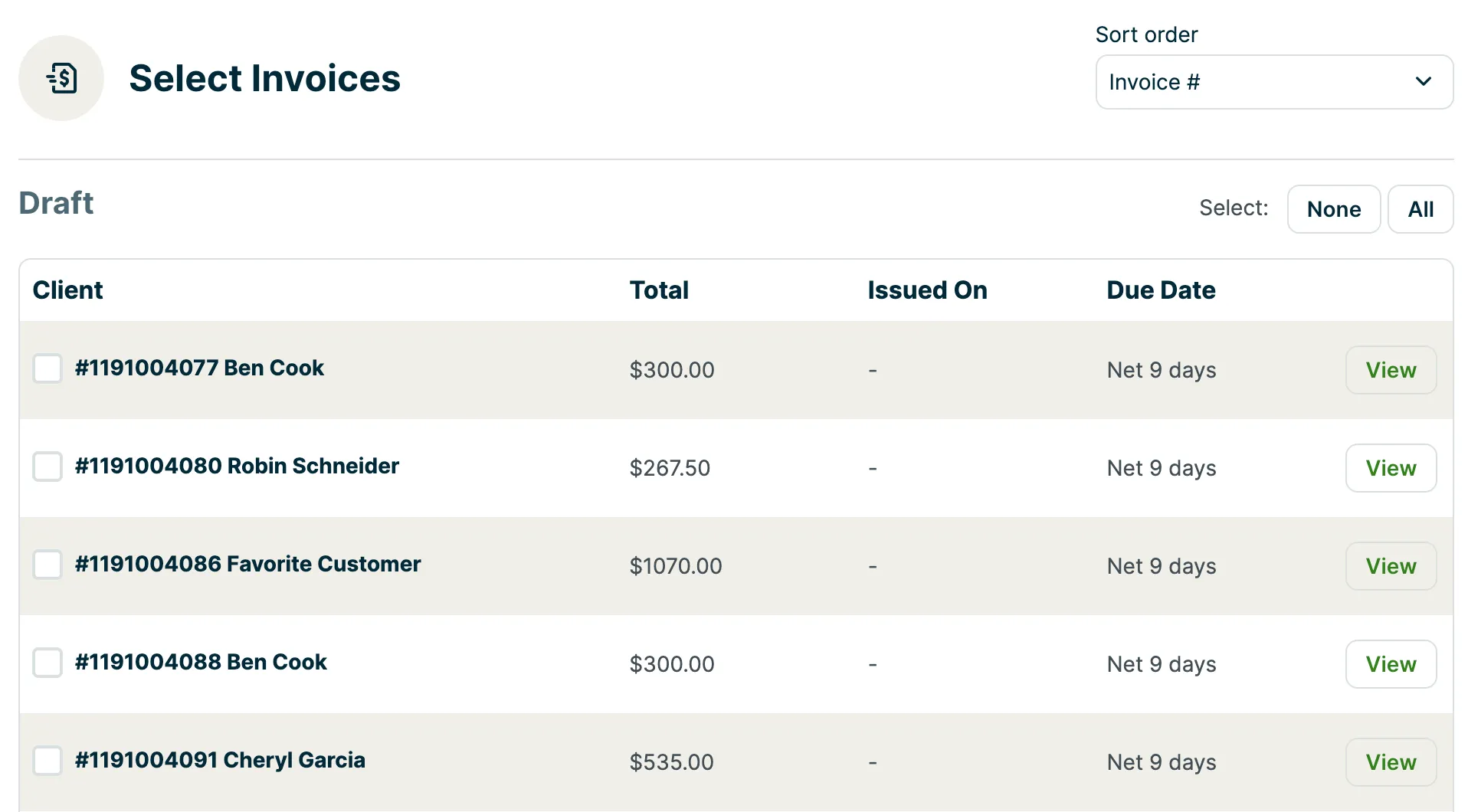
Click All to the right of each listed invoice status you’d like to send out, or individually select the invoices from the list.
To continue, click Next Step.
Batch delivery via email
Batch delivery emails will be sent to the primary (starred) email address on the client’s profile page as well as the billing contact on the client. By clicking Next Step after selecting invoices to be delivered, you will be able to edit the email template in the Send via email preview before confirming with Send Now. Afterward, all draft invoices will show as awaiting payment.
By default, the invoice PDF will not be attached to the email. To view their invoice, your clients will be prompted to click a button in their email to View Invoice which opens the invoice in client hub. In client hub, they can interact with the invoice including paying it with Jobber Payments or downloading a PDF copy for their records.
If you would like to add the PDF version of the invoice as an attachment for all the invoices being sent in the batch, in the Send via email preview screen check the box in the attachments section for PDF of invoice. By default, this box will be unchecked.
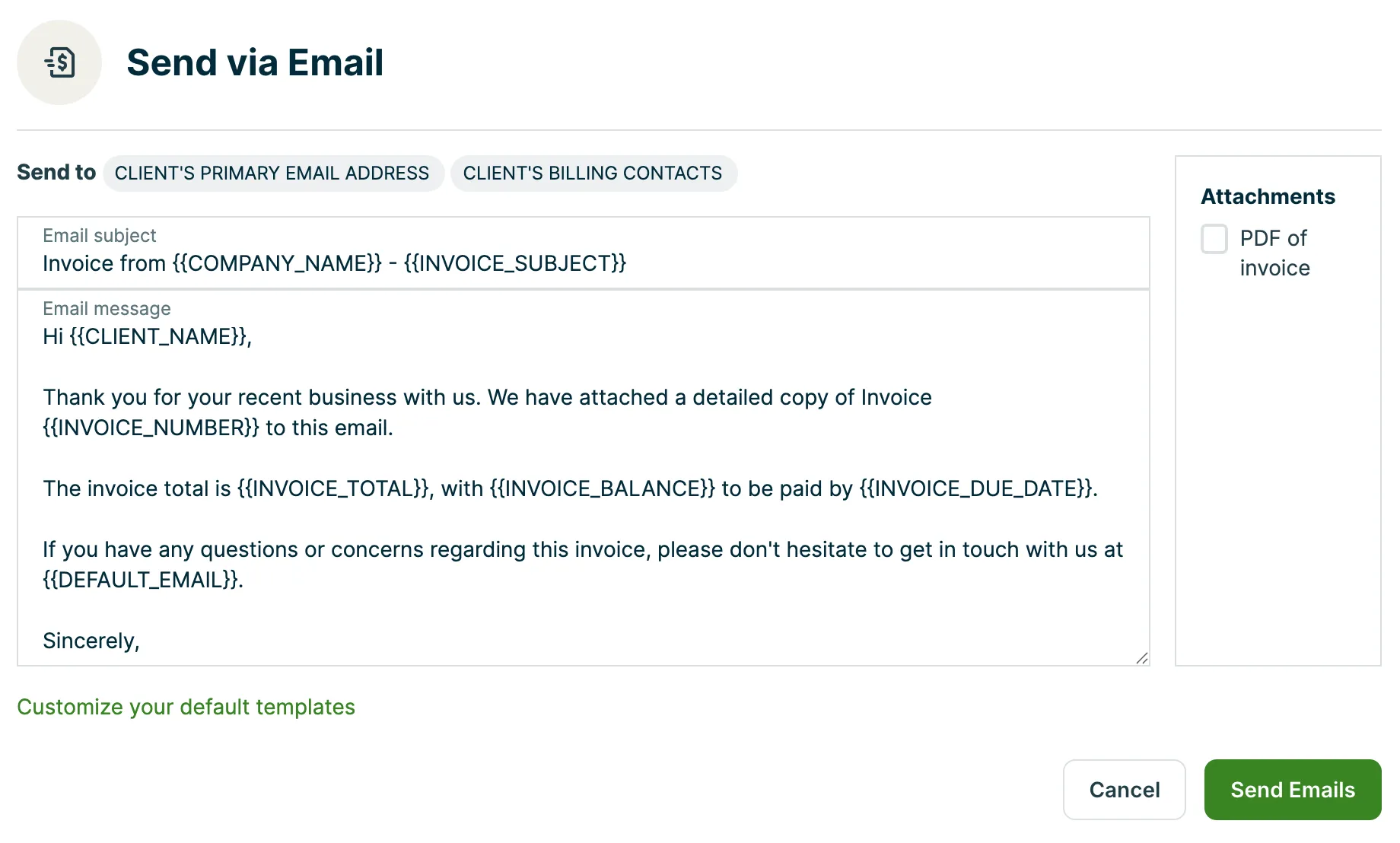
Learn more about options for Email and text message settings.
Batch delivery via standard mail
When you choose to deliver invoices via standard mail, Jobber will email you a printable PDF document including all invoices selected as well as a document including address labels for the clients’ billing addresses. This can be used as a workaround if you need to print invoice PDFs for multiple invoices in draft, awaiting payment, or past due status. Invoices in paid status are not able to be selected for standard delivery and their PDFs will need to be downloaded one-by-one.
After selecting the invoices and clicking Next Step, you will be able to choose what size and label type to be sent and what preferred email address these and the PDFs to be sent to.
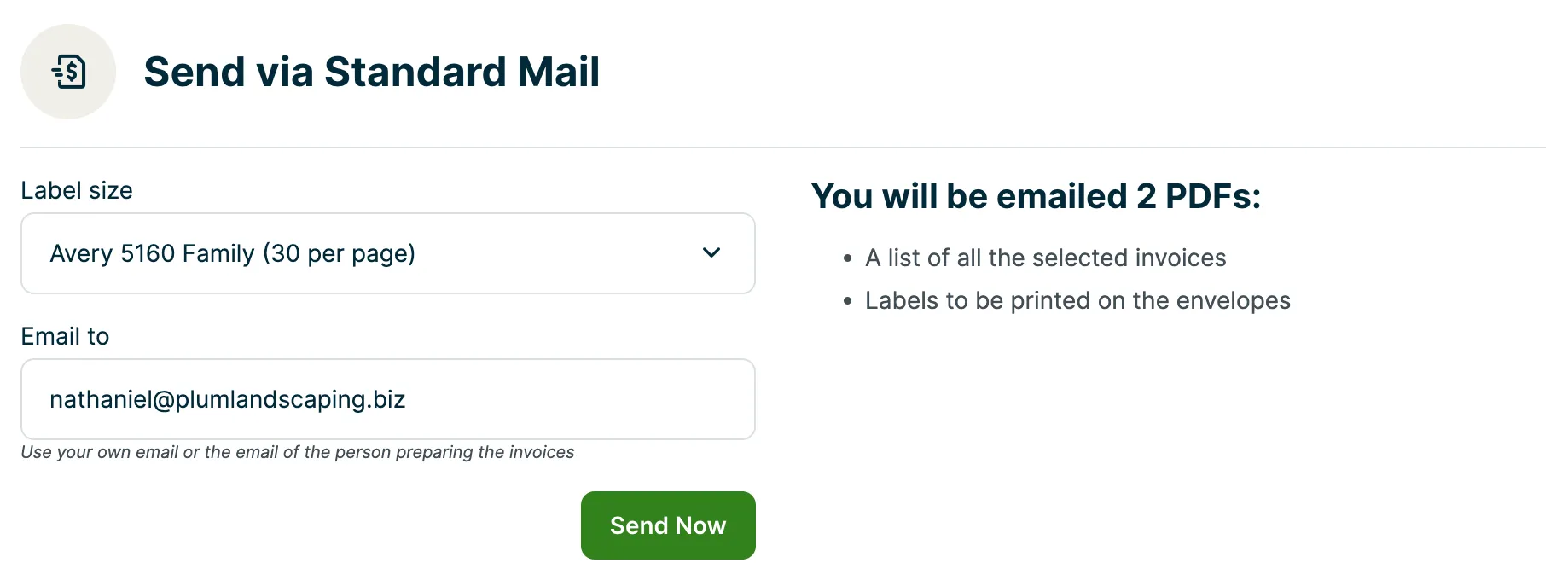
Click Send Now to confirm. Your PDFs will then be generated and sent - this can take up to 15 minutes.
Example mailing label and invoice PDFs
To preview examples of each mailing label, click on any of the options below.
- Avery 5160 Family Labels(30 Per Page)
- Avery 7160 Family Labels(20 Per Page)
- Standard #10 Envelope
- Mailing Labels
- Example Standard
- Mail Invoices
Learn how to customize your client document settings (including invoice PDFs) and your business profile.