
In This Article
What is the activity feed?
Keep a pulse on the everyday activities happening in your business and stay on top of who is doing what, when, and where.
Activity feed is available on the Connect and Grow plans. View our current pricing plans.
To check what plan you’re on, navigate to the Gear Icon > Account and Billing. If you have any questions about your plan’s features or pricing, our support team is here to help!
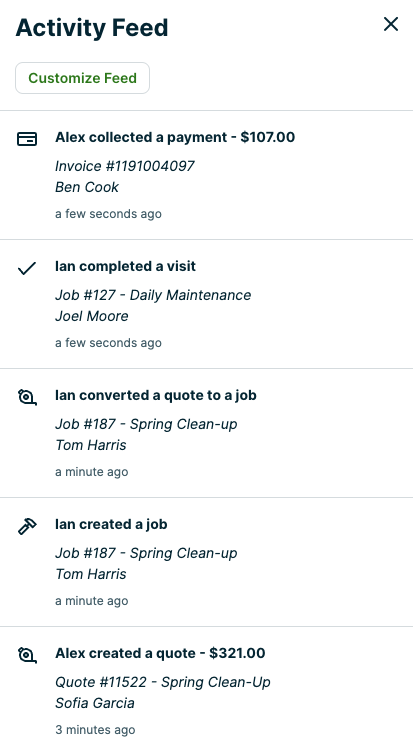
From the activity feed view what is happening in your Jobber account as it happens. With updates regarding quotes, visits, invoices, jobs, payments, and notes you can see what your team is up to while they are out in the field. No more wondering if a note was left!
Note: Only admins can view the activity feed.
Bell Icon
You can find the activity feed option in the top right of your account displayed as a bell. When there is a new notification, it will be highlighted in red.
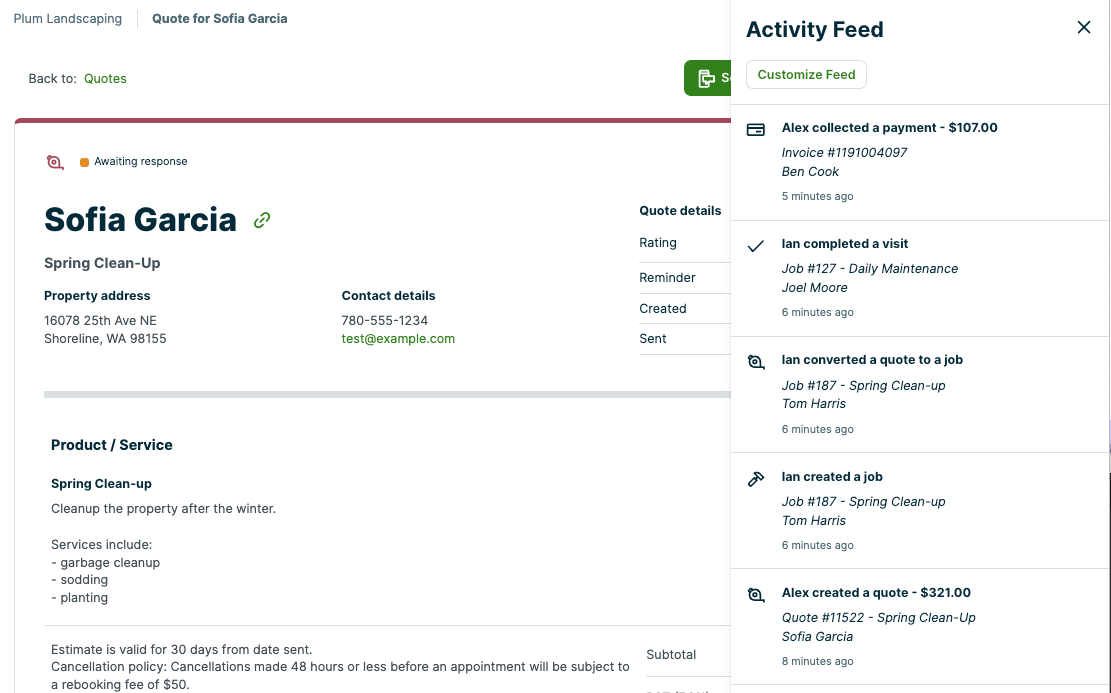
Clicking on the Bell Icon will open a sidebar where you can see the feed of updates.
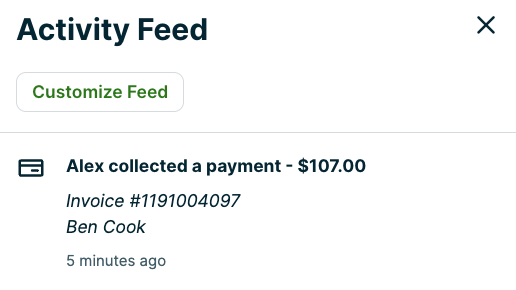
Each activity feed notification displays:
- the team member who made made the update
- updated item (for example, if it was a client, quote, job, invoice, note, etc)
- client name (if applicable)
- item number (if applicable)
- Total (if applicable)
Note: The visit date shown for confirmed visits in activity feed follows the date format set up in your company settings.
Notifications
Notifications are triggered by the following actions:
- Timers: Users clocking in and out.
- Clients: When clients and leads are created, deleted, archived, and unarchived as well as when CSV imports are started and completed.
- Requests: When requests are created, submitted, converted (into a quote or job), and deleted.
- Quotes: When quotes are created, sent, viewed by the client for the first time, changes are requested, converted, approved, and deleted.
- Jobs: When jobs are created or deleted.
- Visits: When visits are confirmed as well as when they are completed.
- Invoices: When invoices are created, sent, and deleted.
- Deposits: When a deposit is collected, edited (such as added to an invoice), or deleted.
- Payments: When a payment is collected (either manually or through client hub), edited, and deleted.
- Automatic Payments: When automatic payments are collected, or when Jobber is unable to collect an automatic payment.
- Notes: When notes are created and deleted.
- Cards: When a client saves a card on file.
Customize Feed
To select which items are shown in the activity feed, click the Bell Icon > Customize Feed.
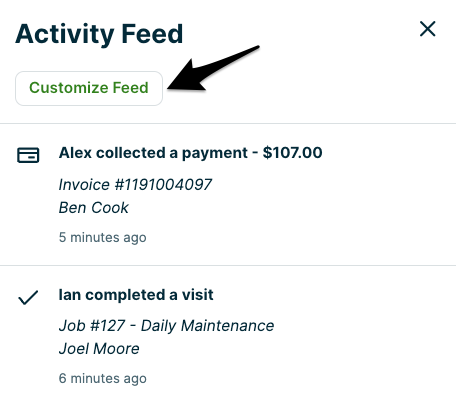
From the Customize Feed page, you will be able to toggle On or Off which items you would like to view in the feed.
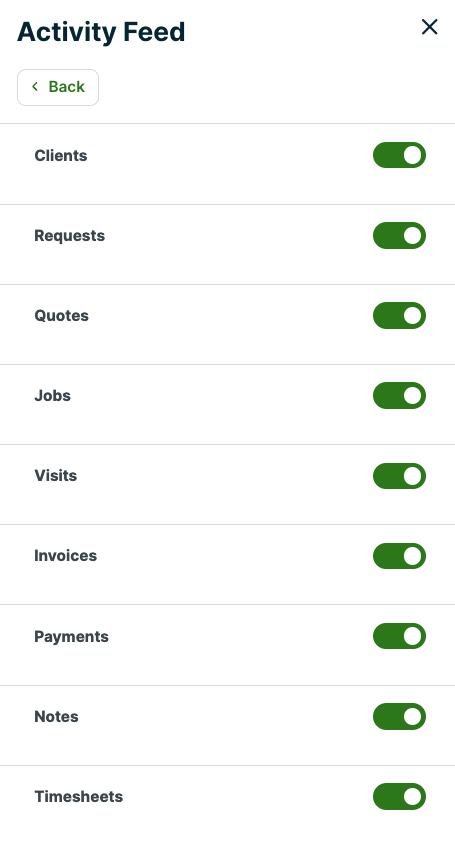
Activity feed shows the most recent 100 notifications when unfiltered. You can add additional toggles to activity feed to narrow down which items are shown out of those 100 items.
The notification preferences are remembered for each admin user. This means that different admins can have different preferences for the kinds of notifications they see by default when they open the activity feed.