
In This Article
Overview
There are two ways to apply discounts to your invoices:
- global discounts
- discount line items
Global discounts
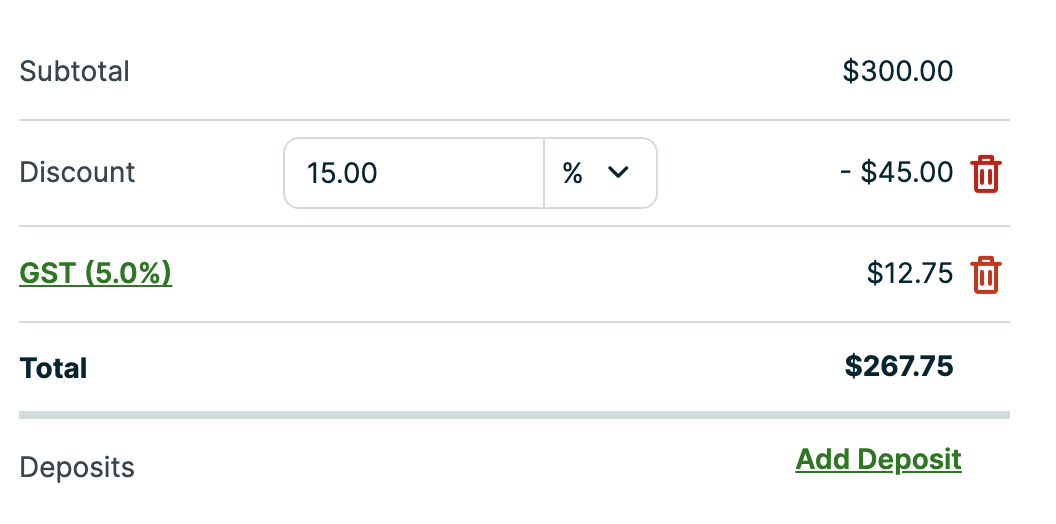
Global discounts can be added as either a dollar amount ($) or a percent (%) discount to a quote or invoice. The option to add a global discount does not appear on jobs.
To apply a discount to your quote or invoice, navigate to that item and click Edit. The Add Discount button is at the bottom of the quote or invoice towards the total. You can select either $ or %. This discount will be deducted from the sub-total.
Discount line items
If you want multiple discounts on your quote or invoice, or to leave a detailed description of the discount(s), use discount line items. These behave just like regular line items in Jobber, but with a negative unit price ($).
When you enter a negative unit price ($) for the discount line item, the invoice total is adjusted accordingly:
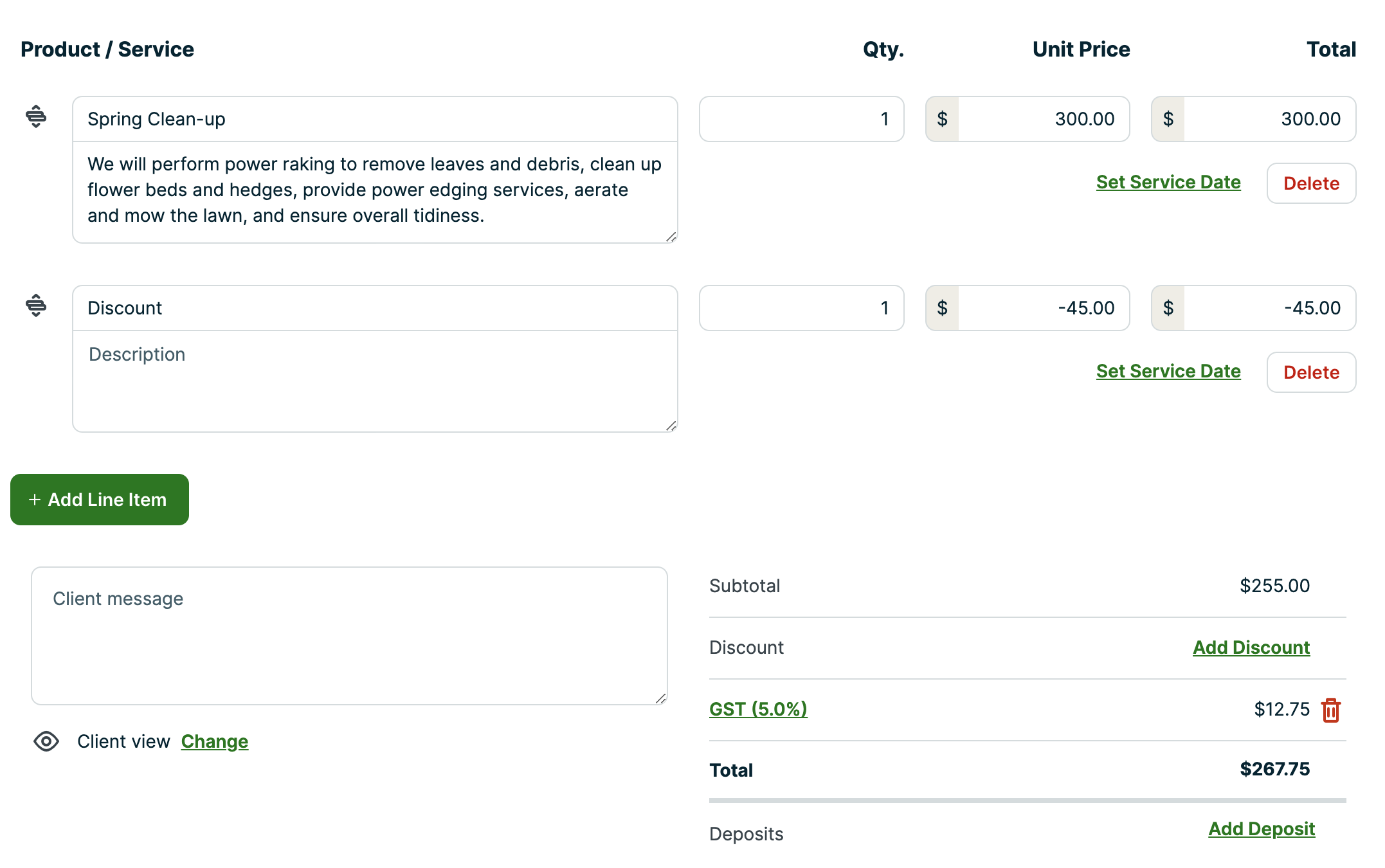
You can add several discount line items to one invoice.
How discounts are applied to invoices
Discounts are applied to non-taxable items first, then on taxable items. The remainder after this is what the default tax on an invoice is applied to.
If a global discount is added to a quote and that quote is converted to a job, you won’t see the discount on the job. However, when an invoice is generated from the job, the discount will appear again. For recurring jobs, the discount will appear on every invoice generated from the job.