
In This Article
- Chemical tracking
- Setting up chemical tracking
- Adding a new chemical
- Recording a chemical treatment for clients
- Reporting for chemical tracking
Chemical tracking
Chemical Tracking allows you to track chemical and pesticide usage. This is useful in jurisdictions that require chemical/pesticide use recorded for up to seven years.
Note: There is no chemical tracking in the mobile app. Chemicals must be recorded from jobber.com.
Chemical tracking is available on select plans. View our current pricing plans.
To check what plan you’re on, navigate to the Gear Icon > Account and Billing. If you have any questions about your plan’s features or pricing, our support team is here to help!
Setting up chemical tracking
To turn on Chemical Tracking go to your Work Settings page (Gear Icon > Settings > Work Settings)
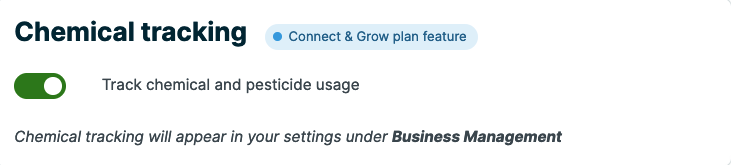
This will add Chemical Tracking under Business Management in your settings.
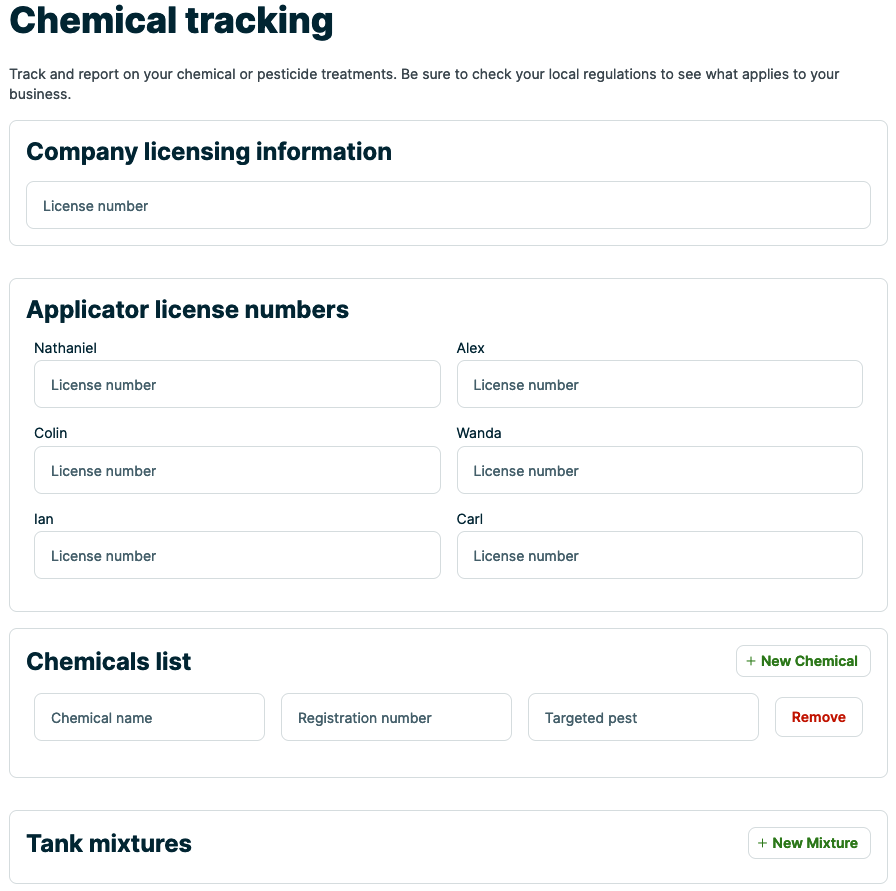
From here, you can input Company Licensing Information, Employee/Applicator License Numbers, and your chemicals in the Chemicals List.
Adding a new chemical
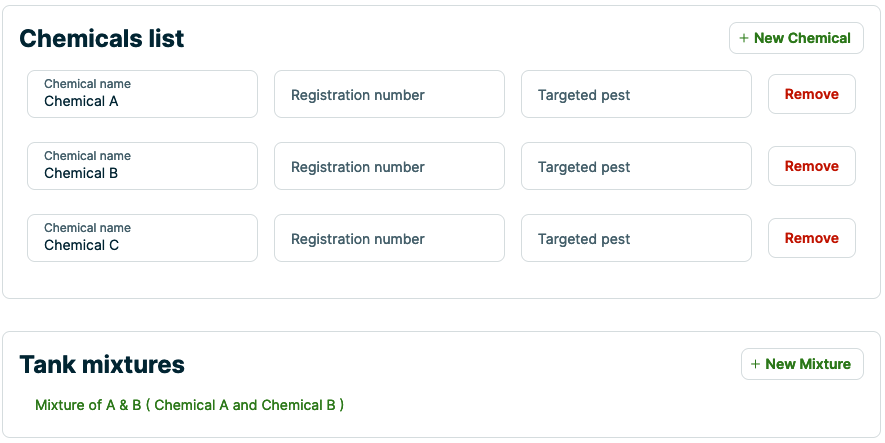
To add a new chemical, click + New Chemical on the right side of the Chemicals List section.
Once you’ve added a new Chemical, you’ll be able to specify Tank Mixtures. To add a new chemical tank mixture, click + New Mixture. To edit an existing tank mixture, click on the mixture in the Tank Mixtures section.
Recording a Chemical treatment for Clients
To record a Chemical treatment for a Client, go into the Client’s page, and click Chemical Treatment under the New dropdown menu within the Client Overview section:
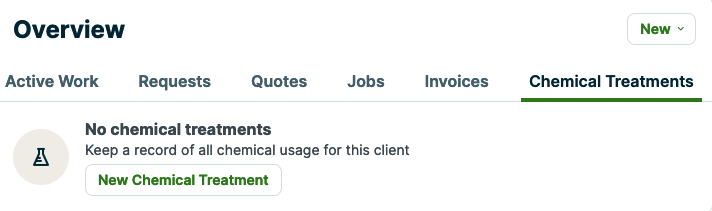
This will bring you to the New Chemical page, where you can input information about this Chemical Treatment.
You can record information about:
- Service Address: Specify the service address for this Chemical application
- Job Information: Choose the Job you would like to attach this Chemical application to, the applicator, and date/time specifics
- Chemical Information: Chemical name and concentration
- Application Details: Fill in further details about the Chemical application
- Weather Conditions: Information regarding weather at the time of application
- Other Information: Use these spaces for additional information that you’d like to record
Click Save once you’re done making changes.
Reporting for Chemical Tracking
Click Chemicals from the side navigation to open the list of the chemicals you’ve tracked.
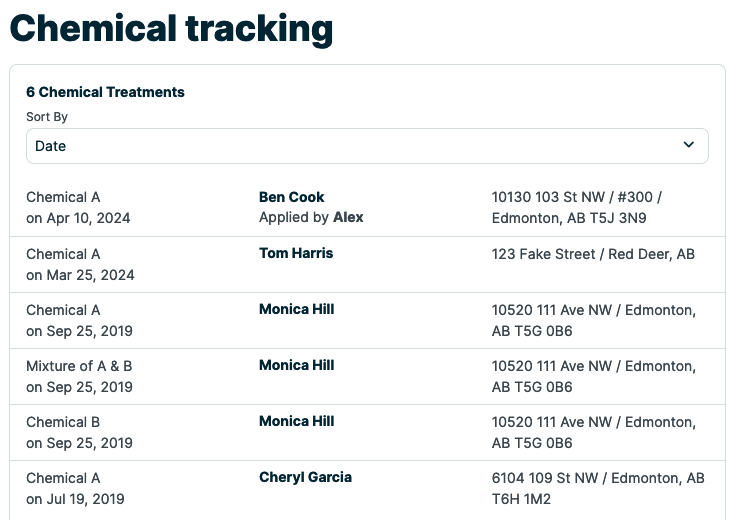
On this page, you’ll find all of the chemical applications that you have in Jobber. These can be sorted by date, client, or applicator.
On the right side, you’ll find the following:
- Download: Download a CSV of your chemical applications
- Chemical Tracking quick facts: Find more information about chemical tracking in this section.