
In This Article
- Overview
- Navigation
- Schedule filters
- Create a new job, work request, task, or event
- View details or edit a task
- Unscheduled tasks
- Drag and drop
Overview
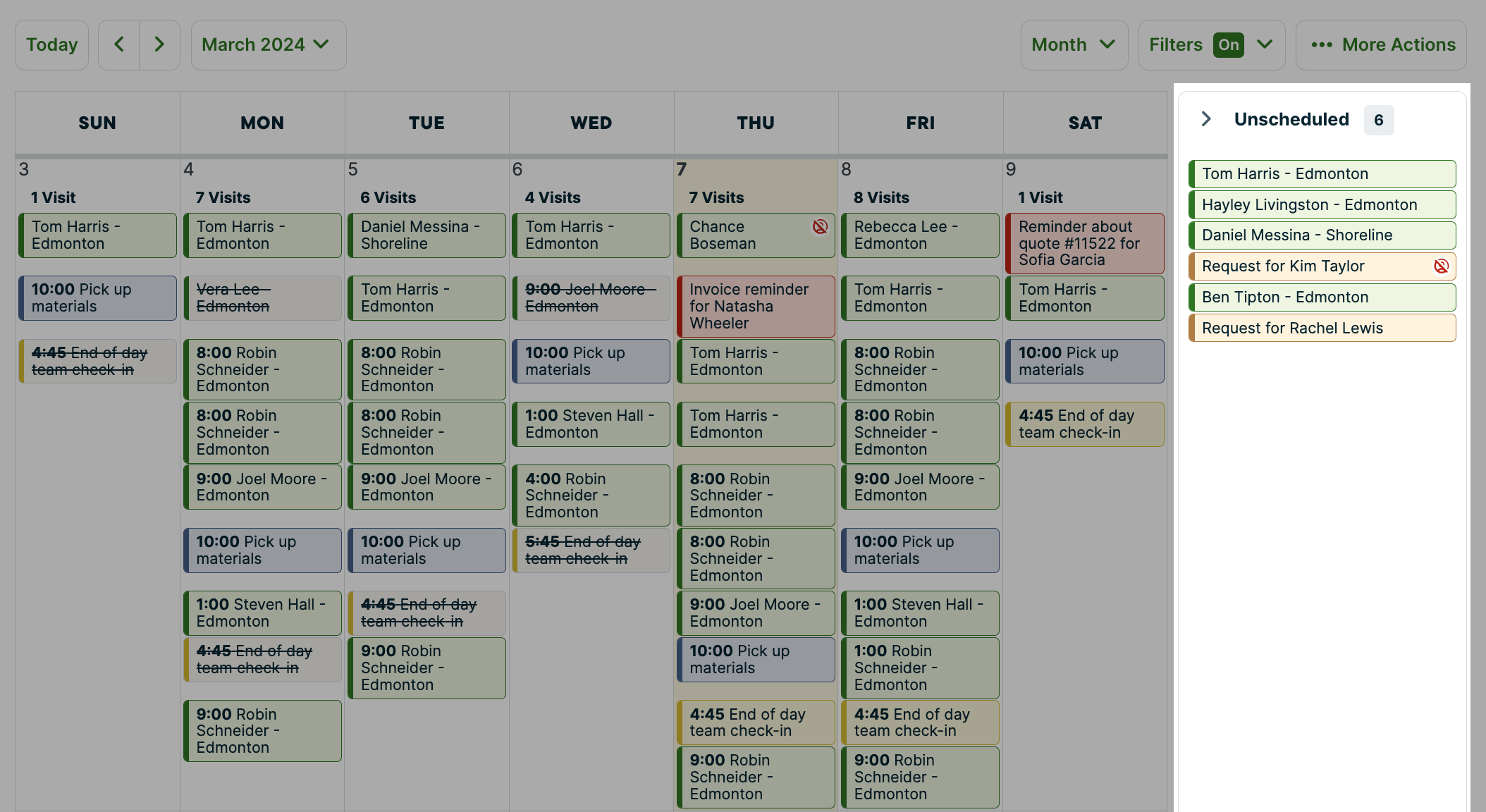
The month view of the schedule shows schedule items for the entire month. If the schedule item has a specific time scheduled, you’ll see the start time listed first before the title of the item.
Schedule items are ordered on each day with anytime items listed first ordered alphabetically followed by scheduled items in order of their start time. Items in the unscheduled section are listed in order of their creation date.
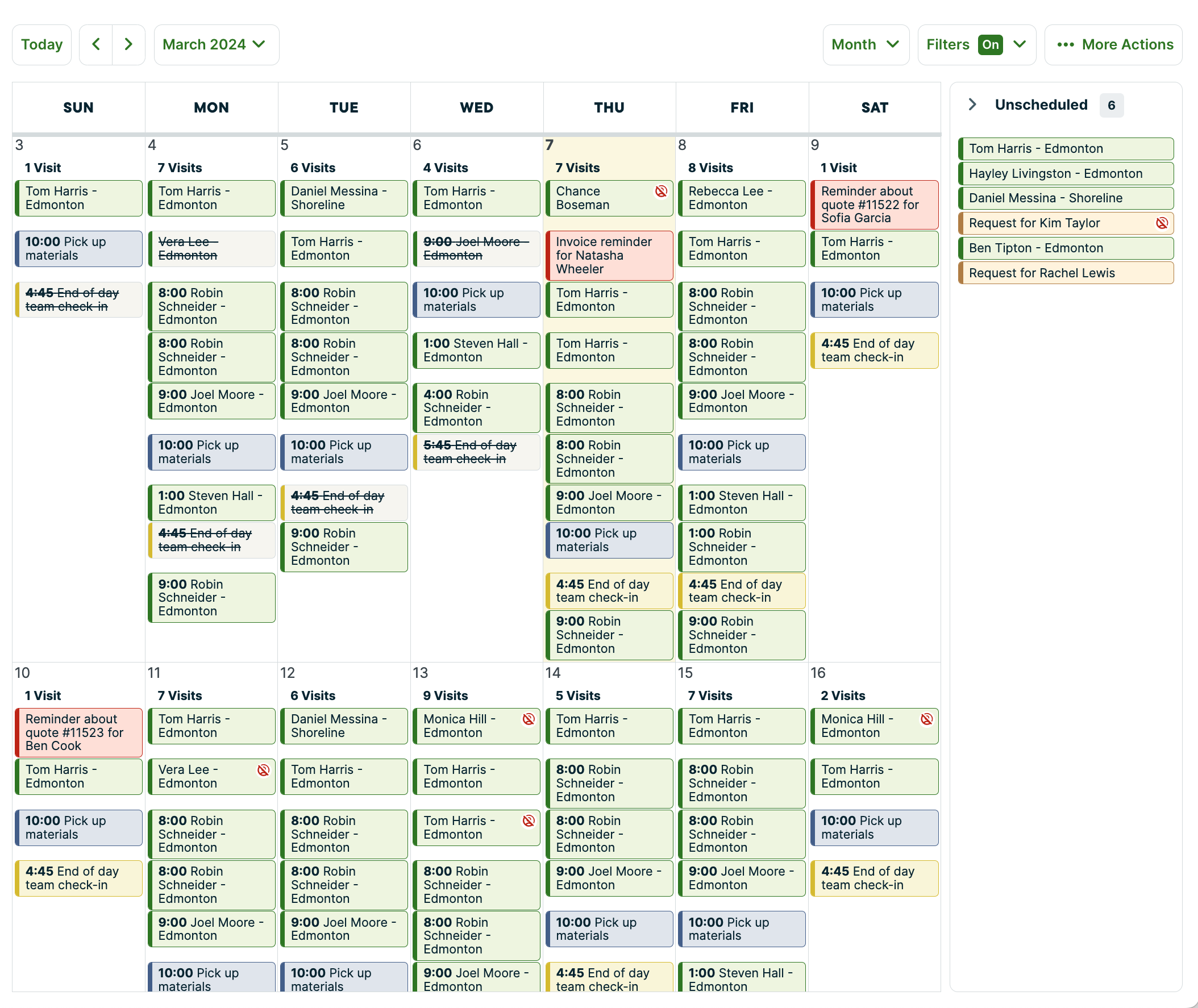
The week view shows schedule items for one week at a time. Anytime items are shown on the top of each day, and the remaining items are shown at their scheduled times. Today is highlighted on the calendar.
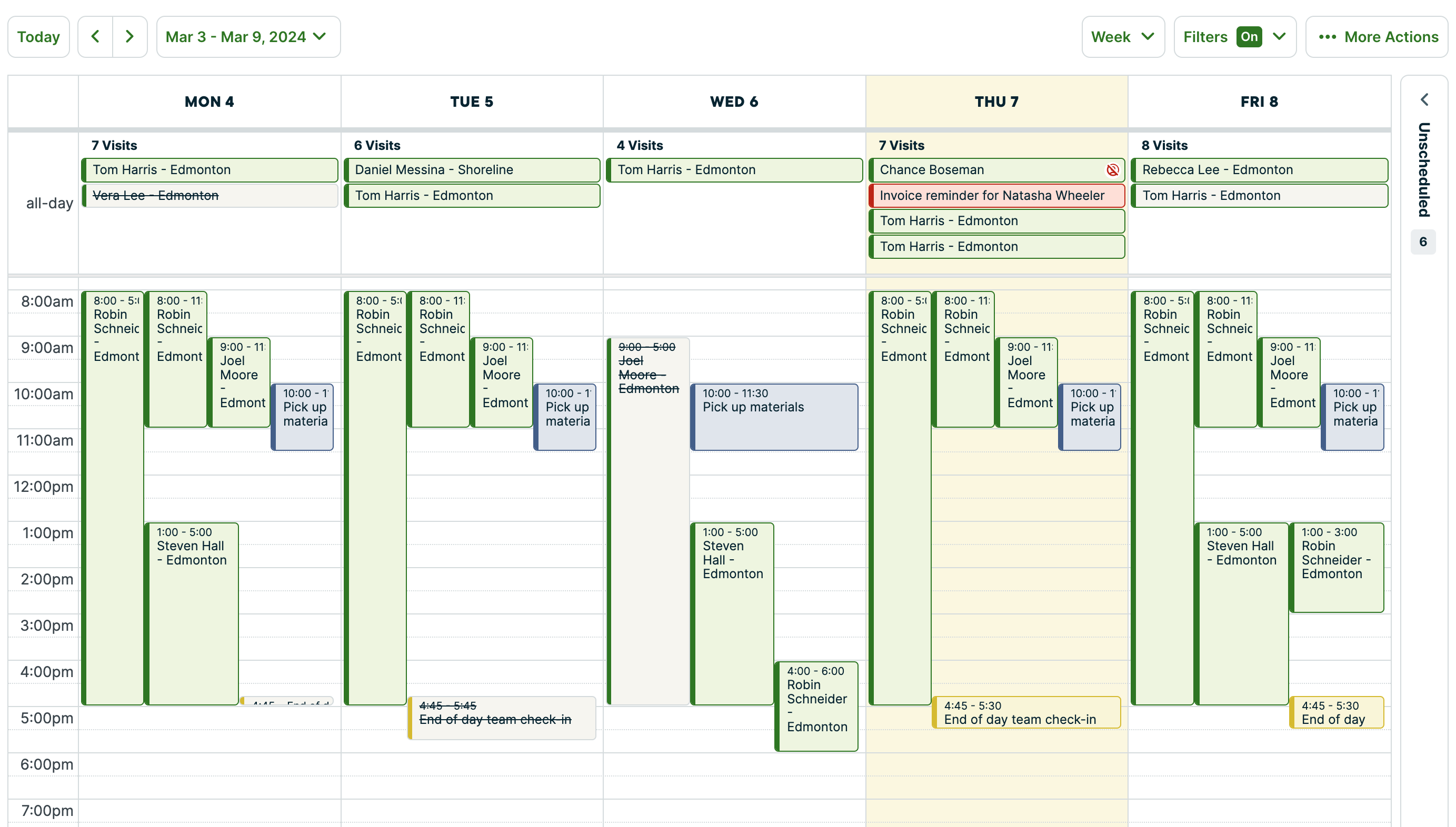
If a schedule item is not assigned, it will show with a red “no assignment icon” in the top right corner. To assign the item, click on it. Then click Edit and assign your team.
Navigation
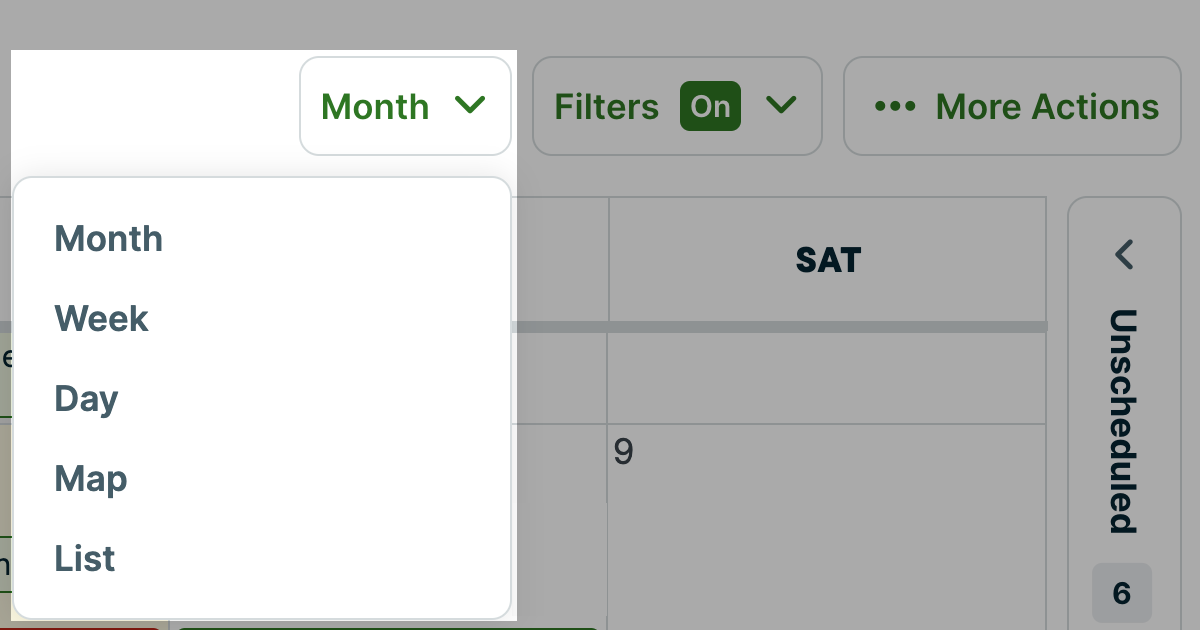
In the top right of the schedule beside the buttons for Filter and More Actions, there is a button that displays the name of the current schedule view you are looking at. This button is for navigating between different schedule views. Click it to jump to a different schedule view, such as the day, map, or list view.
In the top left of the calendar, there is a Today button as well as the date range of the week or month that you are viewing. To view a different week or month, click the date range, and from the date picker, select the time period you would like to view.
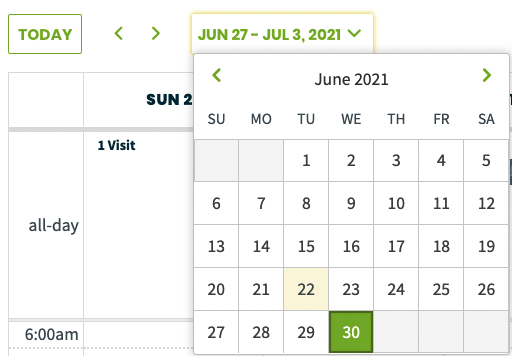
To jump back to the current time period, click Today. This will return you to the current week or month on the calendar.
Schedule filters
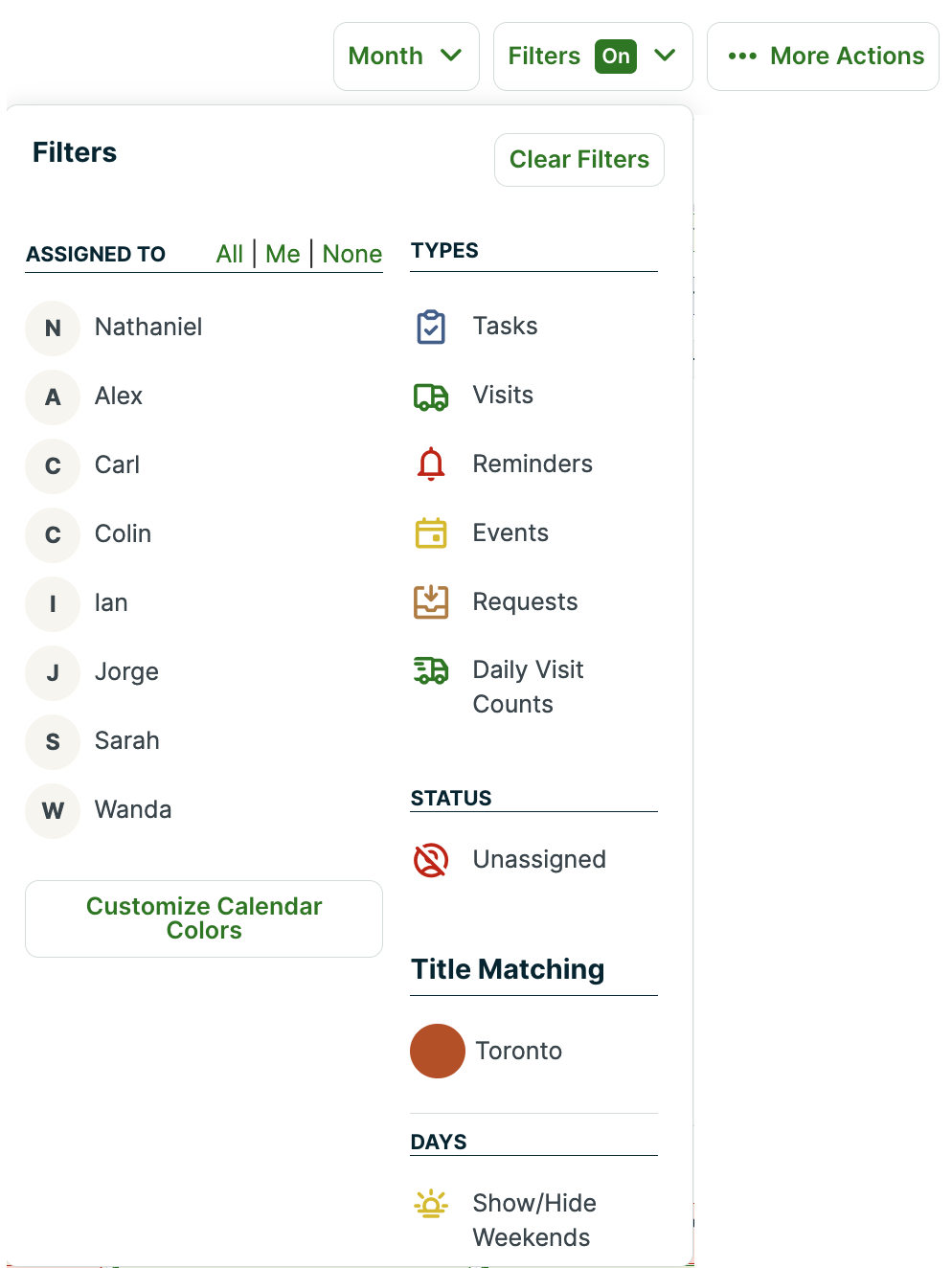
Items can be hidden from the schedule by using the filers. From the Filters button in the top right of your calendar, click on items to deselect them from appearing on the schedule. Deselected items will appear greyed out.
The week and month view display Calendar Colors, which are used to differentiate visits assigned to certain users, or with certain words in the title.
You can filter by:
- Assigned to: Filter by the user that items are assigned to.
- Types: Filter by types of schedule items such as tasks, visits, reminders, events, and requests. The daily visit count shows the number of visits you have on each day.
- Status: Filter by the status of the item on the schedule. Some schedule views show different statuses including unassigned, unscheduled, and without a property.
- Title Matching: Titles can be color-coded in your calendar colors settings, so that a keyword in a visit’s title changes the color of the visit on the schedule.
- Note: This is section acts as a legend to see which color is associated with which title. Clicking the titles from this section does not filter them on the schedule
- Days: Filter out weekends to only see Monday through Friday on the schedule.
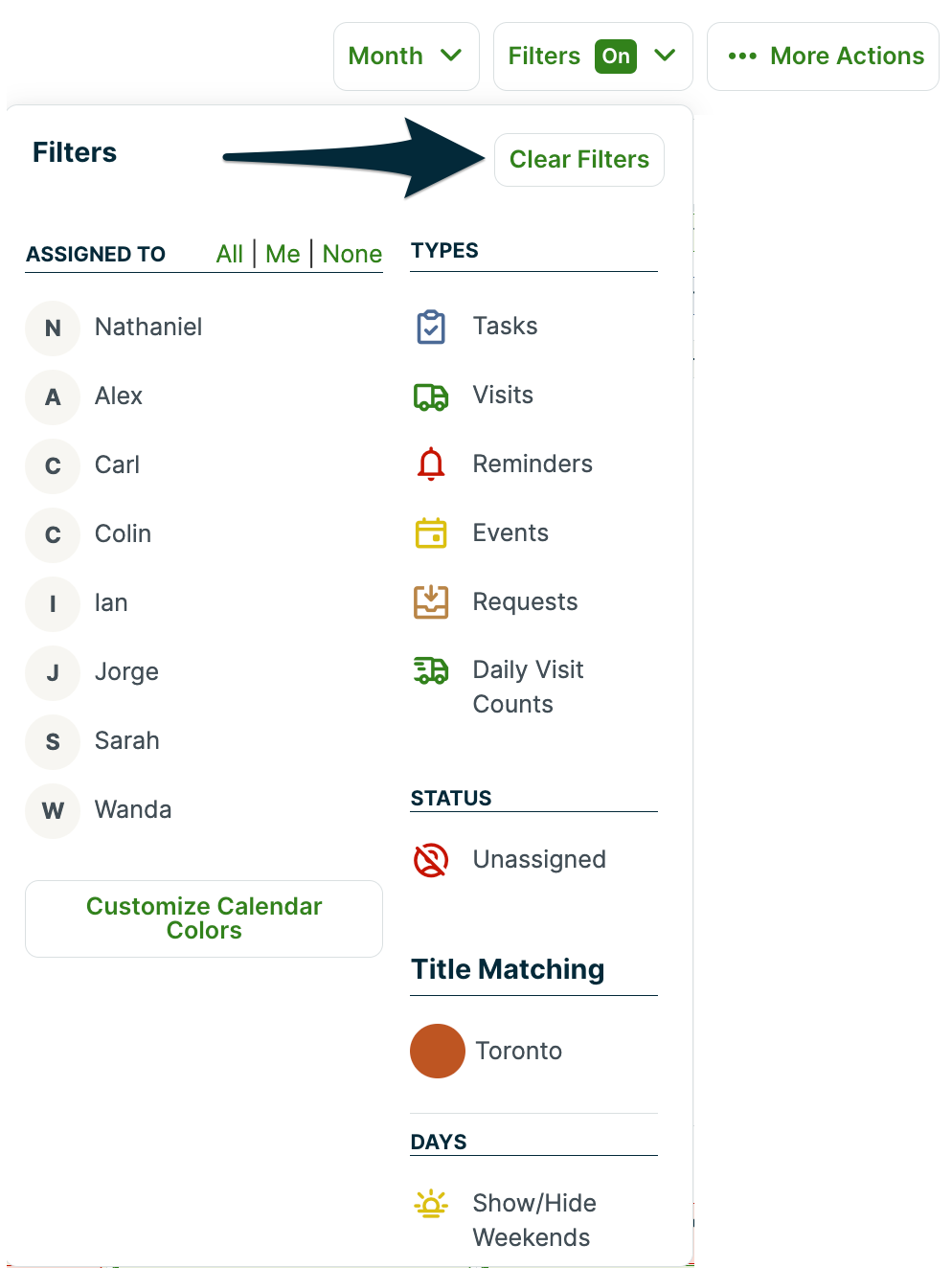
When filters are turned on, the Filters button will show Filters ON. To clear filters and reveal all the items on your schedule, click Filters > Clear Filters.
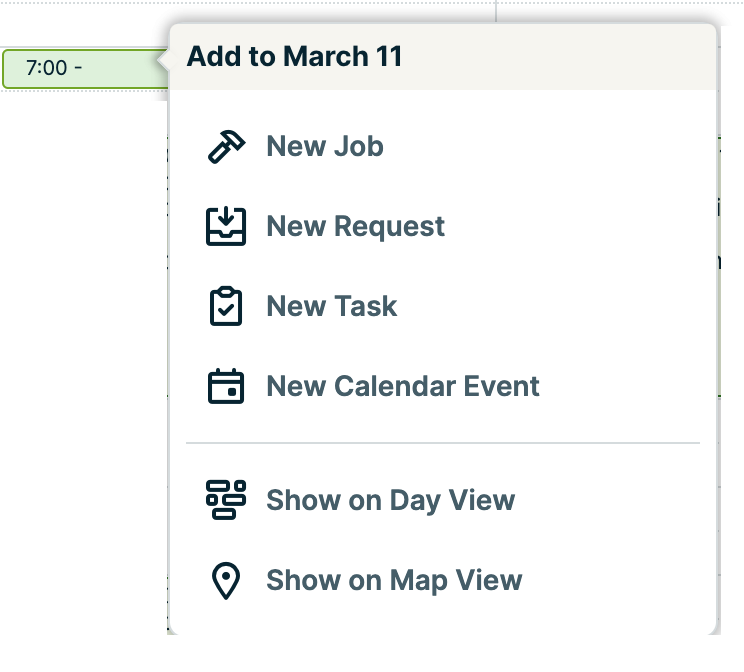
Create a new job, work request, task, or event
Click on an empty space on the day you want to schedule it. A menu will pop up and you can select the type of item you want to create.
View details or edit a task
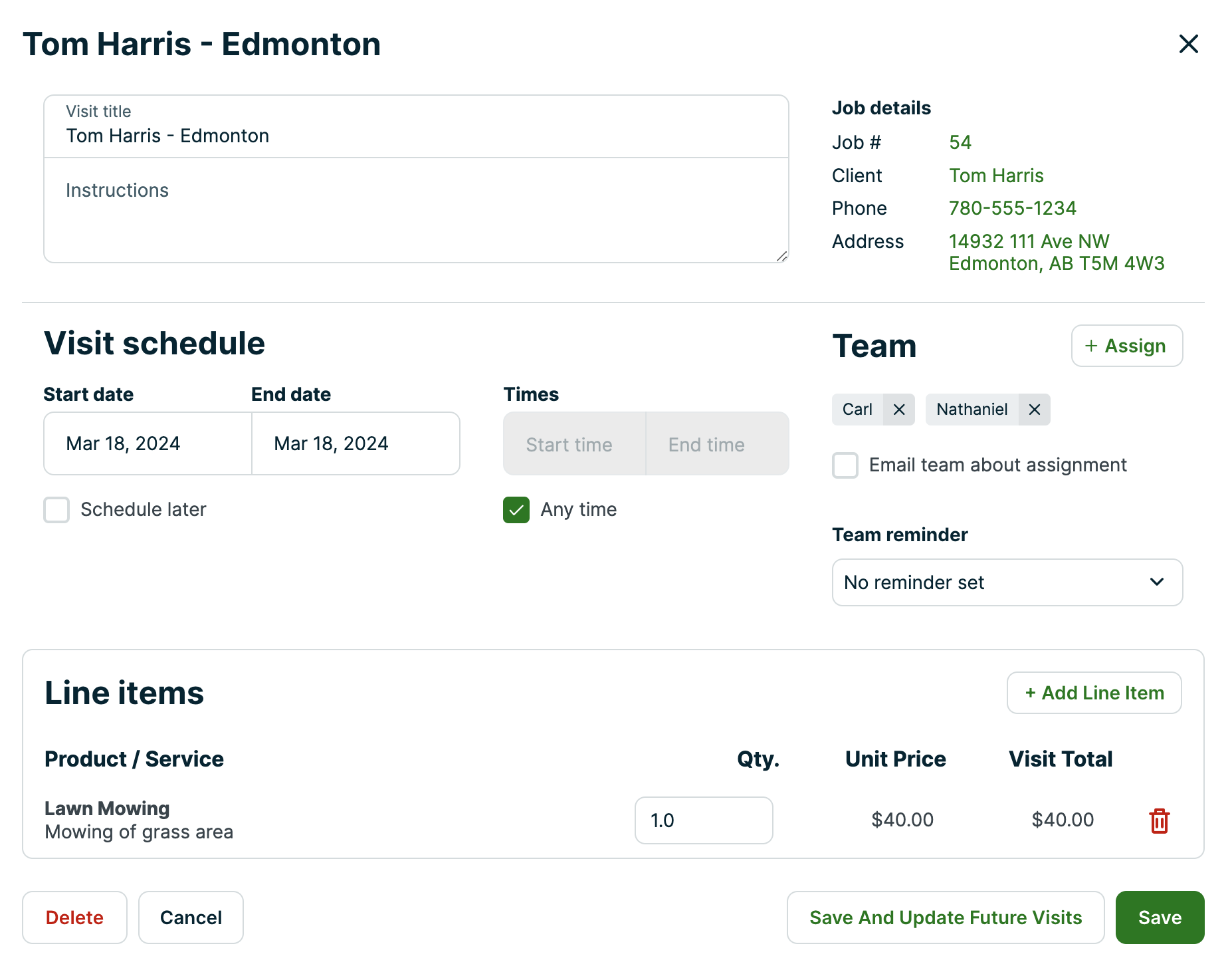
To view details or edit a task, click on it.
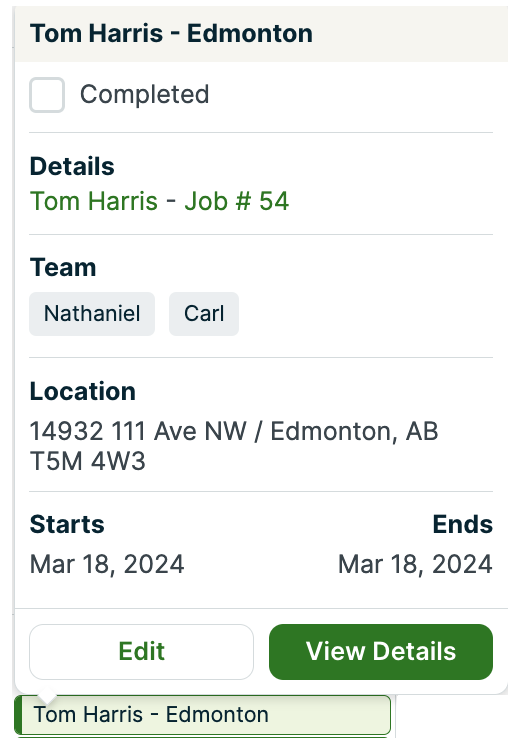
Click Edit to change the visit’s title, instructions, date, times, assignment, and line items. You can also delete the task from this screen.
Unscheduled items
Unscheduled items are shown on the right side of the month and week views of the schedule. You can expand and contract the “unscheduled items” tab to see or hide them. You can drag them to a date to schedule them. Items in the unscheduled section are listed in order of their creation date.
Drag and drop
To change the date of a schedule item, click and drag it to the new date in either the month or week view. In the week view, you can also change the time of the item by dragging and dropping it into a time slot on a different date. You can also extend or shorten the item time by dragging the edge of the visit.
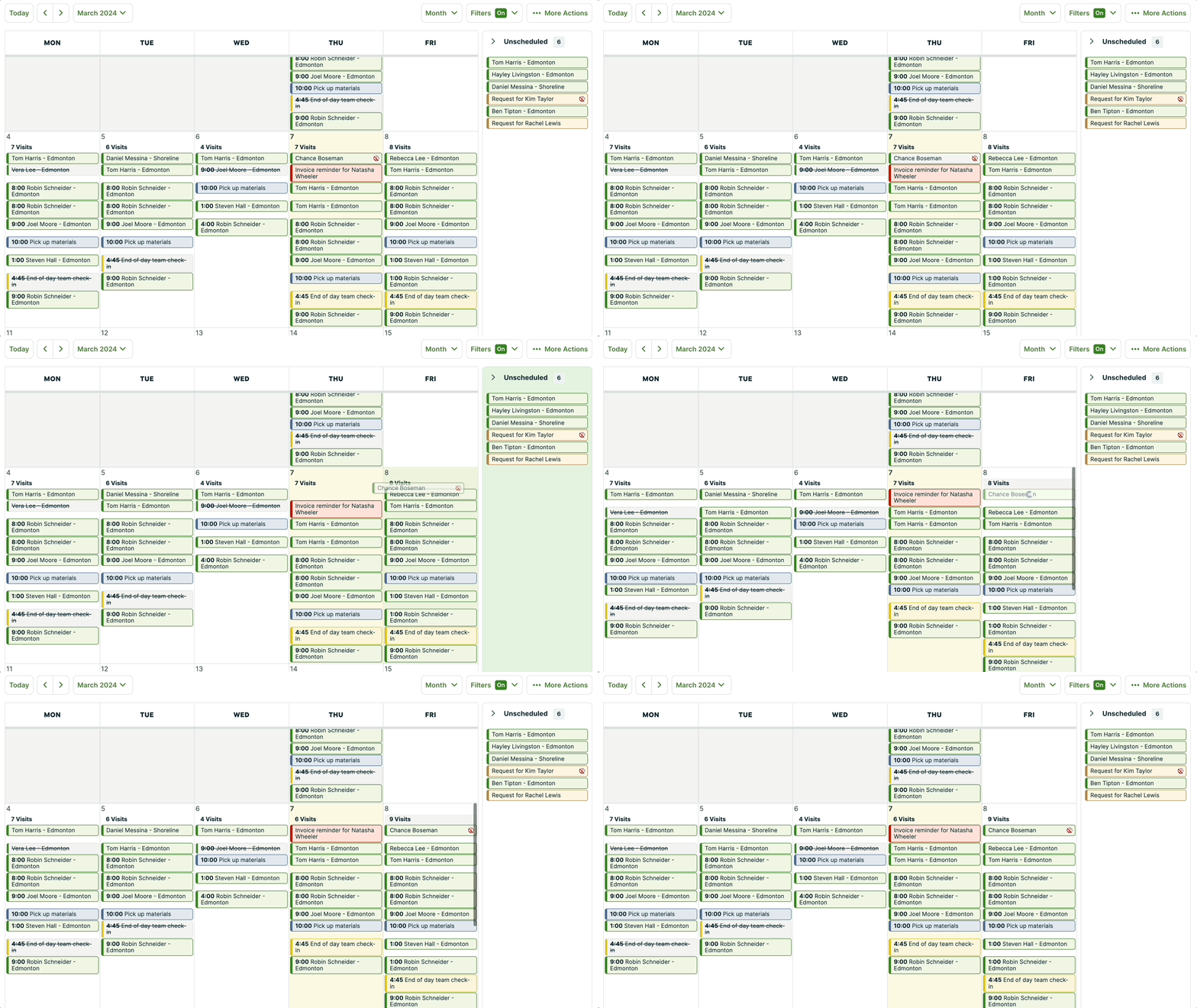
You can set the first day of the week to be either Sunday or Monday, by going to the Gear Icon > Settings > Company Settings. Then change the regional settings from the bottom of this page.