In This Article
Overview
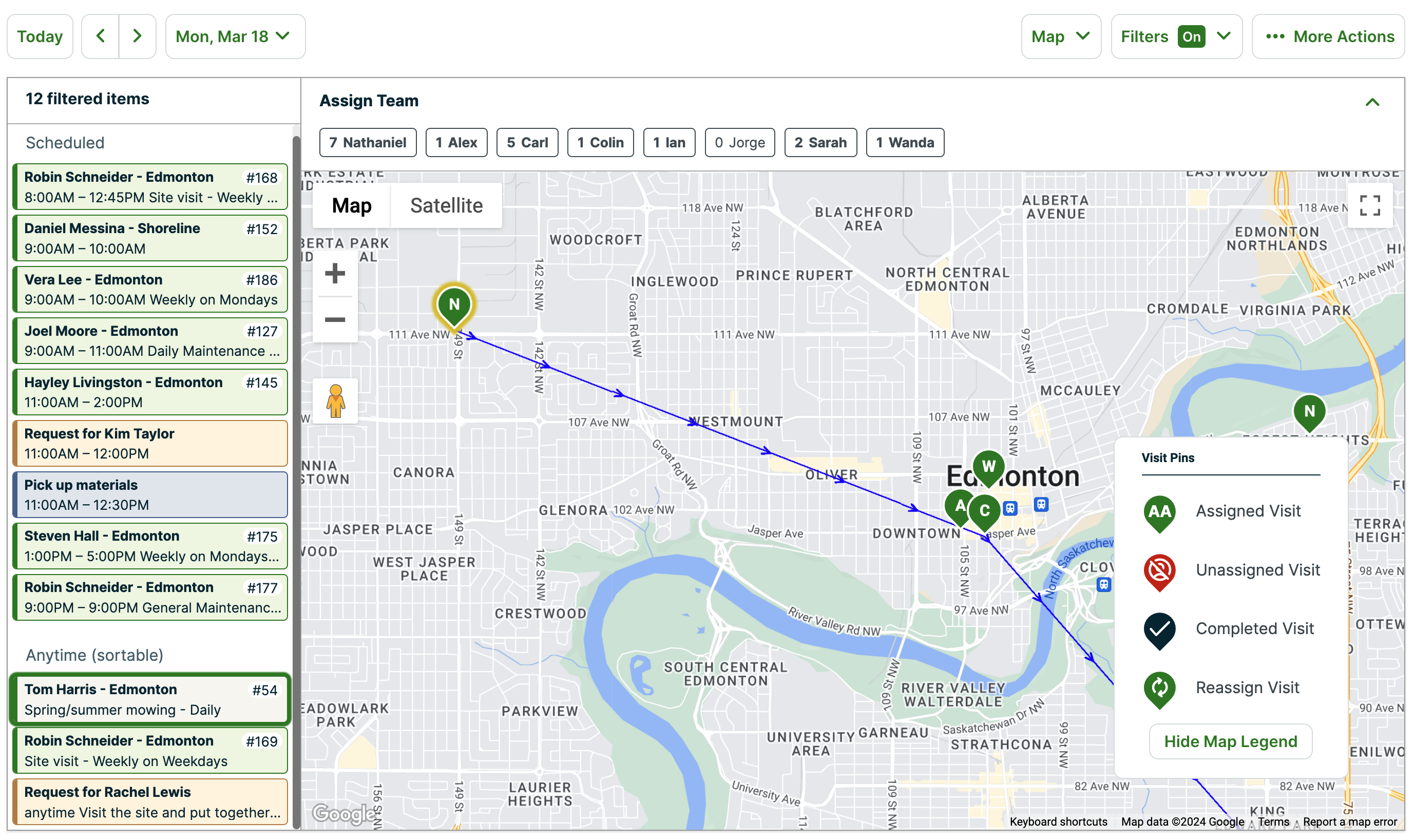
The map view shows a list of all of your tasks for the day sorted into scheduled, anytime, and unscheduled tasks. If those tasks are linked to a client and property then they will also appear as a map pin on the map to the right.
If you have calendar colors set up for your users, the visits they’re assigned to will show their colors.
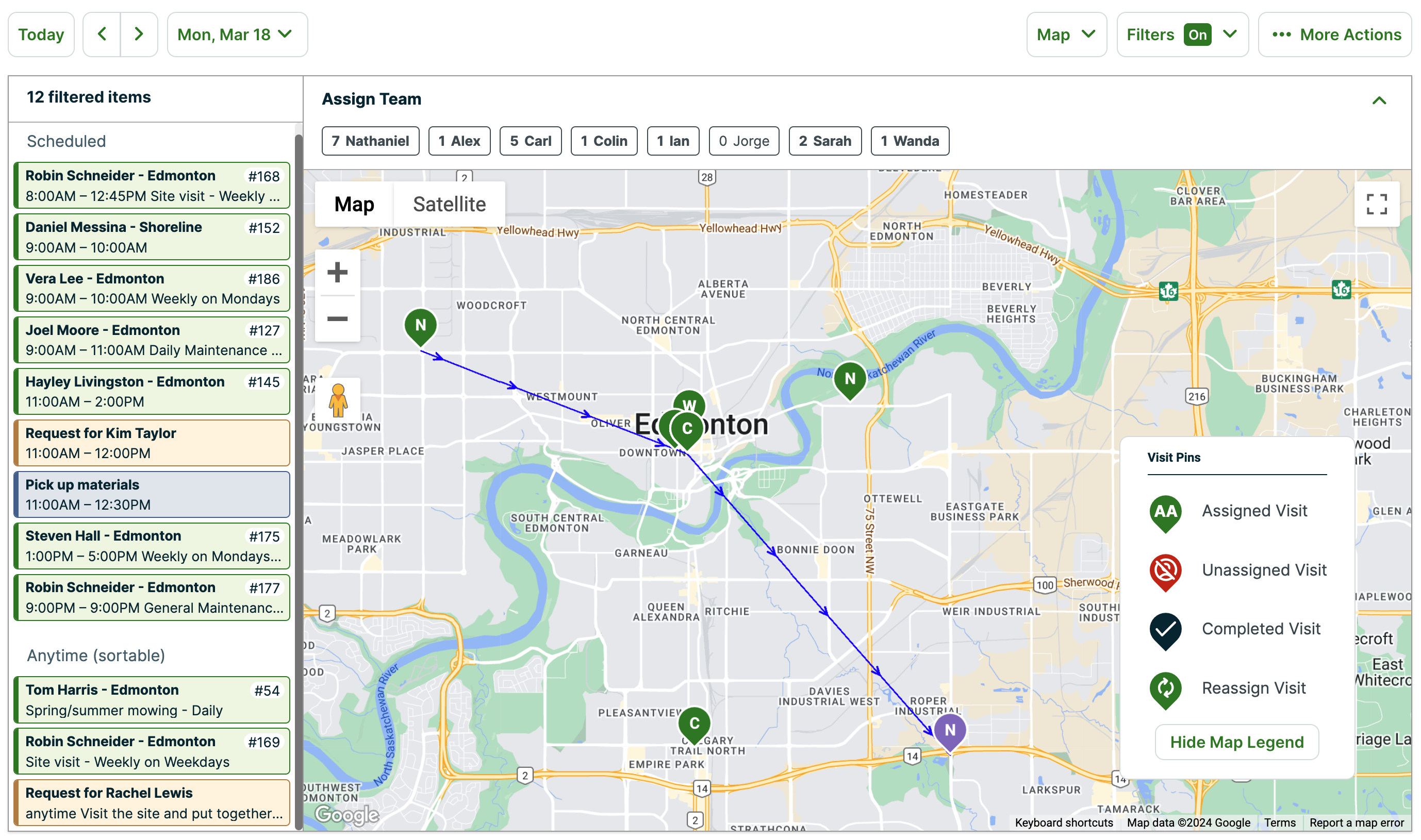
Hovering your cursor over any task on the left-hand side will highlight the address pin associated with it on the map.
The blue lines on the map represent the routing order for these properties. The appointments that show for the day are based on user permissions, however the blue lines appear when you have at least two anytime visits for the day.
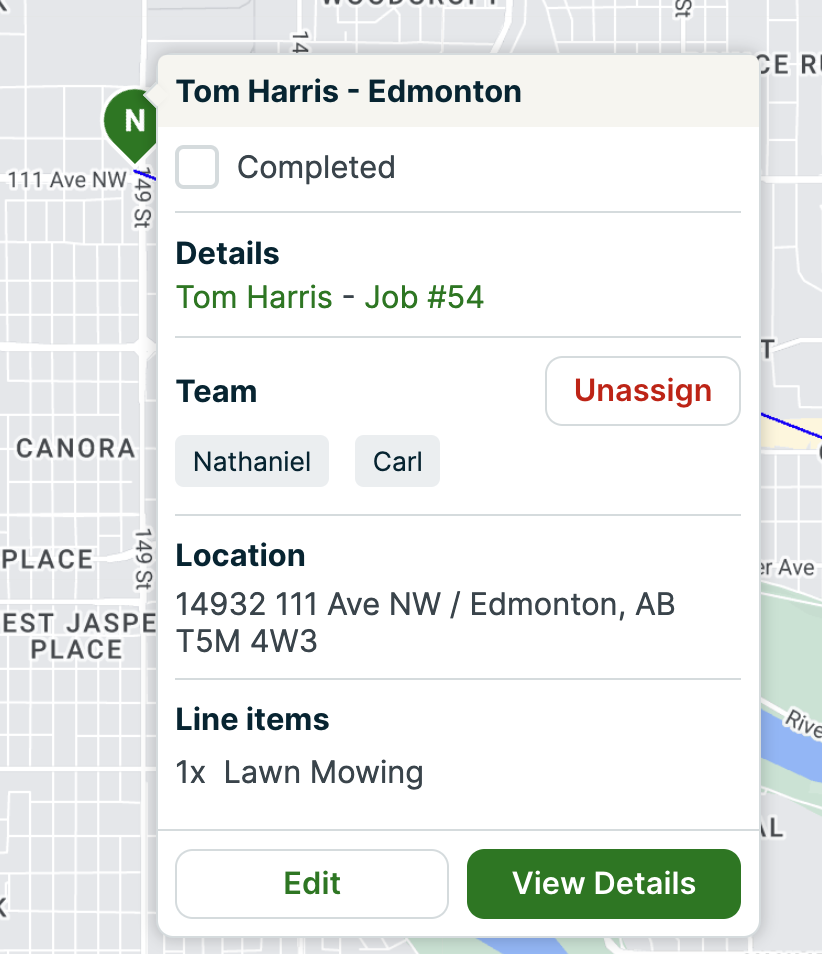
Click on the item from the map or the list to get quick access to the client name and work item under Details, to Unassign it from Team, or select Edit or View Details at the bottom for more options.
Sorting visits
You can sort the Anytime tasks by clicking and dragging them from the task list into the order you want them. The route on the map will update based on the order you choose.
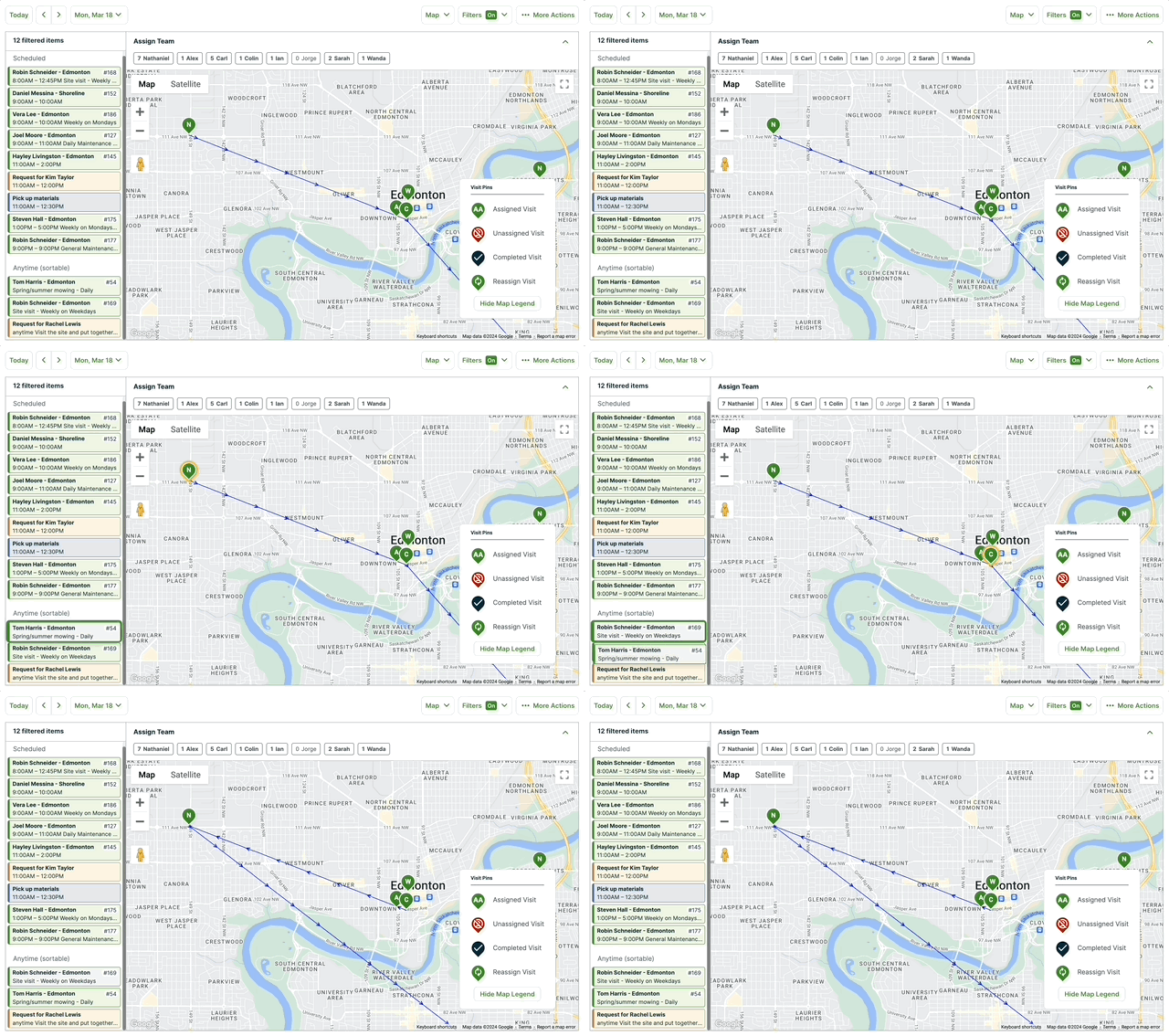
You can optimize routes for visits assigned to your users on this view of the schedule as well. Learn more about Daily Route Optimization.
Schedule filters
You can customize what appears on the schedule by using the filter options that appear in the top right corner of the screen. To filter items off of your map, you can click their names from the filter list, that item will be greyed out, and you will not see it on the schedule.
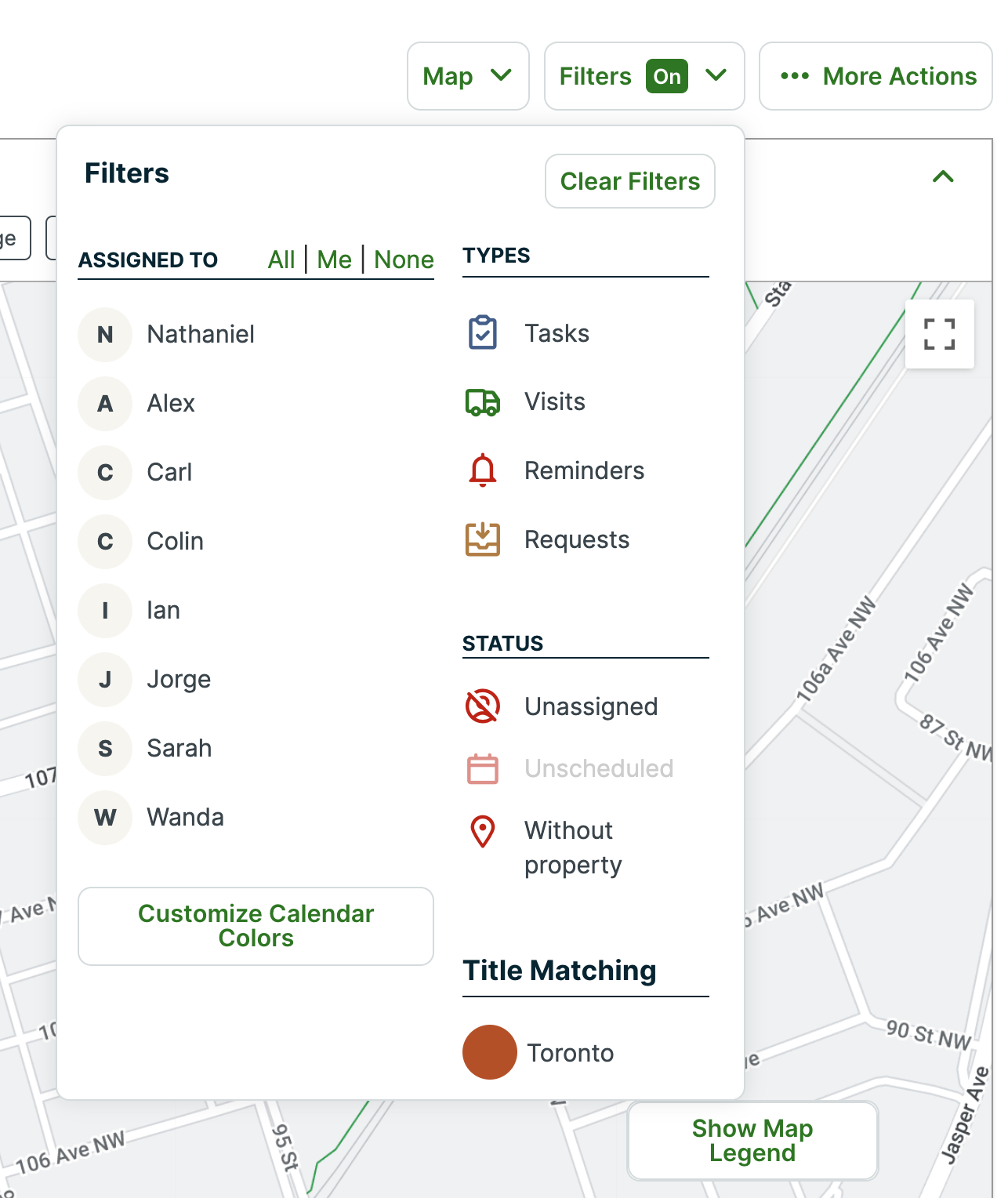
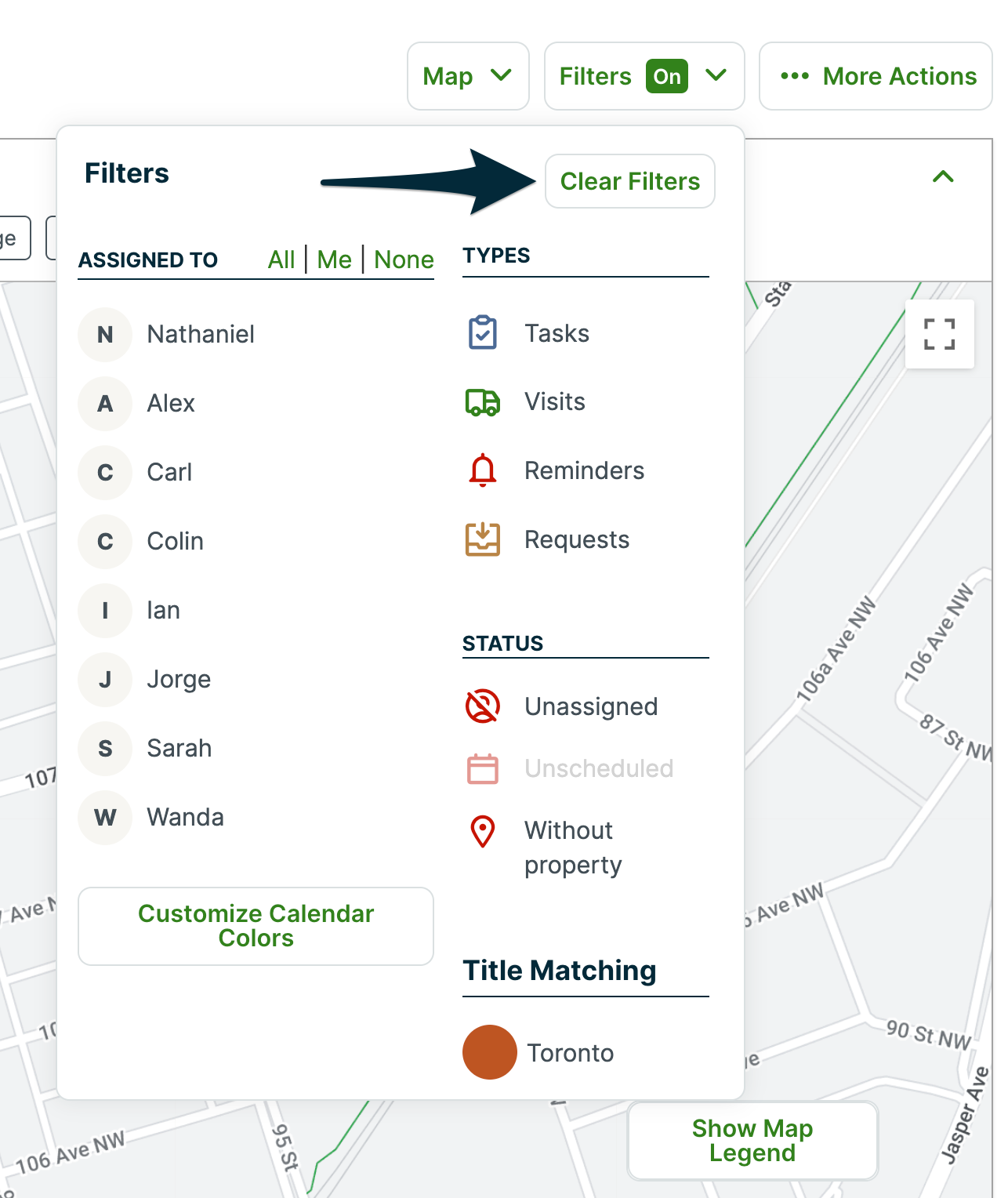
When filters are turned on, the Filters button will show Filters ON. To clear filters and reveal all the items on your schedule, click Filters > Clear Filters.
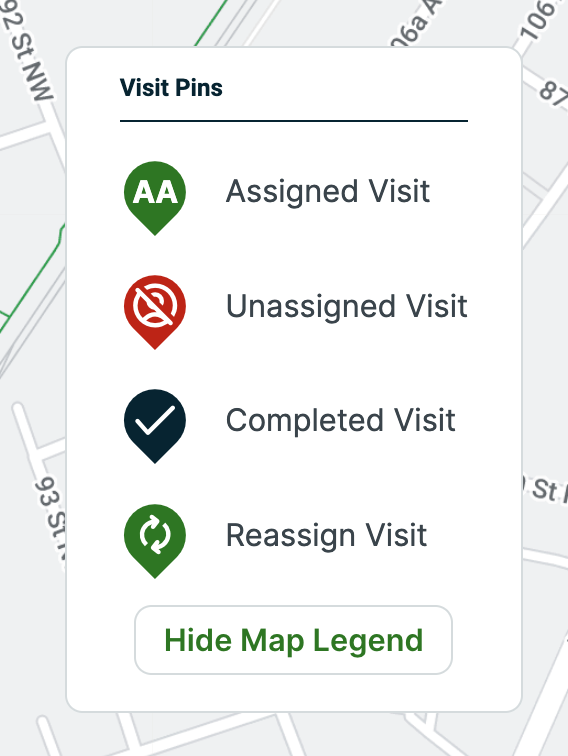
Map pin colors
There is a legend in the bottom right corner of the map that will tell you what each of the visit pins are for.
Assigning visits
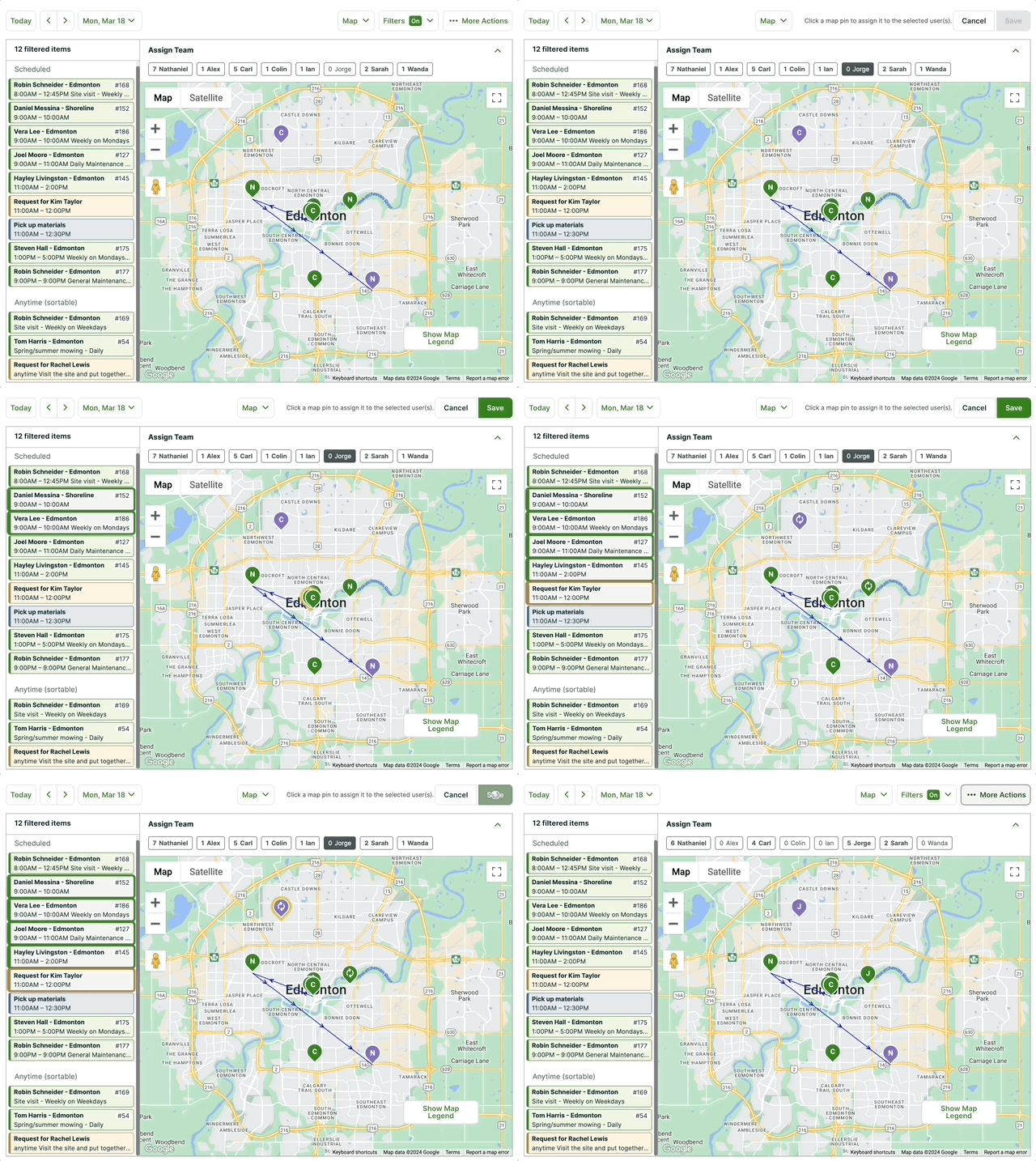
Your team’s names all appear at the top of the map, you can click on these names to see the items assigned to that user.

To assign visits in the Map view, select the user’s name at the top of the map. Then select the visit(s) that you would like to assign to them, either in the map or list. Once you have the tasks selected you can then click Save in the top right corner.
Adjust a map pin
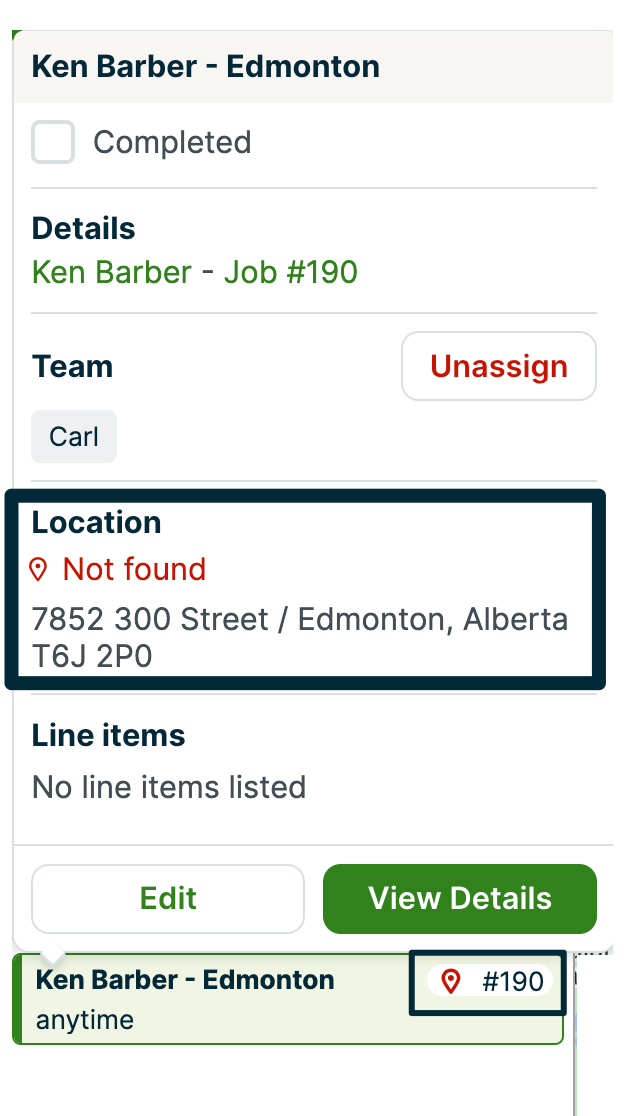
If a property address is unable to be found on the map, it will show with a red pin icon in the task list to notify you to make an edit.

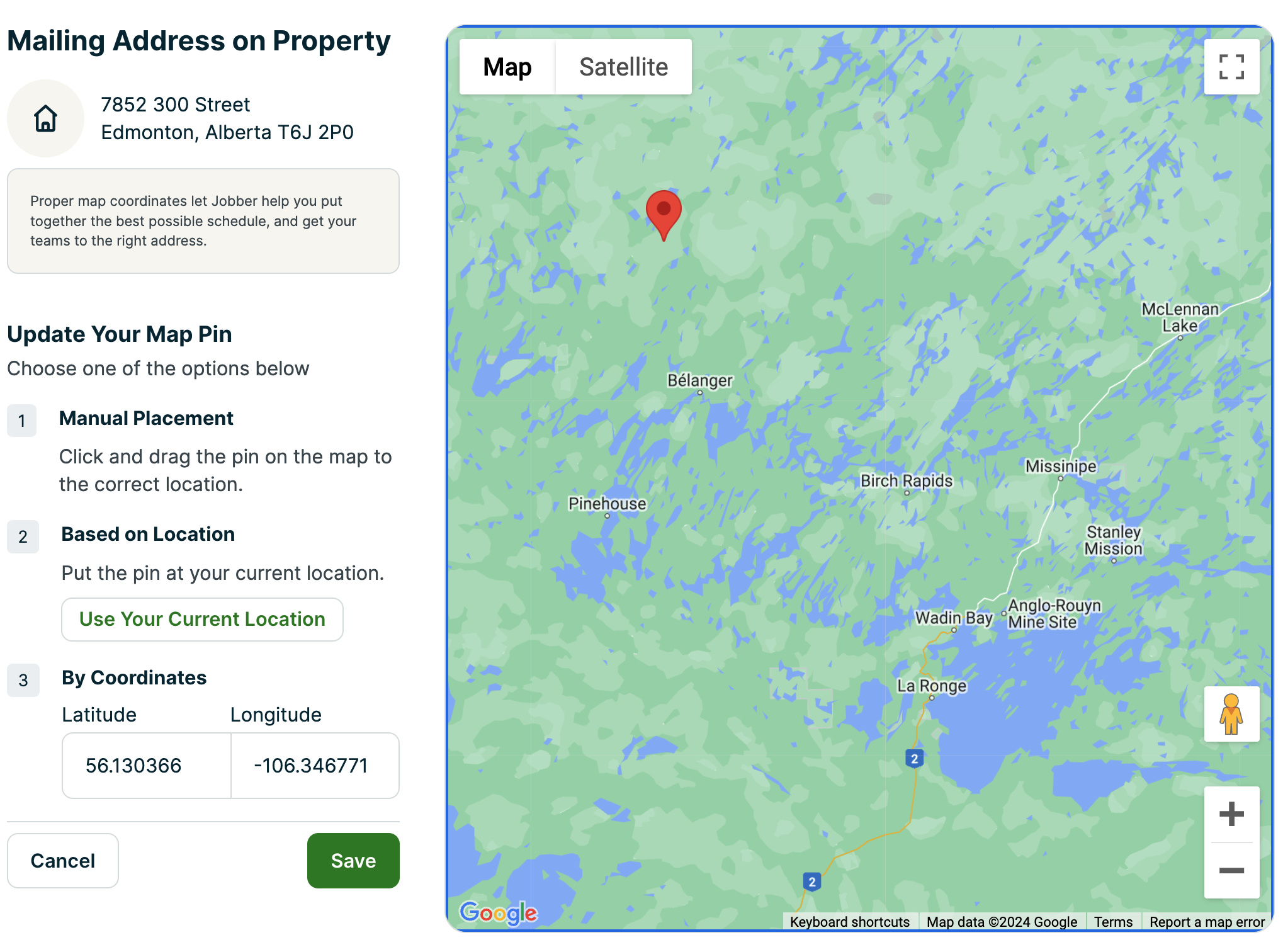
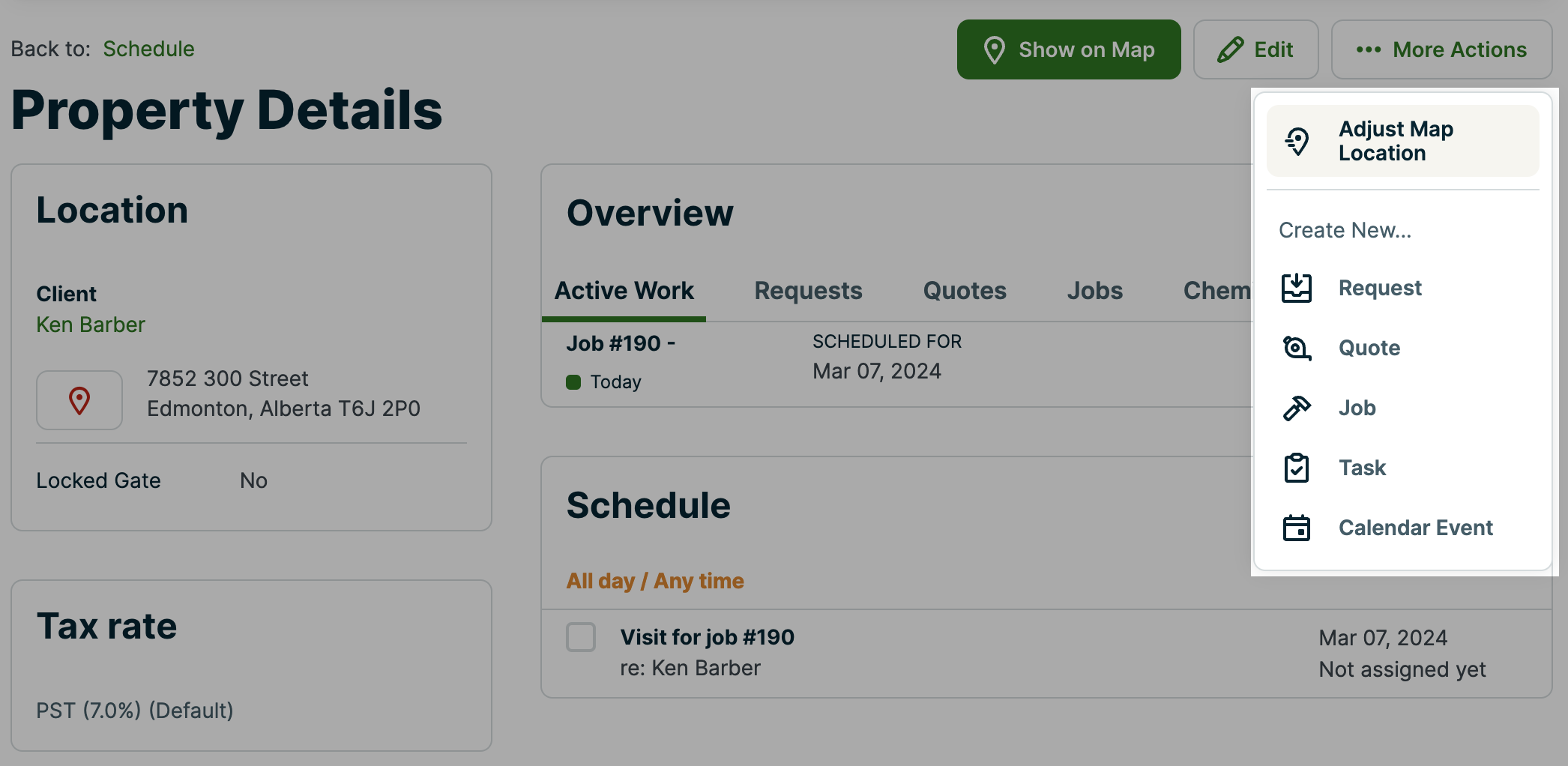
To ensure that the Jobber app is taking you to the correct location you will need to manually set up this map pin for the correct location. To do so, access your Properties page and click onto this property. Then, select More Actions > Adjust Map Location.
On the Adjust Map Location screen there are three ways to update the map pin:
- Manual placement: click and drag the pin on the map to the correct location, then click Save.
- Based on location: if you are currently at the property, click Use Your Current Location to put the pin where you currently are, then click Save.
- By coordinates: enter the latitude and longitude for the property, then click Save.