
Table of Contents
Overview
Moving visits allows you to shift visits that you can’t complete on a given day to another one. You might need to move a day’s worth of visits in case of inclement weather, or last-minute scheduling changes, like a team member calling in sick.
How to move visits
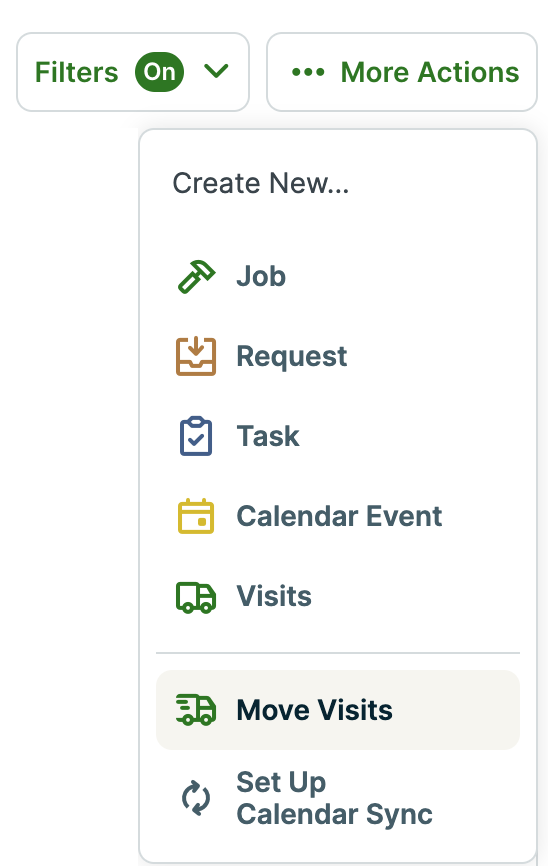
Visits can be moved from any of the schedule views (month, week, day, map, or list). From the More Actions button, click Move Visits.
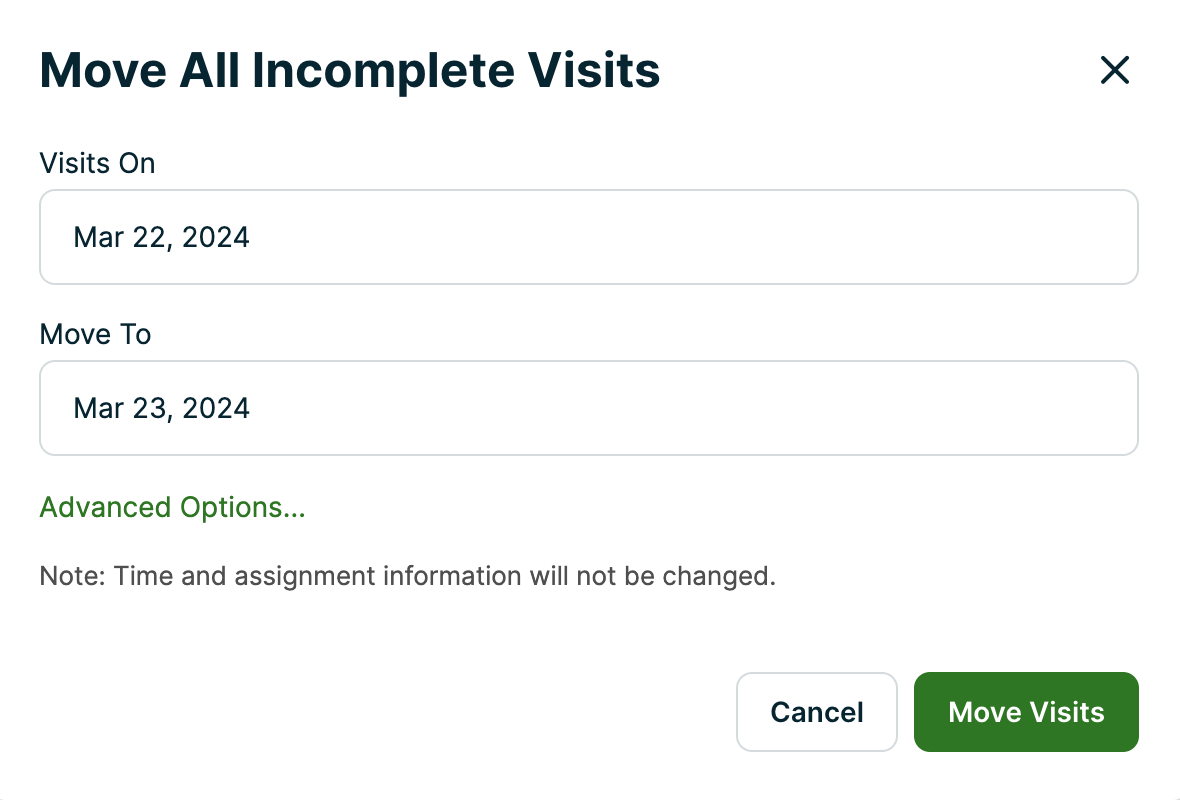
This will open a popup where you can select which dates you’re moving visits from and to:
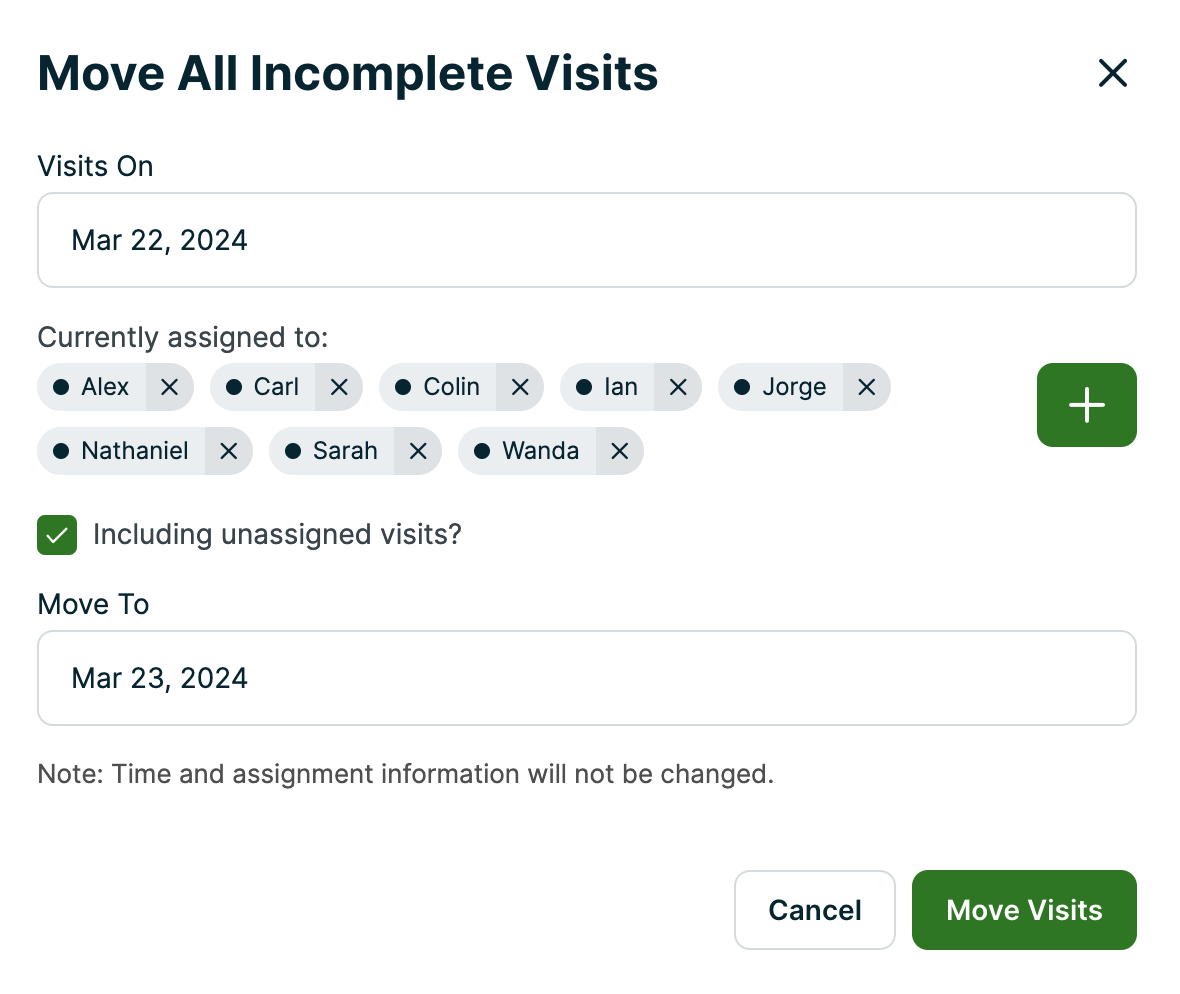
Clicking Advanced Options in the popup box will allow you to filter the visits you would like to move by user, and choose to move unassigned visits as well.
When you’ve finished inputting your information, click Move Visits to shift your visits over.
Note: Visits will not move if there is a duplicate of another visit on the day that you’re shifting to.
For example, if you’re moving incomplete visits from this Friday to next Monday, but have a job that has a scheduled visit on both Friday and Monday already, you won’t be able to move visits from Friday to Monday.