
In This Article
Overview
Send emails to your team members to notify them of new jobs that have been added to their schedule or remind them about upcoming appointments hours before they start.
When you assign jobs to your team through Jobber, you have the ability to give those individual users a heads up through an email notification, which is set up on jobber.com. This is useful to ensure that both you and the team are on the same page, so everyone can prepare accordingly and stay organized!
Team reminders are available on select plans. View our current pricing plans.
To check what plan you’re on, navigate to the Gear Icon > Account and Billing. If you have any questions about your plan’s features or pricing, our support team is here to help!
There are two different options when it comes to sending out these email notifications:
- Sent immediately after the job has been created (job level)
- Sent before the scheduled appointment (visit level)
What is the difference between a job and a visit you may ask? Let’s take it all the way back to Job Basics for a quick refresher! See more information below on how both of these options work within your account, when you may want to use them, and what your users will see on their side.
Email team about assignment
Job level
For bigger projects, recurring jobs, or last minute work that you schedule, you might want to get the job you’ve just created on your team’s radar sooner rather than later. This would be the perfect time to send off an initial email reminder at the point of creating the job to give them an overview, including details such as the first visit date and the visit schedule.
Note: This option is only available at the point of initially creating the job. If you try to edit the job later on after it has been created, you will not see this option at the job level, only the visit level.
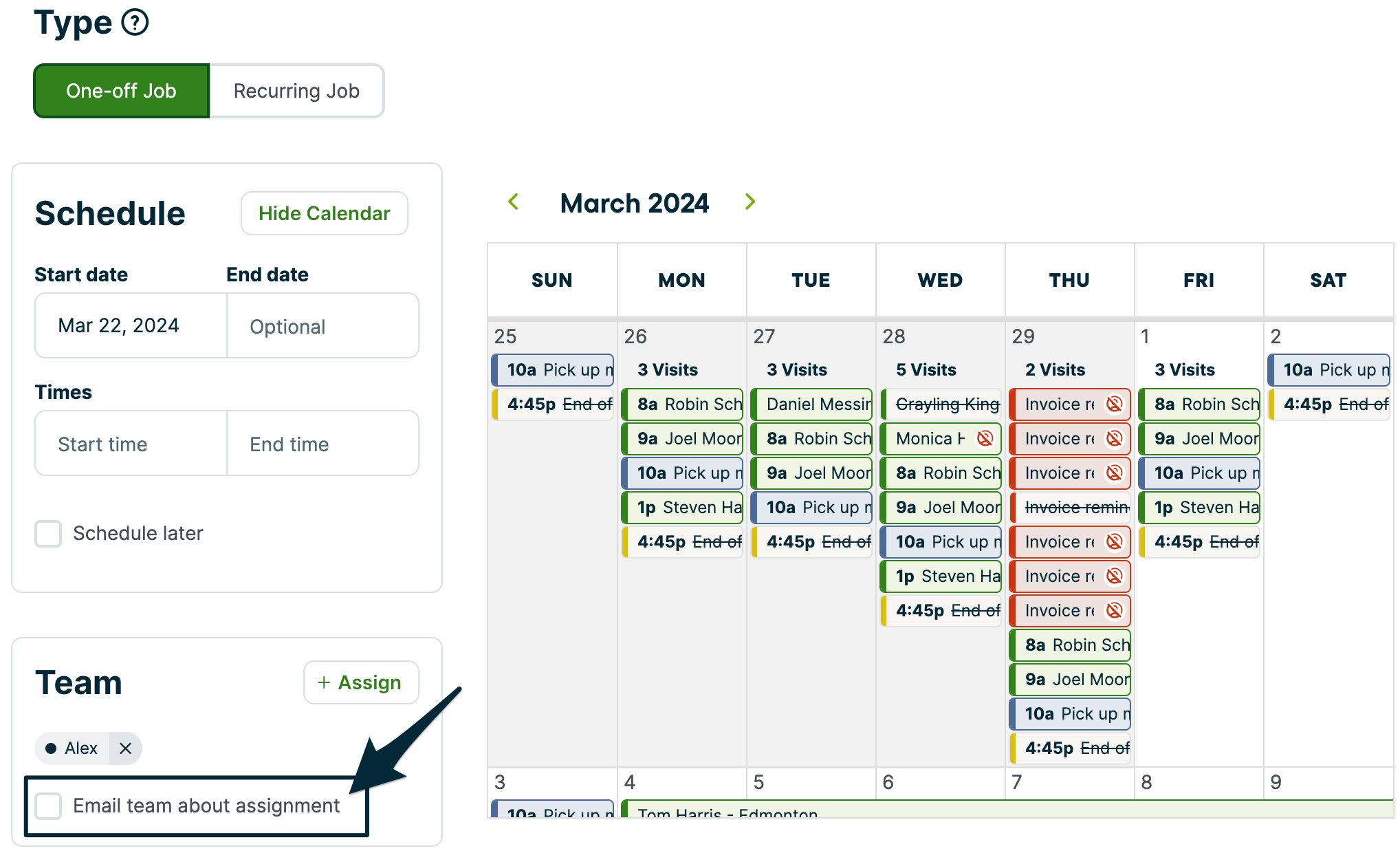
Start by creating a new job. This can be done from home, the jobs page, or the clients profile by clicking More Actions > Create New Job. After you have selected your team, check off the box to Email team about assignment, which is found just below the user’s name(s) in the Team section. Click Save Job and the email will be sent out to the team immediately.
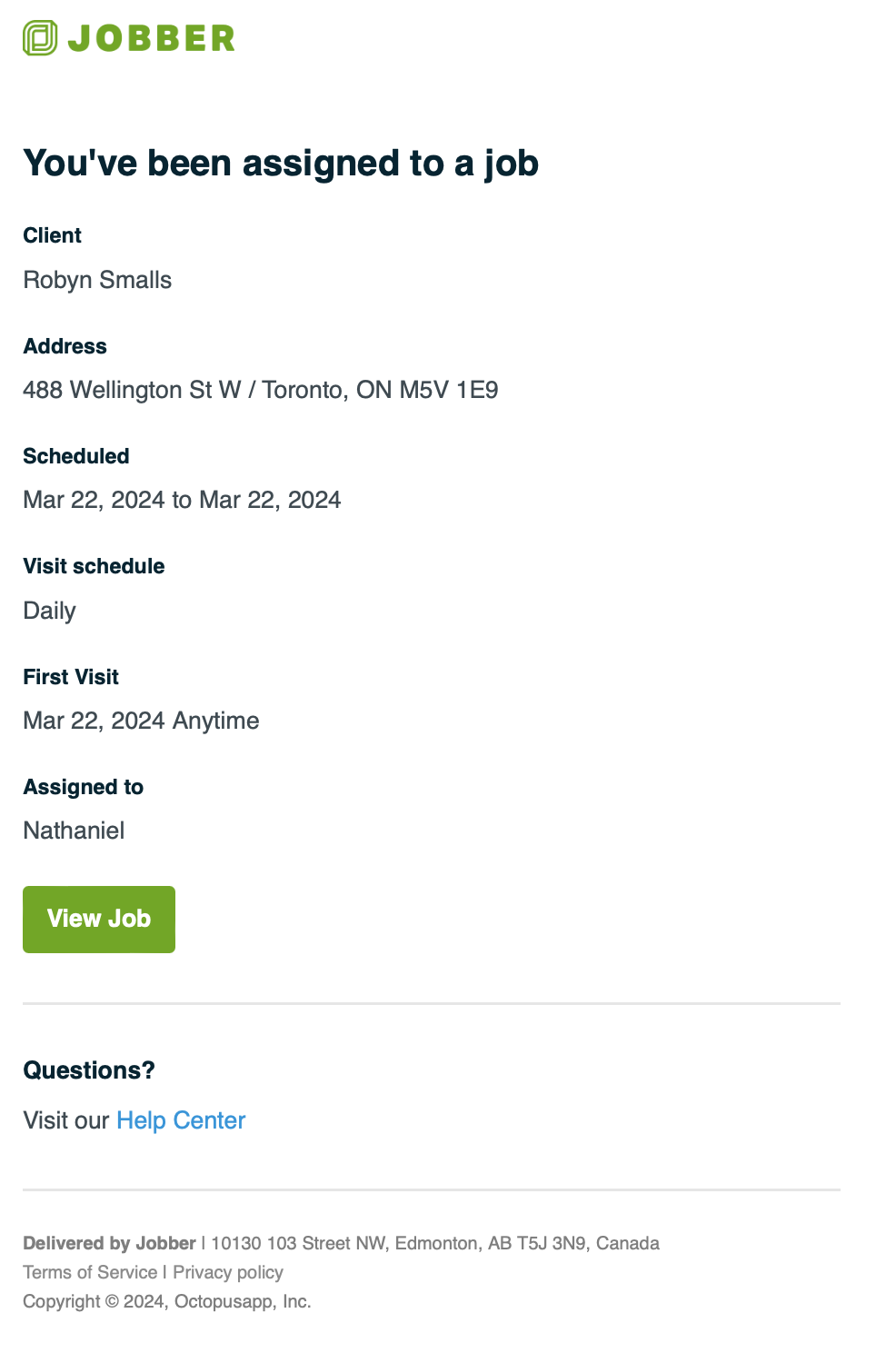
These emails will provide your team with a brief overview of the job that has just been scheduled, including the following information:
- Job title
- Client name
- Property address
- Start date + duration
- Visit schedule
- First visit date + time
- Who it is assigned to
Your team will also be given the option to View Job through a tab at the bottom of the page. When clicked, it will take users directly to the job on jobber.com.
Visit level
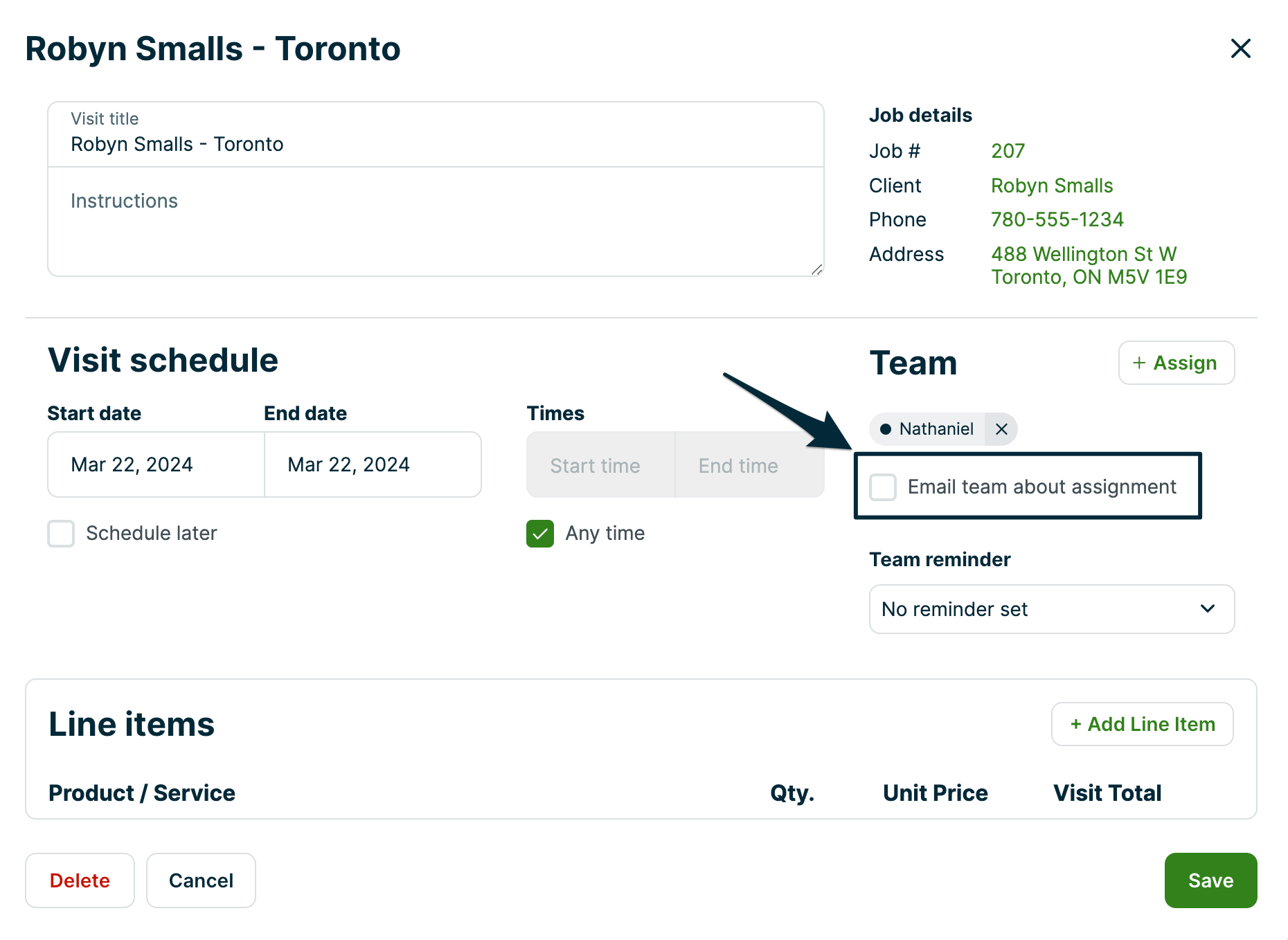
Once the job has been created, you will be able to use the Email team about assignment option again, except this time from the visit rather than on the job itself. Navigate to the visit (either from the schedule or from the job) and click on the Visit > Edit, you will notice this same option appears under the Team section. Once checked off and you hit Save, the reminder will send out immediately.
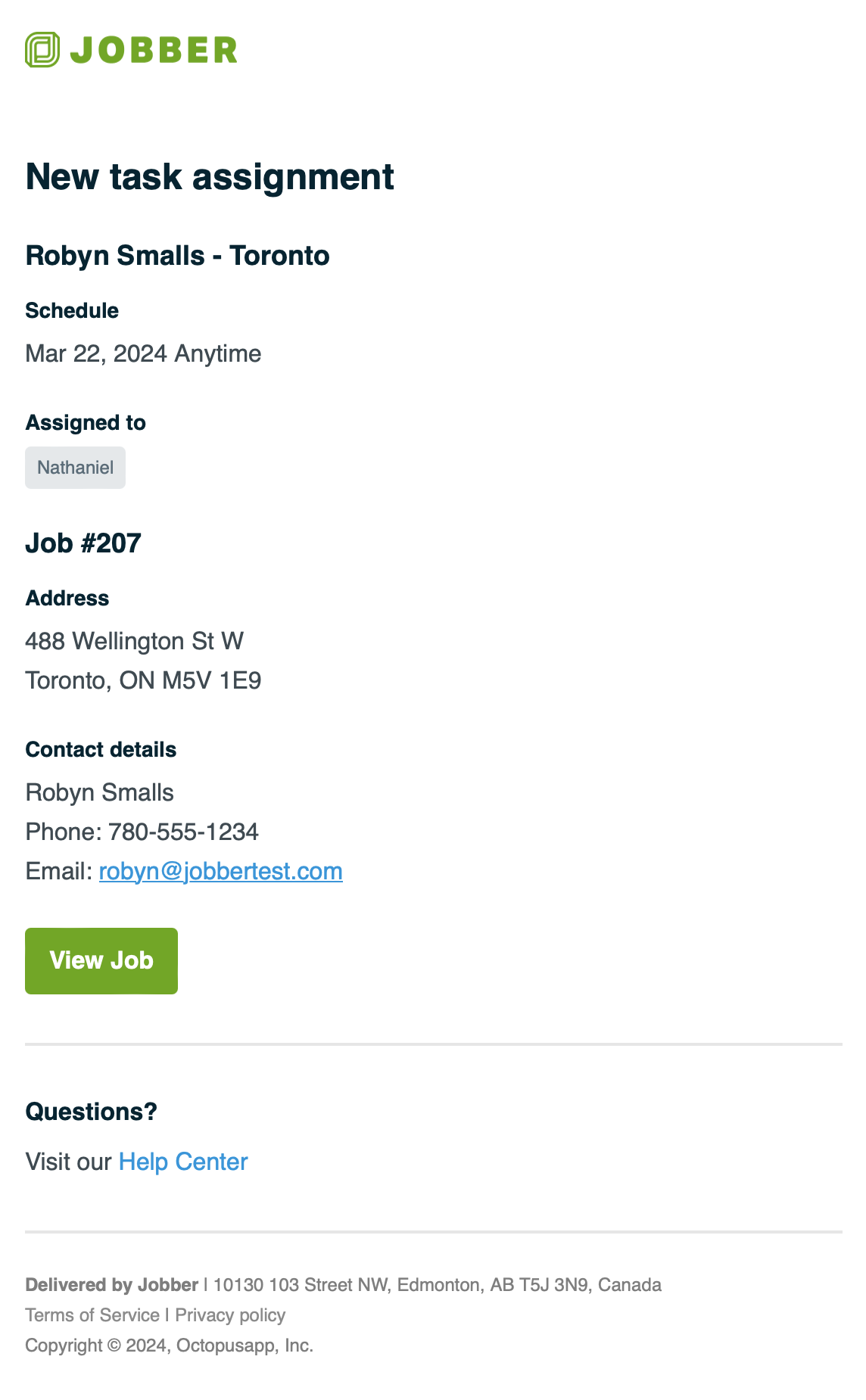
The email will look a little different this time as it relates to that specific appointment date, rather than the overall job schedule. The email contains information including:
- Visit title
- Date + time
- Instructions
- Who it is assigned to
- Job #
- Property address
- Client contact details
Your team will also see the option to View Job at the bottom of this email, clicking on this tab will once again take them directly to the job on jobber.com.
Team reminders
After the job has been created, you can give your team a heads up closer to the start time of the appointment. These reminders are set up on each visit individually to ensure your team is on time and ready for the work at hand. This also gives the team an opportunity to send out an On My Way notification through the app to communicate with the client if need be.
To set up a Team Reminder, you will first need to navigate to the visit (either from the calendar or the job) and click on the Visit > Edit > Team Reminder. From here, you will see a dropdown menu with different reminder time options, including:
- No reminder
- At start of task
- 30 minutes before
- 1 hour before
- 2 hours before
- 5 hours before
- 24 hours before
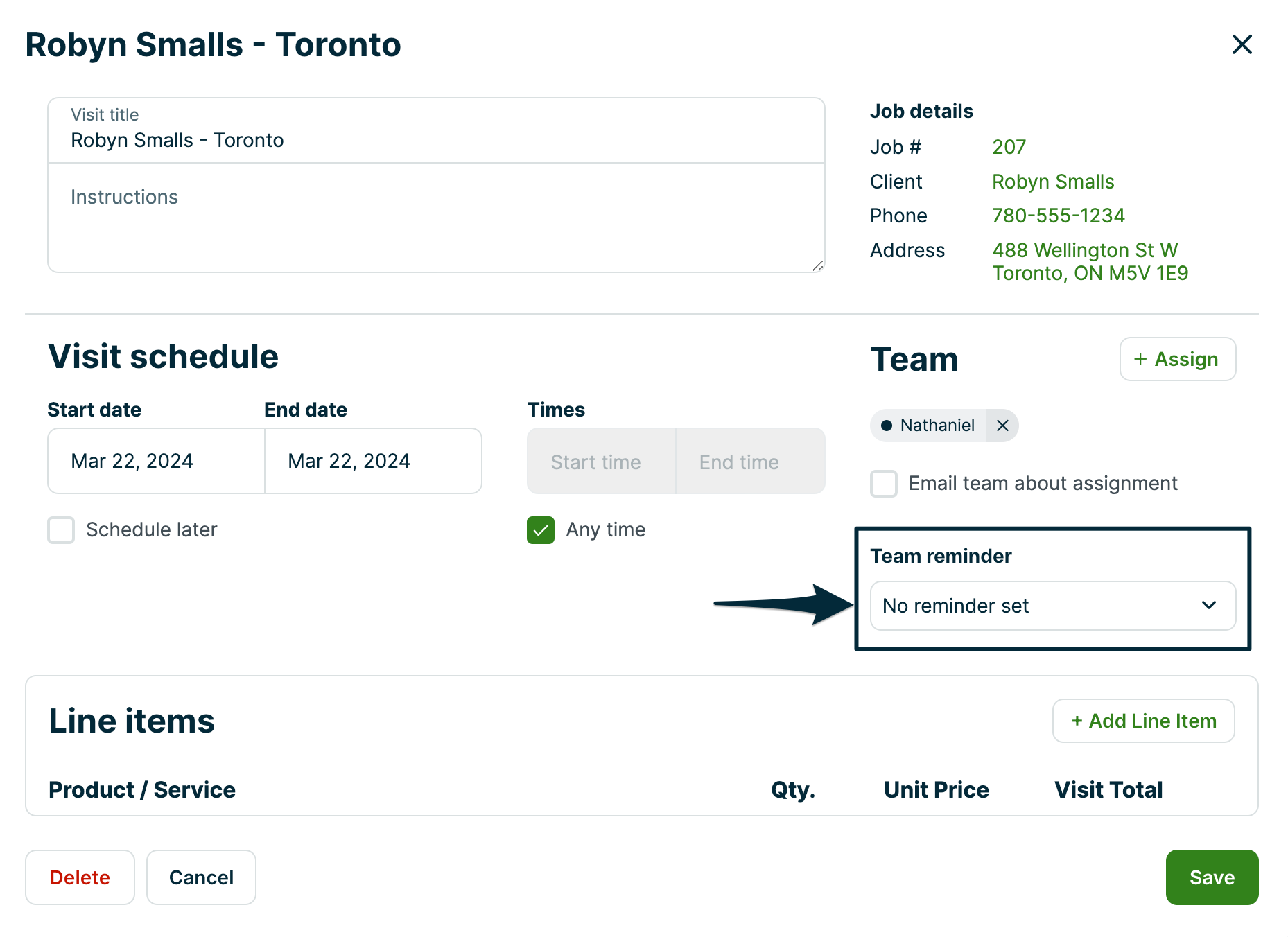
Once you select the time of the reminder, hit Save for the reminder to be scheduled for that visit. The contents of this email reflects the same as when you select the Email team about assignment option on the visit level (shown above), except this time the emails are scheduled to go out based on the reminder schedule you have set up following the start time of the visit.
Push notifications
The Jobber App will automatically send a push notification at 6AM with an overview of a team member’s schedule for the day when they have scheduled work on that particular day.
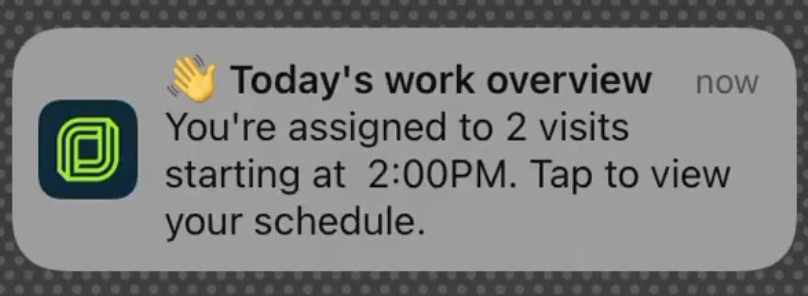
If there are any day-of scheduling changes, a “today’s schedule changed” push notification will be automatically sent. This is triggered one minute after the following changes are made:
- New assessments, tasks, or visits added to their schedule for today.
- Assessments, tasks, or visits removed, deleted, or canceled for today.
- Assessments, tasks, or visits for today being rescheduled.
Learn more about
push notifications in the Jobber App
There you have it, you can now keep your team up to date and “in the know” with these reminder options!