In This Article
- Overview
- Disable your current payment integration
- Turn on Jobber Payments
- Verify business details
- Connect your bank account
- Manually connect your bank account
- Jobber Payments settings
Overview
Fast, simple, convenient payments with no hidden fees.
You can change over to Jobber Payments from another payment integration at any time. Using Jobber Payments versus other payment integrations unlocks certain features within Jobber such as saving cards, automatic payments, instant payouts, and the ability to use the Jobber card reader.
Disable your current payment integration
Before Jobber Payments can be set up, your current payment integration needs to be disabled since you can only have one payment method at a time. Click the Gear Icon > Settings > Payment Integration, on this page, there will be a link to disable Stripe, Square, or Authorize.net., Click the link and confirm that you would like to disable the payment integration.
Turn on Jobber Payments
The next step is then to set up Jobber Payments. Click Apps from the side navigation, then select Jobber Payments.
Note: Only account owners can set up Jobber Payments
There are two steps to setting up Jobber Payments:
- Verify business details
- Set up the bank account where you will receive your deposits
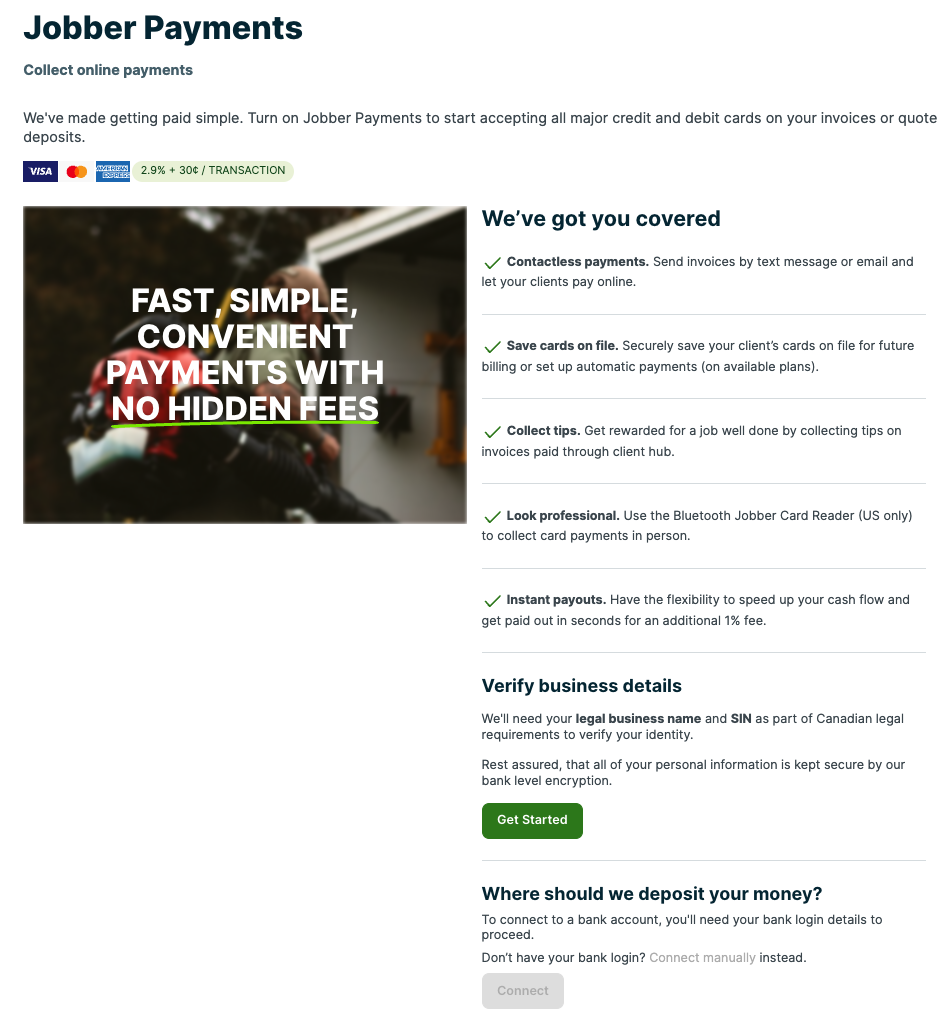
Verify business details
When you click the button to Verify you will be taken to a form where you will be asked for your business info. This form is hosted by Stripe, which is the platform Jobber Payments are processed through. You will need to fill out the fields in this form so that your business is able to be verified. This form asks for your legal business name and SSN, so make sure to have those handy. This information is required as part of Know Your Customer regulations.
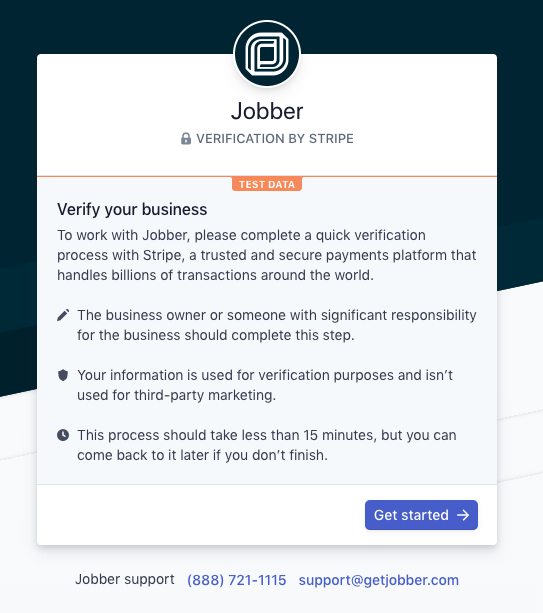
To verify your identity you will be asked to provide additional verification details. You will be asked to enter your EIN and upload a photo of your ID.
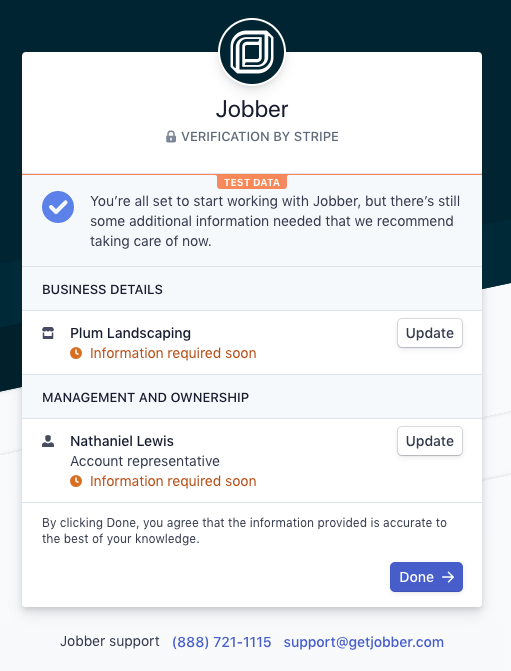
Note: You will need to submit information about who owns the company. In the case that more than one person are owners, just enter the name of the person who is the majority owner of the company. In the future, the person entered here will need to undergo a verification process where they will be asked to submit ID to verify their identity.
Connect your bank account
You’ll be able to start charging cards without entering a bank account, however to receive the funds you will need to connect a bank account so we know where to deposit the transactions you’ve processed.
Note: if you don’t connect a bank account for Jobber Payments within 90 days of signing up for Jobber Payments, the funds will automatically get refunded to the your client.
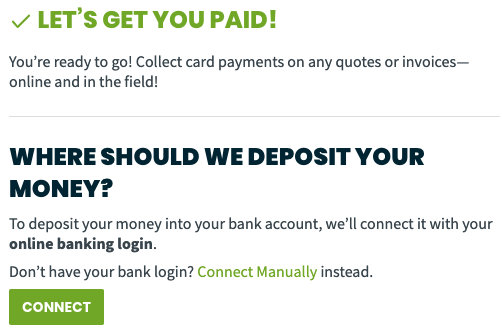
We connect directly to your bank account through a company called Plaid. When you click the option to Connect, you will be prompted to authorize Plaid to link to your bank.
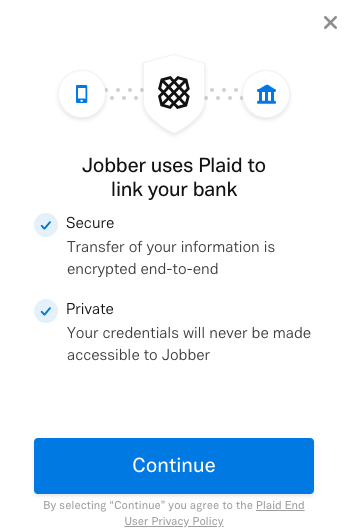
You will then need to pick your bank from the list and enter your online banking credentials.
Tip: We suggest connecting your bank account using this method instead of doing it manually. Connecting through your online banking makes sure that your bank details are correctly entered.
Manually connect your bank account
If you don’t have online banking or would rather manually connect your bank account, there is an option for that too! Chose the option to Connect Manually.
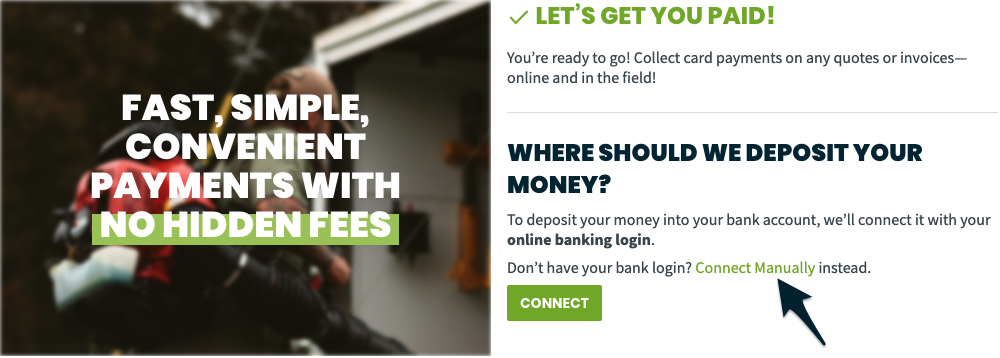
You will be prompted to enter your full name, transit number, and account number.
Note: If you are connecting your bank account manually, it is possible in the future we will need to verify your bank account. In that situation, we will ask you for a void check to verify your bank details.
Jobber Payments settings
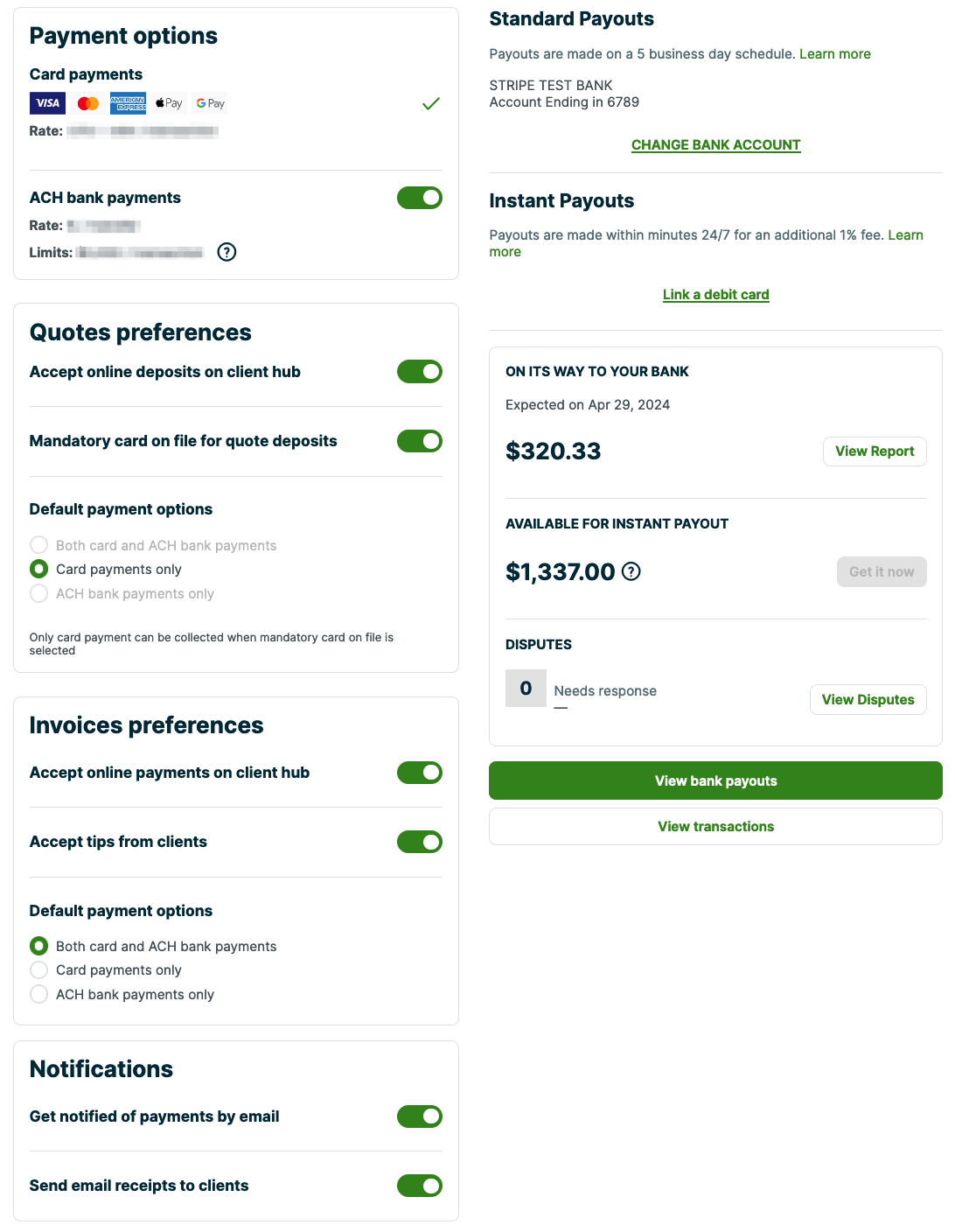
Once your business details are entered and your bank account is connected, you will see your Jobber Payments settings. This is where you can view the bank details including your Jobber Payments transactions and transfers reports.