
In This Article
Overview
Let top-performers get recognized for great work with tips!
You and your team work hard and do great work; give your clients the opportunity to recognize that by leaving a tip with Jobber Payments when paying an invoice in client hub.
The option to leave a tip is included with Jobber Payments which is available on all plans in the UK, US, and Canada. Learn how to set up Jobber Payments.
Settings
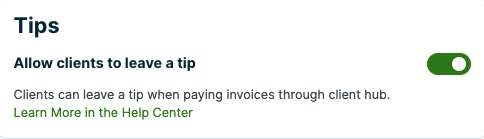
The option to leave a tip can be turned on or off by admin users by going to the Gear Icon > Settings > Jobber Payments and toggling the setting for Allow clients to leave a tip to ON.
After signing up for Jobber Payments, tip collection is defaulted ON for these industries:
- Residential cleaning
- Pool and spa service
- Window washing
- Handyman
- Pressure washing
- Lawn care & lawn maintenance
- Junk removal
If your industry isn’t listed here, tipping can still be turned on! Just toggle Allow clients to leave a tip to ON in your Jobber Payments Settings. When tips are turned on, your clients will see a prompt in client hub to leave a tip when paying their invoices.
Tips are a global setting so when Allow clients to leave a tip is turned on, it applies to all clients and will be an option on any invoices awaiting payment.
Leave a tip in client hub
If you have the tipping option turned on, your client will be presented with the option to leave a tip when making their invoice payment in client hub.
To pay the invoice, your client will enter their payment details on the right side of the page. Depending on your Jobber Payments settings, there may be both credit card and bank account (ACH) payment options for this invoice. If your client is using a mobile device, they may also see Apple or Google Pay options as well.
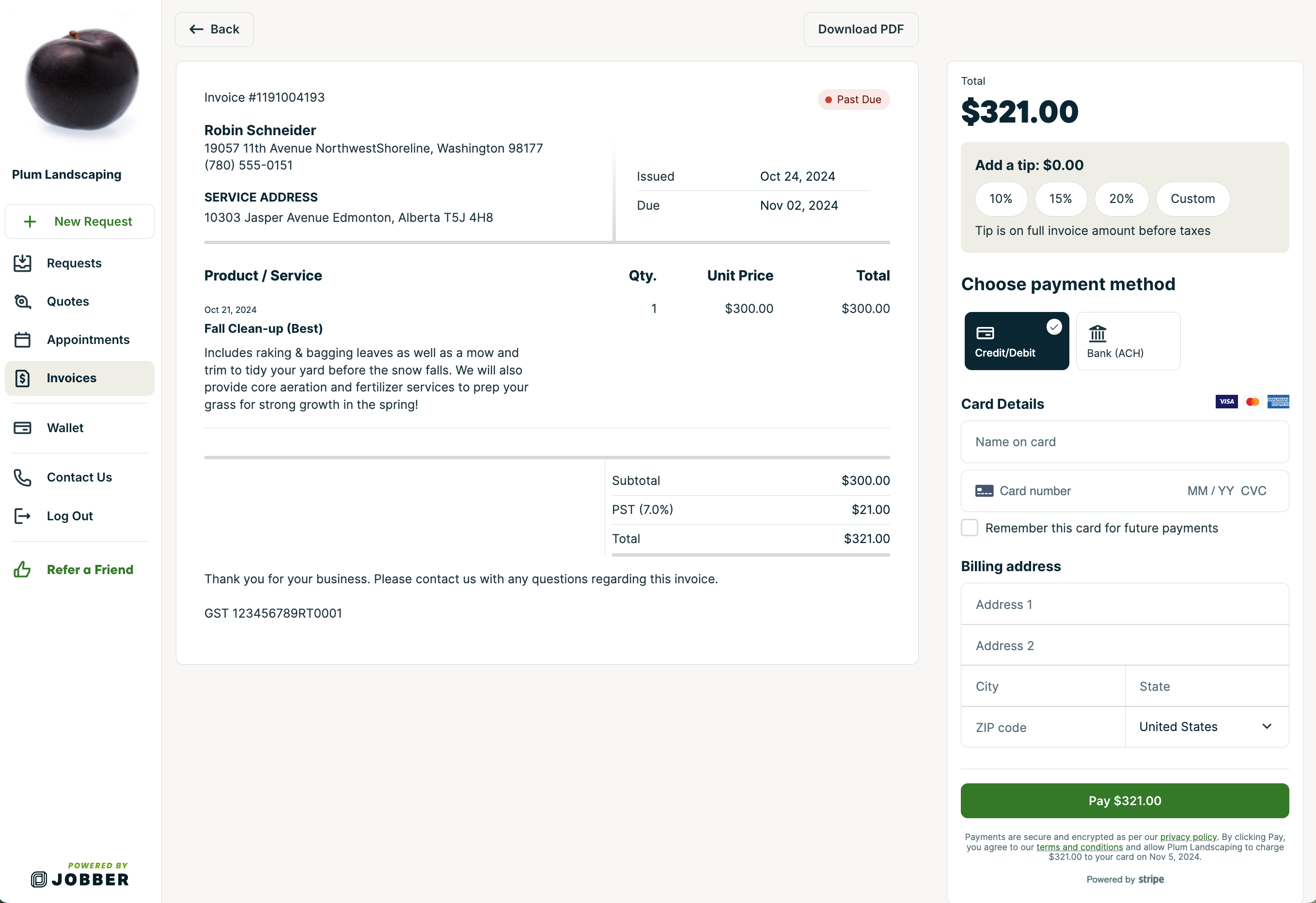
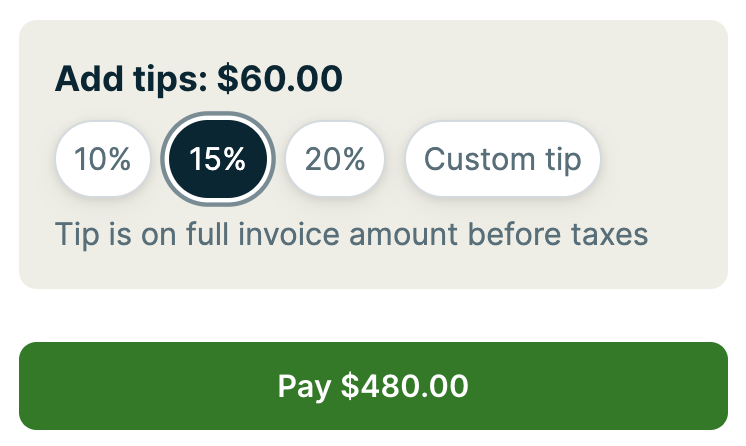
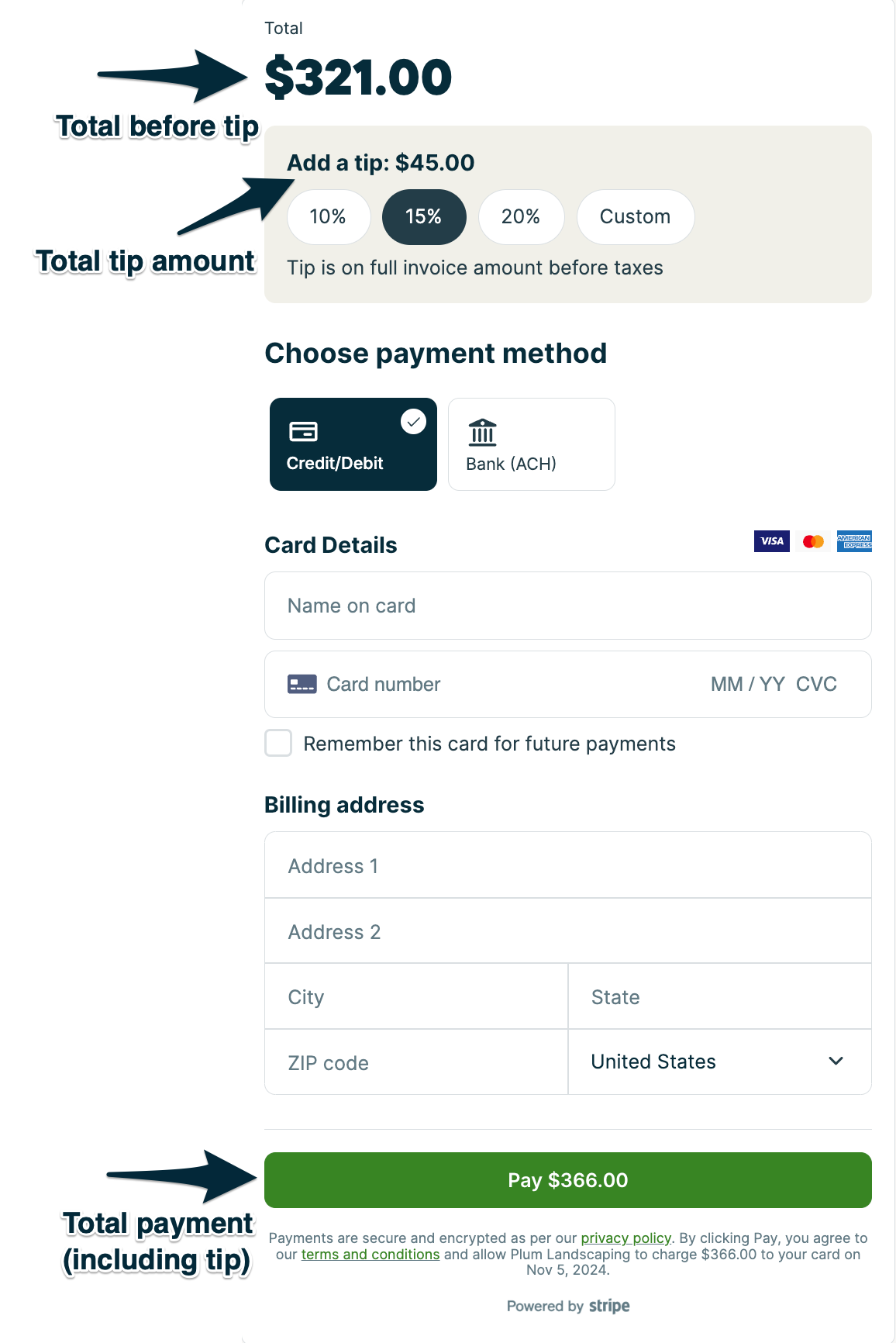
After reviewing the invoice, they can decide if they’d like to leave a tip. There are some default tip options based on the invoice total (10%, 15%, or 20%), or if the client would like they can choose to add a Custom tip which will prompt them to add a dollar amount. Tip percentages are calculated based on the invoice subtotal before taxes.

The payment total (including the invoice balance + tip) is indicated in the green Pay button at the bottom of the payment form. Once your client has entered all their payment information, selecting Pay submits the payment.
When the payment is successful, they will see their invoice updated so that the status now says “Paid”. If they left a tip, the tip amount will show on the invoice just under the invoice balance.
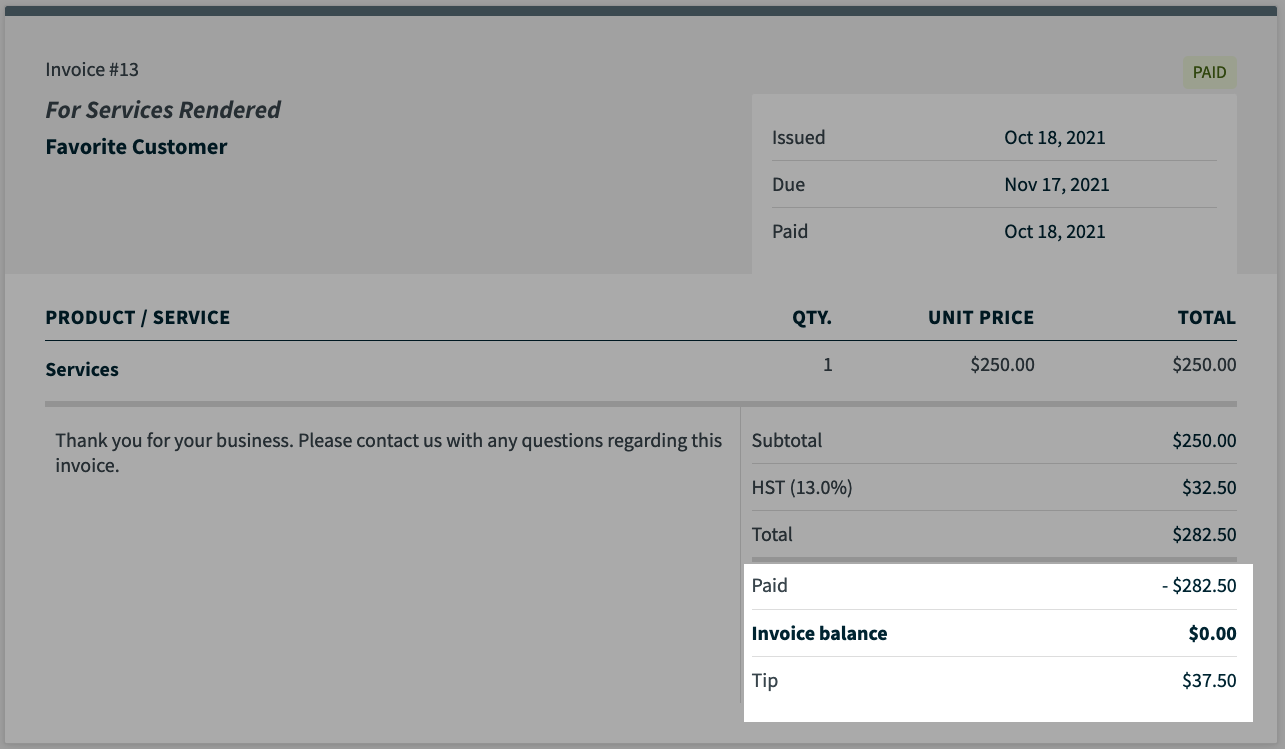
Note: Tips are an option for your clients when they pay via client hub. Tips do not appear as an option on Jobber.com when collecting a payment manually or in the app.
Receipts in client hub
Once the payment is made, the receipt will be available in client hub for your client to view. If your client requires a hard copy of the receipt, it can be downloaded as a PDF and then printed. To open the receipt details, click View.
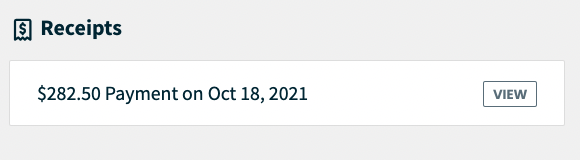
The receipt shows:
- the invoice balance plus the tip amount
- the invoice the payment was applied to
- the transaction date
- payment method
- last four digits of the card number
- expiry date
- name on card
- billing address
- transaction number
- where the payment was made (client hub, in this case)
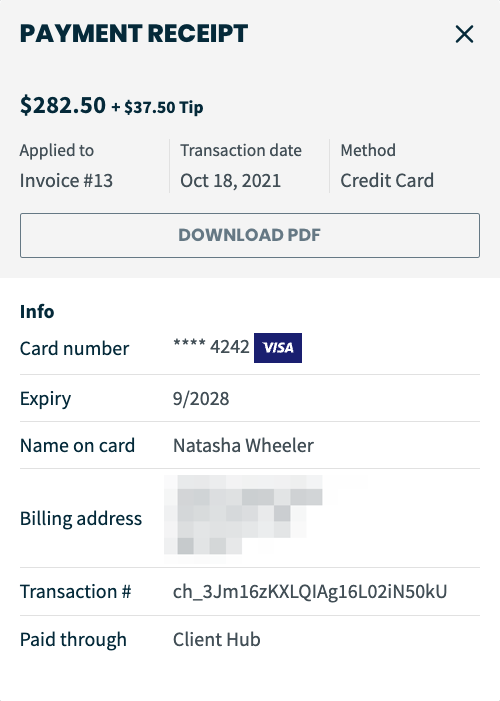
When a payment is made on an invoice using Jobber Payments, and you have the payment notification setting enabled in your Jobber Payments settings, admin users will receive an email letting them know that a payment has been made. Your client will also get an email thanking them for their payment. This email will show their payment details and has a button for View Receipt that opens up their receipt details in client hub. If they need a copy of the receipt for their records, it can be saved and printed from client hub.
Note: The email shows the payment towards the invoice balance. Opening the receipt will show the invoice balance + tip.
View collected tips
If a client has left a tip, you can see a record of that in multiple places in Jobber:
- Activity feed
- Billing history
- Reports
Activity feed
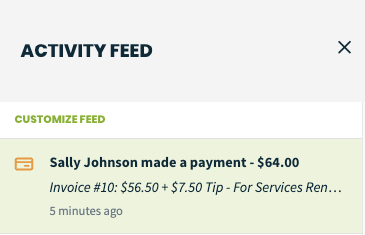
Activity feed shows records of any client making a payment. If the client leaves a tip in addition to paying the invoice balance, in activity feed you’ll see the details about the invoice number, the total invoice balance + the tip amount.
Billing history
On a client’s profile, the billing history box shows records of all the payments, deposits, and invoices for a client as well as their current balance.
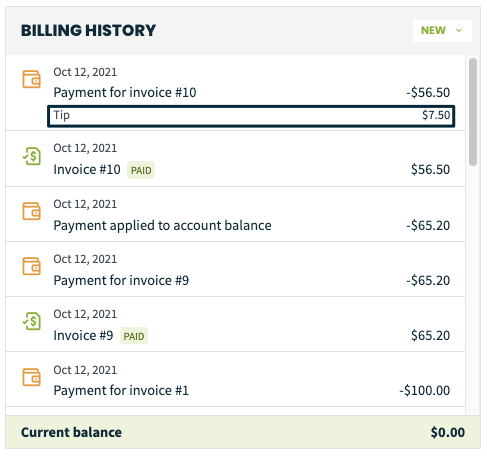
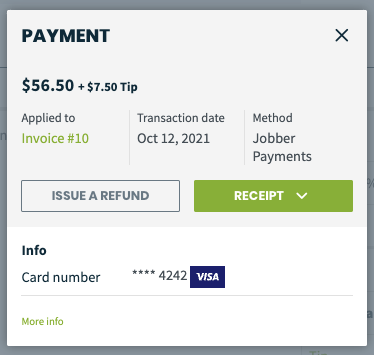
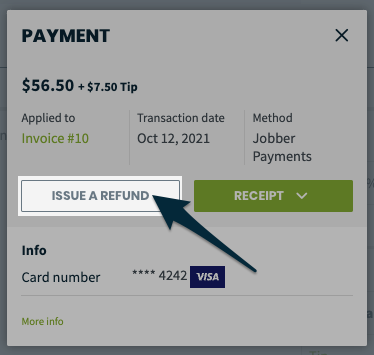
If a tip has been left along with an invoice payment, you will see a record of it in the client’s billing history box. To view the transaction details, click the payment from the billing history box which will open a pop-up with more detail as well as buttons to issue a refund or open the receipt PDF.
Reports
Another spot where you can see if a tip had been left and the amount is in the Reports section.
Tips appear in these reports:
- Invoices report
- Jobber Payments payouts report
- Jobber Payments transactions report
- Transactions list report
- Taxation report
With the exception of the taxation report which doesn’t have columns, a column for Tip $ is an option in each of the above reports.
To see which team members might have had a tip left for them, the invoices report includes a column for Visits assigned to. When distributing tips to employees, this column can be cross-referenced to see which team members earned the tip and the amount they received.
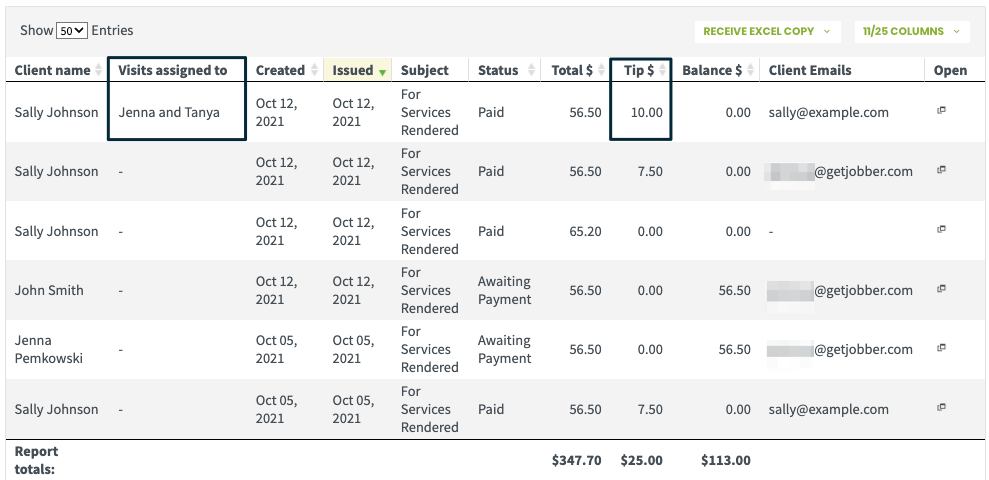
Although the invoices report shows which employees earned tips, tips are not distributed or paid out to employees through Jobber. When a tip is collected, it is bundled into a future Jobber Payments payout. How the tips are dispersed is up to you, but it might be helpful to speak with a lawyer or accountant for some best practices around distributing tips in your province or state.
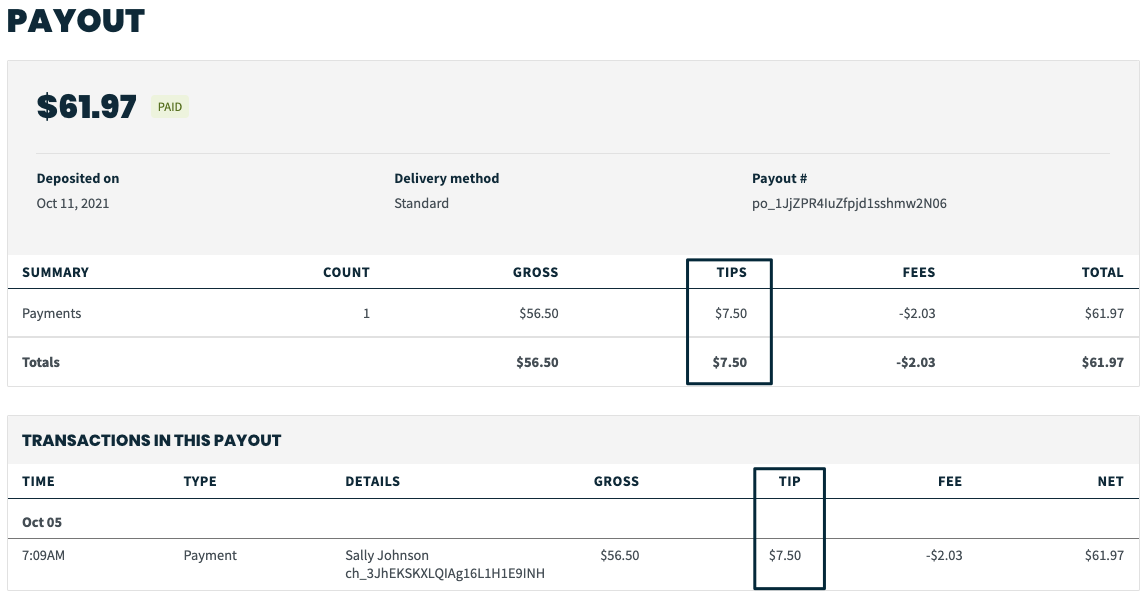
The Jobber Payments payout report can be used to monitor when specific transactions are deposited into your bank account. Each payout shows a summary of all the transactions in the payout (including a total for all the tips in the transaction) as well as an itemized list of all the individual transactions that are included in the payout.
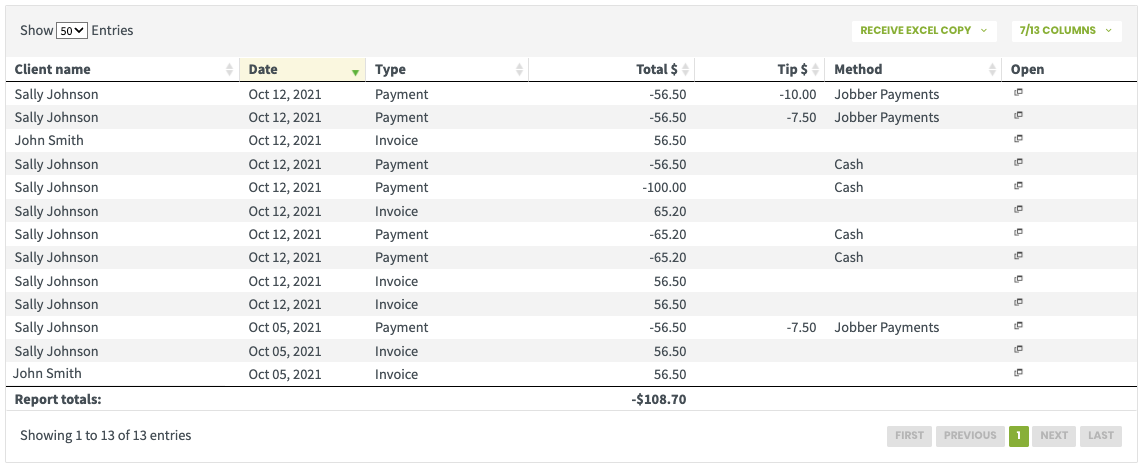
Both the Jobber Payments transactions report and the transactions list show an itemized list of transactions and a breakdown of the tips from each transaction. The difference between what is included in these reports is that the Jobber Payments transactions reports shows only transactions where the payment method was Jobber Payments whereas the transactions list shows all payment methods and also includes invoices.
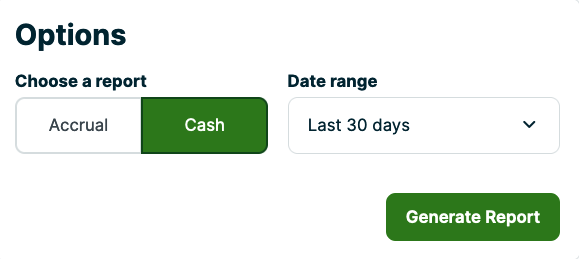
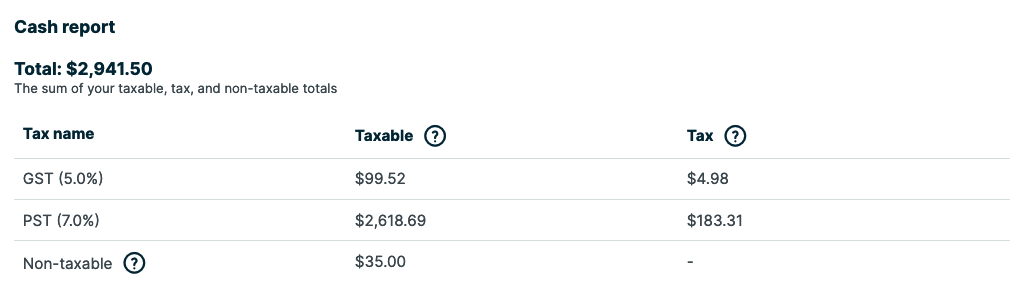
In the taxation report, tips are included in the non-taxable section of the report when viewing the cash report (not accrual), so that this income is not excluded.
Learn more about Reports.
Refunds
When a payment is refunded, you can choose amount to return back to the client, including the tip. You may also choose to refund the tip portion only.
Refunds can be issued from the payment details pop-up. There are several ways to navigate there including:
- The client’s billing history box: Click the payment from the billing history box to open the payment details.
- From the invoice: When there is a payment on an invoice, it will appear towards the bottom of the invoice, below the total. Click Payment to open the payment details.
- Jobber Payments transactions report: Click the squares in the open column to open the payment details.
From the payment details pop-up, click the Issue Refund button.
Learn more about Jobber Payments Refunds.
Learn more
Check out Jobber Academy to learn How to Deal with Tips from your Customers. This article covers what you need to know as a business owner if your team is accepting tips, such as the records you’ll need to keep and the IRS forms you’ll want to have bookmarked.