In This Article
Overview
Do you need to know the measurements of a property before you actually visit for the first time? Does your pricing vary based on something like roof, lawn, or pool size?
There are two ways to measure and record distances in Jobber:
- Automatically using Jobber’s Deep Lawn integration
- Manually using Google Maps and custom fields
Jobber and Deep Lawn integration
The Deep Lawn integration is available in the United States and Canada. You need a Deep Lawn account in order to connect and use this integration. Sign up here.
Deep Lawn enables lawn care and landscaping companies to sell their services online in less than one minute by combining machine learning and geospatial data into an all-in-one tool.
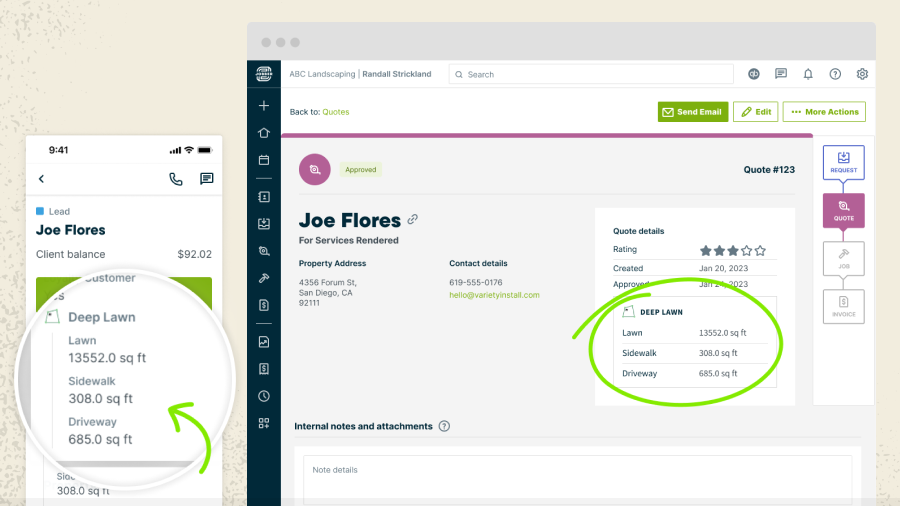
With the Jobber and Deep Lawn integration, view and access your client’s square footage directly on the quote to save you time. Deep Lawn uses automatic AI measurements of lawns, homes, driveways, and walkways. All client information and square footage estimates sync automatically to Jobber so you don’t have to worry about recording it manually.
Connect Jobber and Deep Lawn
- In Jobber, click Apps from the side navigation.
- From the App Marketplace, select Deep Lawn.
- From the Deep Lawn app description, select Connect.
- To authorize Deep Lawn to access the listed information from your Jobber account, select Allow Access.
- Sign into your Deep Lawn account.
What do you see in Jobber?
A custom field section for Deep Lawn will be automatically added to your properties. All new properties will automatically generate AI measurements of lawns, buildings, driveways, and walkways. This information is transferred onto new quotes created for the property so you can reference these measurements while building your quote.
Note: Additional fields can be configured in Deep Lawn, such as snow removal square footage.
Questions about Deep Lawn
If you require support with your Deep Lawn account, reach out to them by:
- Contact Us Form: https://www.deeplawn.com/contact-us
- Email: hello@deeplawn.com
- Phone: 1-512-379-7256
Manually measure and record property sizes
You can use Google Maps to measure property sizes using satellite images of a property and then record the measurements in Jobber. This saves you a drive across town and allows you to digitally measure twice, cut once.
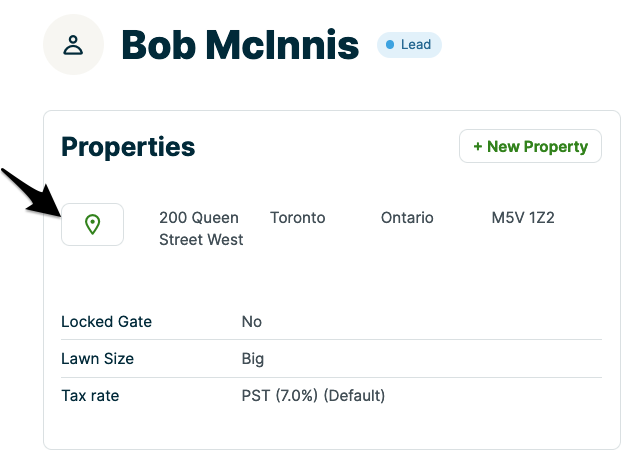
Start on the client’s profile and click on the map pin. If a client has more than one property, click on the property you want to measure to open the property details page. From that page, click on the map pin. Clicking the pin icon will open Google Maps.
Once you’re in Google Maps, switch over to the satellite view.
Tip: The option to switch to satellite view is in the bottom left corner of the map.
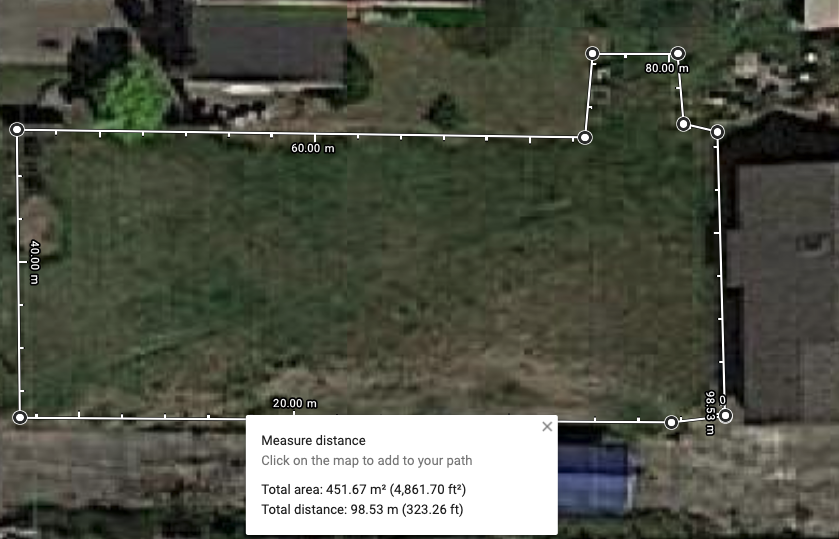
From the map, zoom in so you can be as precise as possible. Choose from where you want to measure and right click. From the menu, select Measure Distance. The point you right clicked on will become the starting point. Keep clicking on the map to create more points. If you are measuring an enclosed area like a roof or a lawn, click around the perimeter of the area you’re measuring until you have returned to your starting point. Google Maps will then give you the total area and the total distance.
Record the measurement with a custom field
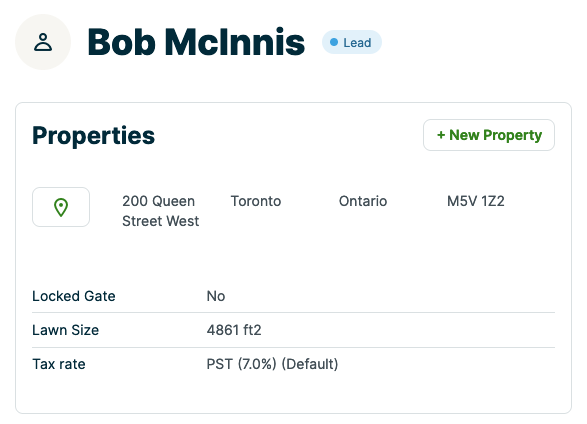
Now that we have the area and distance figured out, let’s record it! The best way to keep track of this is with a property custom field, which can be created from the Gear Icon > Settings > Custom Fields. In this scenario, you will want to title the custom field something that reflects what you’ve measured such as “lawn size” and select text field as the field type. Make sure to leave the default value field blank, in this case every measurement will be different so we don’t want to have anything in that field by default.
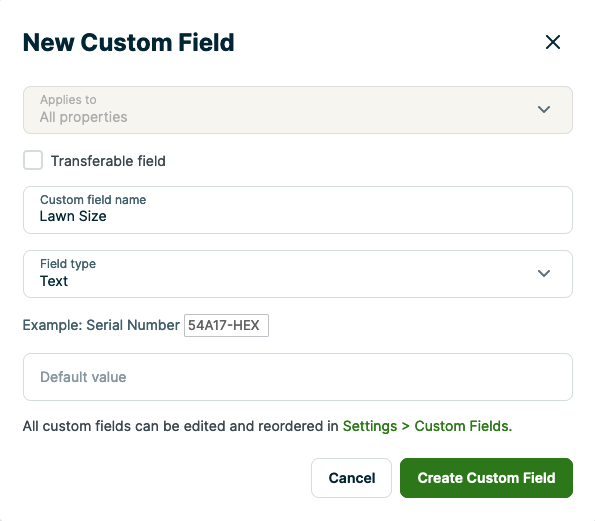
Once the custom field is created, you will see it in the additional property details section of the edit screen for a property. This is where you can enter the measurement calculated from Google Maps.
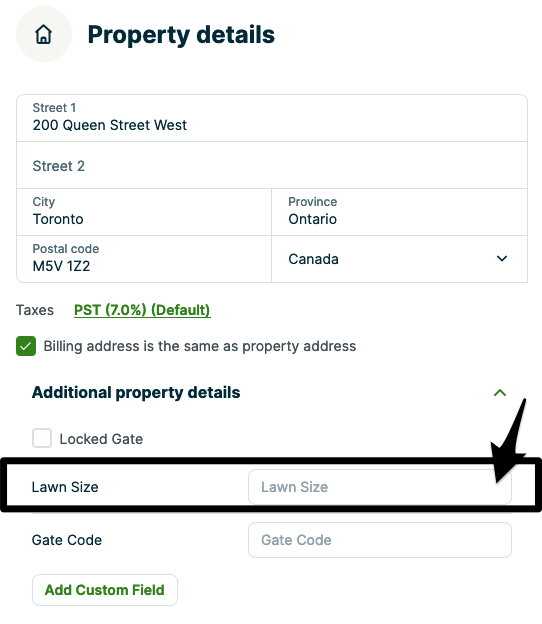
Click Update Client to save this measurement.
Now that we have that entered, when you look back at the property details for this client, you’ll see their lawn size.