
In This Article
- Overview
- How to add tags to clients
- Filter your client list using tags
- How to bulk edit tags
- How to import tags
- How to use tags with Jobber’s Mailchimp integration
- How to export client information using tags
Overview
Tags help keep your clients organized in Jobber.com. This can help with grouping your clients in a simpler way—such as by region (North, West, etc.), or work type (cleaning, snow removal). Tags are also an option to segment your clients for email campaigns.
Note: Tags are added and managed from Jobber.com. Tags do not appear in the Jobber app.
How to add tags to clients
To add a tag to a client, go to their profile and navigate to their contact info. Click on + New Tag in the Tags section to enter a new tag for this client. Existing tags for the client will show in the section below the + New Tag option**.**
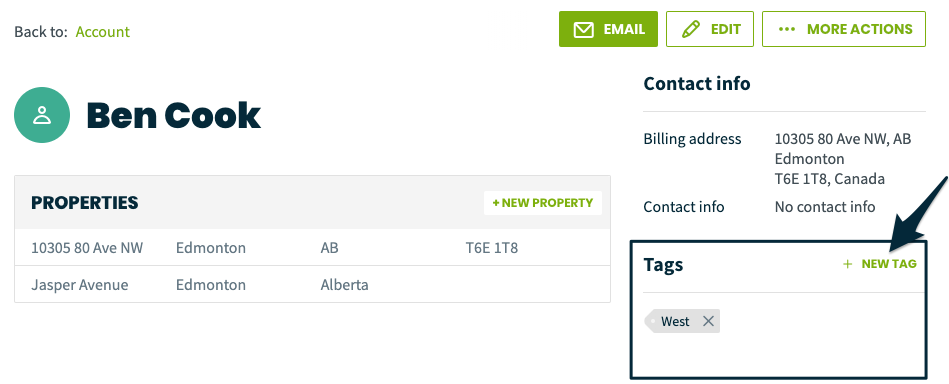
To delete tags, navigate to Tags section of the client’s profile. To delete a tag, click the x on the tag and it will be removed from that client.
Filter your client list using tags
Tags can be used as a filter for your clients list (navigate to the clients list by selecting Clients from the side navigation). Click Tags to open the list of your tags, then select any to apply to the list to filter your clients, or click Select all to apply all tags.
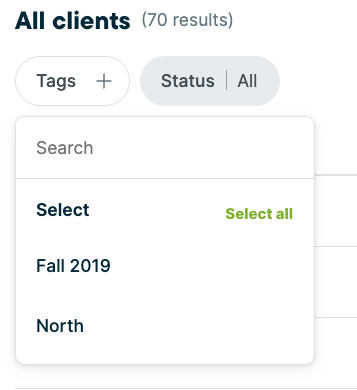
If you have a long list of tags, use the tag search bar to quickly find and select a tag from your list rather than scrolling through all tags.
How to bulk edit tags
Tags can be edited for multiple clients at once from your client list. To edit tags for multiple clients:
- Select Clients from the side navigation to view your client list.
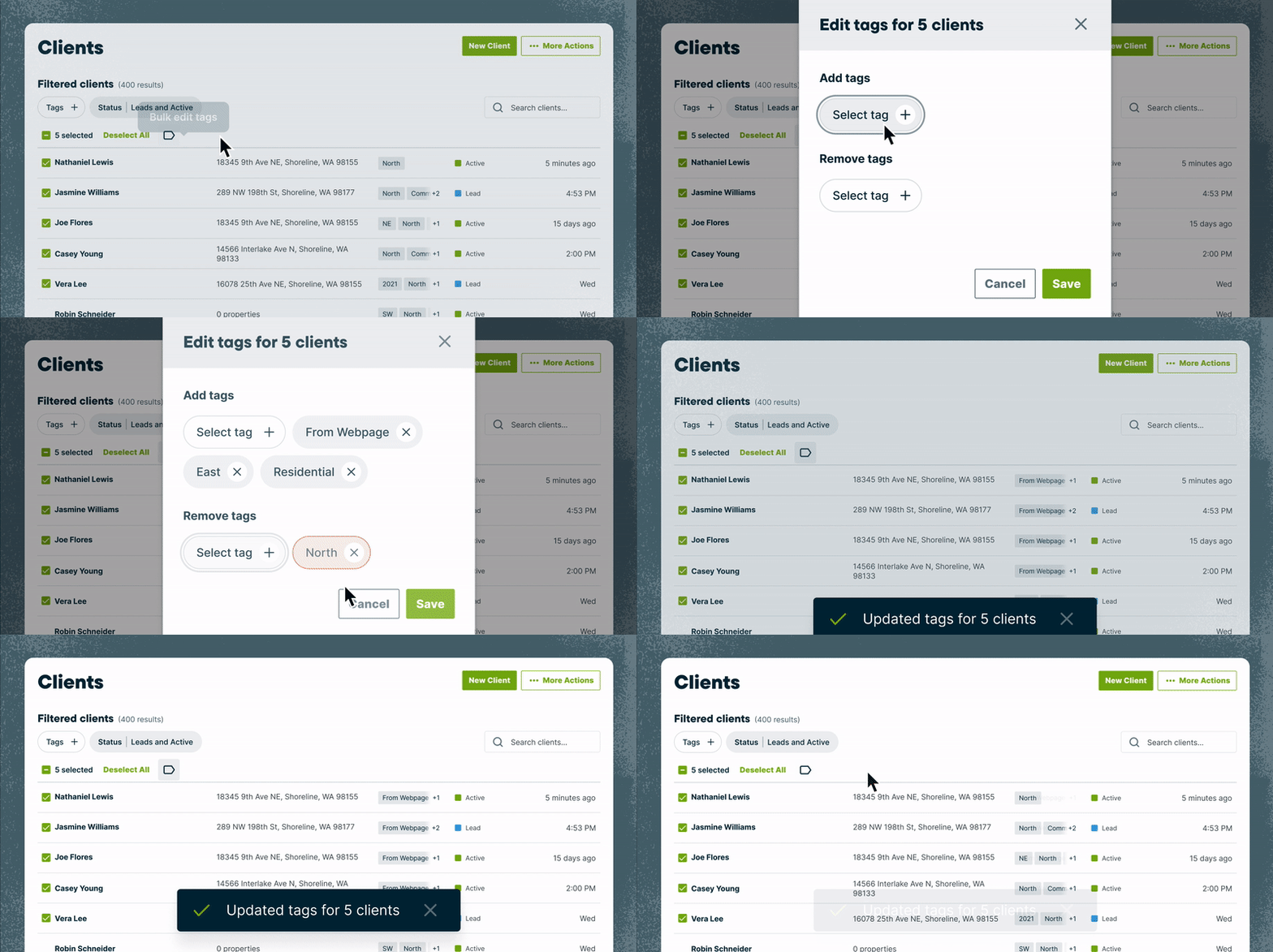
- From the client list, check the boxes next to each client name, then select Bulk edit tags from the menu above the client list to open the Edit tags pop-up.
- For the selected clients, select tags to add or remove.
- Then select Save.
Note: A maximum of 10,500 tags can be bulk added at a time.
How to import tags
If you are adding multiple tags to existing clients, you might want to use use the client import process rather than adding tags one by one. For more detailed instructions about this process, check out How to Make Mass Updates to Clients
How to use tags with Jobber’s Mailchimp integration
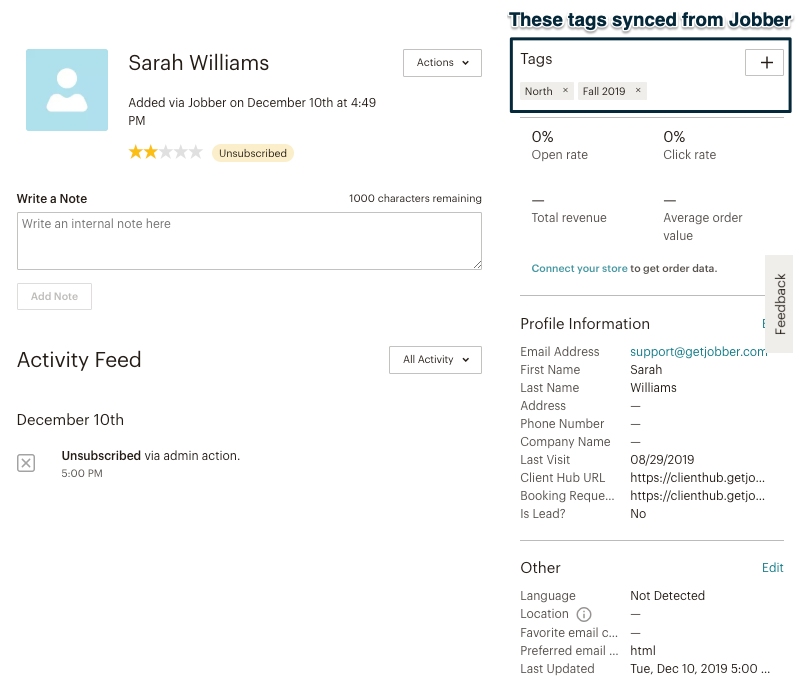
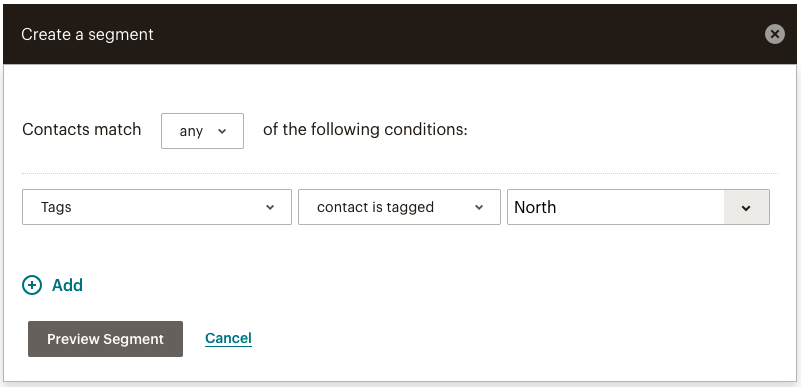
If your Jobber account has been integrated with Mailchimp for email and postcard marketing (available on select plans), tags added in Jobber sync over to Mailchimp and can be used to create segments in Mailchimp. This can be helpful if you would like to set up an email campaign that only targets clients in a particular region, clients who receive a certain service, or clients who haven’t been serviced in a while.
Here is how tags appear when synced from Jobber to Mailchimp:
Here is an example of a segment set up based on tags from Jobber:
Learn more about How Clients Sync with Mailchimp.