In This Article
Overview
There has been a change to the information required from a business in order to be successfully registered with a dedicated phone number for two-way text messaging. This updated information is required for compliance with the UK’s Know Your Customer (KYC) regulations. This article walks through how to register your dedicated phone number as a business or as an individual in the United Kingdom.
Without this required information, UK carriers will start blocking any communications coming from your dedicated phone number as of September 27, 2024. It will take a few business days for your registration to be approved. As such, we recommend you complete your registrations immediately to avoid a disruption in your two-way text messaging service.
Verify your information
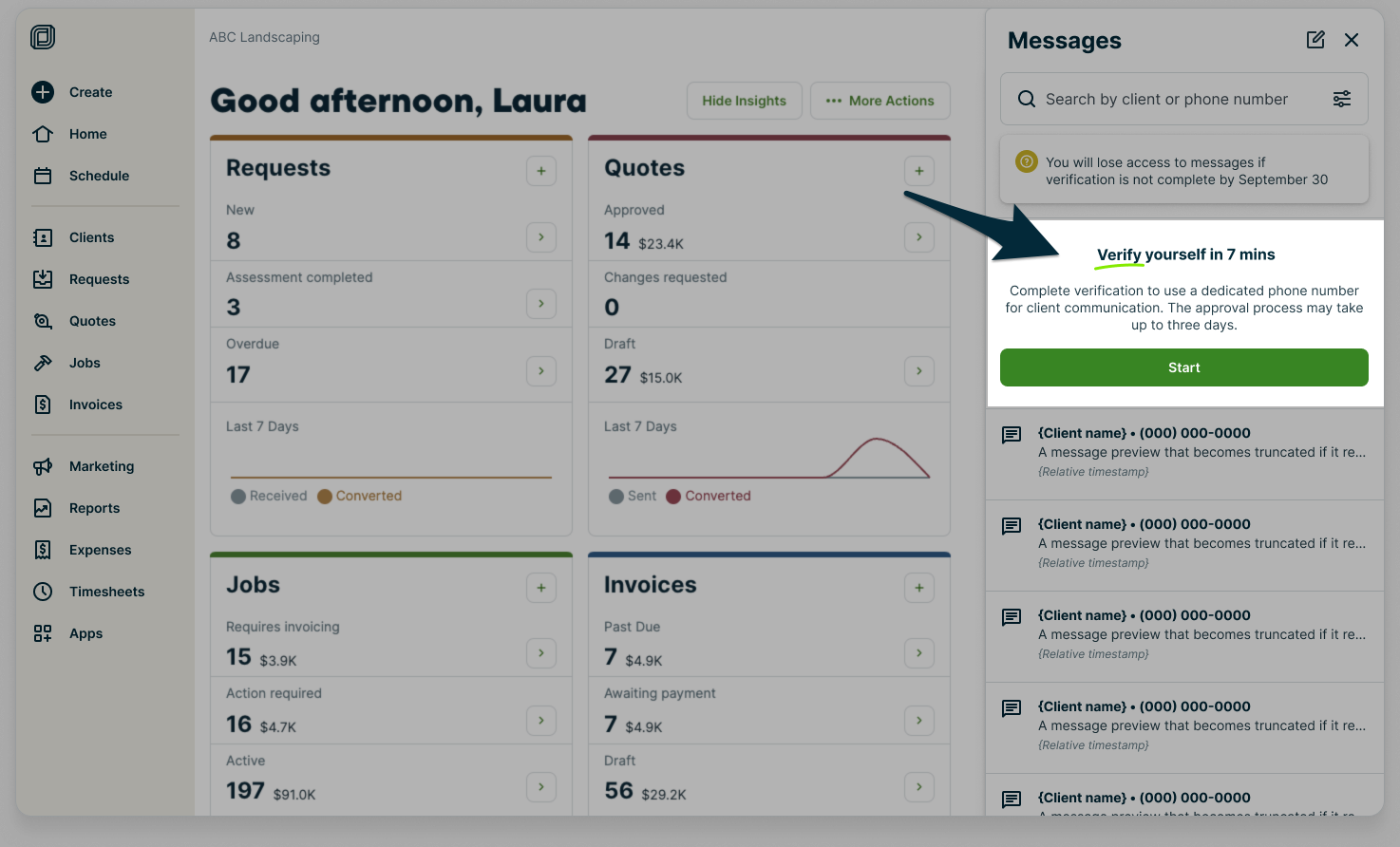
To start the verification process, open the message center, then select Start.
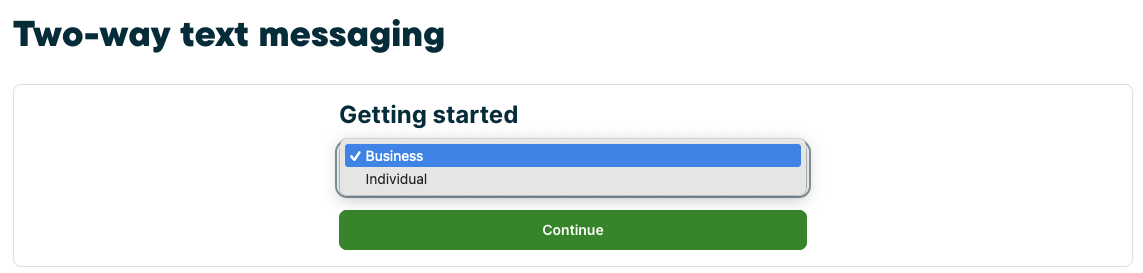
Next, you will be asked to confirm your business type by selecting an option from a drop down menu. The options are to register as a(n):
- Business
- Individual
Next, select Begin verifying to open the third-party verification process. The information required during the verification process will vary based on if you register as a business or an individual.
Learn how to register as a business
Learn how to register as an individual
Register as a business
To be eligible to register as a business, you must be a registered business with a business registration number. Search the register to find your company.
You will be required to provide your:
- Business information:
- Legal business name
- Business registration authority
- Business registration number
- Business website URL
- Business address:
-
- Street
- City
- County
- Country
- Postal code
- An emergency address (this is the address emergency services will arrive at in case of emergency, check the box if this is the same as the business address)
-
- **Authorized representative:
**(This is the individual who has the legal authority to act on behalf of the business)- First name
- Last name
- Phone number
Note: This must be a phone number that can receive a text message. VOIP phone numbers or landlines are not supported. This also cannot be your dedicated phone number, it must be a phone number where the authorized representative can be reached. - Email address
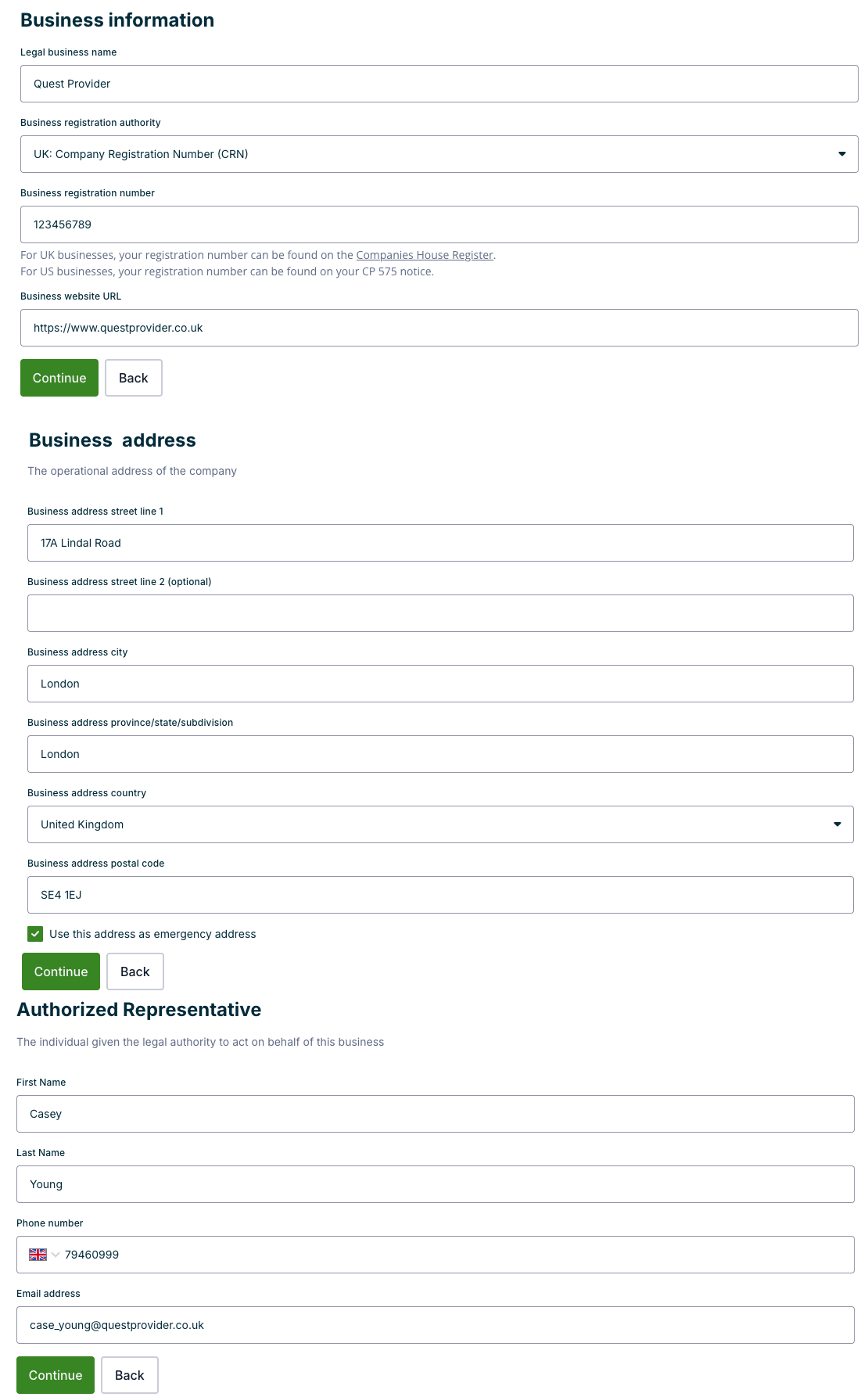
Select Continue to proceed.
Next, you’ll have an opportunity to review what you’ve entered so far. If this information is call correct, select Submit. If not, select Back to return to the previous page where you can edit your information.
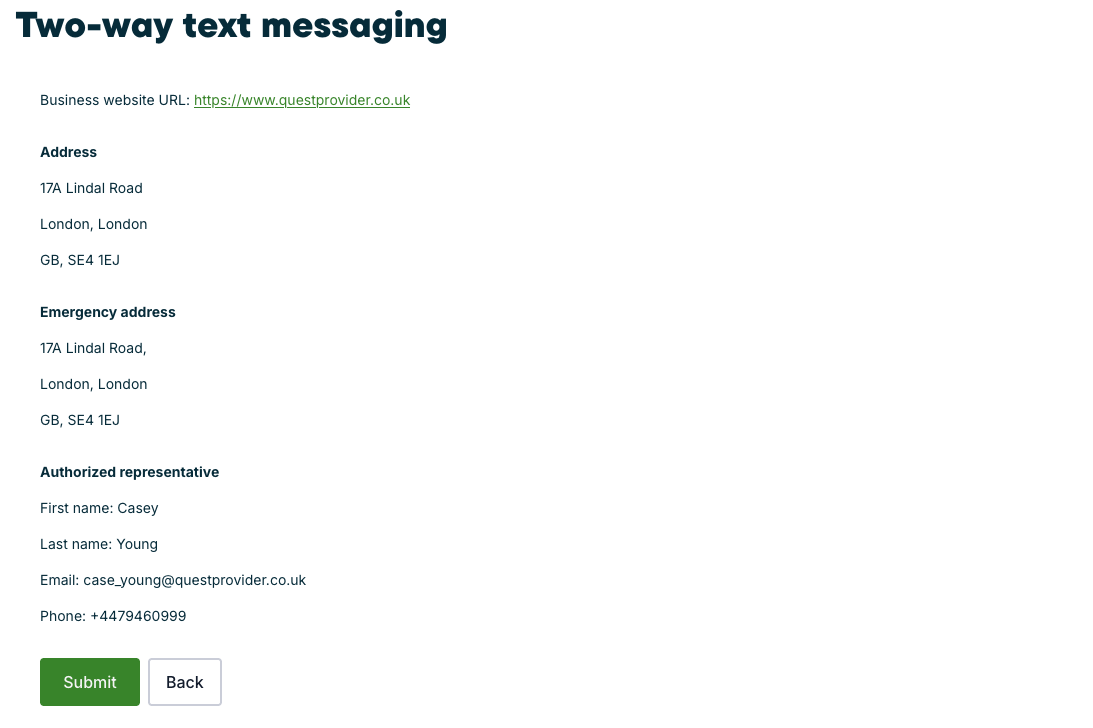
Once you’ve submitted the form, select Done to return back to your Jobber account.
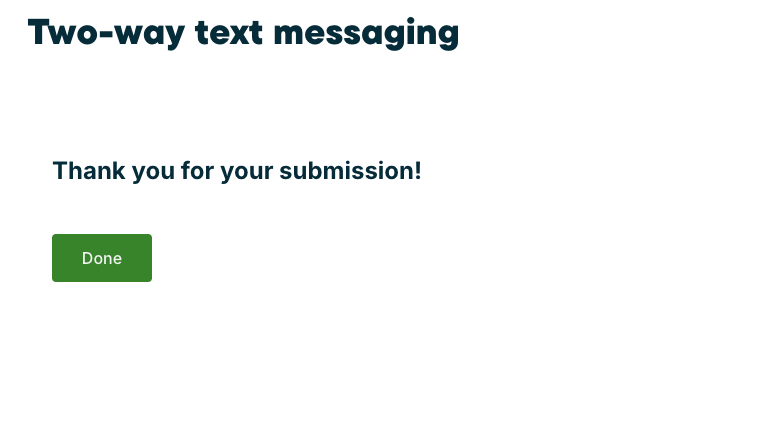
Your application will now be “in progress”. Typically applications stay in this state for up to three business days. From there your application will either be complete or rejected.

If your application is rejected, there will be a banner letting you know what and what needs to be updated before you can resubmit your application for approval.

Register as an individual
To register as an individual, you will be required to provide your:
- Individual information:
- First name
- Last name
- Phone number
Note: This must be a phone number that can receive a text message. VOIP phone numbers or landlines are not supported. This also cannot be your dedicated phone number, it must be a phone number where the individual can be reached. - Date of Birth
- Email address
- Address:
- Street
- City
- County
- Country
- Postal code
- **Emergency address:
**(this is the address emergency services will arrive at in case of emergency)- Street
- City
- County
- Country
- Postal code
- Documentation to prove your identity, can be one of the following documents:
- Driver’s licence
- National ID
- Passport
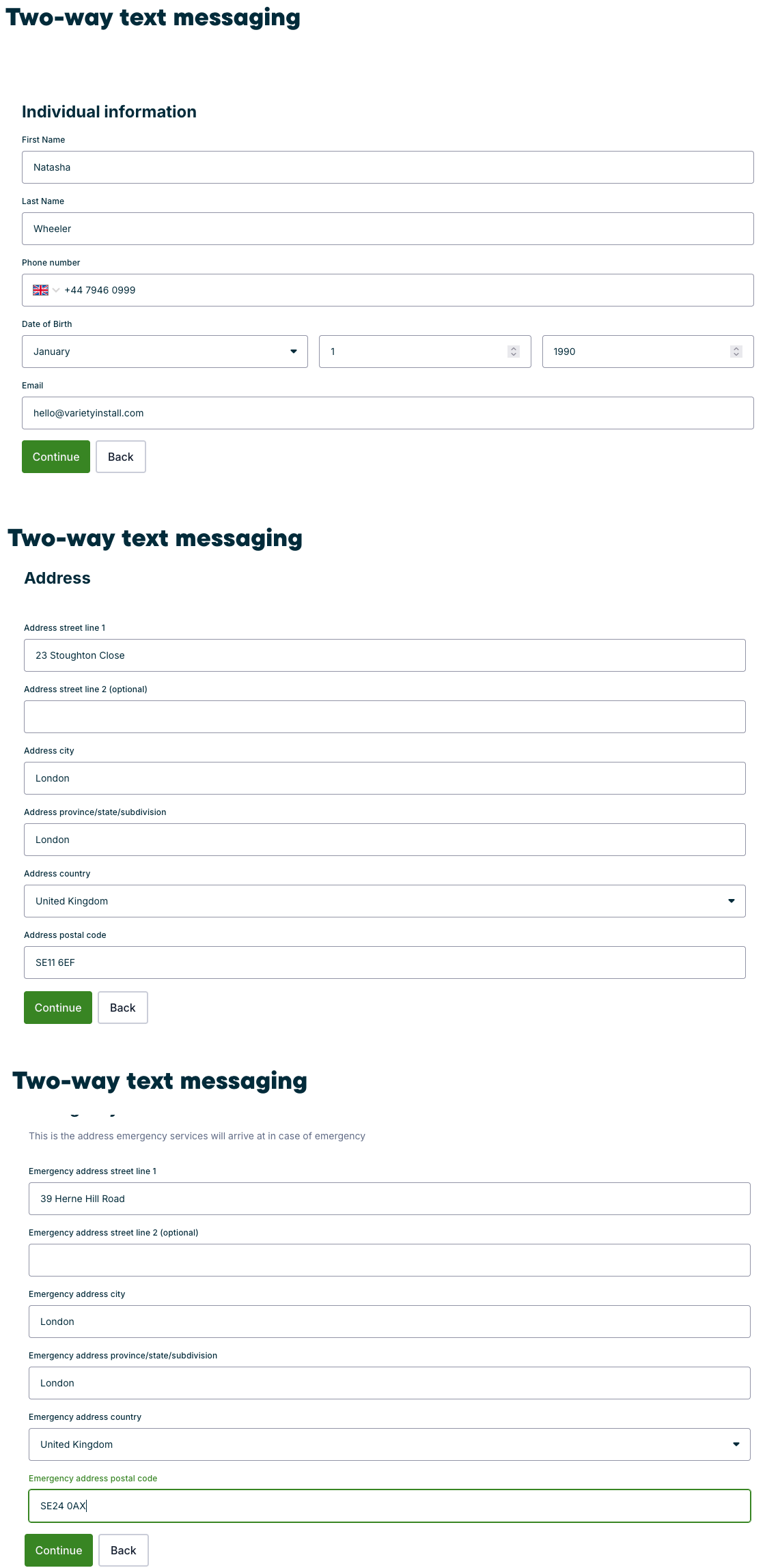
After completing the individual information, address, and emergency address fields, the next step is to provide documentation to prove your identity. Supported documents include:
- A driver’s licence
- National ID
- Passport
You will be asked to upload a photo of your proof of identity in this step. Due to the sensitive nature of these documents, this form is secure. All information submitted through the third-party registration is stored in the US. Learn more about our third-party partner’s privacy policy.
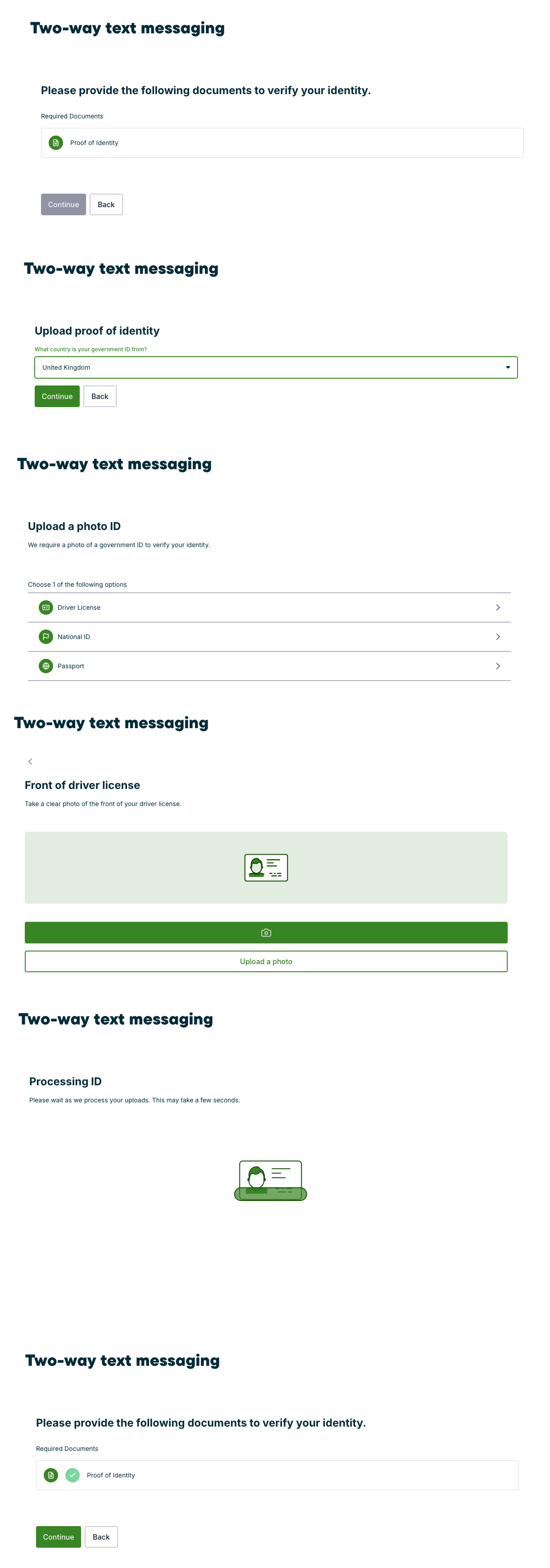
Once your proof of identity is uploaded, select Continue to submit your documentation.
Next, you’ll have an opportunity to review what you’ve entered so far. If this information is call correct, select Submit. If not, select Back to return to the previous page where you can edit your information.
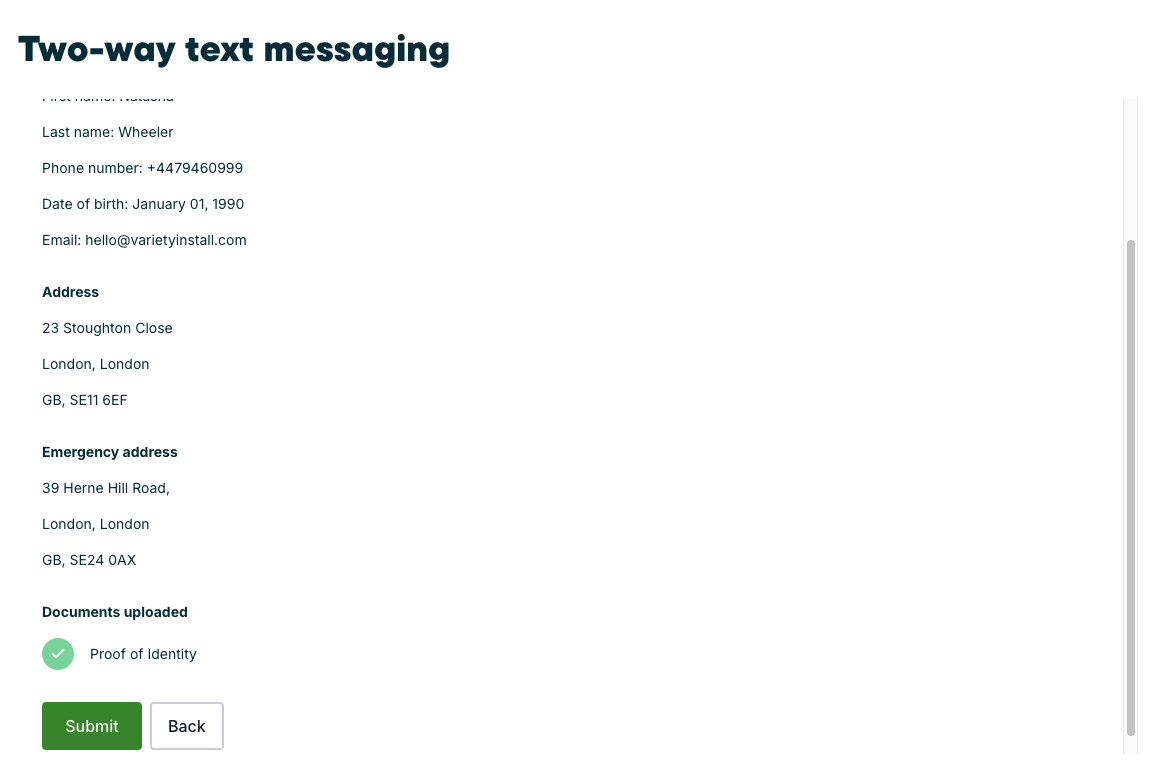
Once you’ve submitted the form, select Done to return back to your Jobber account.
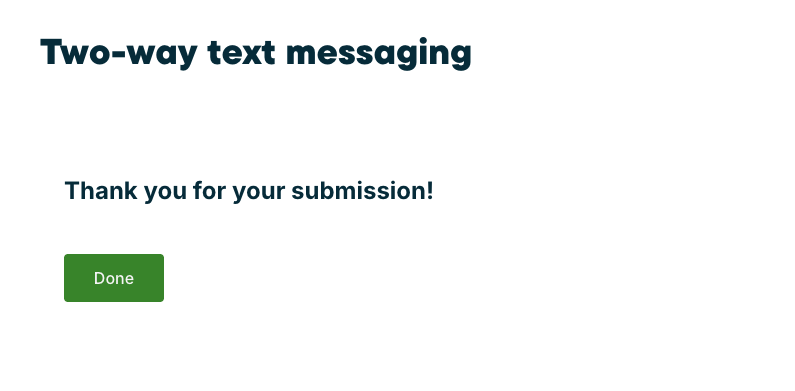
Your application will now be “in progress”. Typically applications stay in this state for up to three business days. From there your application will either be complete or rejected.
If your application is rejected, there will be a banner letting you know what and what needs to be updated before you can resubmit your application for approval.
Verification statuses
Once you’ve submitted your information, your verification will be in progress. The approval process typically takes up to 3 business days. There are four statuses your application can be in during the verification process:
- Draft - If you leave the application part way through, your application will be saved as a draft for 30 days that you can come back to later. After 30 days, your draft will be removed and you’ll need to start a new application.
- In progress - Once submitted, your application will be in progress until the status changes to completed or rejected.
- Completed - Your application has been processed and your phone number and information has been registered.
- Rejected - Your application was not approved and you will need to resubmit the application with corrected information. Rejected applications will show a message in the message center that says:
“We need more information
Verification was not completed and needs your attention. Take a moment to fill in the required fields and resubmit.”
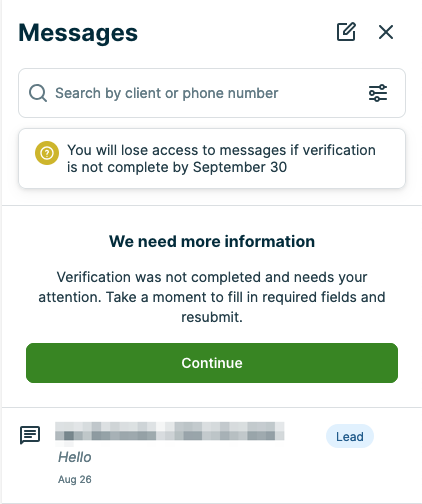
The message center will show a red dot up until your registration is complete.

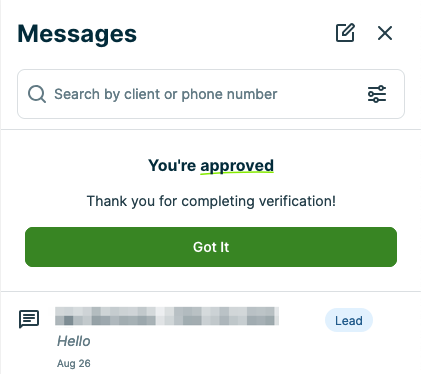
Once your registration has been approved, select Got it from the message center to clear the red dot from the message center icon. Once you’ve selected this button, the badge showing the number of new text messages will return.