
In This Article
Overview
Customize your communications with specific information automatically.
Variables are a way to fill in the blanks to customize a template message with information relevant to the client you’re contacting. This saves you from having to type out specific details when sending messages, as the variable will populate it for you.
Variables
Variables are available for email as well as text messages, which can be found by going to the Gear Icon > Settings > Emails and Text Messages.
For each template, variables can be inserted to populate the relevant information.
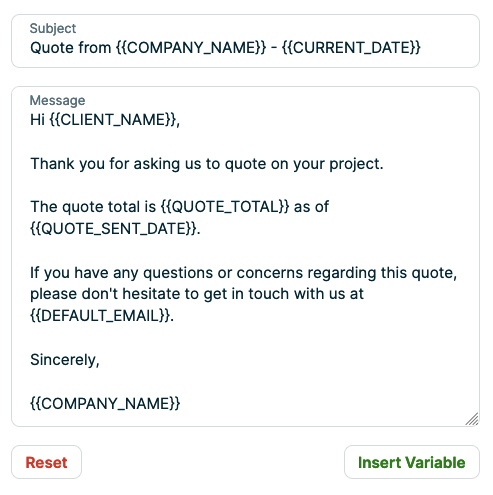
The preview shows what your client sees when they receive the email or text message from you will the variable populated with information. If you use a variable that isn’t supported or make a typo, the preview will show the variable or incorrect text instead of populating correctly. The preview is a good way to look over what you’ll be sending out, before you actually start sending things out.
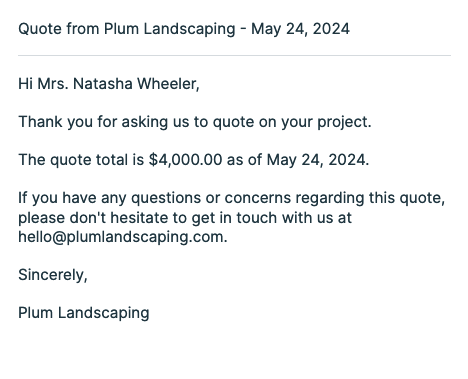
For example, in this email template the {{CLIENT_NAME}} variable populates with the name of the client that this email is being sent to, as well as the quote total and the date the quote was sent.
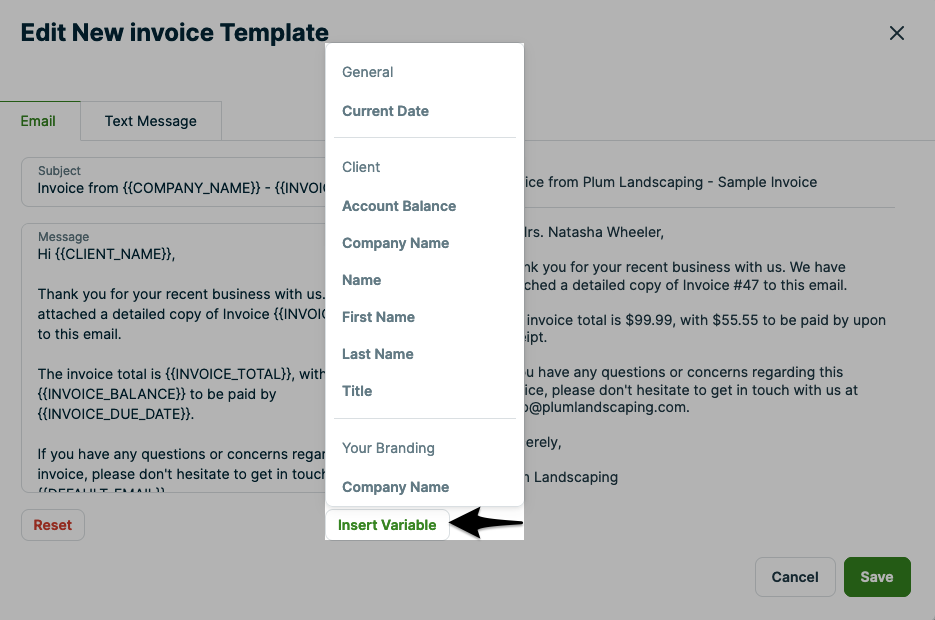
When variables can be added to a message, there will be an option below the message template to Insert Variable. This will insert the variable into your message, then when it’s sent to your client the variable will fill in the blanks with the relevant information.
List of variables
These are the variables that can be added into your communications.
Note: different variables can be used in different messages, not every variable works in every message.
Variables that can be used in Jobber emails and texts
This table scrolls to the right
Variable
Name
What Does it Do?
Where Can You Use it?
{{ADDRESS}}
Address
Populates the address from the quote including
street, city, state, and zip code
✅Quote follow-ups (email & text)
✅Email templates (request, quote, and quote approval only)
{{ACCOUNT_BALANCE}}
Account balance
Client’s account balance.
Note: when using this variable with
invoices the amount shown will be
the balance before this invoice is sent
✅Quote Follow-ups (email & text)
✅Assessment & visit reminders reminders (email & text)
✅Invoice follow-ups (email & text)
✅Job booking confirmation (email & text)
✅Email templates (all)
{{ARRIVAL_WINDOW}}
Arrival window
Shows the arrival window for a job
✅Assessment & visit reminders reminders (email & text)
✅Job booking confirmation (email & text
{{ASSIGNED_TO}}
Assigned employee(s)
Assigned employees on a visit
✅Assessment & visit reminders (email & text)
{{CLIENT_COMPANY_NAME}}
Company name
Client’s company name
✅Quote follow-ups (email & text)
✅Assessment & visit reminders (email & text)
✅Job booking confirmation (email & text)
✅Invoice follow-ups (email & text)
✅Email templates (all)
{{CLIENT_FIRST_NAME}}
First name
Client’s first name
✅Quote follow-ups (email & text)
✅Assessment & visit reminders (email & text)
✅Job booking confirmation (email & text)
✅Invoice follow-ups (email & text)
✅Email templates (all)
{{CLIENT_LAST_NAME}}
Last name
Client’s last name
✅Quote follow-ups (email & text)
✅Assessment & visit reminders (email & text)
✅Job booking confirmation (email & text)
✅Invoice follow-ups (email & text)
✅Email templates (all)
{{CLIENT_NAME}}
Client name
Client’s full name or company name
✅Quote follow-ups (email & text)
✅Assessment & visit reminders(email & text)
✅Invoice follow-ups (email & text)
✅Email templates (all)
{{CLIENT_TITLE}}
Client title
Client’s title (e.g. Mr, Mrs., etc.)
✅Quote follow-ups (email & text)
✅Assessment & visit reminders (email & text)
✅Job booking confirmation (email & text)
✅Invoice follow-ups (email & text)
✅Email templates (all)
{{COMPANY_NAME}}
Your company name
Your company name.
You can specify this
from company settings
✅Quote follow-ups (email & text)
✅Assessment & visit reminders (email & text)
✅Job booking confirmation (email & text)
✅Invoice follow-ups (email & text)
✅Email templates (all)
{{CURRENT_DATE}}
Today (Day email is sent)
Email sent date
✅Quote follow-ups (email & text)
✅Assessment & visit reminders (email & text)
✅ Job booking confirmation (email & text)
✅Invoice follow-ups (email & text)
✅Email templates (all)
{{DAYS_OVERDUE}}
Invoice days overdue
Number of days an invoice
is overdue by
✅Invoice follow-ups (email & text)
{{DEFAULT_EMAIL}}
Reply-to email address as set up in Settings > Emails and Text Messages
For Campaigns:
This is your email address set up in Settings > Company Settings
✅Quote follow-ups (email & text)
✅Assessment & visit reminders (email & text)
✅Job booking confirmation (email & text)
✅Invoice follow-ups (email & text)
✅Email templates (all)
✅ Campaigns (email)
Note: This variable works differently for Campaigns than it does in other communications. For Campaigns, it will provide your company email address as it appears in Settings > Company Settings.
{{DEFAULT_PHONE}}
Your company’s phone number
The phone number listed
in company settings
✅Quote follow-ups (email & text)
✅Assessment & visit reminders (email & text)
✅Job booking confirmation (email & text)
✅Invoice follow-ups (email & text)
✅Email templates (all)
{{DEPOSIT_AMOUNT}}
Quote deposit amount
Required deposit amount
from the quote
✅Quote follow-ups (email & text)
✅Invoice follow-ups (email & text)
✅Email templates (quotes, quote approvals, and invoices only)
{{DISCOUNT_AMOUNT}}
Quote discount amount
Discount offered on
the quote in $
✅Quote follow-ups (email & text)
✅Invoice follow-ups (email & text)
✅Email templates (quotes, quote approvals, and invoices only)
{{INVOICE_BALANCE}}
Invoice balance
Balance from the invoice
✅Invoice follow-ups (email & text)
✅Invoice email template
{{INVOICE_DUE_DATE}}
Invoice due date
Date the invoice is due
✅Invoice follow-ups (email & text)
✅Invoice email template
{{INVOICE_NUMBER}}
Invoice number
Number of the invoice
✅Invoice follow-ups (email & text)
✅Invoice email template
{{INVOICE_SENT_DATE}}
Invoice sent date
Date the invoice was sent
✅Invoice follow-ups (email & text)
✅Invoice email template
{{INVOICE_SUBJECT}}
Invoice subject
Shows the subject line
from the invoice
✅Invoice follow-ups (email & text)
✅Invoice email template
{{INVOICE_TOTAL}}
Invoice total
Total from the invoice
✅Invoice follow-ups (email & text)
✅Invoice email template
{{JOB_FORM_NAME}}
Job form name
Name of the job form
✅Job form email template
{{JOB_TITLE}}
Subject
Job title from a quote or job
✅Quote follow-ups (email & text)
✅Visit reminders (email & text)
✅Job booking confirmation (email & text)
✅Job follow-up email
{{JOB_NUMBER}}
Number
Job identification number
✅Visit reminders (email & text)
✅Invoice follow-ups (email & text)
{{JOB_DATE_AND_TIME}}
Job date and time
Job date and time, for example:
29/09/2022 3:00PM
✅Job booking confirmation (email & text)
{{JOB_DETAILS}}
Job details
Inserts the property address, start date, and arrival window for the job.
For example:
Location: 289 NW 198th St / Shoreline, WA 98177 Date: Mar 20, 2023 Estimated Arrival Time: 9:00PM – 10:00PM
✅Job booking confirmation (email & text)
{{JOB_LOCATION}}
Job location
Job address, for example:
289 NW 198th St / Shoreline, WA 98177
✅Job booking confirmation (email & text)
{{PAYMENT_AMOUNT}}
Payment amount
Payment total
✅Payment and deposit receipt email template
{{PAYMENT_OR_DEPOSIT}}
Payment type
Indicates if the payment was
a deposit or payment
✅Payment and deposit receipt email template
{{QUOTE_TOTAL}}
Quote total
Total amount due on a quote
✅Quote follow-ups (email & text)
✅Email templates (quote and quote approval only)
{{QUOTE_CONSUMER_FINANCING}}
Consumer financing
States that consumer financing is available for this quote:
“Financing is available, with monthly payments as low as $x.xx* per month. Learn more here.”
✅ New quote (email only)
✅ Quote approval (email only)
✅Quote follow-ups (email only)
{{SENT_DAYS_AGO}}
Days ago quote was sent
Number of days ago that the
quote was sent
✅Quote follow-ups (email only)
✅Email templates (quote and quote approval only)
{{VISIT_DATE_AND_TIME}}
Date and time
Displays the visit schedule
✅Quote follow-ups (email & text)
✅Assessment & visit reminders (email & text)
{{VISIT_DETAILS}}
Summary
Displays the date, address,
and time of the visit on separate lines
✅Quote follow-ups (email & text)
✅Assessment & visit reminders (email & text)
{{VISIT_DATE_IN_WORDS}}
Visit date
Displays the date of the visit in words
Note: this variable does not appear
in the preview, but will populate
in the communications
✅Assessment & visit reminders (email & text)
{{VISIT_LOCATION}}
Service address
Displays the visit service address
✅Quote follow-ups (email & text)
✅Assessment & visit reminders (email & text)
{{VISIT_TIME}}
Time
Displays the start and end time of a visit
✅Quote follow-ups (email & text)
✅Assessment & visit reminders (email & text)
{{URL_PLACEHOLDER}}
Client hub link
Inserts a placeholder link to client hub into the text. It will look like:
https://jbbr.io/6Z0XZcoNrhH4kvEr9
✅Quote follow-up (text only)
{{WHEN_VISIT_OCCURS}}
Visit dates and time
Inserts the visit date and start time.
For example, at 3:00PM on Sept 05
✅Assessment & visit reminders (email & text)
{{WORK_DETAILS}}
Work details
Populates the visit date, property address, and arrival window.
For example:
Date: Mar 20, 2023 Where: 289 NW 198th St / Shoreline, WA 98177 Estimated Arrival Time: 9:00PM – 10:00PM
✅Assessment & visit reminders (email & text)
Variable
Name
What Does it Do?
Where Can You Use it?