
In This Article
Overview
Efficiently route the day’s work, assign incoming jobs to the closest team member on the map, and know their whereabouts as they’re on the move.
GPS tracking is available on select plans. Learn more.
The GPS Waypoints Report can be found by going to Insights > Reports > Waypoints Report
GPS waypoints are generated when your team members take certain actions. A pin is dropped on the waypoints map of where a user was when they changed information in the Jobber App.
Actions that trigger a GPS waypoint are:
- Clocking in/out of the general timer
- Starting/stopping a timer on a visit
- Adding notes or attachments to:
- Clients
- Requests
- Quotes
- Jobs
- Invoices
- Marking a visit complete
- Marking an on-site assessment complete
- Marking a task complete
*If a user does not have access to perform these functions, they will not create a GPS waypoint.
In order to start tracking, users are required to turn on location services for Jobber on their mobile device.
Learn how to turn on Location Services for iOS devices.
Learn how to turn on Location Services in Android devices.
Viewing waypoints
You can view all the waypoints on a map by going to Reports > Waypoints Report.
To change the date of the Waypoints report, edit the date from the sidebar on the left side of the page.
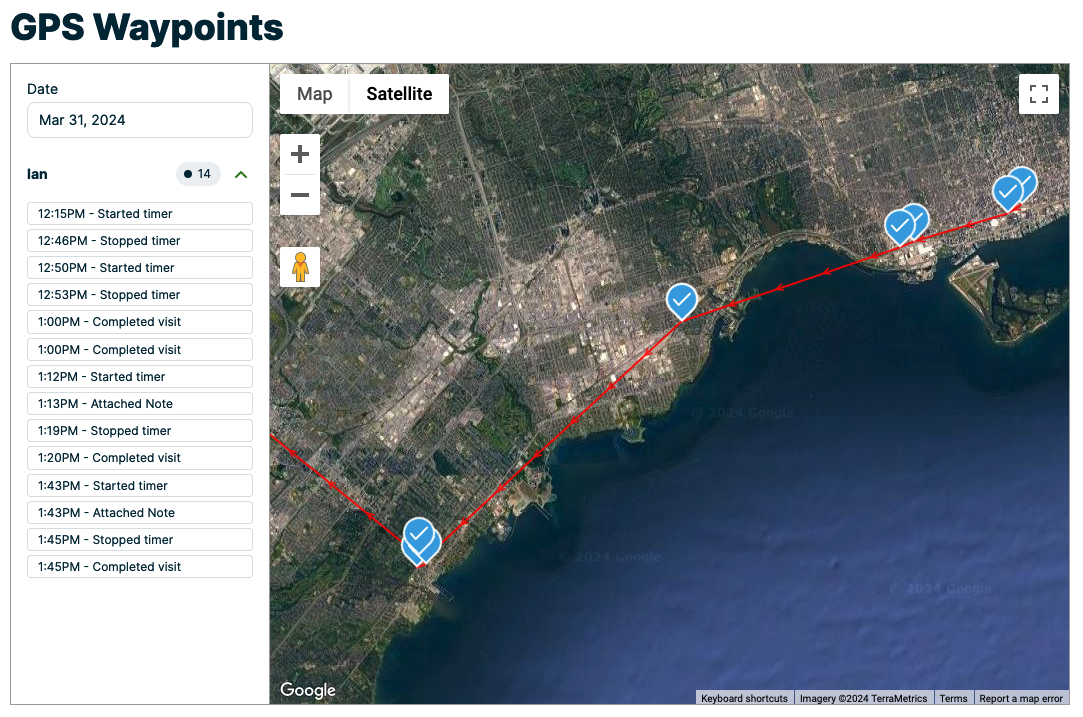
In the sidebar, you will see a list of the logged time entries sorted by user. Each time entry corresponds to a pin on the map and describes how the waypoint was logged. Hovering over a pin on the map or an item from the sidebar will highlight that waypoint.
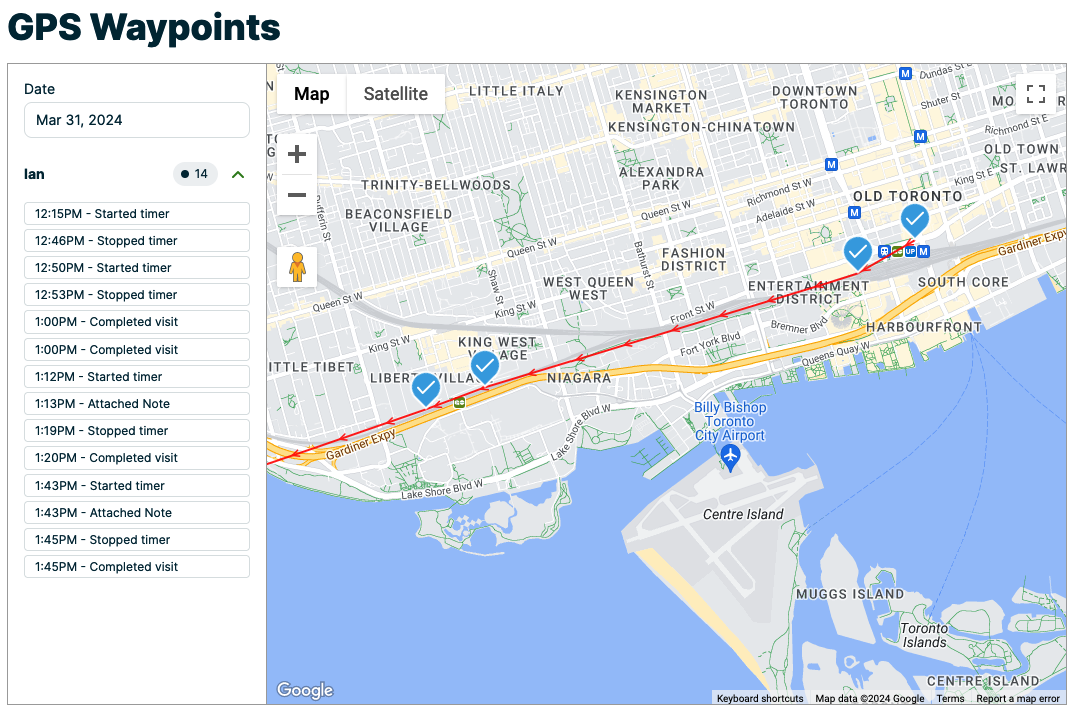
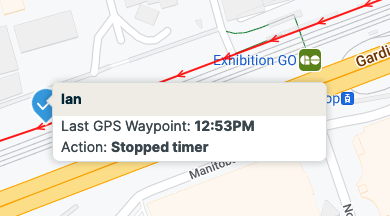
GPS waypoints are also visible from the map view of the calendar. Clicking on a blue pin on the map will show you the details of that waypoint: which user created it, the time, and what action was taken.
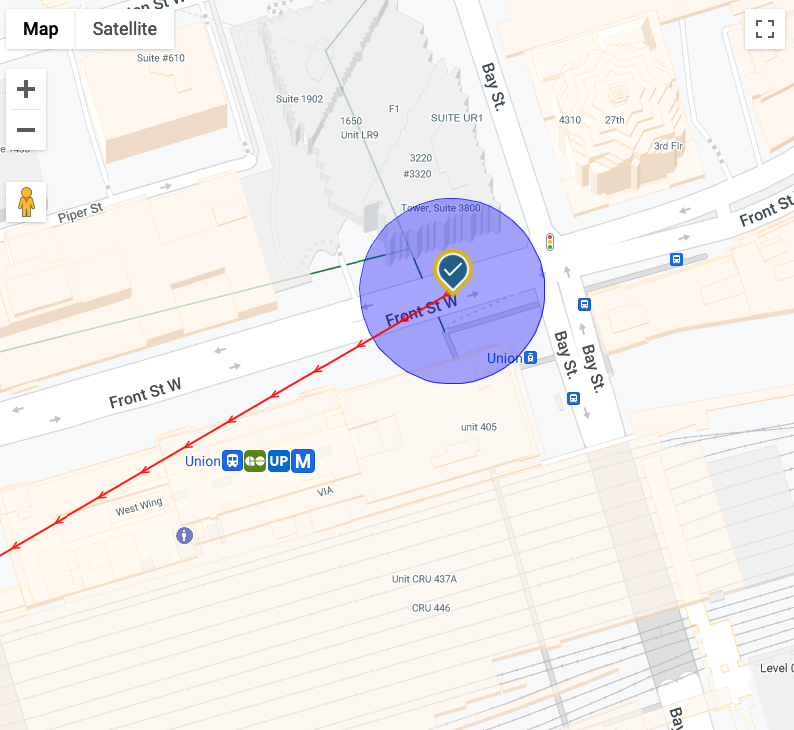
If you hover your cursor over a waypoint and see a purple circle, the circle represents the level of accuracy of the GPS waypoint. It might be that the exact location of your team member falls within this circle rather than exactly where the pin is. This is more related to the signal from GPS (device) not the internet connection. So, smaller the circle, the more accurate the waypoint.
Note: Sometimes GPS waypoints will not track due to inaccuracy of data, and loss of connectivity.