
In This Article
- Overview
- Automatically add a lead source with UTM tags
- Set filters for the lead source report
- Columns for the leads report
- Export the leads report to CSV
Overview
The client lead source report gives you valuable insight into where your clients are coming from, helping you track the effectiveness of your marketing efforts. With key details like lead sources, UTM tracking data, quotes sent, jobs booked, and conversion rates, this report breaks down how leads are turning into revenue. Use it to identify your top-performing channels, measure success, and make informed decisions to grow your business.
To view the client lead source report, navigate to Insights > Reports from the side navigation. From the “client reports” column, select Client lead source.
Automatically add a lead source with UTM tags
If you are using paid marketing to get leads, your UTM (Urchin Tracking Module) tags can be used to track where the lead came from and automatically fill out the lead source field on clients. UTM tags are small pieces of text added to the end of a URL that help track marketing performance. UTM tags can be added directly to your request and online booking URLs to track how these clients found you.
A UTM tag is made up of a base URL and one or more UTM parameters. The parameters Jobber uses to automatically add your lead source are:
- UTM source (for example: utm_source=google)
- UTM medium (for example: utm_medium=email)
- UTM campaign (for example: utm_campaign=summer_sale)
- UTM term (for example: utm_term=spring+cleanup)
- UTM content (for example: utm_content=blue_banner)
With the addition of a UTM tag, your request link may look like:
Leads that come into Jobber from submitting a request form with the above URL would be labelled with “Facebook” as the lead source, automatically.
With the addition of a UTM tag, your online booking link may look like:
Leads that come into Jobber from online booking with the above URL would be labelled with “website” as the lead source, automatically.
Learn how to
add UTM tracking to your request link
Learn how to
add UTM tracking to your online booking link
Set filters for the lead source report
Clients in the report can be filtered by:
Filter the client lead source report by status
Select plans include lead management, which includes “lead labels” for clients to indicate if this client is a lead. Newly added clients are considered leads until one of the following actions are taken:
- A job is created for them
- An invoice is sent to them
- Their quote is approved
Once a client has had one of these actions taken, the lead label will be removed and the client will be considered an “active” client, rather than a lead.
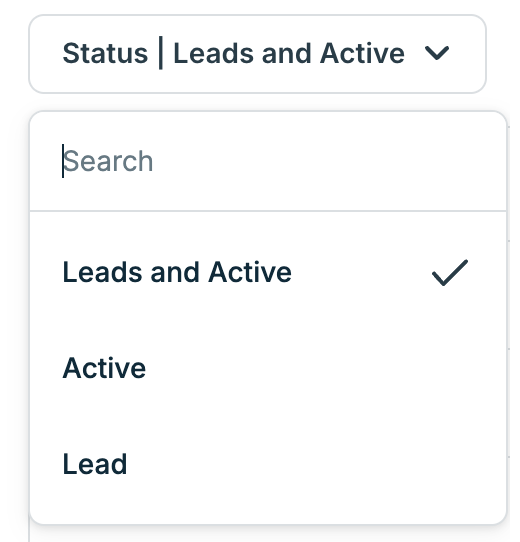
The status filter option has options to filter your report by the client status, including:
- Leads and Active
- Active
- Leads
Filter the client lead source report by with or without lead source
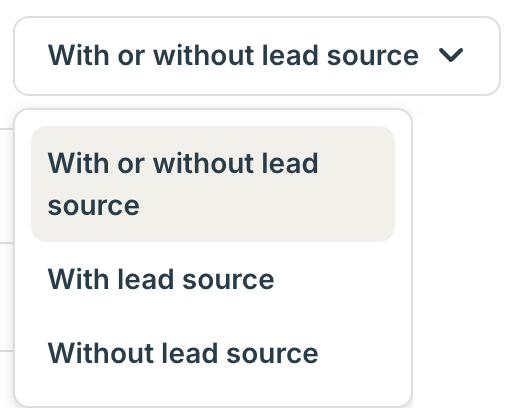
There is a filter option to filter by clients that have a lead source listed on their client profile. The options for this filter are:
- With or without lead source
- With lead source
- Without lead source
Filter the client lead source report by created date
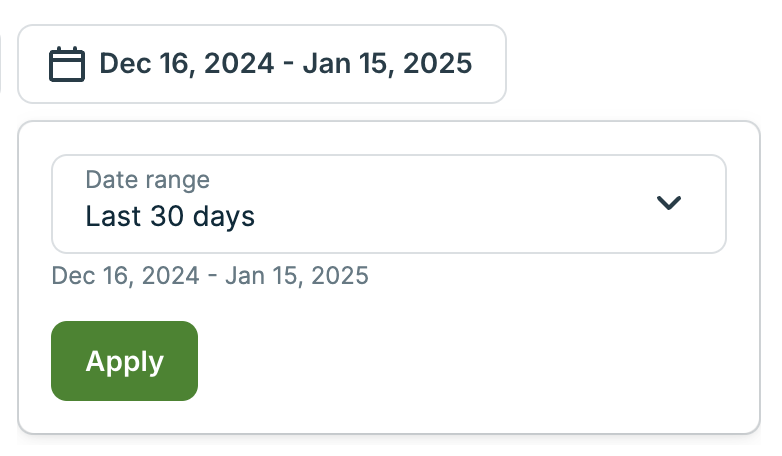
The created date is when the lead or client was added into your Jobber account, either manually or through a request or online booking.
To filter your report by created date, select the Date filter dropdown, then select a date range. Your options are:
- Last week
- Last 30 days
- Last month
- This year
- Last 12 months
- Custom range
Columns for the leads report
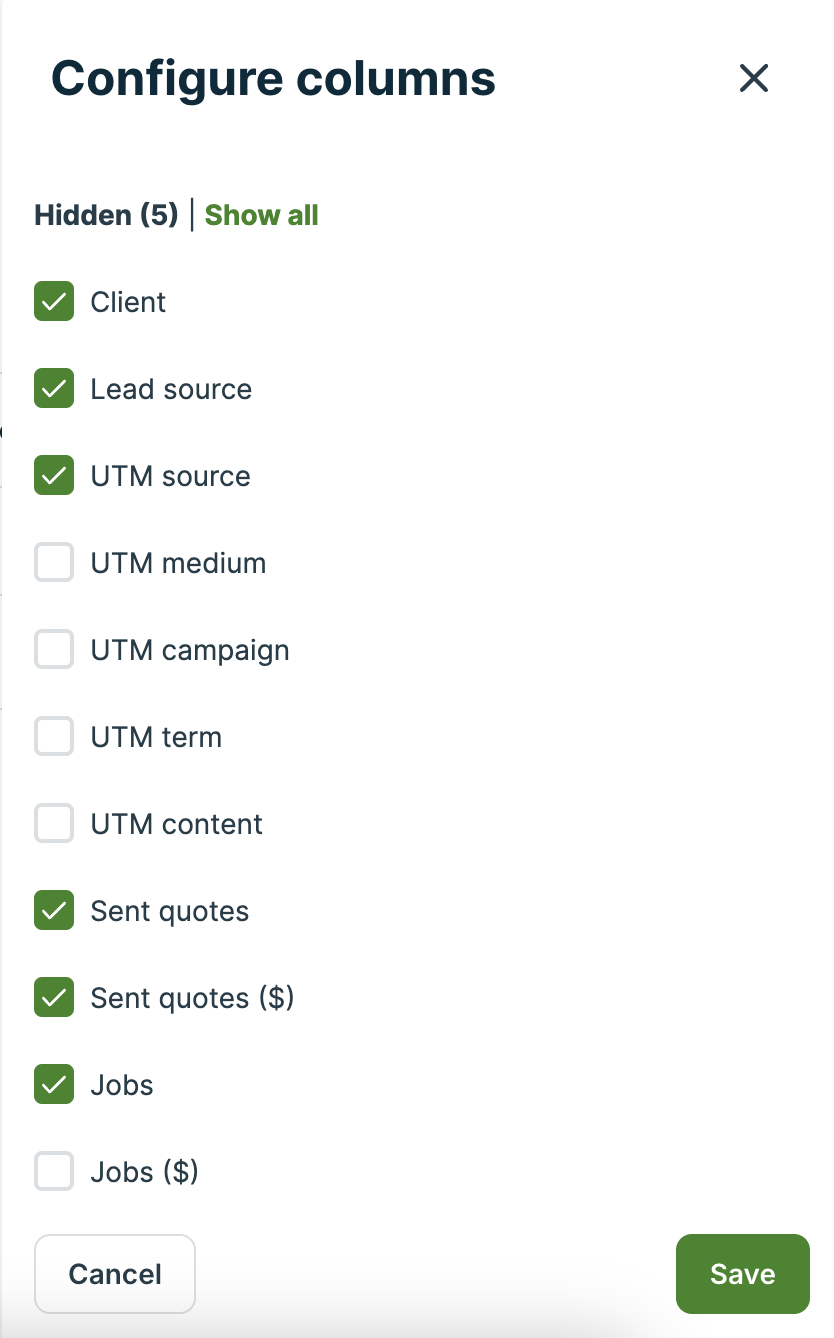
Columns in the client lead source report can be customized by selecting the Columns button, then selecting the columns for the report from the columns list.
The options for columns that can be added to the leads report are:
- Client
- Lead source
- UTM source
- UTM medium
- UTM campaign
- UTM content
- Sent quotes
- Sent quotes ($)
- Jobs
- Jobs ($)
- Sent invoices
- Sent invoices ($)
- Conversion rate
Export the leads report to CSV
To receive a spreadsheet version of the leads report, click Export to CSV then select if you’d like to export the report with all columns or just the selected ones. The report will then be sent to the same email address that you use when you log into Jobber.
Exporting to CSV is a good option if you need to work with the data in the report, print the report, or share it with someone who is not a user in your Jobber account.