In This Article
- Overview
- Delivery statuses and what they mean
- Client communications report actions
- Viewing attachments on sent emails
- Viewing the last communication from a client profile
- Two-way messaging
Overview
With over 20 built-in reports, you’ll know exactly how your business is doing.
The client communications report shows all email and text messages sent from your Jobber account to your clients. This report is where you can make sure the communication was delivered, preview the message, and view if it was opened.
To view the client communications report, sign in to Jobber.com then select Insights > Reports from the side navigation. Under Client Reports, select Client Communications Report.
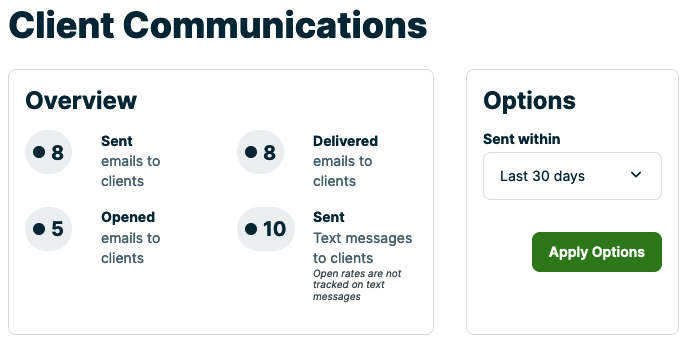
At the top of the report, you will see an overview of the email and text message sent, how many emails were delivered, and how many emails were opened. There is also an options section where you can change the date range to filter the report for a certain range.
Delivery statuses and what they mean
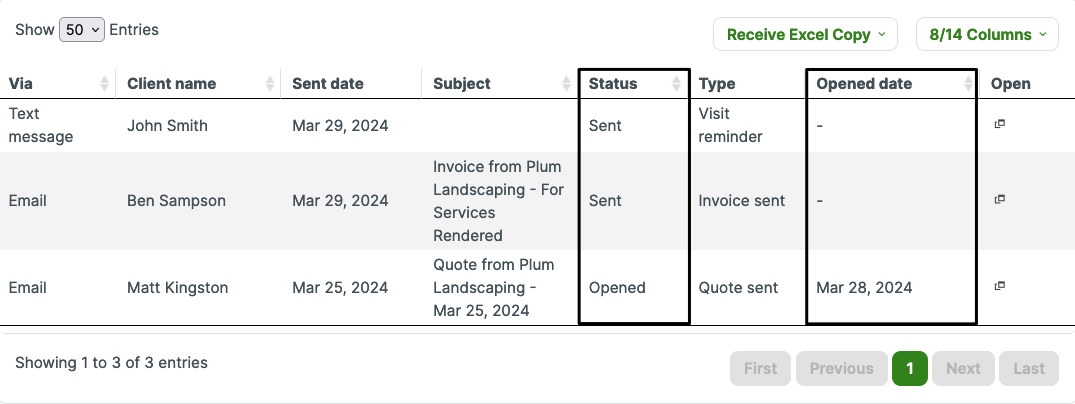
The client communications report includes columns for Status and Opened date which indicates if an email or text has been sent (or if there were any issues when sending an email) as well as when your client has viewed the communication.
- Status: This is the current status of the communication that lets you know where the message is between the time you click send and the client reads it. Statuses include:
- Sent: The message has been sent, however, the client hasn’t opened the email yet.
- Not sent: The message is pending being sent and is in queue. This status is temporary, when you check back in the future, this status should update to reflect that
- Failed delivery or bounced: The message failed to make it to your client’s inbox.
- Opened: The client has received and opened the email.
- Opened date: This is the date the client has opened the email. This column updates every time the client opens the email so it will show their most recent opened date if they have opened the email multiple times.
- Note: for text messages, we are unable to tell if they are opened, so text messages will only display ‘sent’ in the status column and won’t show an opened date.
Client communications report actions
Export Report- Click on Receive Excel Copy, and you will be emailed a copy of the report to the email you are logged in with to Jobber.
Add/Remove Columns - Click on Columns, on the right, to add or remove certain columns from the report.
Sort the Report - To sort the report, click on the header of any column that shows the up and down arrows. For example, if you click on ‘Client name’, the report will sort alphabetically by the client’s name.
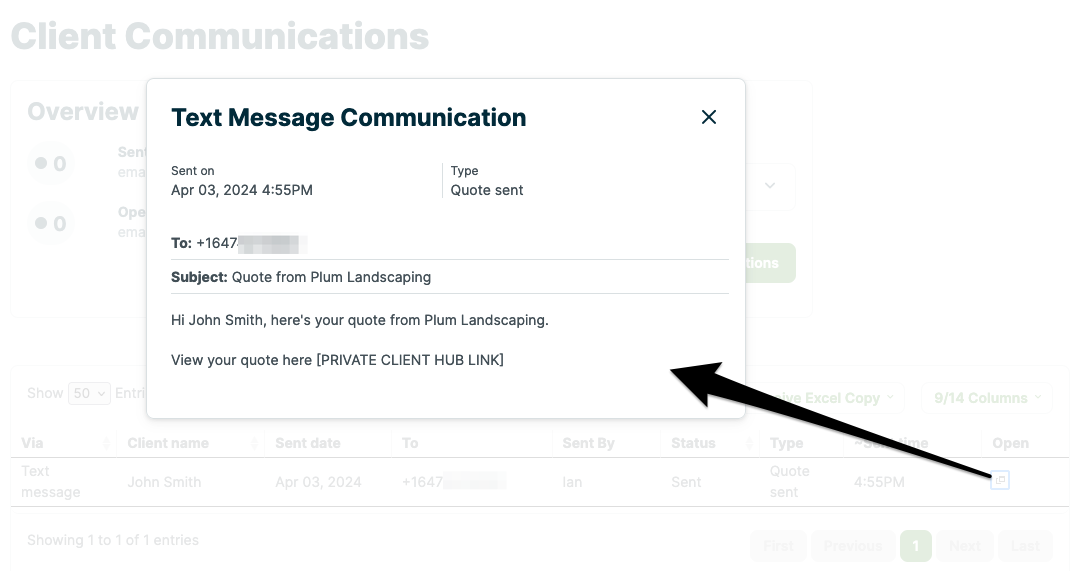
View Email - To view an email that was sent to a client, click the ‘Open’ button in the column on the far right. A window will then come up, where you can view the email body. You’ll be able to see which email addresses the email was sent to, what was entered in the body of the email, and any attachments that were sent out with the email.
Viewing attachments on sent emails
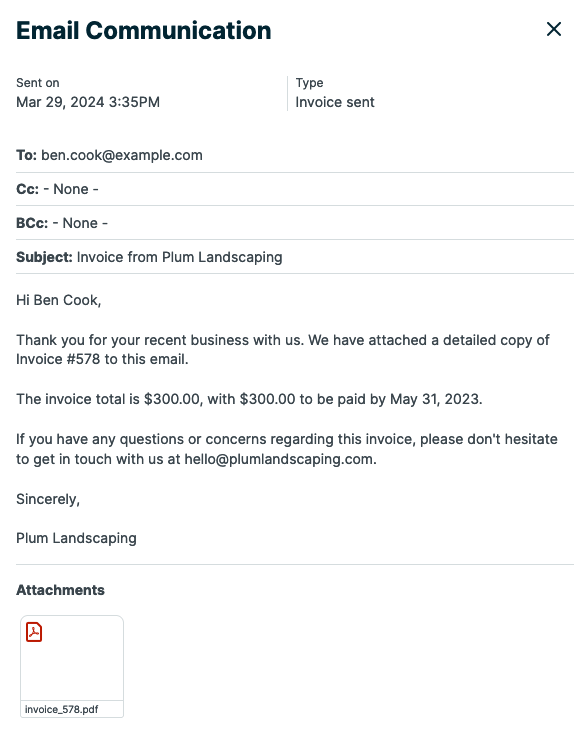
If an attachment was sent along with an email (this includes quote and invoice PDFs as well as other uploaded files), it will be viewable in the client communications report. To view the attachment, click the attachment thumbnail in the email preview.
Quote and invoice PDF attachments reflect how an item looked at the time an email was sent. For example, if you sent your client a quote and they later requested changes on that quote, the version of the quote PDF that appears in the email preview will be the original version… even though it’s possible you might have made changes to the quote in Jobber after speaking with that client! The PDF attachments reflect how an item looked at the time it was sent.
Note: PDFs are not attached by default to quotes and invoices.
Viewing the last communication from a client profile
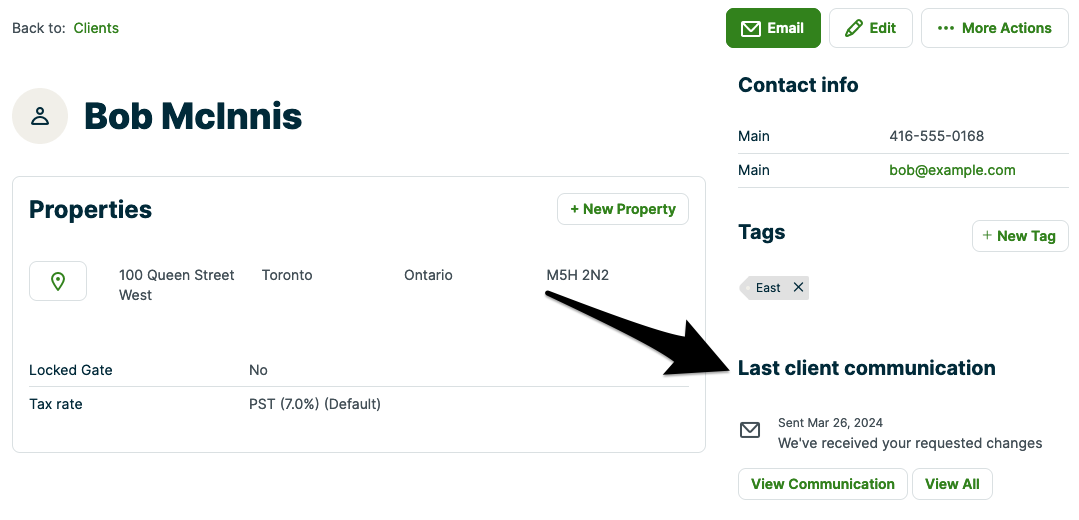
The client communications report also populates on the client profile with the communications relevant for that particular client. In this section, if you click the “view communication” button it will preview the email or text message that was sent. The “view all” button you will be taken to the Client Communications Report.
Two-way messaging
Two-way messaging is available on select plans in the United States, Canada, and Great Britain.
For Jobber users who have two-way messaging, messages sent to your dedicated phone number will appear in the client communications report.