
In This Article
- How do I set up my QuickBooks Online Sync in Jobber?
- What items sync from Jobber to QuickBooks and how do they sync?
- Can Jobber sync with QuickBooks Desktop?
- Can one Jobber account be connected to multiple QuickBooks Online accounts?
- How do you find your Company ID number in QuickBooks Online?
- How do Customers and Sub Customers sync?
- Can Jobber Sync Invoices and Payments onto Sub-Customers in QuickBooks?
Note
This article covers the legacy integration between Jobber and QuickBooks.
If you are integrating Jobber and QuickBooks for the first time, you will be using the new Jobber and QuickBooks integration. Click the buttons below to learn more.
NEW QuickBooks Integration:
Connect Jobber and QuickBooks Online
NEW QuickBooks Integration:
How Items Sync
If your Jobber account is already connected to the legacy QuickBooks integration, you can seamlessly move to the NEW QuickBooks integration. Here’s what you can expect from the migration: Anything created or updated in Jobber since your last manual sync will be synced to QuickBooks After that, the sync is one-way from Jobber to QuickBooks in real-time Once you move to the new integration, you are unable to return to the old integration
Learn how to migrate to
the NEW QuickBooks integration
How do I set up my QuickBooks Online Sync in Jobber?
The sync with QuickBooks Online is available on select plans. For step-by step-instuctions on setting up the QuickBooks Online integration, check out our article on How to Set Up QuickBooks Online Sync.
What items sync from Jobber to QuickBooks and how do they sync?
Learn how information syncs between Jobber and QuickBooks
Can Jobber sync with QuickBooks Desktop?
Jobber can only sync with QuickBooks Online. No information can be passed between Jobber and QuickBooks Desktop, however it is possible to manually import your client list from QuickBooks Desktop. There is no active sync with QuickBooks Desktop.
Can one Jobber account be connected to multiple QuickBooks Online accounts?
No. Your Jobber account can only be connected to one QuickBooks account at a time.
How do you find your Company ID number in QuickBooks Online?
To find your Company ID, log into your QuickBooks Online account, click the settings gear at the top, and click Your Account. Your Company ID is at the top of this page.
How do I find the Company ID that Jobber is syncing to?
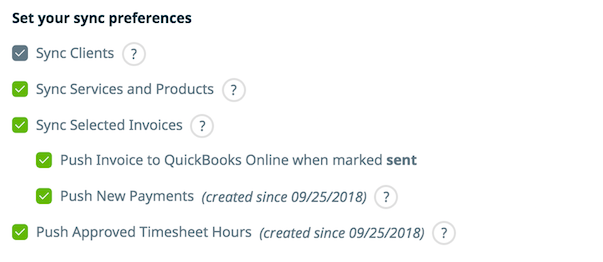
In Jobber, click on Sync & Settings in the QuickBooks icon drop down in the top right. Click on Show Advanced Details on the right of the Integration Details section:
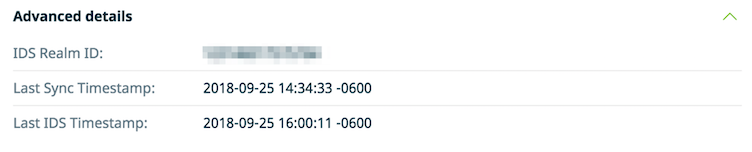
You’ll find your IDS realm id (Company ID) at the top of the Advanced Details section:
How do Customers and Sub Customers sync?
In QuickBooks there is a hierarchy of clients. You can sync certain information to Jobber:
Customers
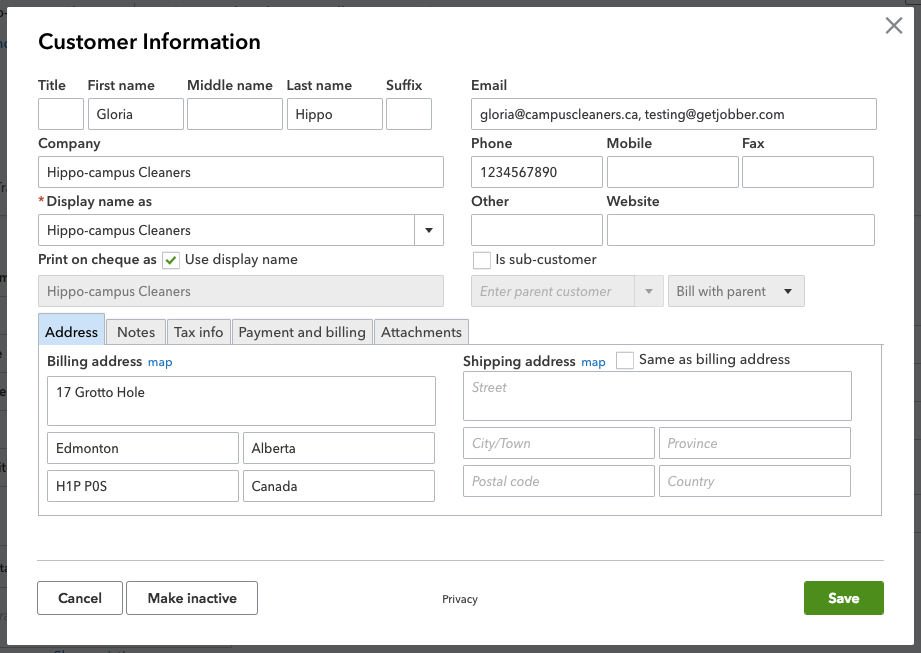
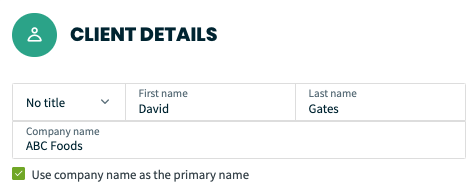
- Title, First Name, Last Name, and Company name all go over to Jobber in their respective fields, but the Display Name field will overwrite data in the other fields.
- If the display name is different than the First name or Last name fields, then Jobber will bring it over as a Company Name.
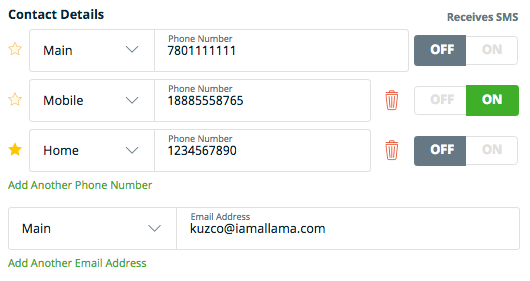
- Email, Phone, and Mobile fields go over to Jobber in their respective fields:
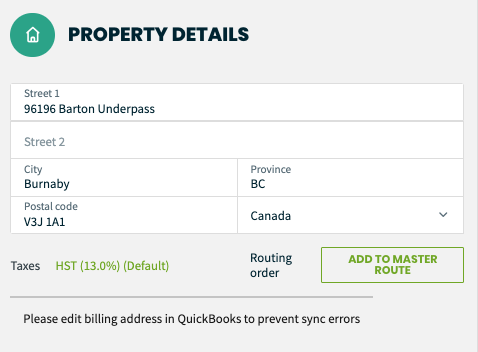
- Once a client is in sync, the Billing Address can only be updated in QuickBooks:
Sub-customers
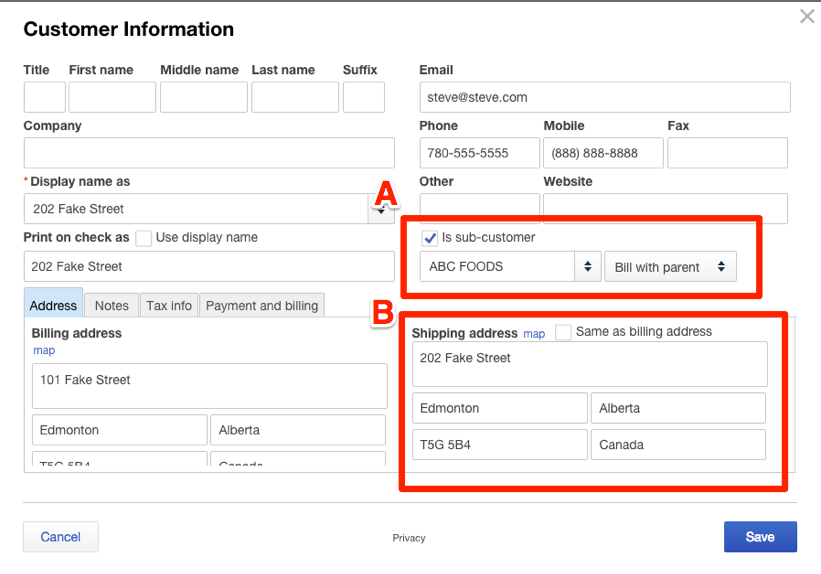
In Jobber, we can sync over sub-customers from QuickBooks, given that two fields are properly filled out in QuickBooks on the sub-customer:
- The checkbox beside Is sub-customer must be marked, and the Parent Client must be selected from the drop down below.
- You can sync 1 level below a Parent customer, so a sub-customer cannot have it’s own sub-customer.
- Shipping address information must be filled in the sub-customer’s profile in QuickBooks for it to sync across as a property in Jobber.
- This address needs to be different from the Billing address or Jobber will not sync this as a different property
Can Jobber Sync Invoices and Payments onto Sub-Customers in QuickBooks?
No, Jobber can only sync invoices and payments to the main/parent client in QuickBooks.
How to Apply Unapplied payments in QuickBooks
If a payment has been collected in Jobber and not applied to an Invoice, it will Sync to QuickBooks as an Unapplied Payment. Unapplied payments occur when a Deposit or Payment has been manually inputted through the Billing History box on a Client page.
Learn more about the Billing History Box
To apply this to an Invoice in QuickBooks, log into your account and click Receive Payment and select the Invoice from the drop down selection list
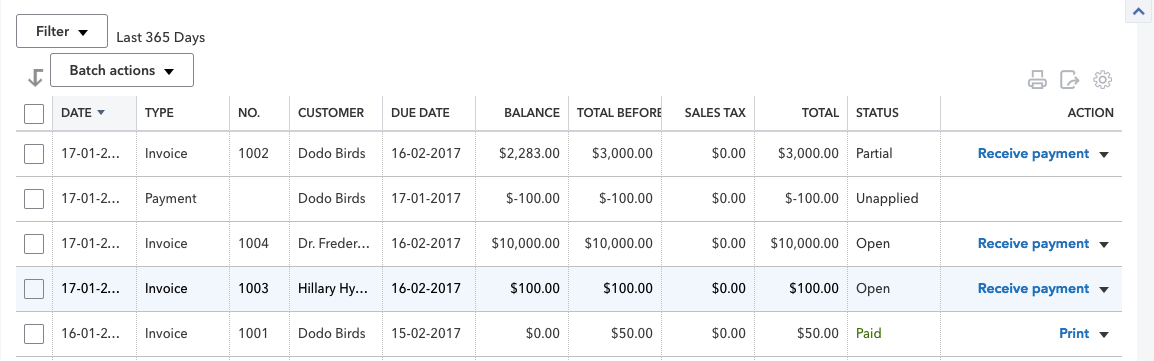
This will bring you to a page where you can choose the Invoice you would like to apply this payment to. Select the Invoice, and click on Save and New to apply this payment.
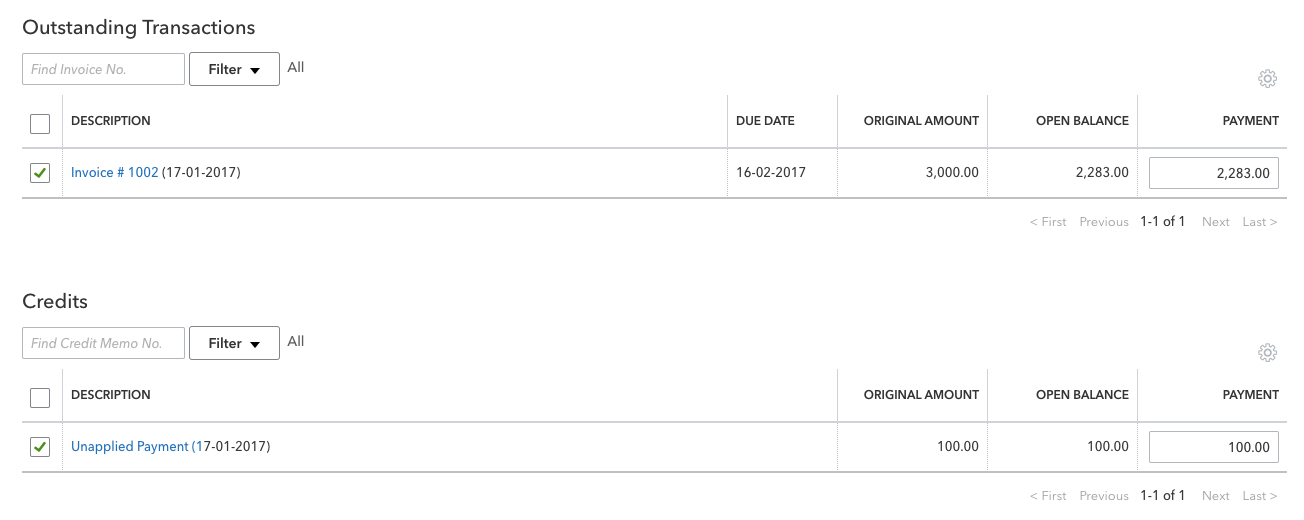
Once this is done, you will have successfully applied the payment to the Invoice in QuickBooks. Your Invoice will show up as Paid.
